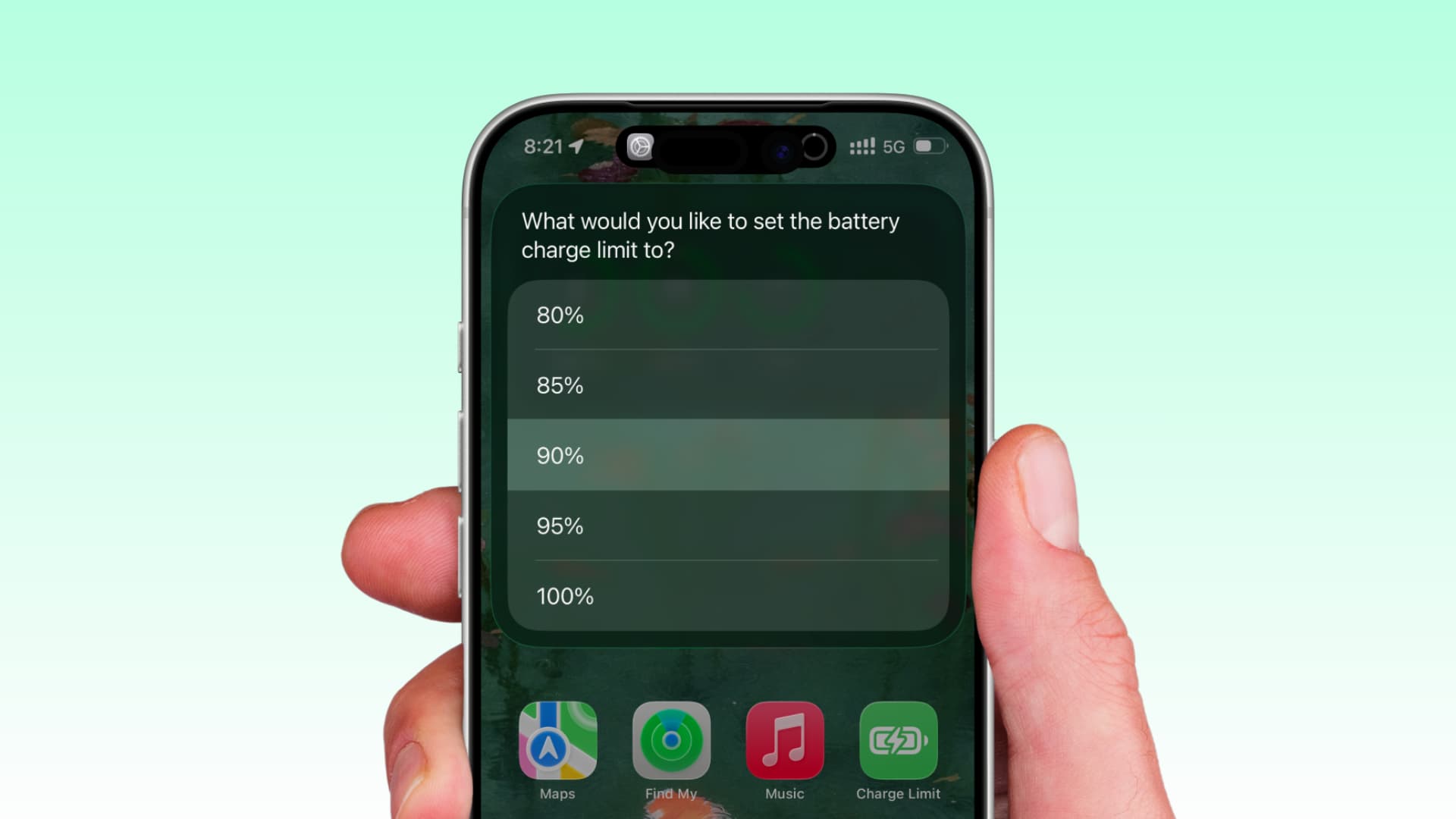
Learn how to quickly change the maximum battery charge limit using a simple iPhone shortcut from your home screen.
Setting your iPhone's charge limit to a value lower than 80% or 100% can help extend its lifespan by preventing the battery from staying at full charge for too long.
While it’s easy to set this from Settings > Battery > Charging, it takes about 4 taps, and you might not be able to do this frequently (in fact, you don’t need to).
However, to simplify things, iOS 26.4 allows you to create shortcuts that can change the battery limit. If you want, you can also add it to your Home Screen for one-tap activation. Of course, you can also ask Siri or use one of the 19 ways to quickly run this shortcut.
Battery Charge Limit Shortcut on iPhone
1) Update your iPhone to iOS 26.4 or later.
2) Open the Shortcuts app, tap the plus button to create a new shortcut, search for Set Battery Charge Limit, and add it to your creation.
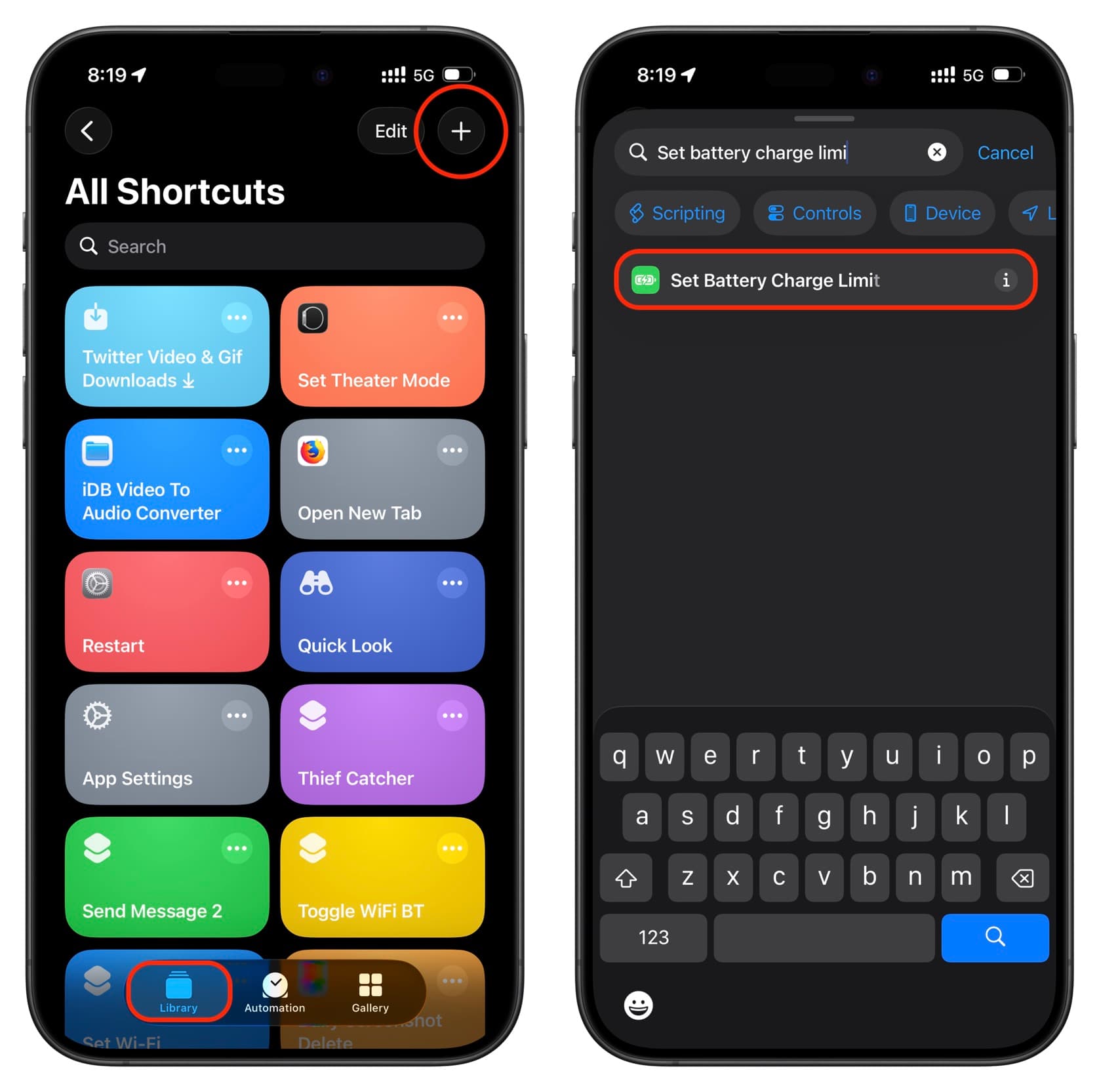
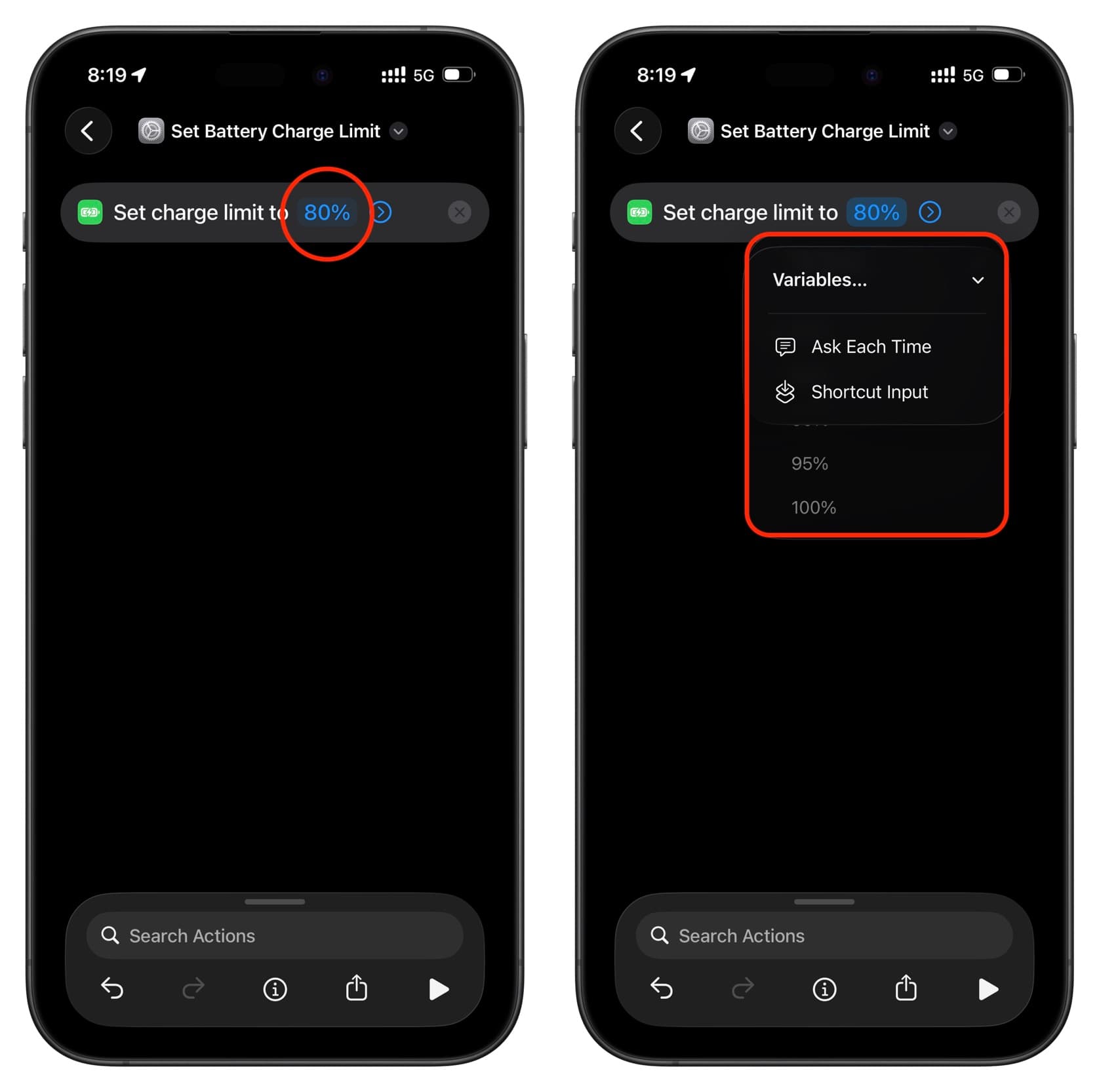
3) The default value is 80%. Tap to change it to 85%, 90%, 95%, or 100%. You can also tap the Variables option and then select Ask Every Time to choose the percentage level each time you run this shortcut.
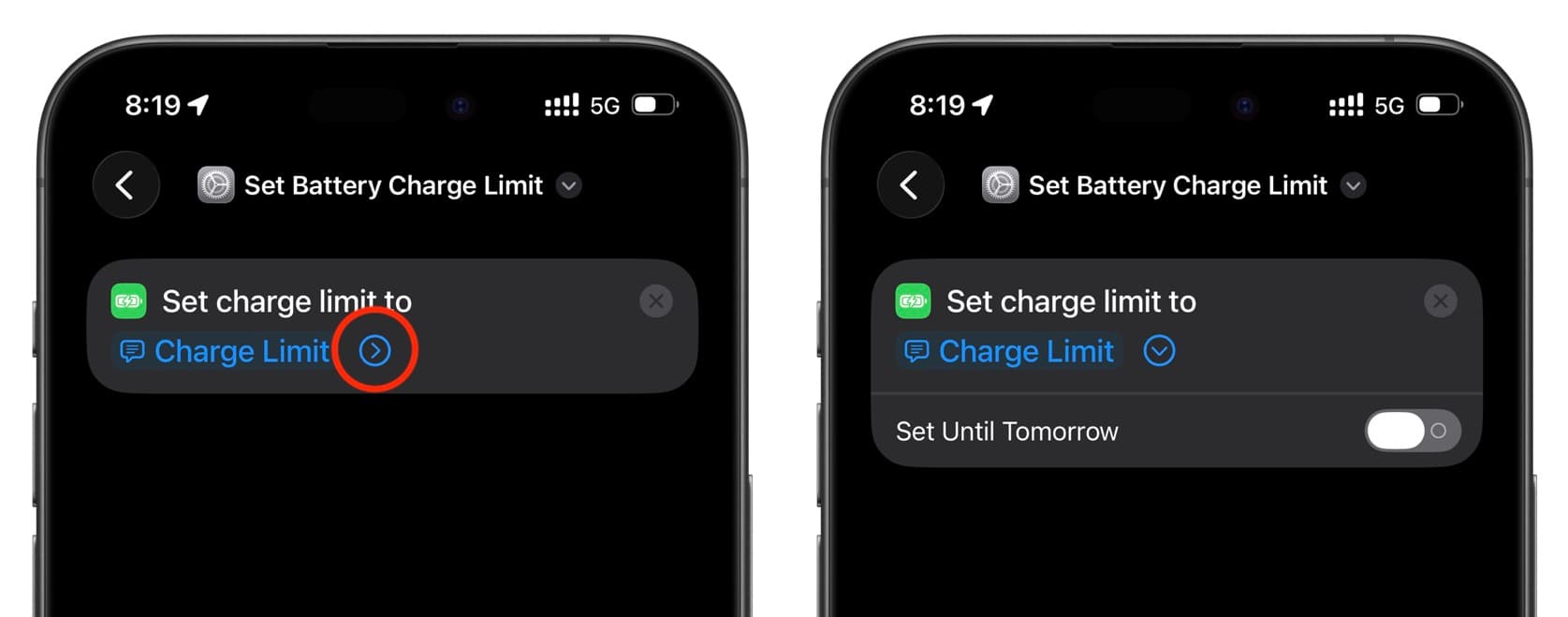
4) Then, tap the arrow icon and choose to set this new battery charge limit only until tomorrow. In Apple’s words, "When activated, the battery charge limit will reset to its previous value the next day." If you keep it off, the new battery charge limit will be set permanently until you change it.
5) After the shortcut is created, tap on the name at the top and select Add to Home Screen.
6) Now, give it a simpler name, choose an icon and color, and tap the Add button.
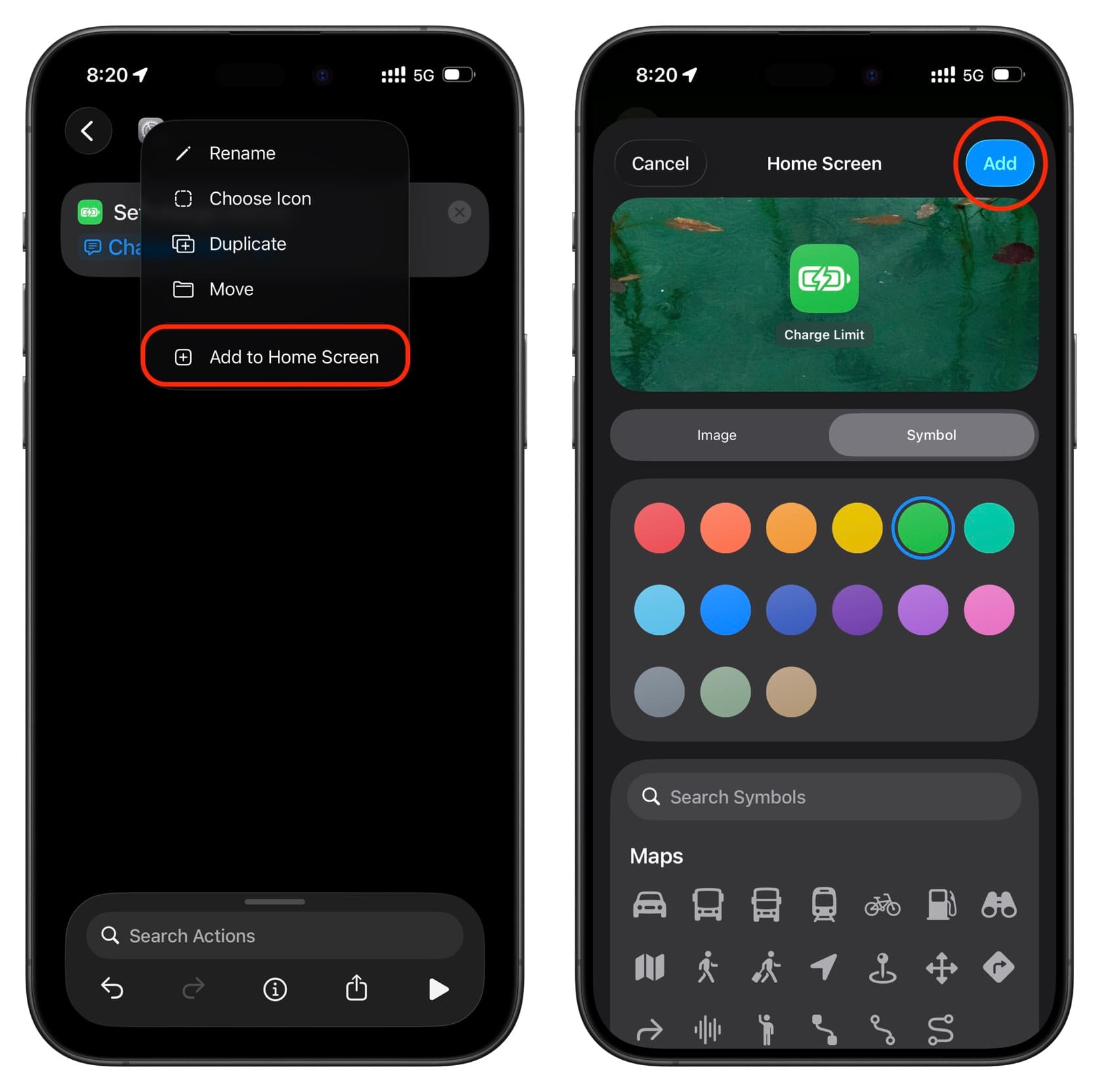
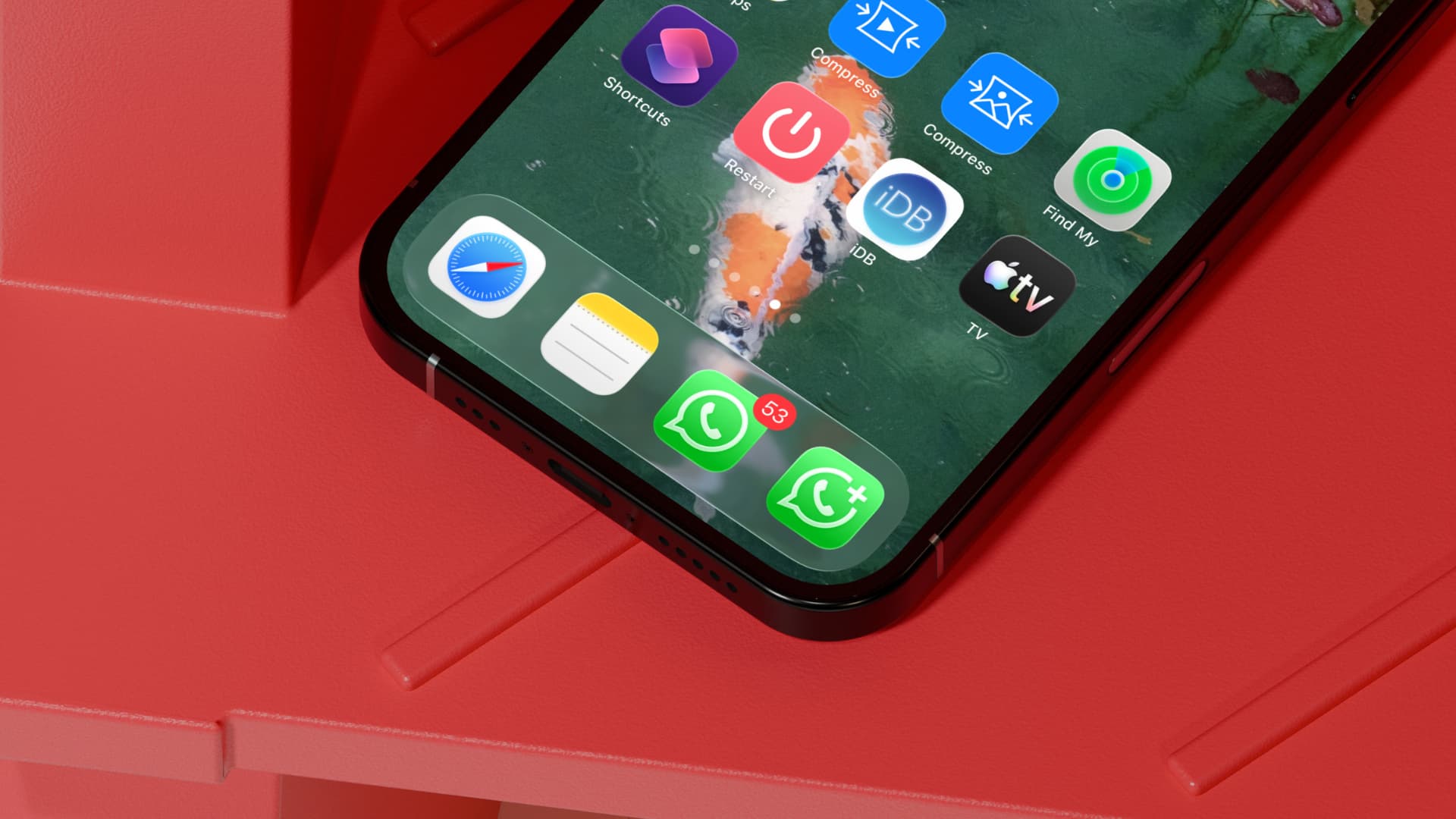
You now have a shortcut on your iPhone's Home Screen to change the charge limit. Tap it to set the maximum battery charge limit.


























Comments
(7 Comments)