
In this guide, we discuss several possible ways to recover your photos and videos from an iPhone or iPad with a broken or non-working screen.
The methods here require certain conditions, which we have listed under each option. The most important thing is that the internal components are working (even if the screen is broken).
Option 1: If You Use iCloud Photos
If you have set up iCloud Photos on your iPhone, it is highly likely that most of your photos and videos have been saved to Apple’s secure servers. Go to icloud.com/photos and log in with your Apple ID and password, or open the Photos app on your iPad, Mac, another iPhone, or Windows PC; you will see the photos from your broken iPhone there.
If there are recently lost photos and videos, follow these steps:
- Do not turn off your broken iPhone.
- Bring it close to a known Wi-Fi network at home or in the office.
- Now, if the back and charging port are not broken, plug your broken iPhone into both wired and wireless charging.
Now wait; your broken iPhone will likely connect to the known Wi-Fi network and upload the last photos to iCloud. If you remember that Low Power Mode is on, you can say Hey Siri, turn off Low Power Mode (it should work even if the screen is broken).
Option 2: Use iPhone Mirroring
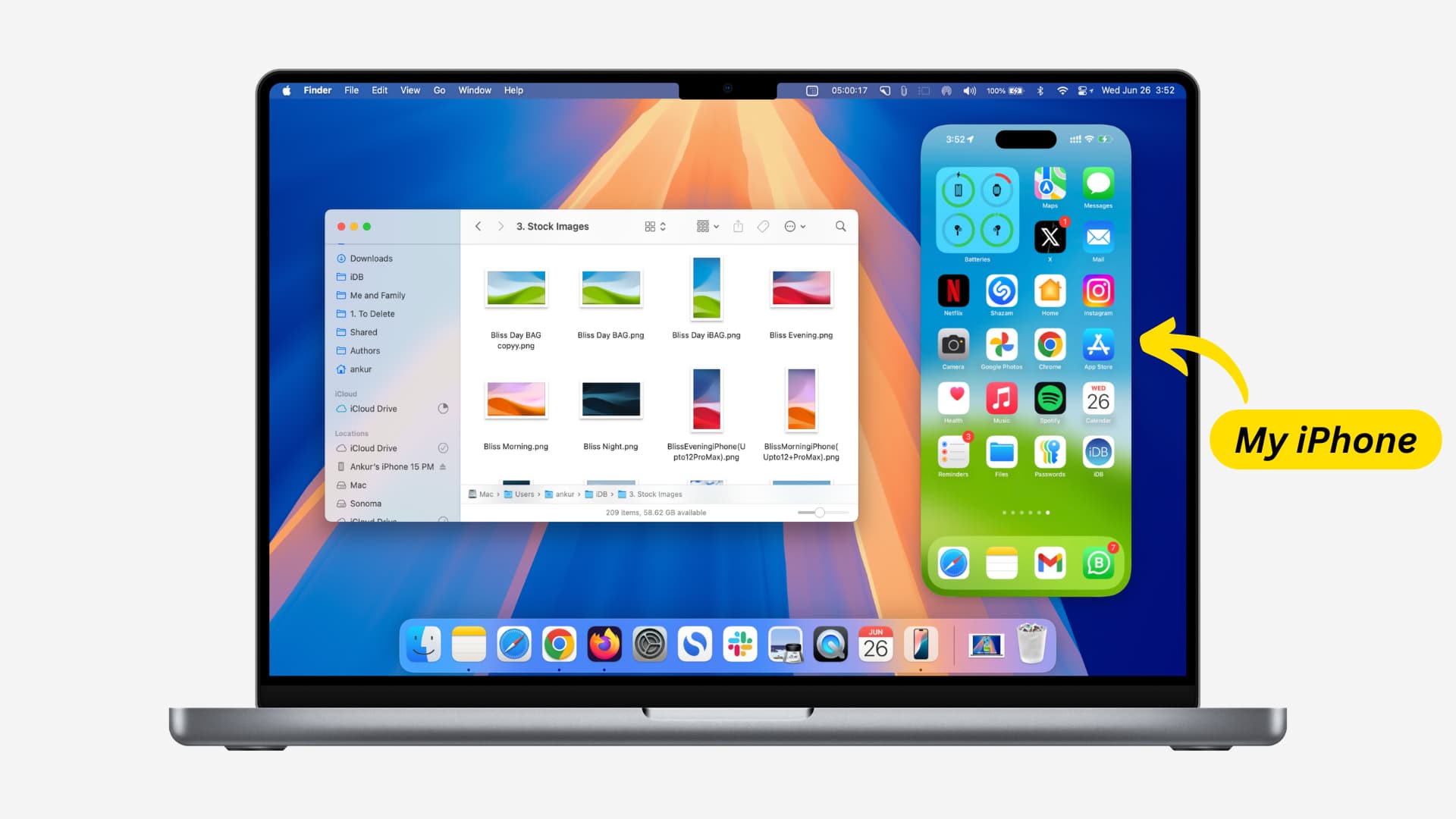
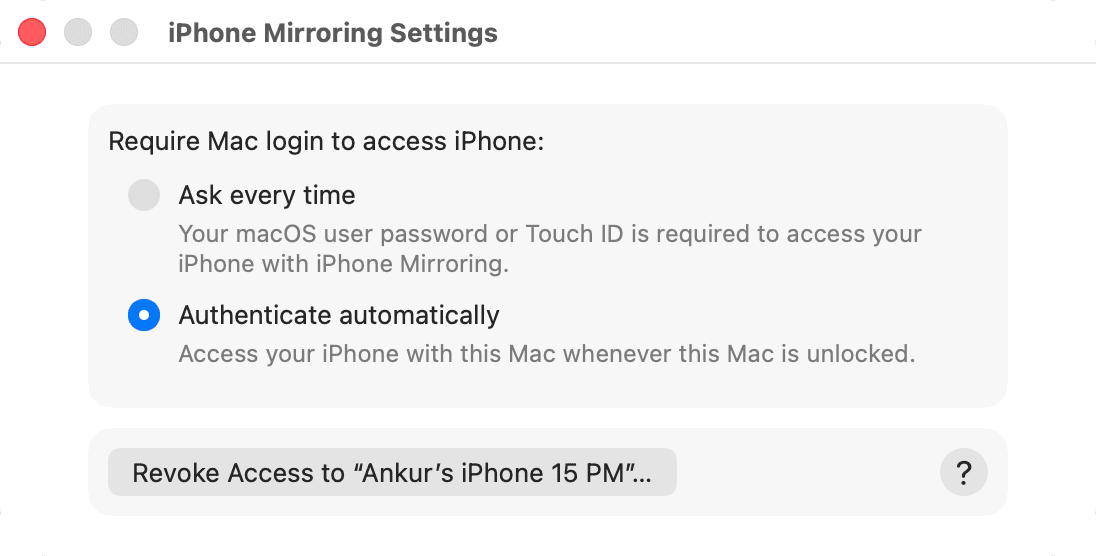
This recovery method will work if you have a Mac and have previously used iPhone Mirroring. Additionally, you should have set iPhone Mirroring to Automatically Authenticate, not “Ask Every Time.” Even if these two conditions are met, you will need to pray that your Mac does not ask you to enter the iPhone password on the broken screen to authenticate this session.
To try this method, bring your iPhone next to your Mac and open the iPhone Mirroring app. If it connects and authenticates automatically, you are in luck.
Open the Photos app, select your important photos and videos, click the share button, and save them to iCloud Drive, Google Drive, Dropbox, etc. You can also send the selected photos to the Mac you used for iPhone Mirroring or another Apple device via AirDrop.
Option 3: Try Backing Up to a Mac or PC
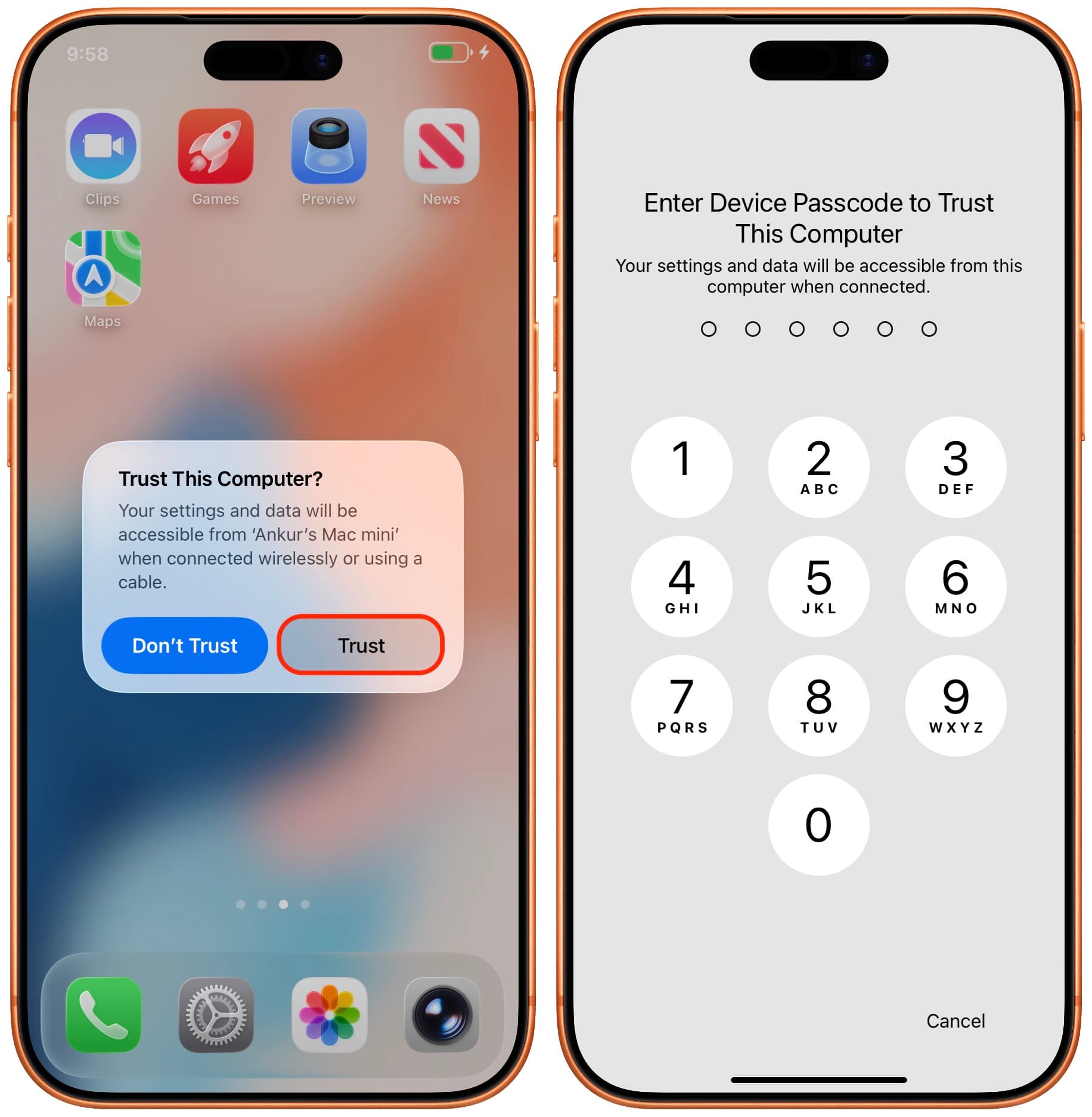
When you first connect to a Mac or PC with a USB cable, you will need to enter the iOS device password on the screen.
Secondly, when you try to back up your iPhone or iPad using macOS Finder or Windows Apple Devices app, you may be prompted to enter the password on your iOS device. This is especially true if it has been a long time since your last backup or if your device is running the latest iOS 26 version.
Still, it is worth trying this method; you may hope for a new backup without a password prompt on the broken iPhone screen.
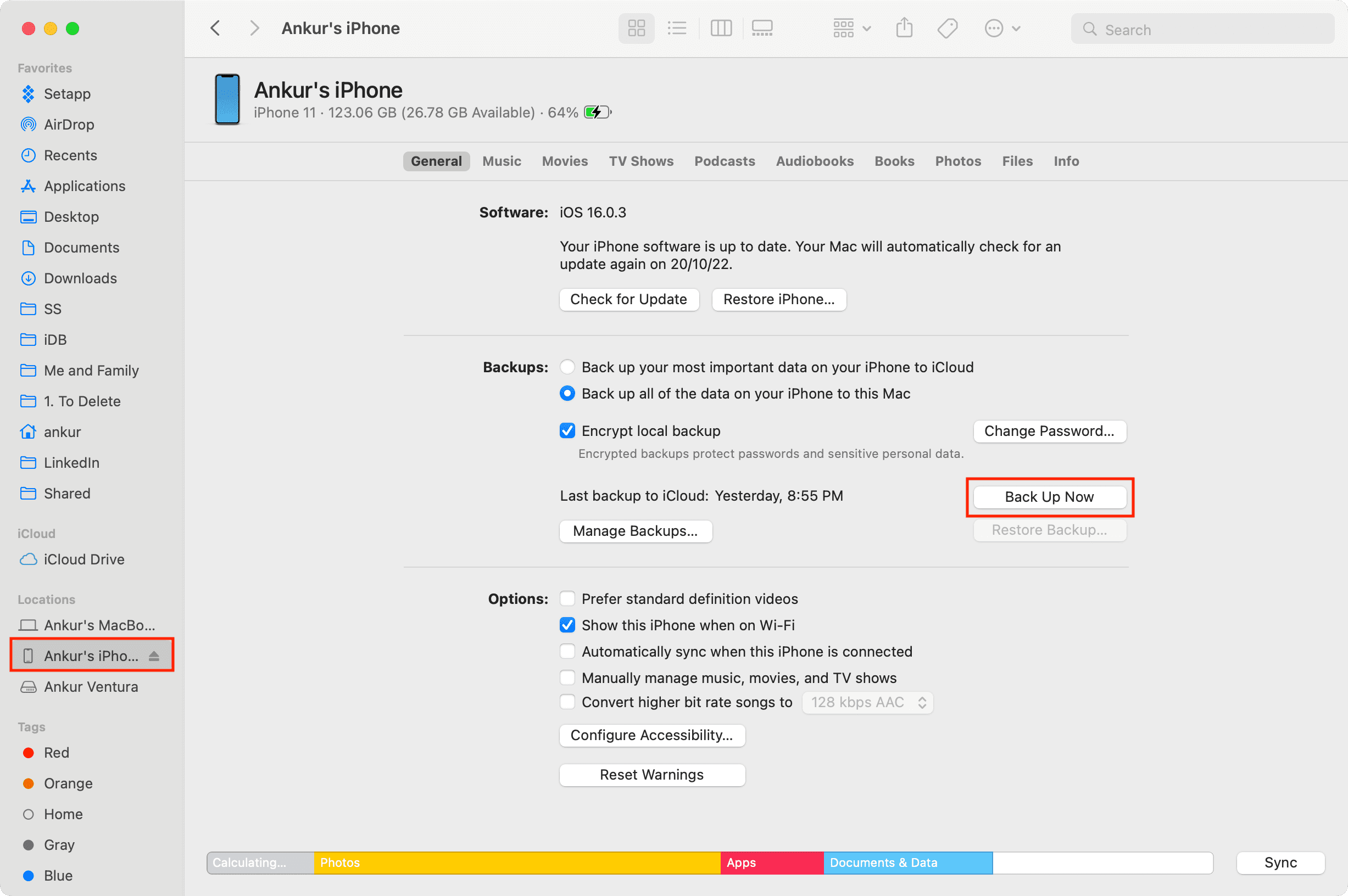
- Connect your broken-screen iPhone or iPad to a Mac or Windows PC that you have used and trust before with a USB cable.
- Open Finder on Mac or Apple Devices app on Windows PC and select the iOS device in the left sidebar.
- Click the “Back Up Now” button and wait for the process to complete.
- Once the backup is complete, you can restore the backup file to another iOS device or back to the same broken phone after the screen is repaired.
Note: If you are using iCloud Photos, your device backup will not include photos and videos.
Option 4: Connect to a Monitor
If your broken iPhone or iPad screen is partially working, you can try this.
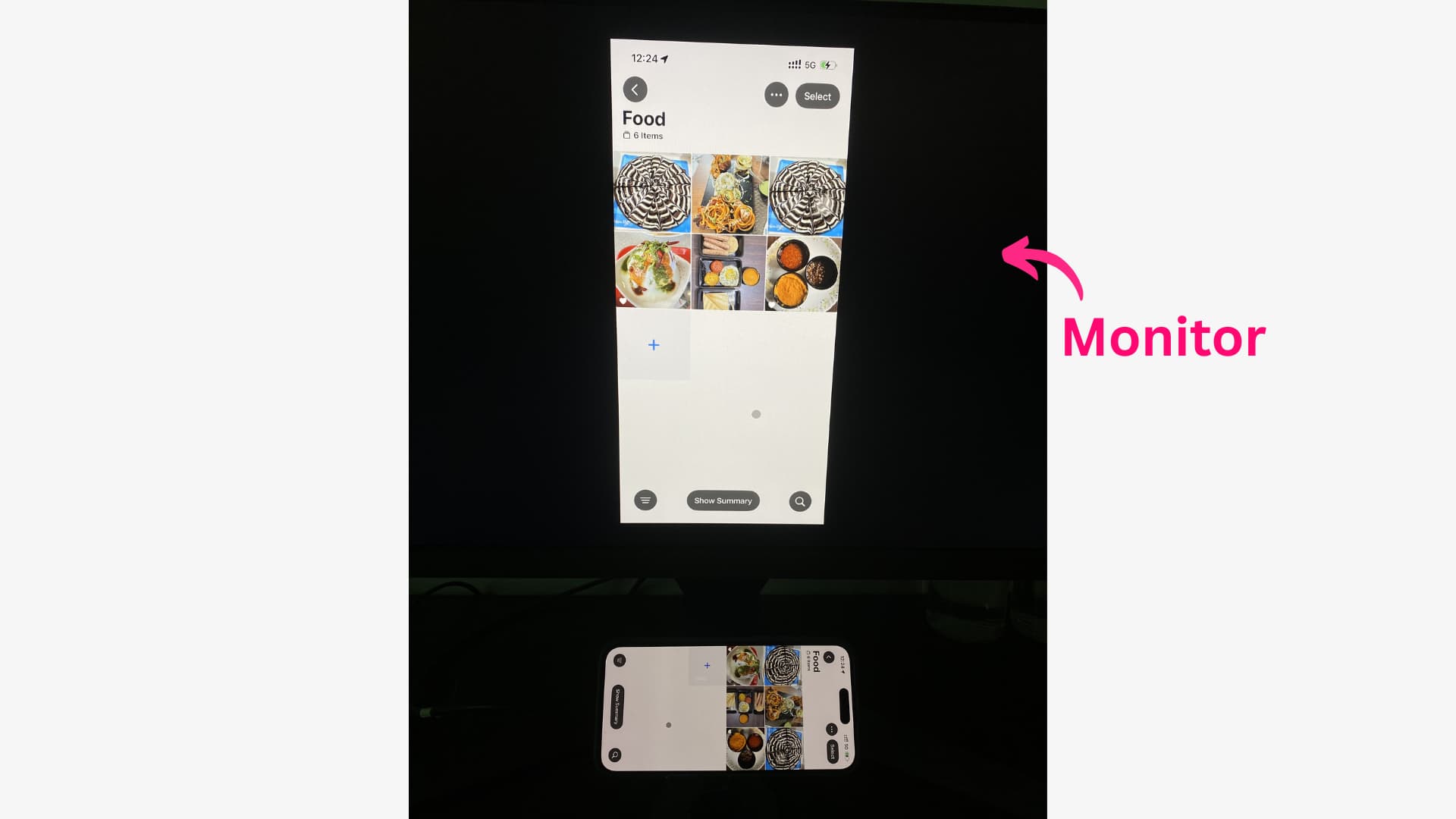
Connect your iPhone or iPad to a monitor with a USB-C cable or a suitable adapter. Then, press the side button and hold your face in the Face ID range; hopefully, this will unlock and wake the screen. Once the screen is on, you should be able to see your iPhone screen on the monitor. Using this screen, you can click on the partially working screen and send your photos to another device via AirDrop.
Option 5: Use a Monitor and Mouse
If your iPhone or iPad screen does not respond to touch but Face ID/Touch ID still works, try these steps. Also, remember that you can use a mouse directly with an iPad (without extra setup), but a connected mouse on an iPhone only works when AssistiveTouch is enabled.
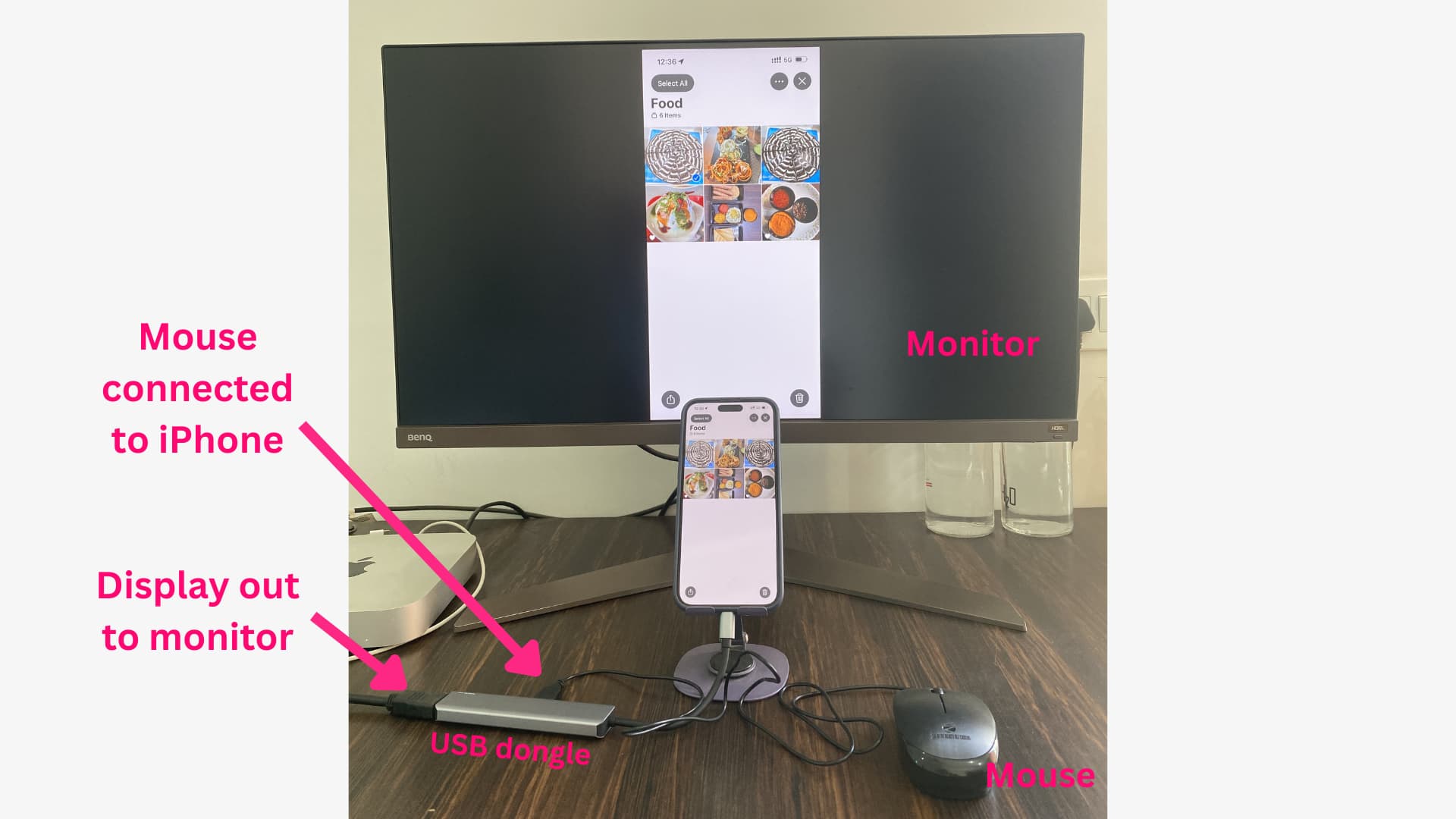
- Get a wired USB mouse and a suitable USB adapter/dongle to connect to a USB-C or HDMI screen. Most USB-C dongles can do this, but check the product description before purchasing.
- Connect the USB dongle to your iPhone.
- Then, connect the wired mouse and the monitor’s USB-C or HDMI cable to the USB dongle.
- Now, press the side button to wake the phone and ensure your face is in the range to unlock Face ID.
- Once it is unlocked, you should see your iPhone screen on the connected monitor (make sure the monitor/TV input is set to USB-C or the correct HDMI port).
- Now, scroll up with the mouse to go to the Home Screen of the broken iPhone or iPad. Use the mouse to navigate and send photos to another device via AirDrop or save photos to iCloud Drive or Google Drive.
Option 6: Check an Old Backup
If you have backed up your iPhone or iPad to a computer or iCloud, that backup will contain your photos and videos, if you are not using iCloud Photos and did not exclude the Photo Library from your iCloud backup.
You can restore your broken iOS device backup to another iPhone or iPad. Or you can restore it after the screen is repaired.
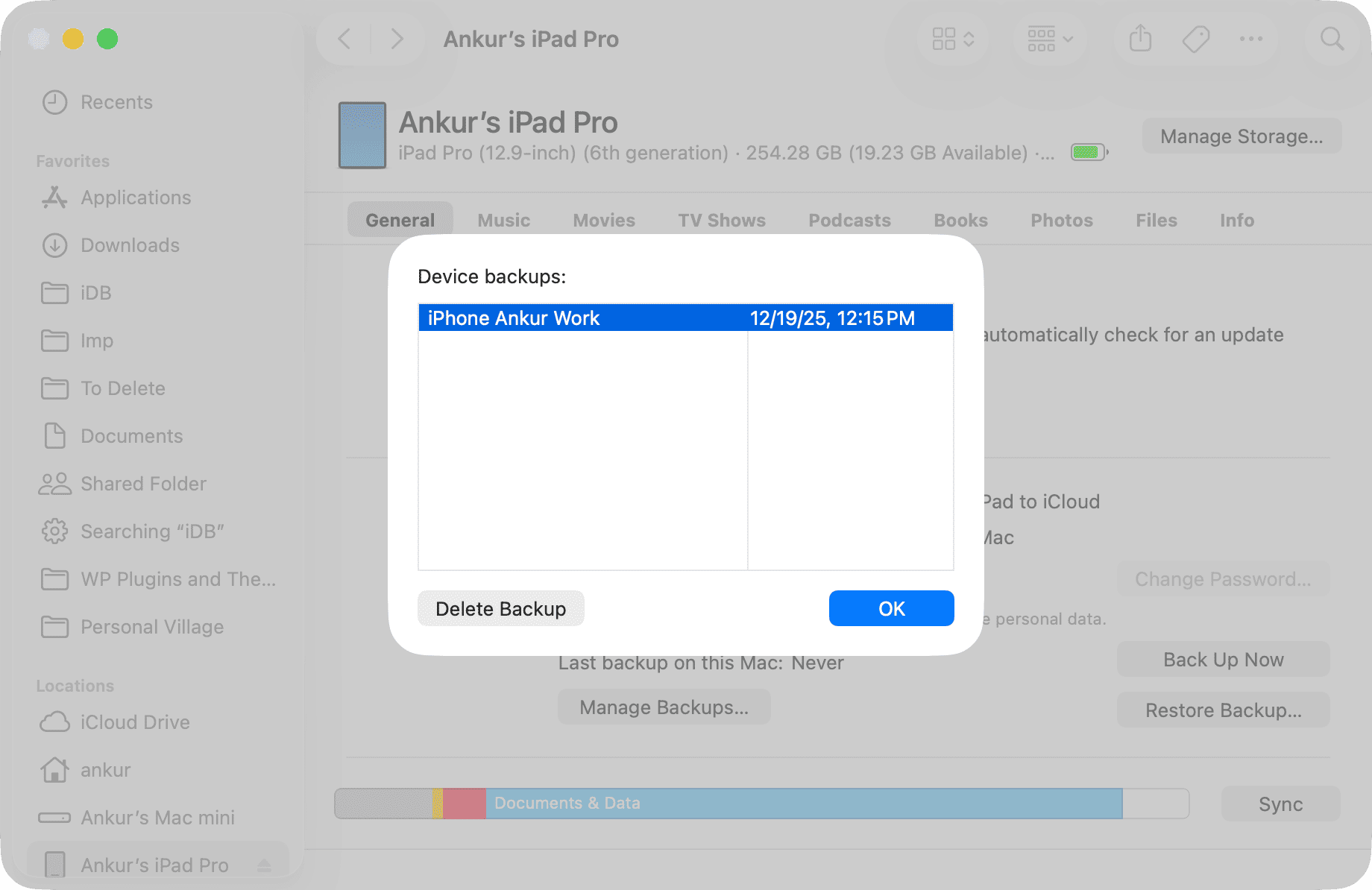
Select an iPhone or iPad in macOS Finder or Windows Apple Devices app and click on Manage Backups to view previous backups.
Option 7: Get the Screen Repaired
Finally, if none of the above tips work, the last resort is to get the screen repaired. You can get an expensive repair at an Apple Store or an authorized service center.
And if you do not want to continue using this particular iPhone (due to other damages), but it is important to extract the media, you might consider a cheap third-party screen replacement so you can use the phone to export your photos.
Third-Party Recovery Apps Do Not Always Work
You may encounter third-party applications that claim to recover your photos from a broken iPhone and iPad. However, these apps may not be helpful if you are not already using them on your Mac or Windows PC. Therefore, I do not recommend installing and using them. These apps require you to trust the computer to see your iPhone or iPad, and trusting requires you to enter the password on the broken screen.
In the comments section below, let us know if you were able to recover your photos and videos from your broken iPhone and iPad. Also, please specify which method worked. Thank you...































Comments
(9 Comments)