
Learn how to limit your MacBook's battery charge to less than 100%. This helps reduce wear by preventing the battery from always being at full charge.
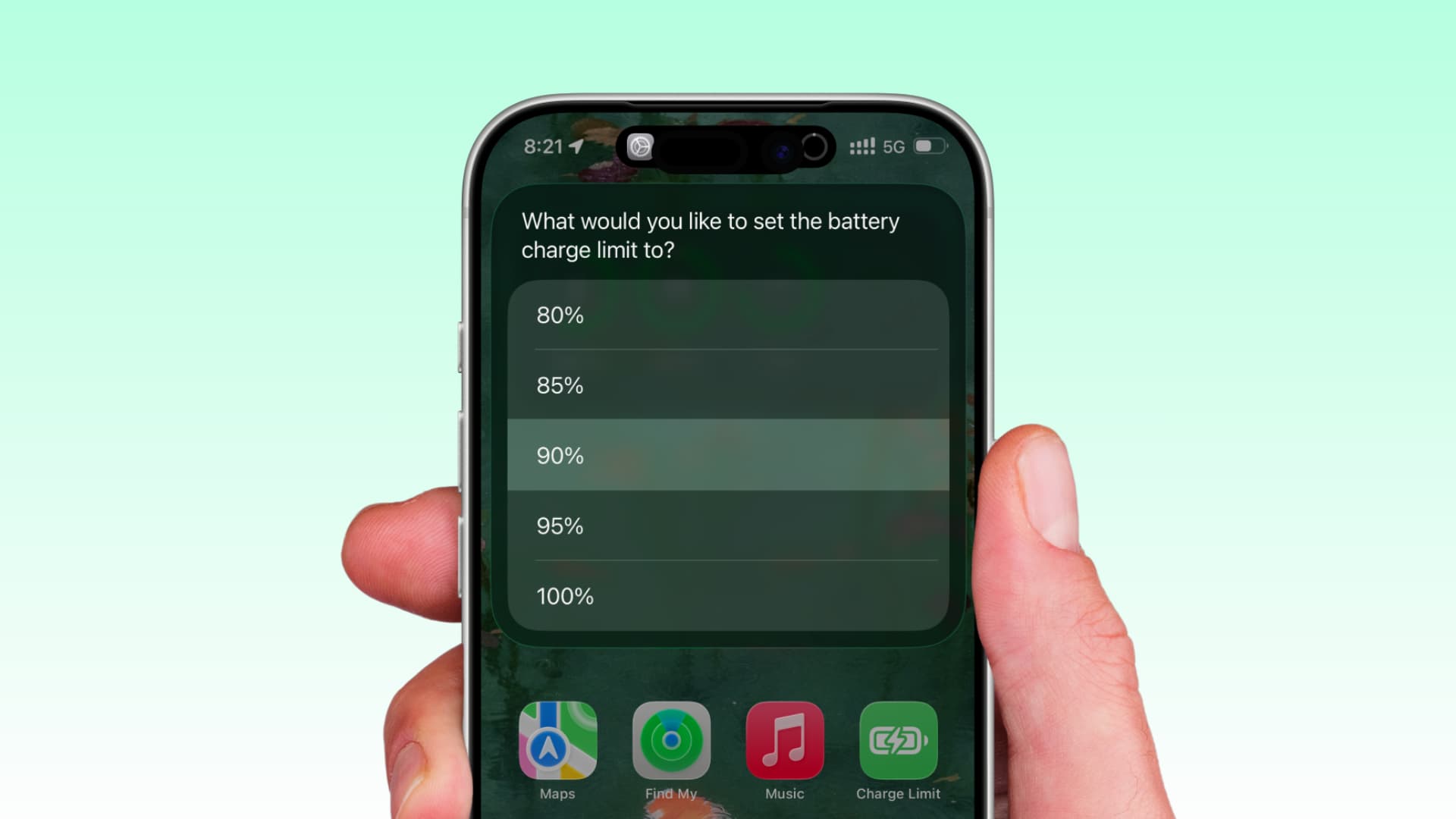
A few years ago, Apple added the option to set a charge limit on the iPhone, allowing you to define a maximum battery level. The same feature has now been added to MacBooks running macOS Tahoe 26.4.
When you set a maximum battery charge limit, your device will reach that percentage (for example, 80% or 90%) and will stop charging even if it remains plugged in. This is particularly important for reducing battery wear and extending its lifespan by preserving battery health over time.
While not everyone needs to set a charge limit, Apple notes that it may be beneficial to set the maximum battery level to a figure lower than 80% or 100% if you charge your device frequently or leave it plugged in for long periods.
Even if you do not explicitly set a charge limit in your iOS or macOS battery settings, the Optimized Battery Charging feature can limit charging to about 80% after learning your charging habits.
Setting Maximum Charge Limit on MacBook
- Update your MacBook to macOS Tahoe 26.4 (25E246) or a newer version.
- Open System Settings and click on Battery.
- Click the information button ⓘ next to the new Charge option.
- Set Charge Limit to 80%, 85%, 90%, or 95% and click Done.
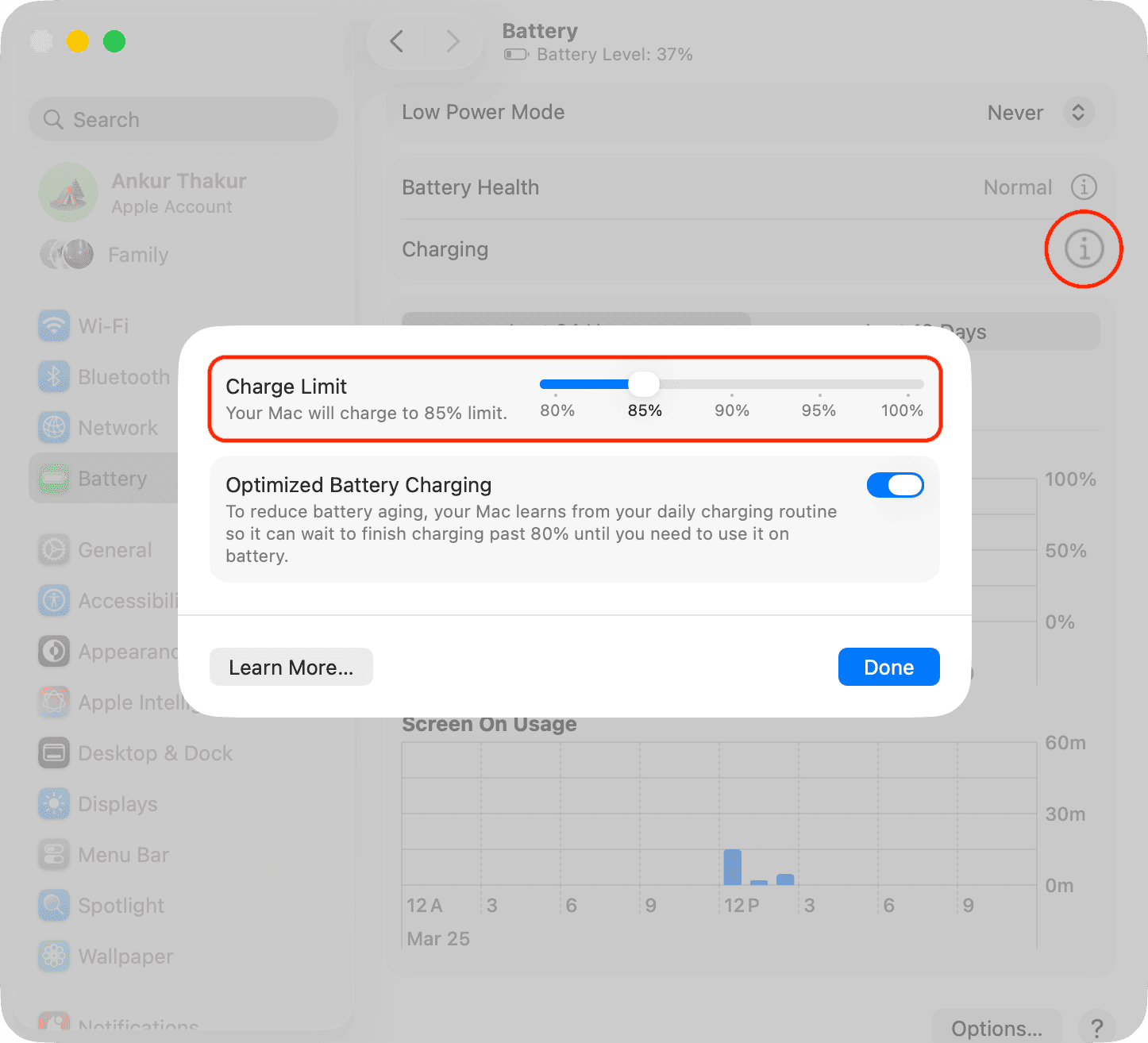
In the future, your Mac will only charge up to the limit you set in Step 4. However, Apple states that your MacBook may occasionally exceed this limit and charge up to 100% to keep the battery percentage indicator accurate.
Setting a lower charge limit means you won't get a full battery backup when away from the charger. For example, if you get 10 hours of usage with a full 100% charge, an 80% limit will reduce that time to 8 hours. Of course, if you're traveling or away from the charger, you can go back to the Battery settings and slide the slider back to 100%.































Comments
(8 Comments)