
In this step-by-step guide, we will show you how to add the 2026 FIFA World Cup match schedule to your iPhone, iPad, Mac, and Apple Watch calendars. This way, you can receive timely notifications based on your local time zone and not miss any matches.
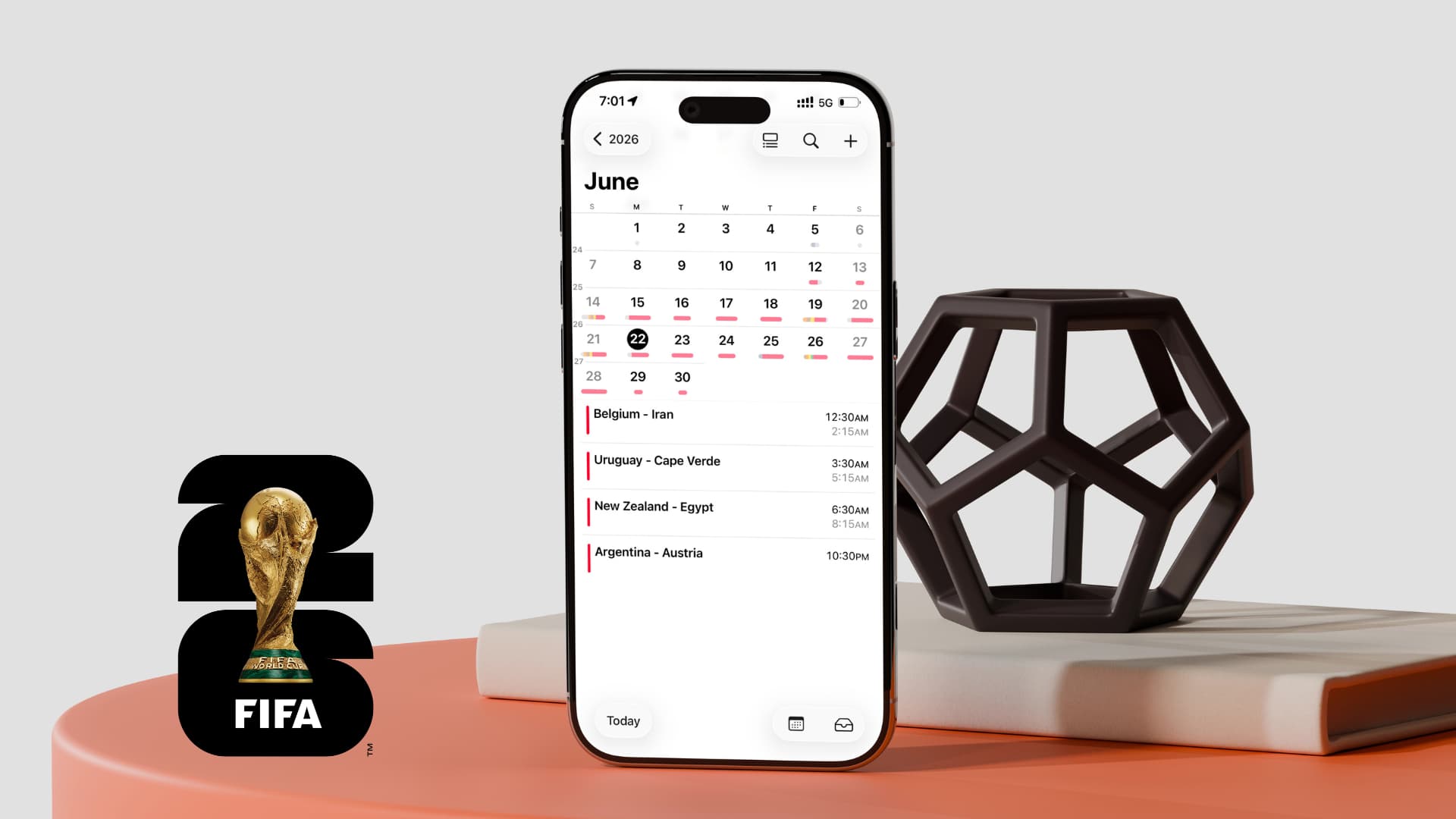
The 2026 FIFA World Cup will kick off on June 11 with a match between South Africa at the Estadio Azteca stadium in Mexico City, Mexico. The grand final will be played on July 19 at MetLife Stadium in New Jersey.
The 2026 edition will feature 48 teams (an increase from 32 teams in the 2022 edition), and this will be the first FIFA World Cup to have three host countries: the United States, Canada, and Mexico.
The 48 teams are divided into 12 groups from A to L, with each group consisting of 4 teams. The United States is in Group D along with Paraguay, Australia, and Turkey.
A total of 104 matches will be played over 5 weeks, meaning there will be multiple matches on most days! So whether you are supporting the USA, who will play their first match against Paraguay on June 12, or the last edition's winner Argentina or runner-up France, having the complete schedule on your iPhone, iPad, Mac, and Apple Watch calendar can help you plan your day better, allowing you to free up time to watch your favorite team's match.
We will show you how to add the FIFA 2026 schedule on both iOS and macOS. However, if you are using iCloud to synchronize your calendars, simply add it to one device, and the events will synchronize across all your devices.
And the best part is that the calendar events you add will show the date and time for your local time zone. So even though the first match is on June 11 for people on the American continent, for most of Asia and Australia, it will be on June 12. As you can understand…
Secondly, you will currently only add the first 72 approved matches from the FIFA World Cup schedule. As the World Cup progresses to the next stage and the remaining matches are finalized (for example, Group A Runner-up vs Group B Runner-up), the events will automatically update, and you will see them in your device's Calendar.
Add the 2026 FIFA World Cup Schedule to Your Apple Calendar
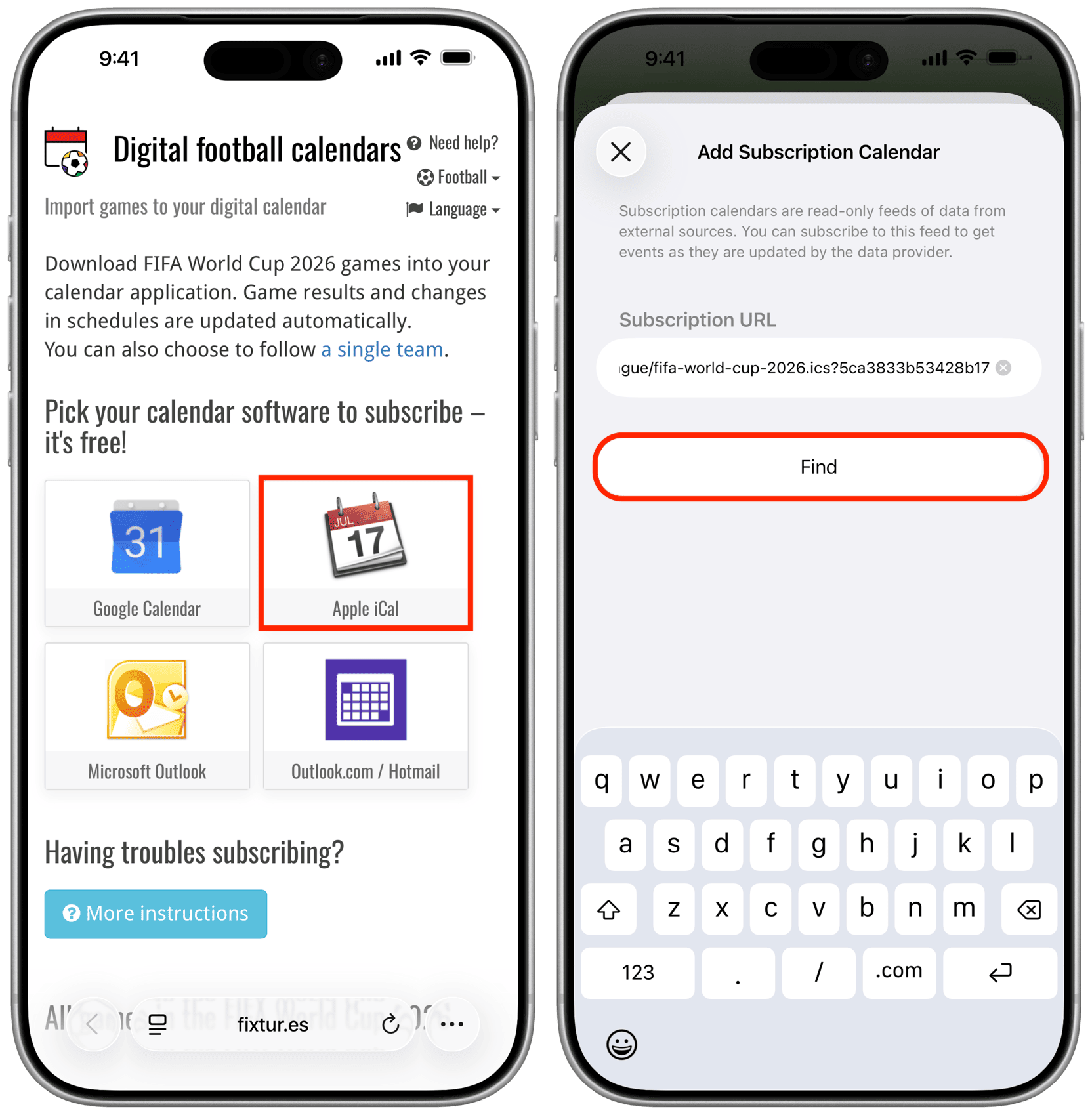
1) Visit this FIFA World Cup 2026 game schedule link in Safari on your iPhone, iPad, or Mac. We are using an iPhone for these steps. And when the events are added to your iPhone, they will also appear on your Apple Watch.
2) Tap on the Apple iCal option.
3) Tap on Find and wait a second.
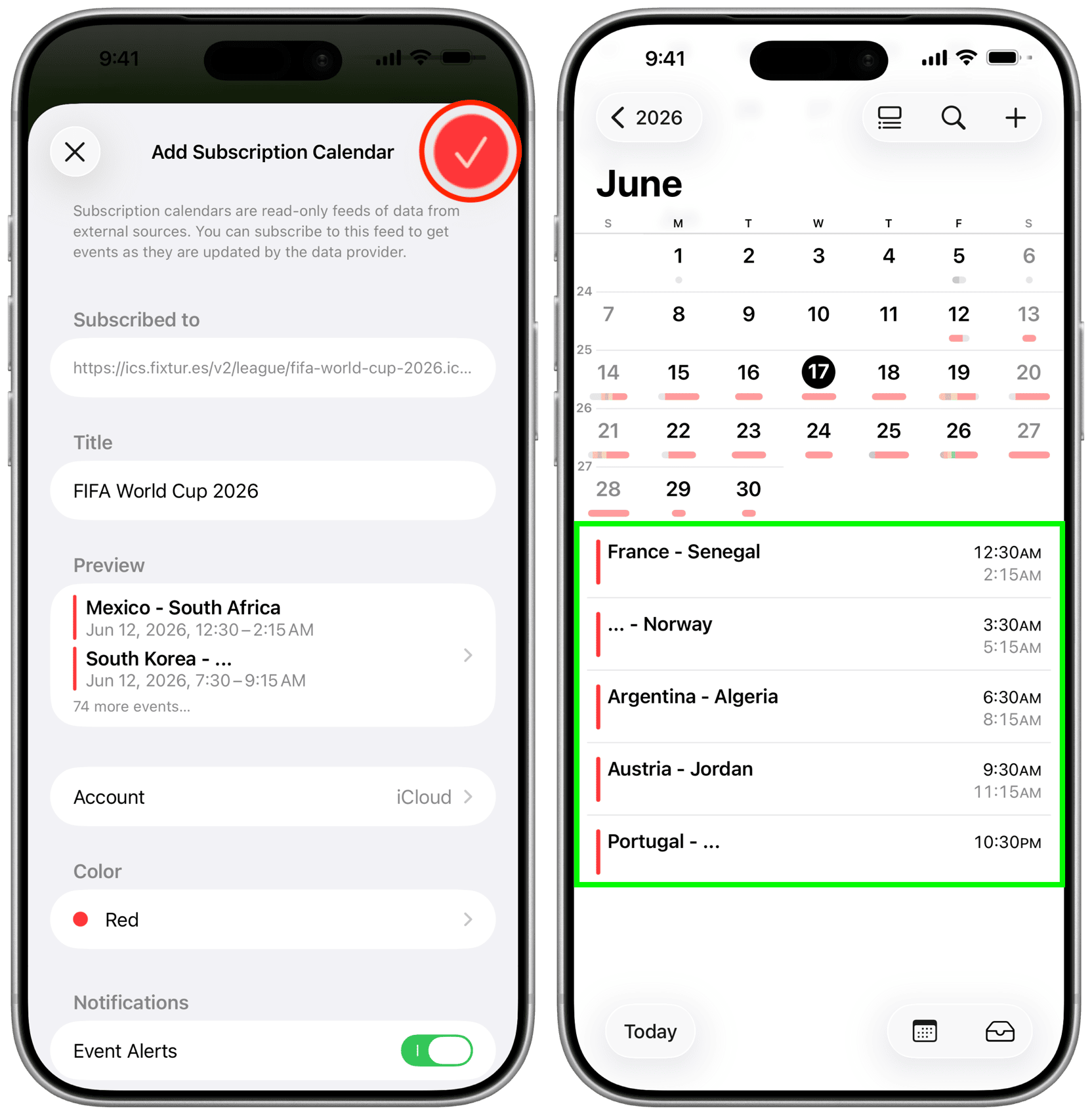
4) You will now see the Add Subscription Calendar page. Preview the events, select a calendar account (e.g., iCloud), choose a calendar color, and decide whether to receive notifications for game events. When everything is ready, tap the checkmark icon to subscribe to the FIFA 2026 World Cup calendar and see it in your calendar.
Here’s how it looks on Mac.
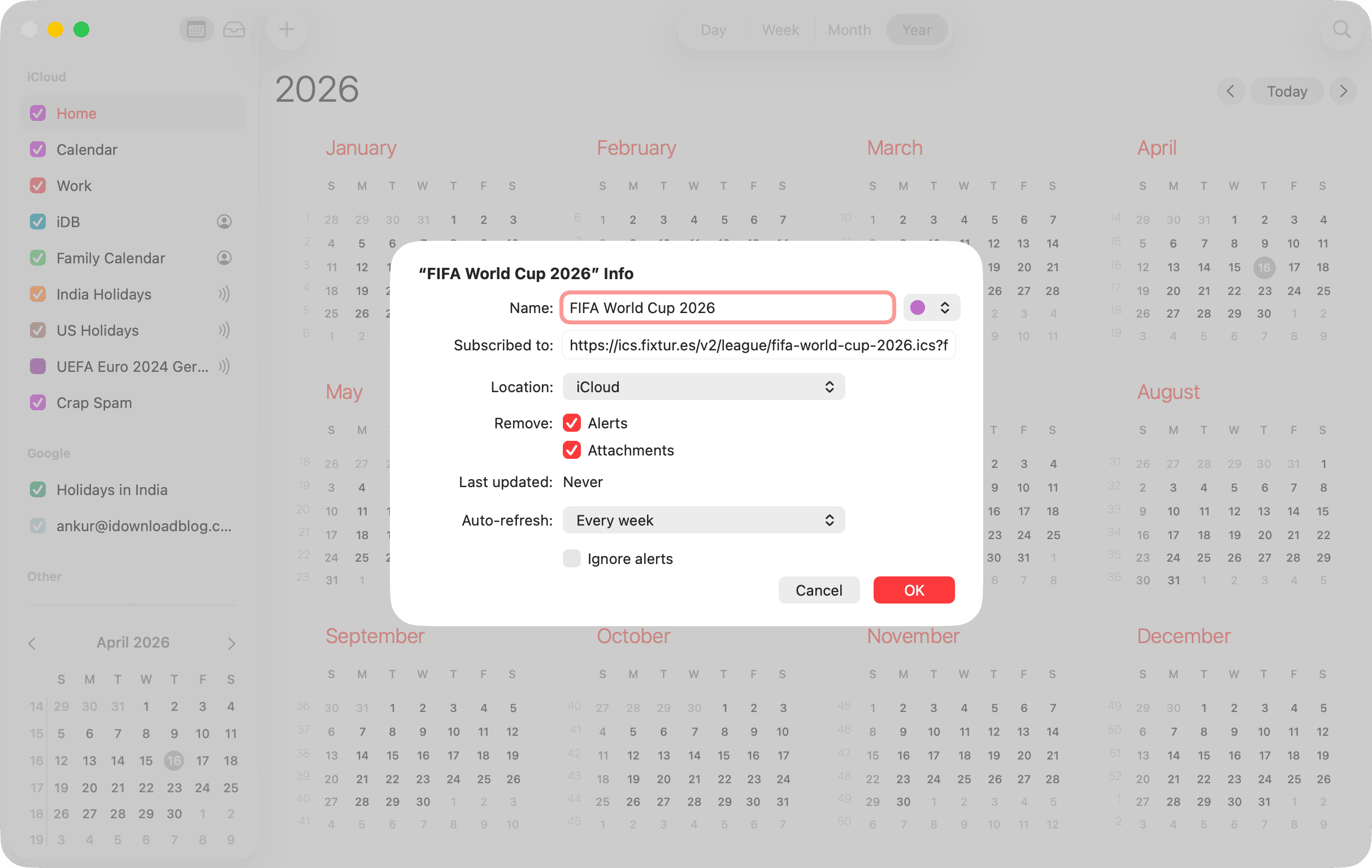
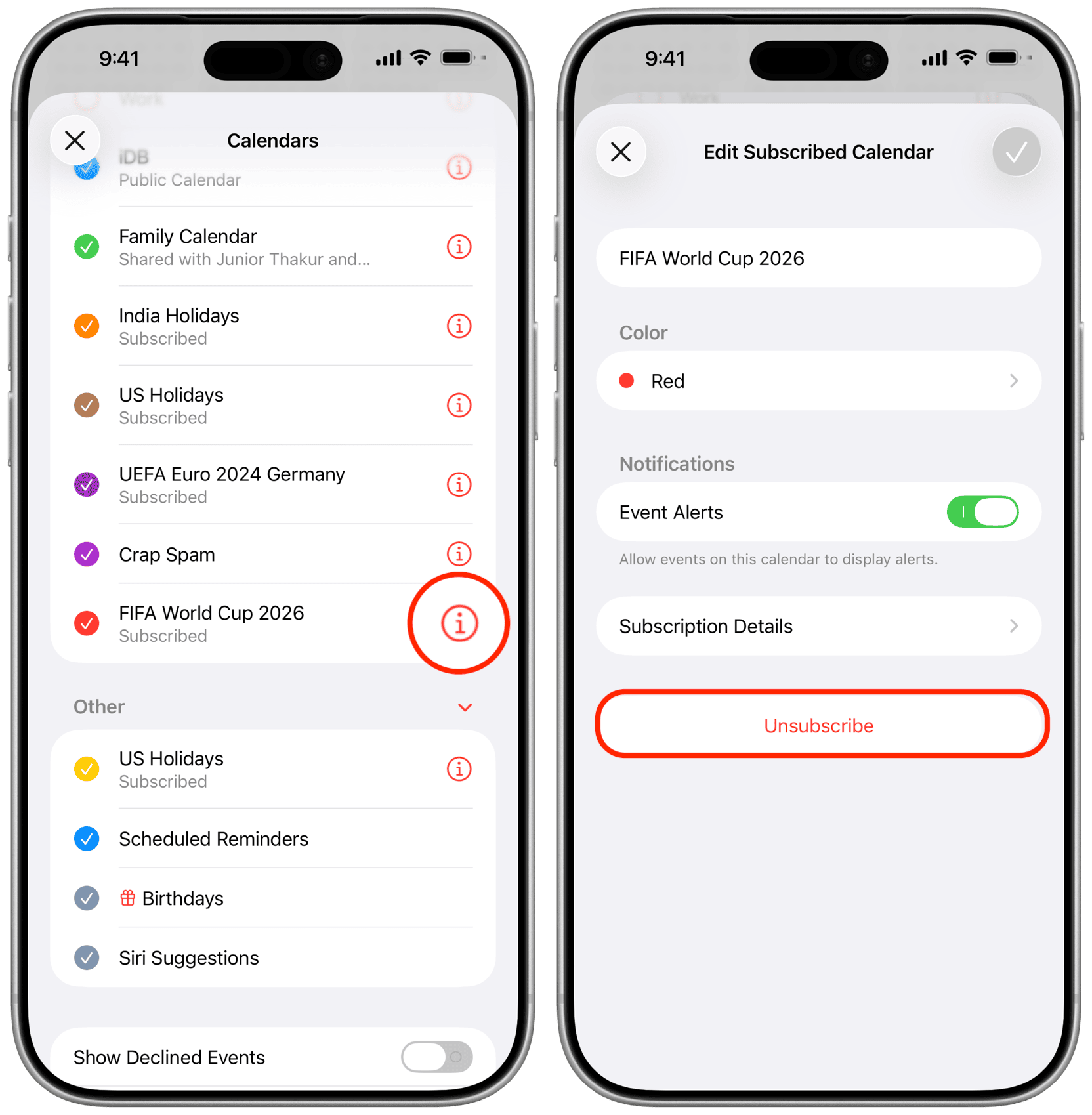
When the World Cup is over, go back to your calendars list, tap the information button ⓘ next to the 2026 calendar, and then tap on the Unsubscribe option. On Mac, click on the FIFA calendar you subscribed to while holding down the Control key and select the Unsubscribe option.
If you cannot tap the “Apple iCal” link, restart your device, refresh the page, and try again.

























Comments
(1 Comment)