Learn how to open EPUB book files on your iOS device and review some solutions when an EPUB file does not open.
EPUB (short for electronic publication) is one of the most popular e-book formats supported by almost all e-reader devices and applications, including Apple's Books app.
How can I view an EPUB file on iOS?
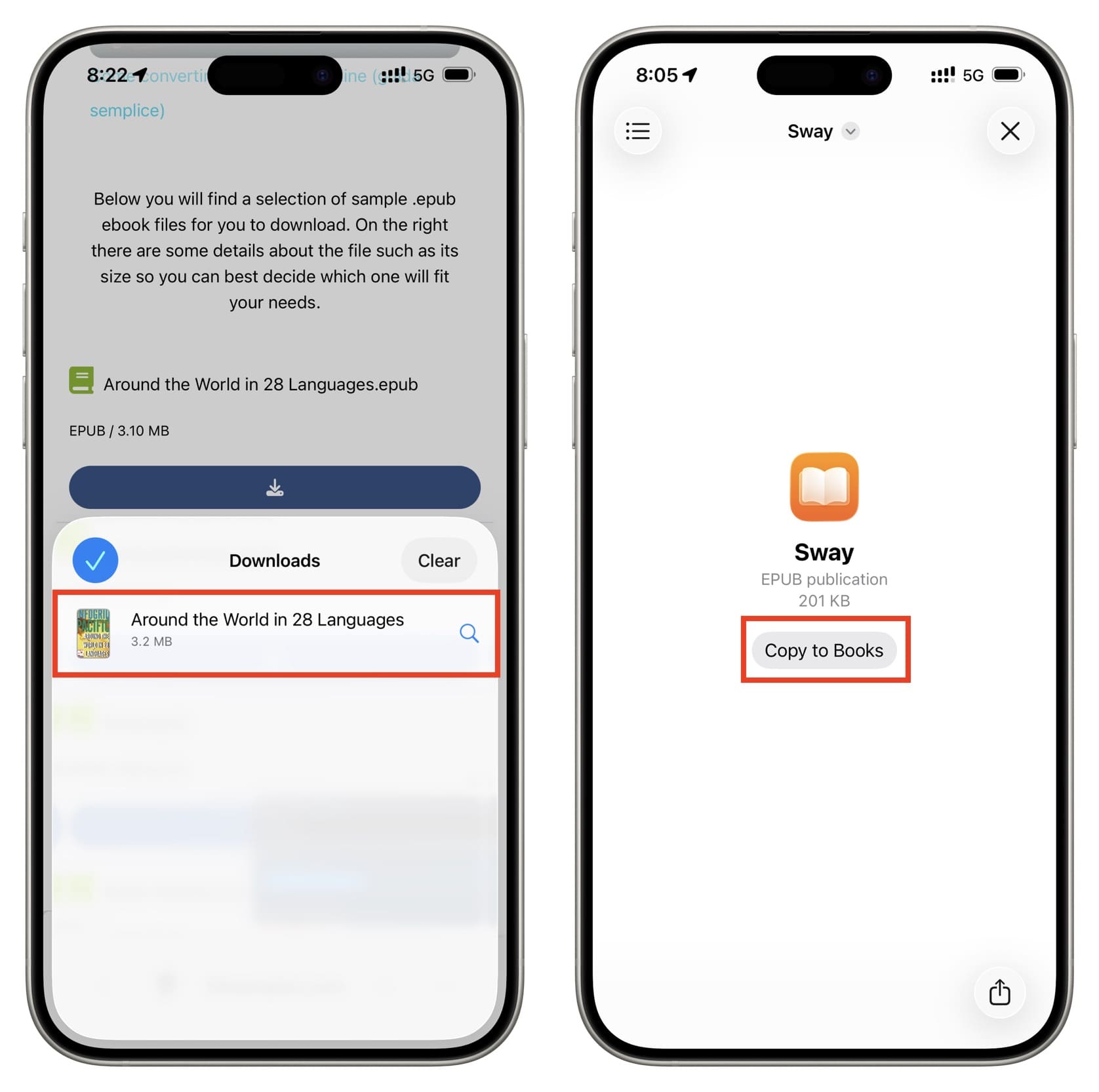
- Download the EPUB file from Safari and tap on it in the Downloads section. It should open directly in the Books app.
- If the EPUB file is saved in iCloud Drive or in the iOS Files app on my iPhone/iPad, tap on it and then select Copy to Books.
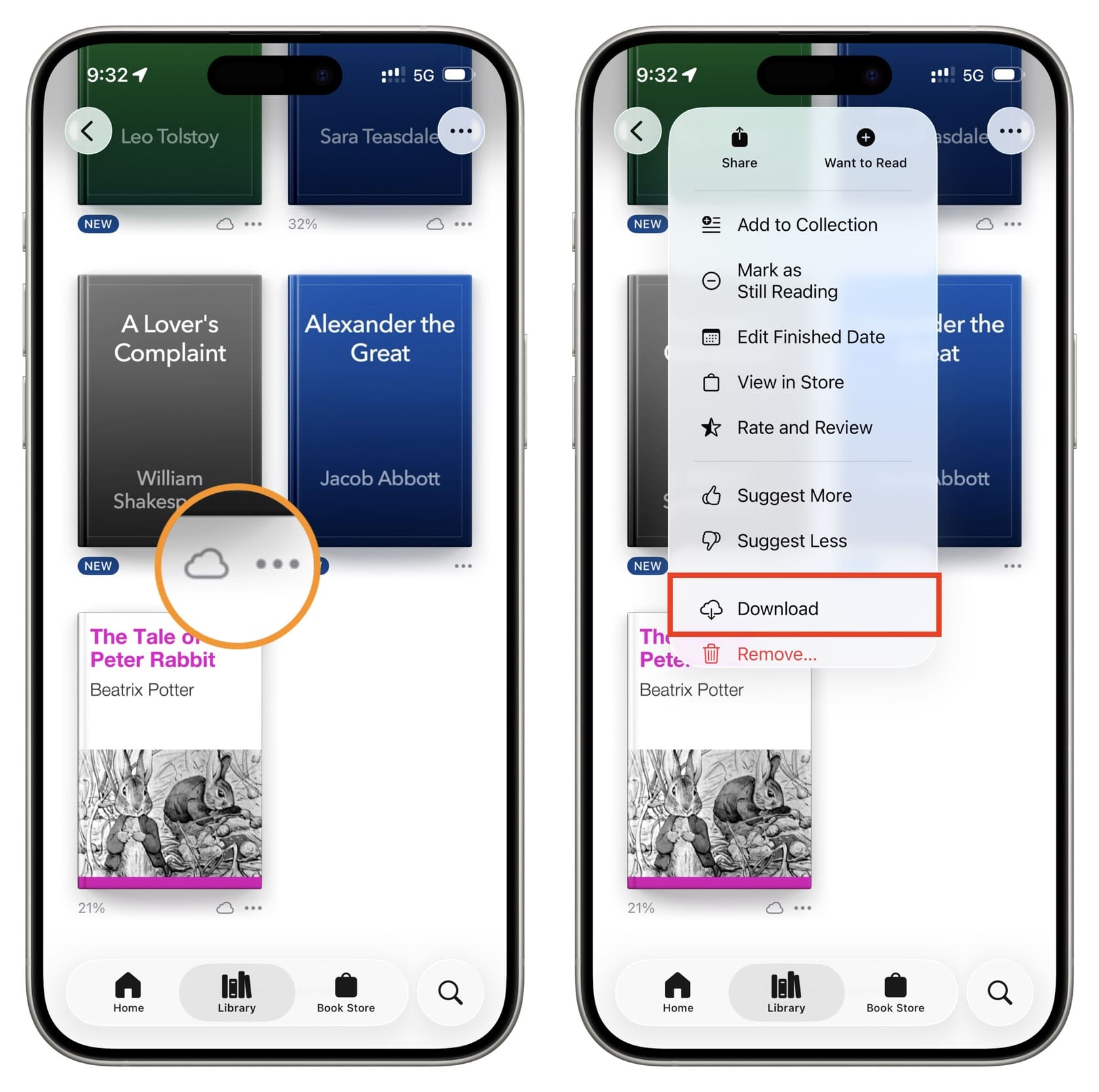
Note: The book titles you have added and downloaded to your library in the Apple Books app on your device are also in EPUB format. If there is a small cloud icon under the book thumbnail, it means that this title has been added to your library but has not been downloaded for offline reading. Simply tap on the three-dot menu icon and then select Download.
If you cannot open EPUB book files on iOS
As mentioned above, the Apple Books app natively supports EPUB, requiring no conversion. The process of opening one is quite simple. If you cannot open an EPUB file, there may be an issue with the file itself or a temporary system error. Here are ways to fix this.
Check the EPUB file
Typically, book files are a few megabytes, but if the title in question contains many graphics, it may take some time to download. Check the Downloads section in your browser to ensure the full file has been saved. Sometimes, if a file is only partially downloaded and then fails, you cannot open it.
To check, try opening the same file on another device or application (as mentioned below). If it does not work, the issue lies with that specific EPUB file.
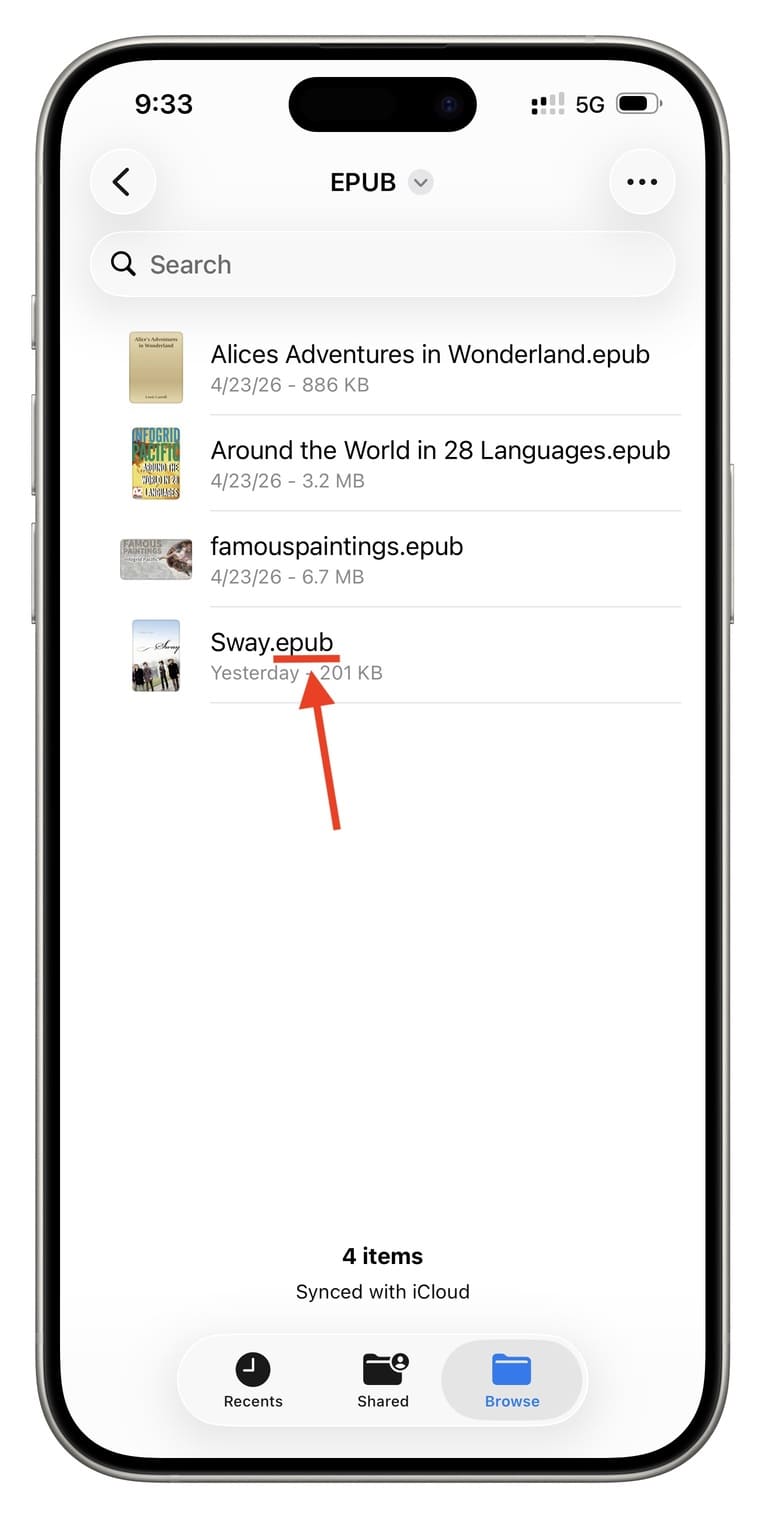
Make sure the .epub extension is attached
If the EPUB book is saved in the Apple Files app or another file manager app, check the file name and ensure you see the ‘.epub’ extension at the end. If the extension is missing, tap and hold the file, select Rename, and add .epub at the end.
Restart and update your iPhone or iPad
The EPUB file may not open, or nothing may happen when you tap on it; this could be due to system errors. Simply ask Siri to restart the device or turn off and then turn on your iPhone or iPad.
If your device is not running the latest version of iOS or iPadOS, download and install the latest version by following Settings > General > Software Update.
Try another book reading app
While the native Books app is a good book reading app, with themes, PDF support, and other useful features, you are not limited to it. If the EPUB file does not open in the Books app, download one of these apps or find something else by searching for “epub” in the App Store.
- Epub Reader
- PocketBook
- Neat Reader
- ReadEra
- eBoox
Now, follow these steps to open the EPUB file in the specified third-party app:
- Open the Files app and go to the folder where your EPUB file is saved.
- Tap and hold the file, then select Open > app name.
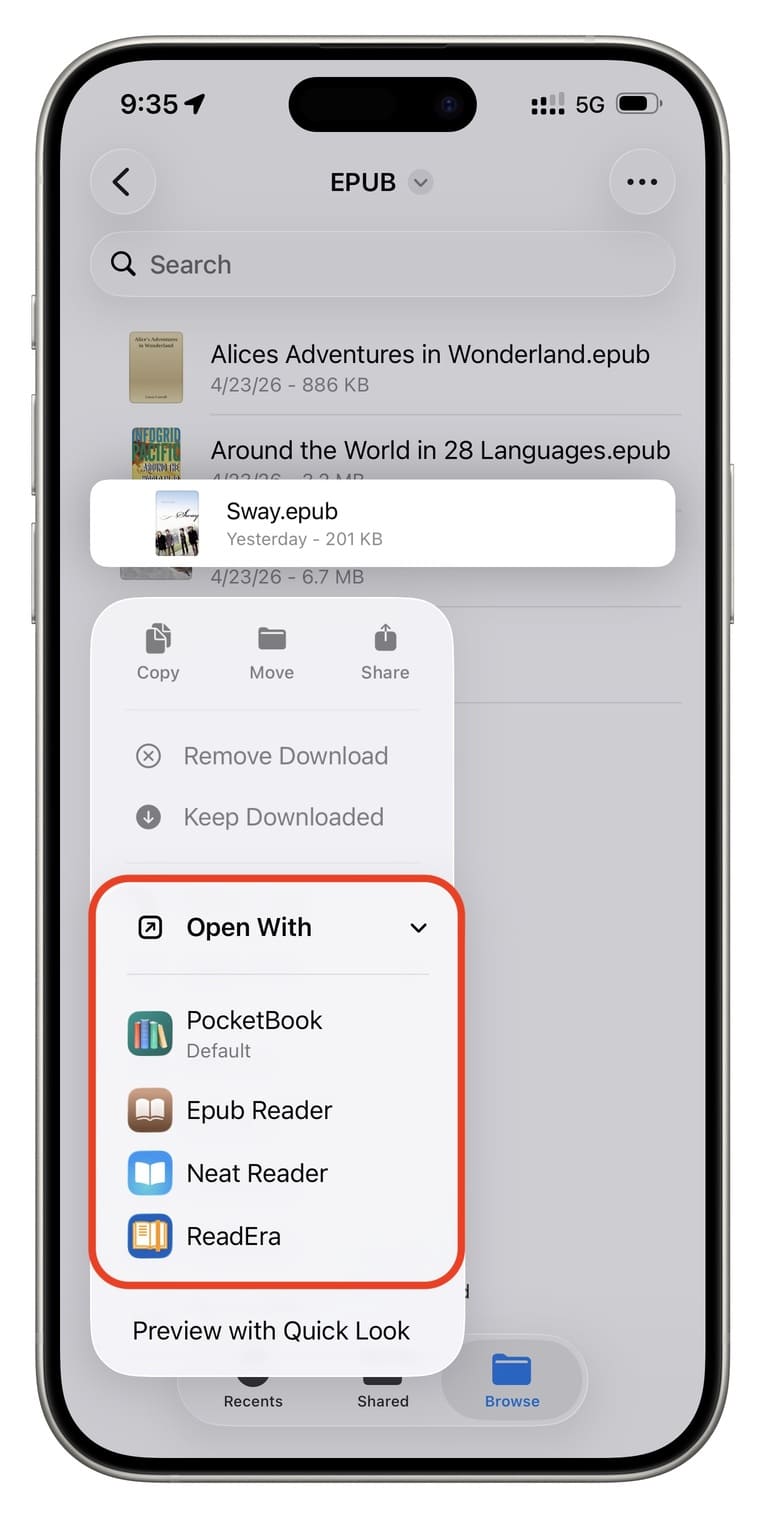
If an app like eBoox does not appear in the ‘Open’ section, follow these steps instead:
- Go to the Files app or another app where your EPUB file is saved.
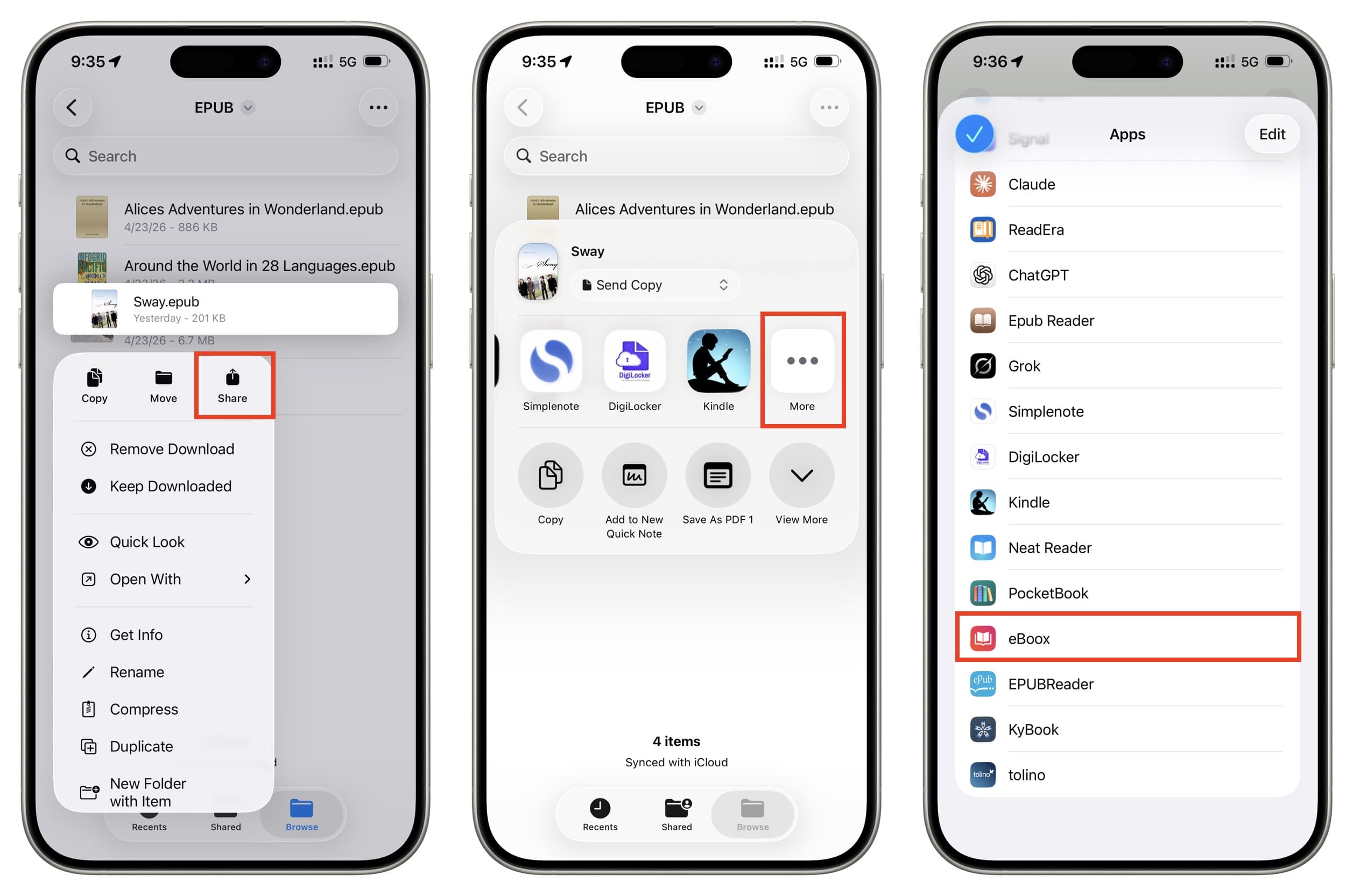
- Tap and hold the EPUB file and select the share option.
- Scroll through the app icons on the iOS Share Sheet to find the book reading app, then tap its name. If the app is installed but not visible on the Share Sheet, tap More at the end and then tap app name.
Delete and reinstall the Books app
If the EPUB file opens in one of the third-party reader apps mentioned above but does not open in the Apple Books app, we can assume the issue is with the Books app on your device.
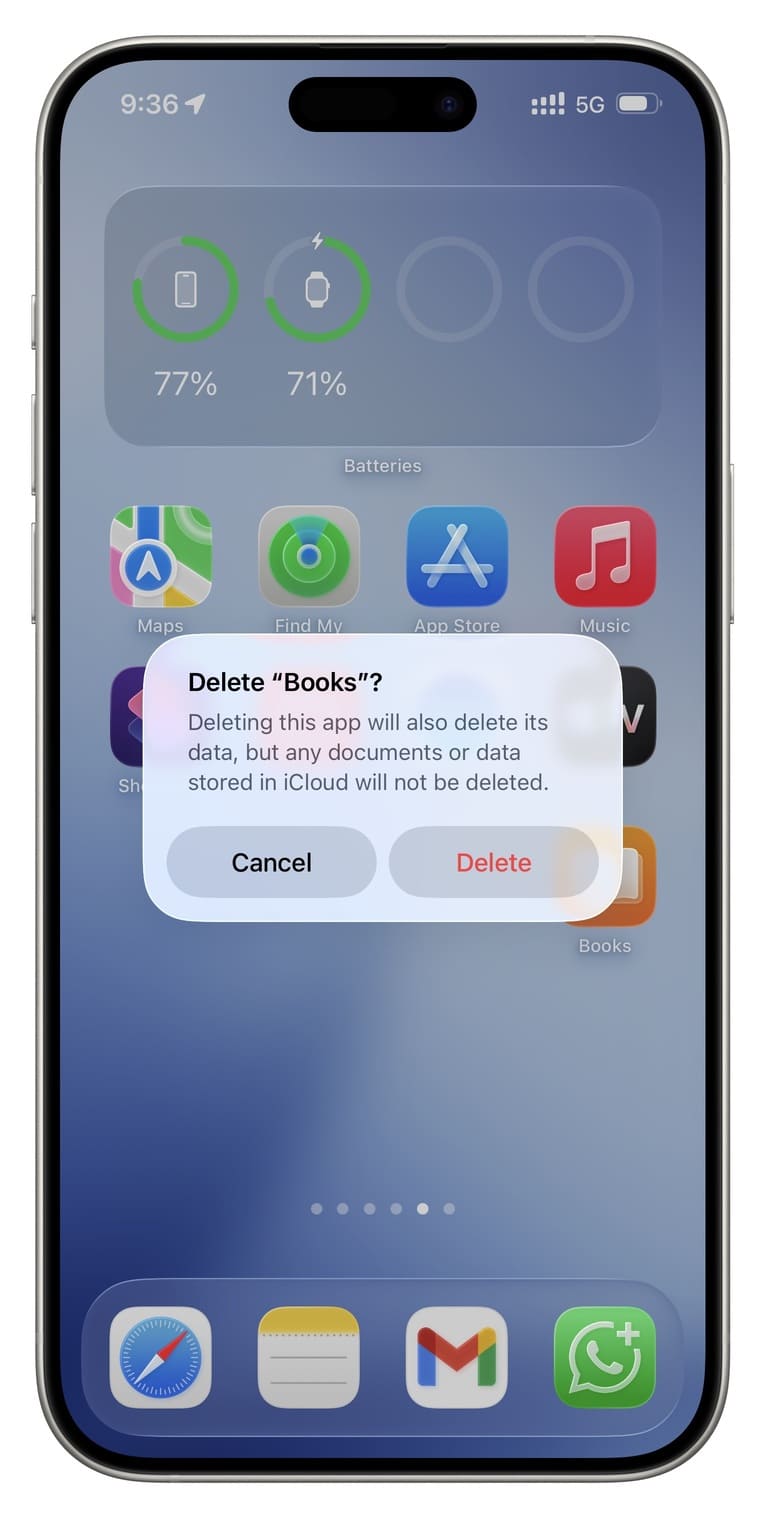
To fix this, delete the Books app, restart your iPhone or iPad, and then reinstall it from the App Store. However, keep in mind that deleting the Books app will remove all local PDFs and book titles; however, titles saved to iCloud will not be affected, and you will regain access to them after reinstalling the app.
Search for the same book in the Apple Books Store
If you still cannot read downloaded EPUB files offline, search for the same book title in the Apple Books Store. You may be able to download it for free (or sometimes for a small fee).






















Comments
(2 Comments)