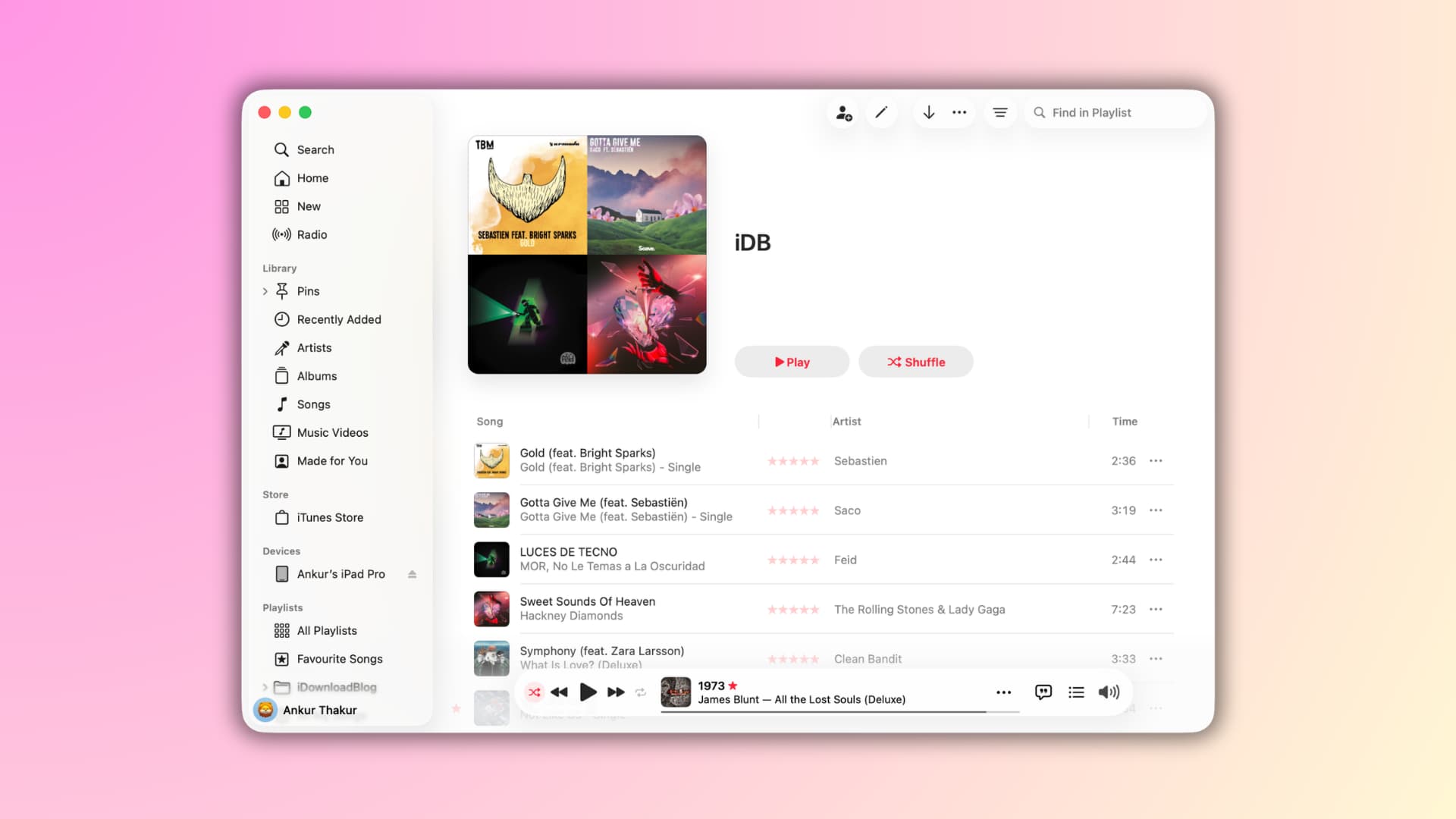
Learn how to edit the start and end times of a specific song on Apple Music, so you can listen to just that favorite part and skip the beginning and ending sections.
Ask yourself this question: How many times have you come across a song with great lyrics or music in the middle, but the beginning or end is long and not enjoyable!
I often notice that a certain part of a song looks great in an Instagram Reel or TikTok video, so I go to listen to the full track on Apple Music, but I find that the rest of the song is not very pleasant.
To deal with such situations, I define the start and end times of a song in Apple's Music app and just listen to my favorite part.
This is a great little-known feature that I use a lot, and you should use it too!
A few points to consider
- You can only make this change in the Apple Music app on a Mac or Windows PC.
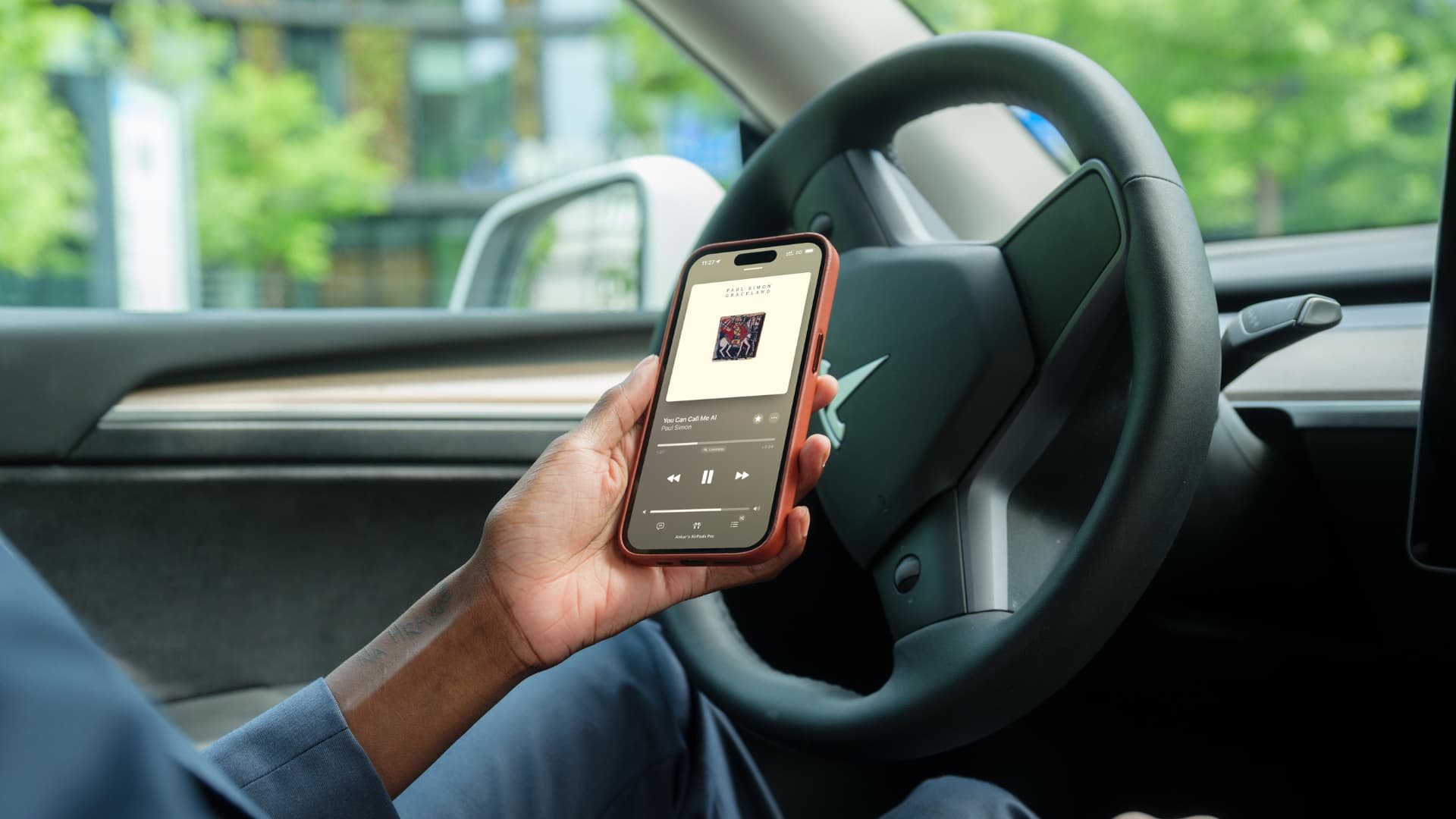
- Changes you make on your computer will automatically sync with your iPhone or iPad if Sync Library is enabled (it probably already is).
- Even if you don't have an Apple Music subscription, you can set custom start and end times in the Music app on your Mac. And when you sync your iPhone or iPad, the changes will reflect in the iOS Music app.
- You need to define custom end and start times individually for each song.
Setting Start and End Times for a Song on Apple Music
1) Open the Music app on your Mac. The steps are similar for Windows PC.
2) Play the song in your library and find the start and/or end times you want to set.
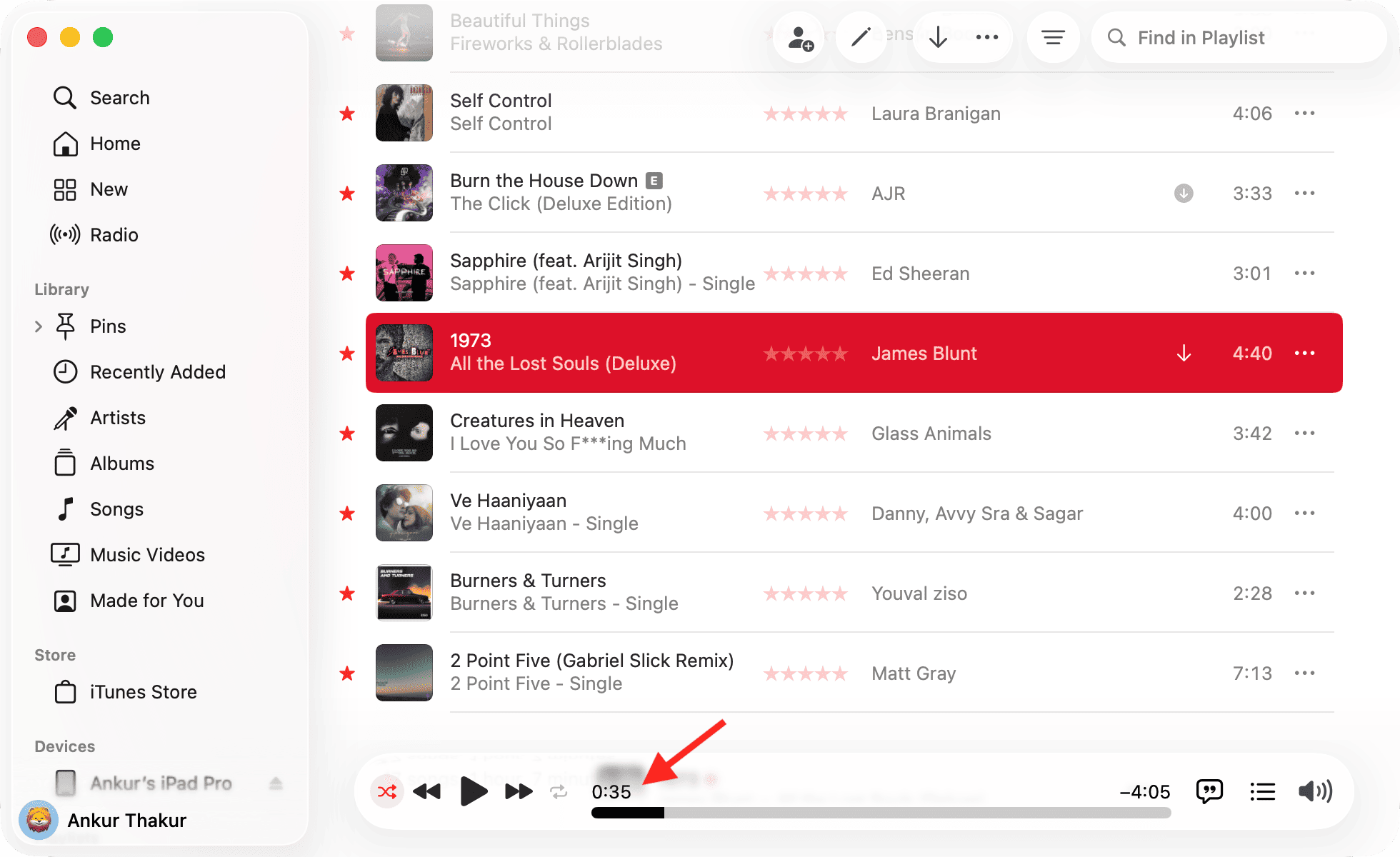
3) Next, select the song and press Command + I or right-click and choose Get Info.
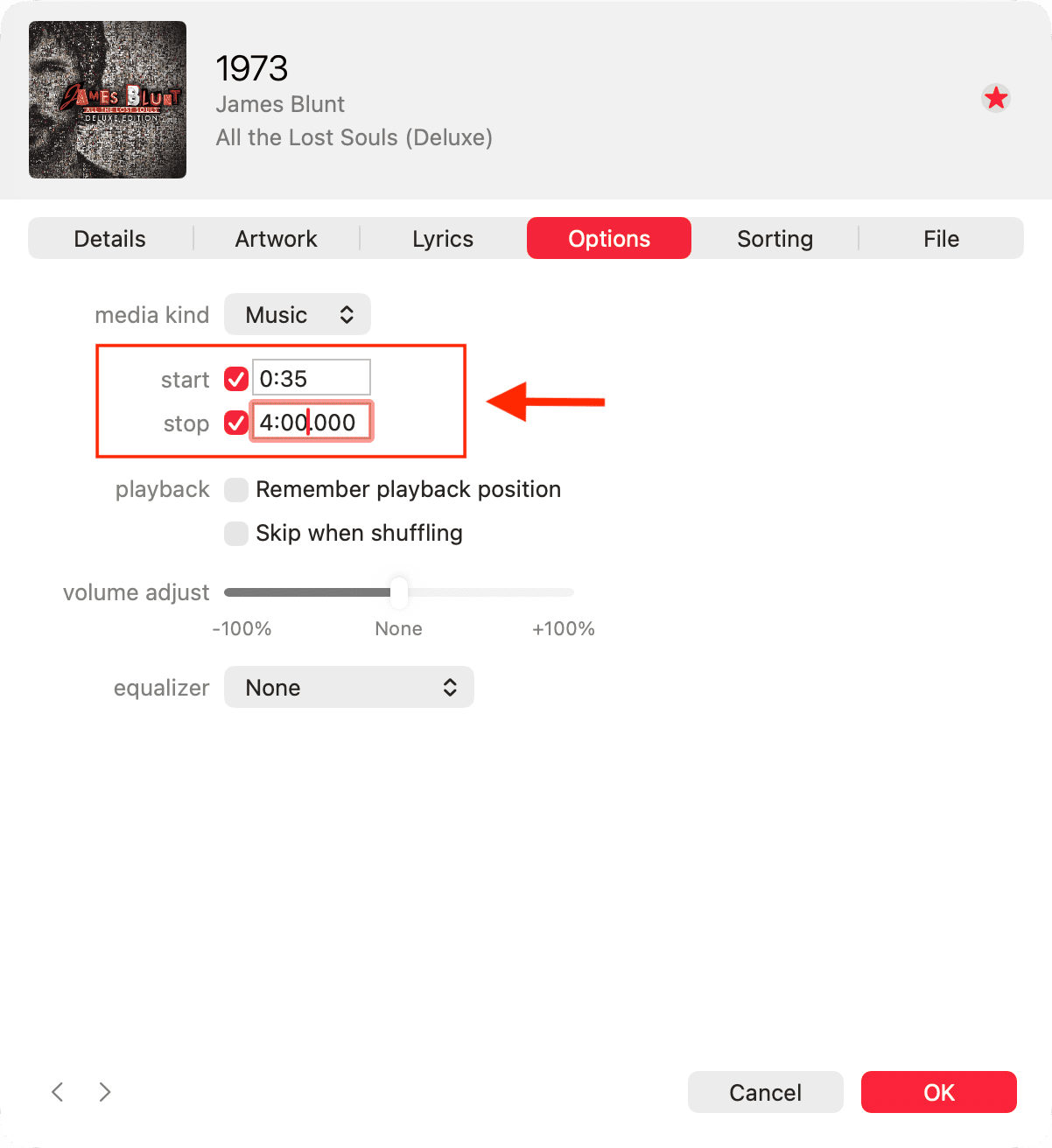
4) Go to the Options tab.
5) You will see the start and stop options. Check the box for each as needed and enter the time in the boxes next to them. I want the song to start at the 35th second (0:35) and end at 4 minutes 00 seconds (4:00), so I will do that.
6) Finally, click the OK button.
This change will immediately reflect in the Music app on this computer. And if you have an active Apple Music subscription with Sync Library enabled, it will reflect on your other devices in about a minute. If you sync music directly from your computer to an iOS device, the changes will reflect when you manually sync.
Now, when this song plays (whether manually or if it comes up after another song), it will start from the time you specified in step 5 above and will end accordingly.
Even if you set it to play this song again, it will only play the part you specified using the start and stop boxes.
Keep in mind that this is definitely not a new feature. You can also use this method to create 30-second ringtones for your iPhone, but note that iOS 26 now allows you to use any audio file as an iPhone ringtone. And if the music file is longer than 30 seconds, you can trim it directly on your iPhone.

























Comments
(10 Comments)