
Review these 14 tips and try to follow them to reduce eye pain and headaches while using your iPhone or iPad for extended periods.
In this digital age, many people, like me, are glued to screens for hours every day. If you’re not careful, this can lead to eye strain, headaches, dizziness, and a general feeling of fatigue. These quick tips can help prevent or lessen these negatives.
Follow the 20-20-20 rule
This is quite simple!
After looking at your phone or computer screen for 20 minutes, look at a wall or object 20 feet away (about 6 meters) for 20 seconds. This simple action helps relax your eye muscles and reduce pain.
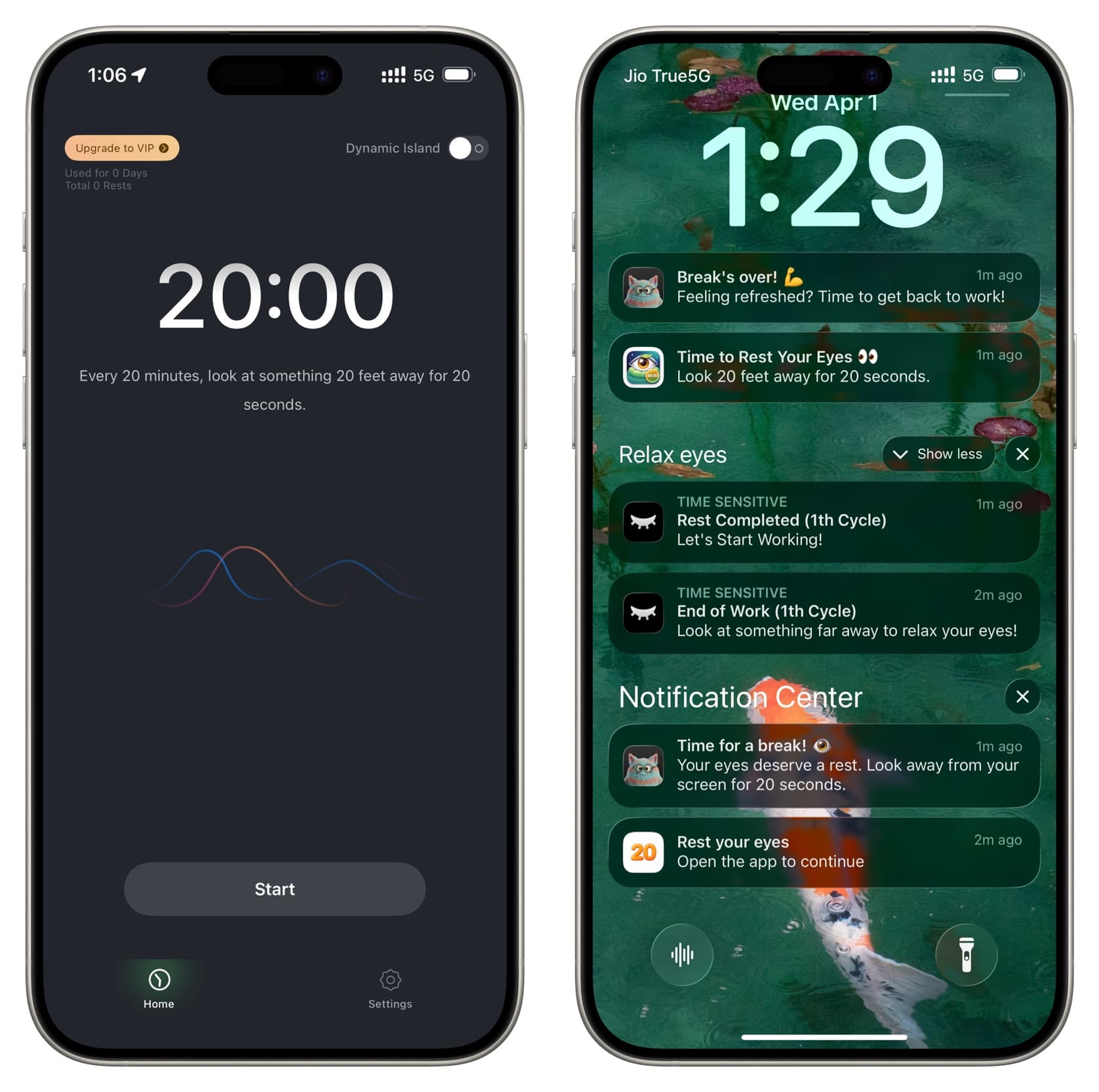
Even if you are extremely determined, you may forget to do this periodically. Therefore, I recommend using apps that alert you every 20 minutes. Here are three free options that work well and one paid option:
- 20-20-20
- Eye Care 20-20-20 Tweny
- Relax eyes
- Eye Care 20 20 20 (subscription required)
If you have iPhone mirroring enabled, these app notifications will also appear on your Mac, so you do not need a separate app there.
Blink frequently
You blink more when you’re not looking at a screen. However, you blink much less while scrolling on X and Instagram, which can lead to dry eyes, causing pain and irritation. Therefore, pay attention to blinking regularly while using your iPhone, iPad, or other devices to keep your eyes moist.
Adjust screen brightness
Automatic brightness is enabled by default to adjust screen brightness and save battery. However, this is not always perfect.
If you think the screen brightness is too high or too low, go to Control Center and adjust it accordingly. Often, this simple thing can significantly reduce eye strain.
Many video apps like Netflix allow you to change brightness by swiping up and down on the video player. Learn this for your most-used media app and use it generously.
Secondly, if you are in a dark environment and even the lowest screen brightness feels too much, use this tip to drop the iPhone screen brightness below the minimum!
Toggle Dark Mode
Using Night Dark Mode can reduce extra light and make the screen easier on your eyes. Conversely, if you have difficulty reading white text on a black background, I recommend turning it off during the day.
Enlarge text
You don’t need to squint to see small text and cause unnecessary pain. iOS allows you to increase the text size on a web page, in a specific app, or the overall system font.
Don’t hold the device too close to your face
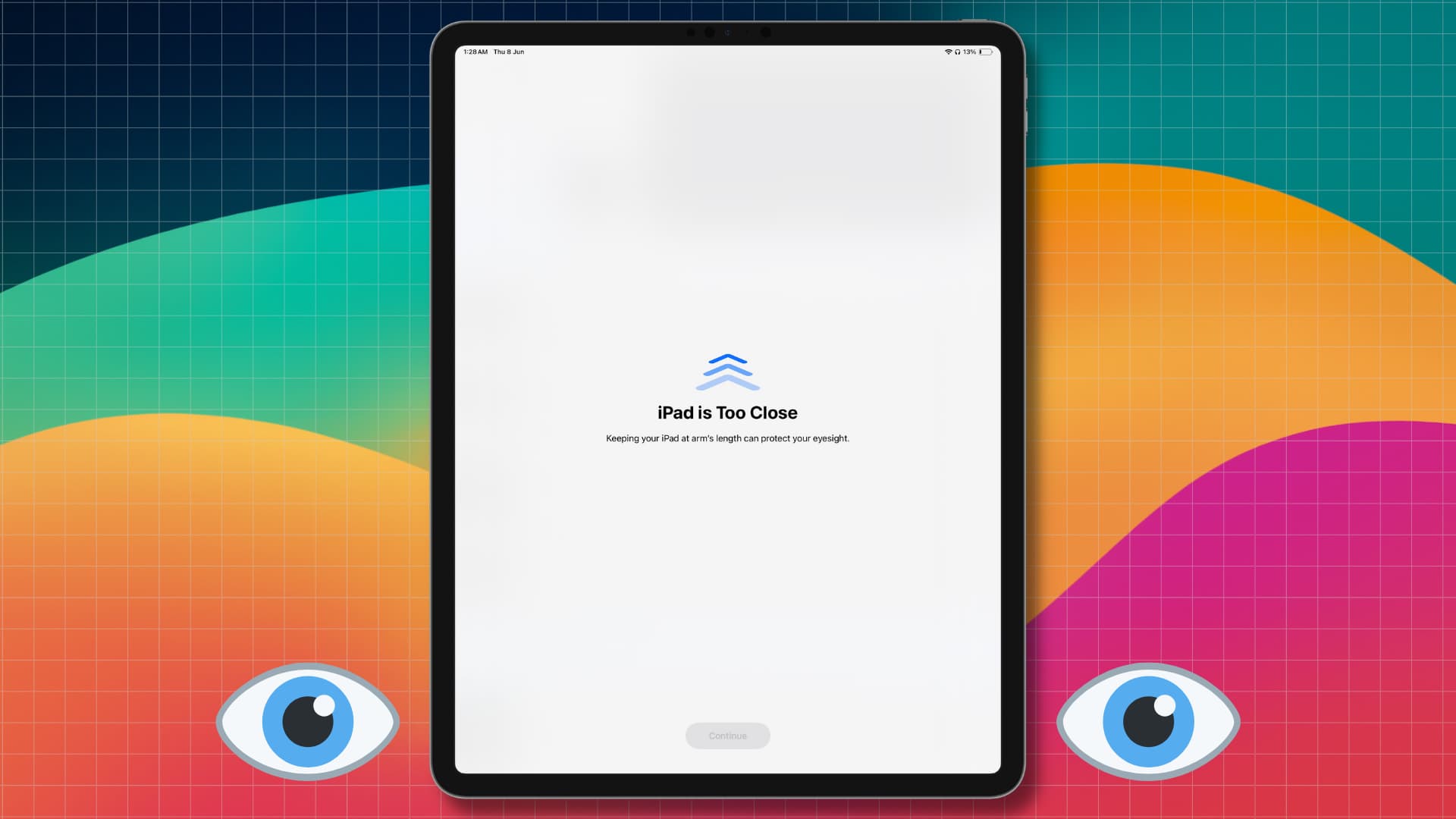
Always try to keep your iPhone or iPad at least one foot (12 inches) away from your eyes. Holding it too close (or too far) can cause unnecessary strain.
iOS has a lesser-known Screen Distance feature that can force you to hold your device further away. You can enable this from Settings > Screen Time > Screen Distance.
Wear glasses if you need them
If your eyesight is weak and you’ve been prescribed glasses for reading, driving, and other tasks, please wear them while using your phone as well. Of course, consult your eye doctor (ophthalmologist) for specific guidance.
Try True Tone and Night Mode
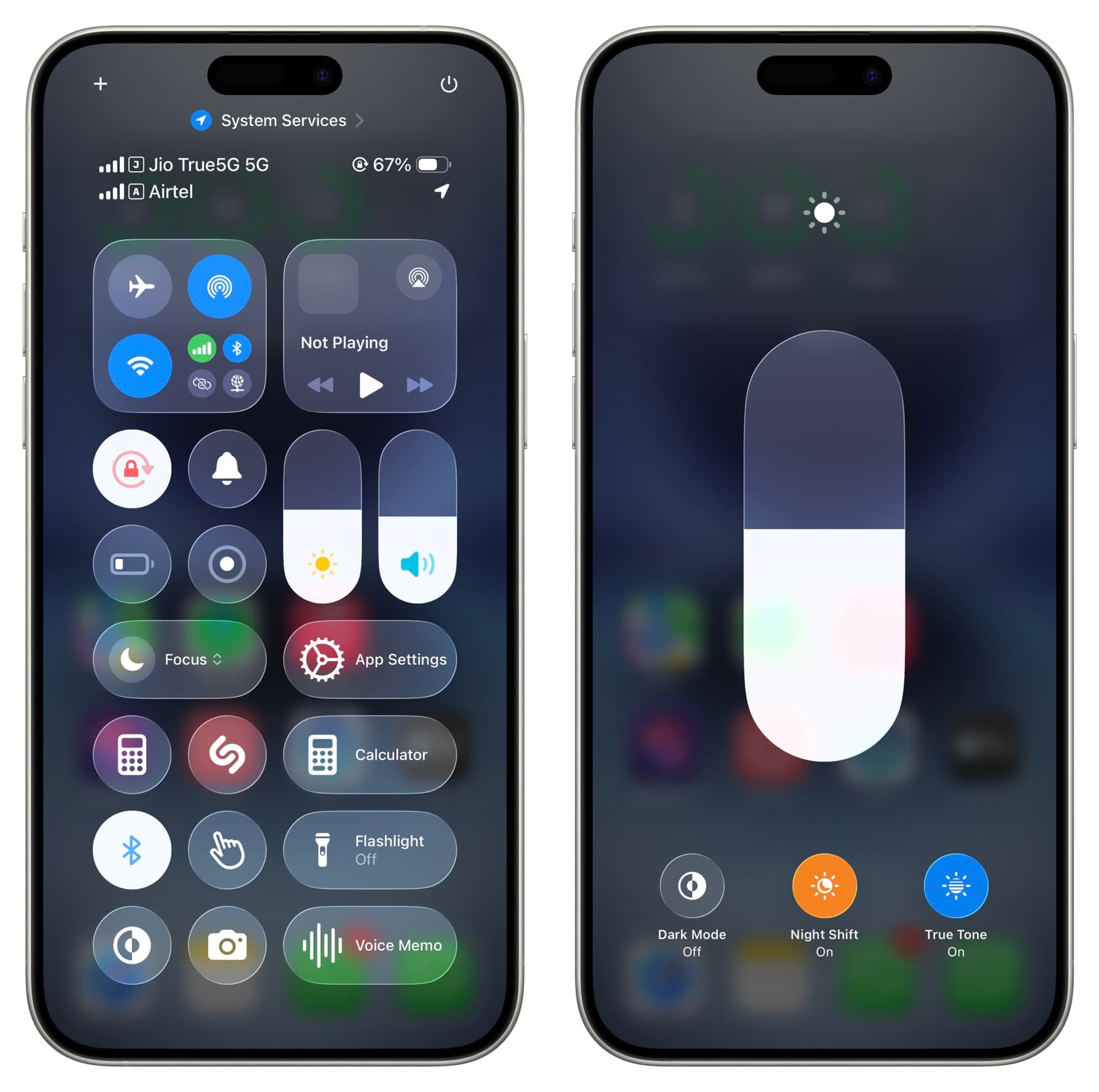
True Tone automatically adjusts the color temperature of your phone screen based on the light around you. Night Mode eliminates blue light, providing a warmer, orange hue; this can be helpful if you’re using your phone in bed at night.
You can turn on and off True Tone and Night Mode by tapping and holding the brightness slider in Control Center or by going to Settings > Display & Brightness.
Reduce White Point
If you think reducing screen brightness is not enough and the white, black, or other parts of the screen are still bothersome, go to iOS Settings > Accessibility > Display & Text Size and turn on Reduce White Point. Then drag the slider to a comfortable level.
Tip: Use the Accessibility Shortcut to quickly toggle this and other accessibility features without having to go to the Settings app each time.
Turn off system motions, animations, and flashing lights
iOS includes many stylish motion effects and animations throughout the operating system. If you feel disturbed by quick movements and flashing lights, follow these steps to turn them off:
- Reduce Motion: Settings > Accessibility > Motion
- Reduce Flashing Lights: Settings > Accessibility > Display & Text Size
Use Vehicle Tips feature
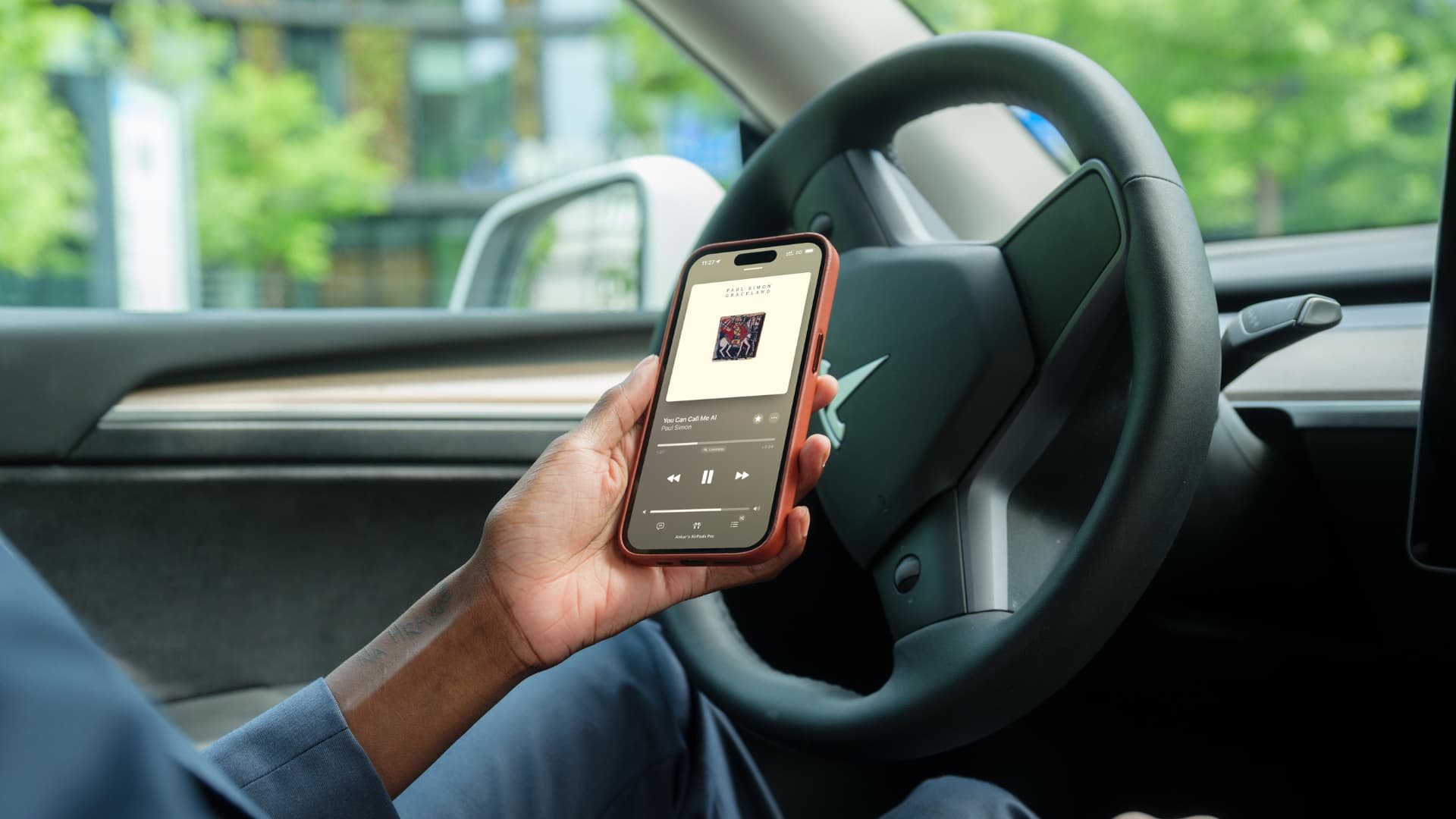
If you are using your phone in a car, bus, or moving vehicle, use the handy Vehicle Motion Tips feature that shows multiple small dots on the screen to help reduce motion sickness and related eye pain and headaches.
Stay calm, drink water, and take breaks
I often notice that using my phone outside on hot days or not drinking enough water leads to eye discomfort and mild headaches. So, pay attention to these.
Secondly, using your phone for long periods without breaks affects your overall health. Get into the habit of putting your phone aside and taking regular breaks. If you have an Apple Watch, enable the Stand Reminders feature that reminds you to take a minute to walk or stand after an hour of sitting.
Don’t force yourself to look at things you dislike
Finally, this tip is again based on personal observations.
On a bad news day, when I continue to look at posts I dislike or disagree with while scrolling on X, it affects my mood and leads to all kinds of fatigue.
If this happens to you, please close social media and take a break. Or just engage with things that align with your views (like and comment), and the social media algorithm is likely to show you similar things you love (allowing you to live happily in your own safe bubble).
What tips do you use to keep eye pain and headaches in check while using your iPhone or iPad for extended periods?


























Comments
(10 Comments)