
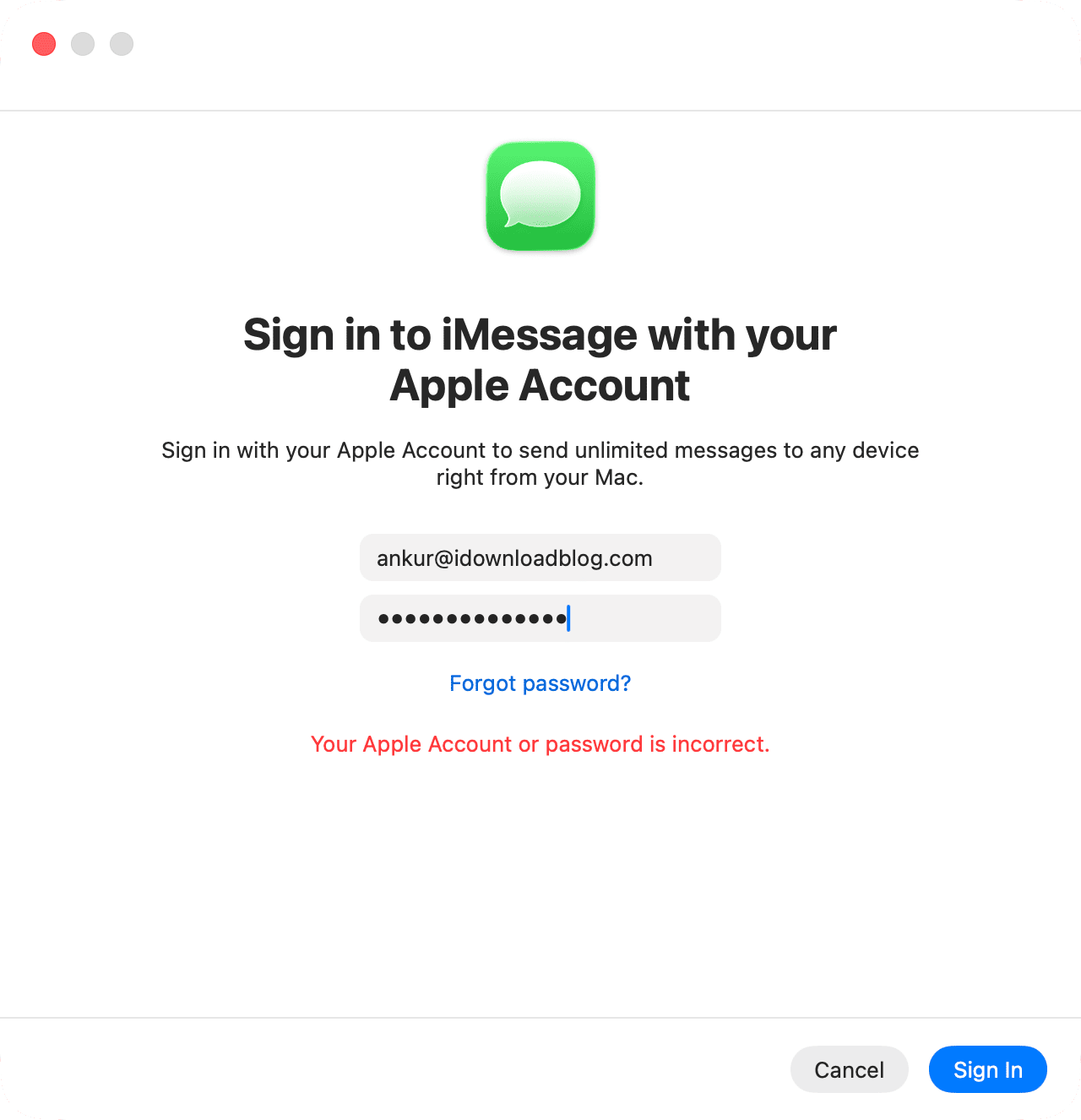
To use iMessage on your Mac or to sync your iPhone messages, you need to sign in with your Apple Account (formerly known as Apple ID). This is a simple process, but sometimes you may encounter random errors that prevent you from signing in. When you see a message like "An unknown error occurred", "Authentication Error", or something similar, check out these quick tips.
Make sure you entered the correct information
If you enter the email address and password for your Apple Account incorrectly, the app should display an appropriate message. However, in some cases, it may show a general "An unknown error occurred" message in red at the top of the screen. Therefore, make sure you have entered the correct information. If you have forgotten your Apple Account password, you can quickly reset it through iOS Settings or macOS System Preferences.
Force quit the app and try again after restarting your Mac
Even if you do everything correctly, the app may continue to show an error message due to a previous issue. To fix this, click on the Apple icon in the upper left corner of the screen and select Force Quit to force close the Messages app. Then, reopen the app and try to sign in again.
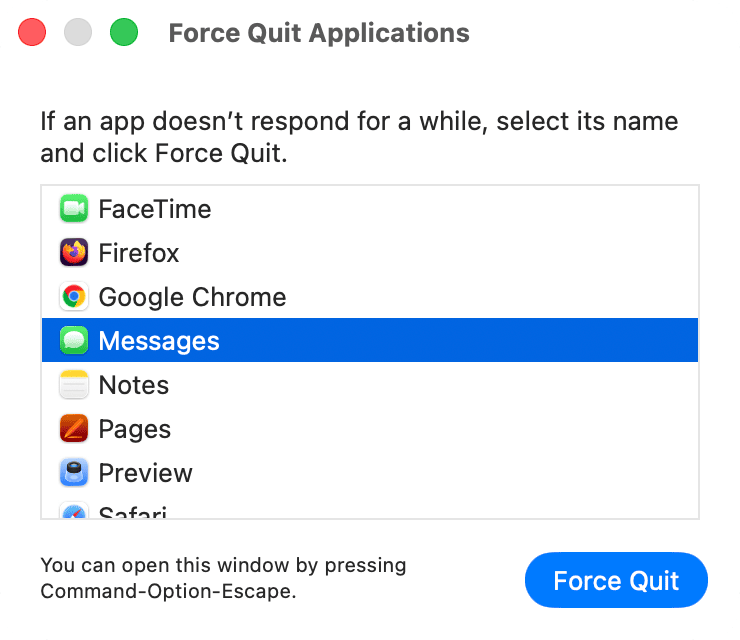
If you think forcing quit didn't work the first time, force quit again and restart your Mac. Then open the Messages app and try to sign in. It should work successfully.
Check Apple's system status and try again later
Visit Apple's system status page and make sure services like Apple Account, iCloud Account and Sign In, and iMessage are available. If there is an outage, wait and try again later.
Update to the latest version of macOS
If your Mac is running an old version of macOS or a macOS beta version, update to the latest version available for your computer.
Delete system files related to Messages
If you continue to see a message like "An unknown error occurred", follow these steps to delete the relevant system files and start fresh. Since you are already logged out, deleting these should not cause any concern. When you restart, macOS will recreate these necessary files.
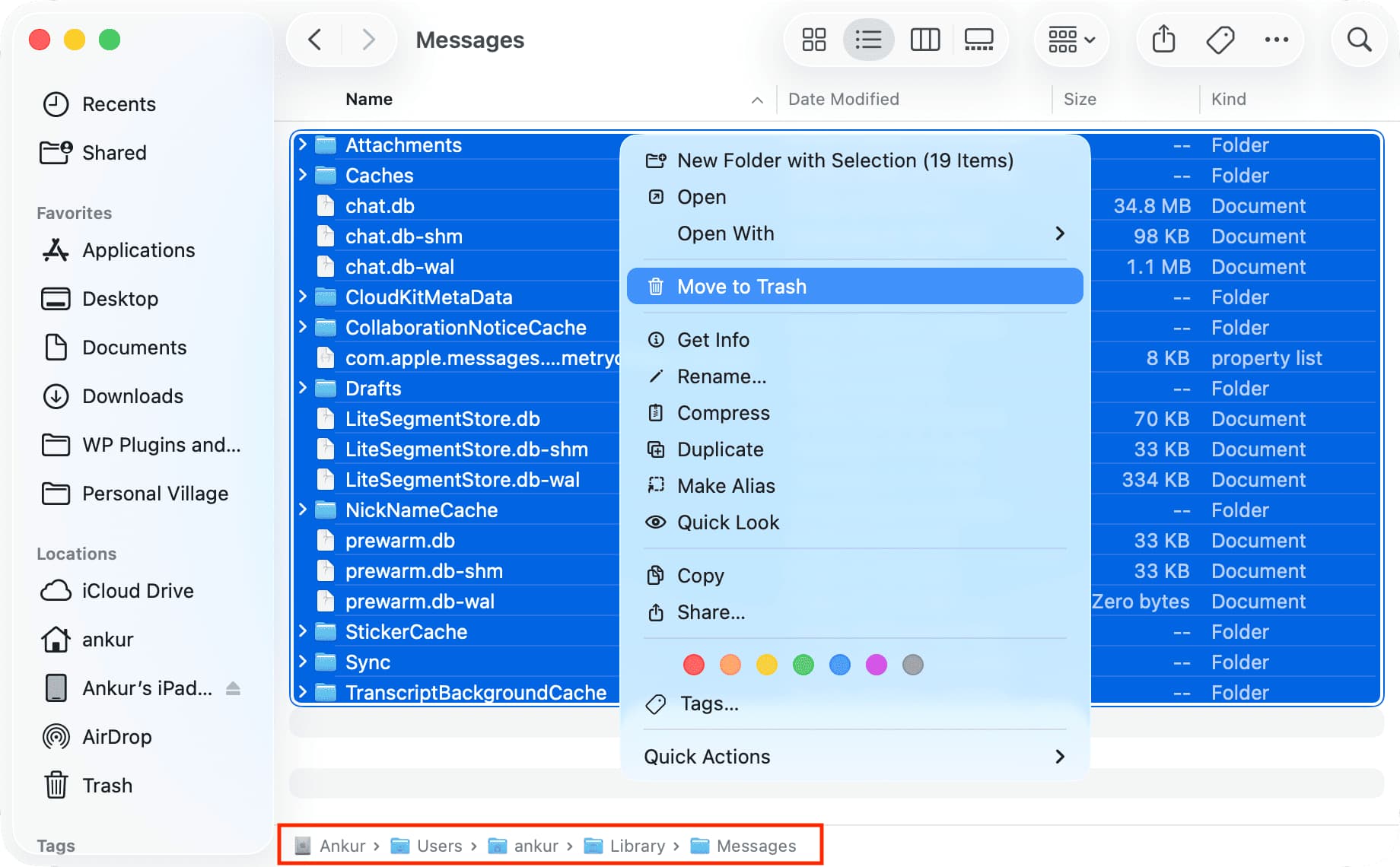
- Open Finder to go to your Mac's hidden Library folder, hold down the Option key, and click Go > Library from the top menu bar.
- Locate and open the Messages folder. Then select all files and folders here and move them to the Trash. You can also move them to another folder for safety.
- Important: Restart your Mac.
- Open the Messages app and try to sign in again. It should work.
Sign out of your Apple Account and sign back in
If you are still experiencing sign-in issues after following the tips above, consider signing out of your Apple Account from System Preferences. Then restart your Mac and try signing back into the Messages app.
If all else fails...
Finally, if nothing works, I recommend waiting a few hours or maybe a day and then trying again. If you've already done this and the issue persists, try these as a last resort. I've listed the easiest ones above.
- Add a new user account to your Mac, set it up, and try signing into your Apple Account in the Messages app.
- Add another version of macOS to your computer (without changing your current installation) and try signing into Messages there.
If you succeed, it means there is an issue with your specific user account or your macOS installation. Try all the solutions above again, especially the one we mentioned about deleting all Messages files and starting fresh.
If the problem persists, consider these two options:
- Reinstall macOS without deleting your existing data.
- Reset your Mac to factory settings and set it up again.
One or a combination of the tips above should have resolved your iMessage sign-in issue on your Mac. Let us know which solution worked for you.



























Comments
(7 Comments)