If you experience the sudden disappearance of some or all contacts from your iPhone or iPad running iOS 26, review these troubleshooting tips.
There is an active thread on the Apple Community forum discussing missing contacts from iPhones. This thread has received about 50,000 views, indicating that this is not a singular issue and that you are not alone in this.
We will provide several possible solutions to recover your lost contacts and restore your phone's address book.
Close and Reopen the Contacts App
Let's start with the basics. So, close and reopen the iOS 26 Phone and Contacts apps a few times, then check if the missing contacts have unexpectedly returned.
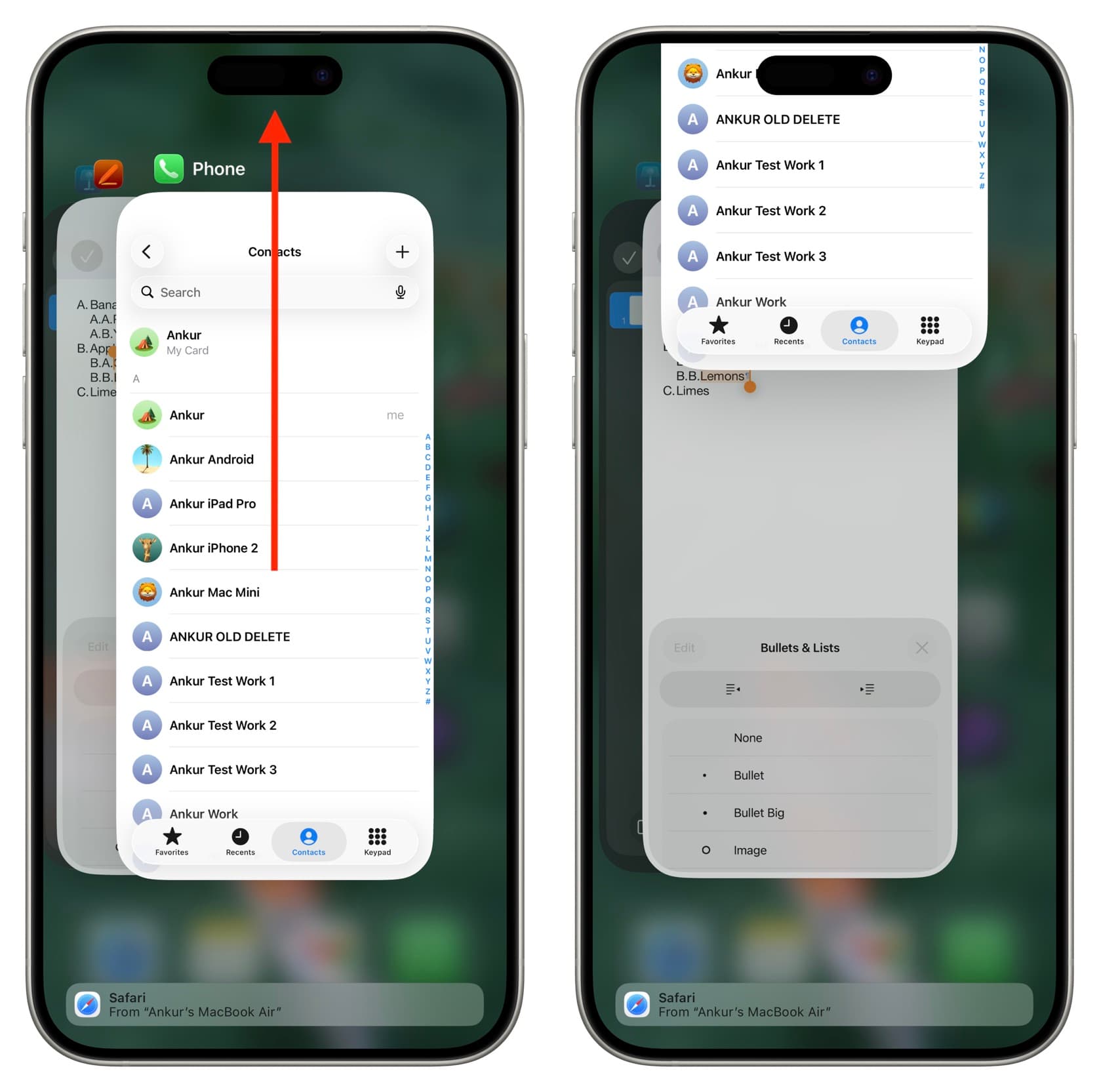
Restart Your iPhone! Yes, It Works
Turning your iPhone or iPad off and on can solve many issues, including this one. A post by @applewatchhelp123 on the Apple Community forum proves how they recovered their missing contacts simply by restarting their iPhone. The absence of contacts could be due to system glitches, and this was resolved with a simple restart.
Ensure All Contacts Are Selected
iCloud.com and the iOS Contacts app allow you to create groups (officially called Lists) and choose to view all contacts or only those in a specific list.
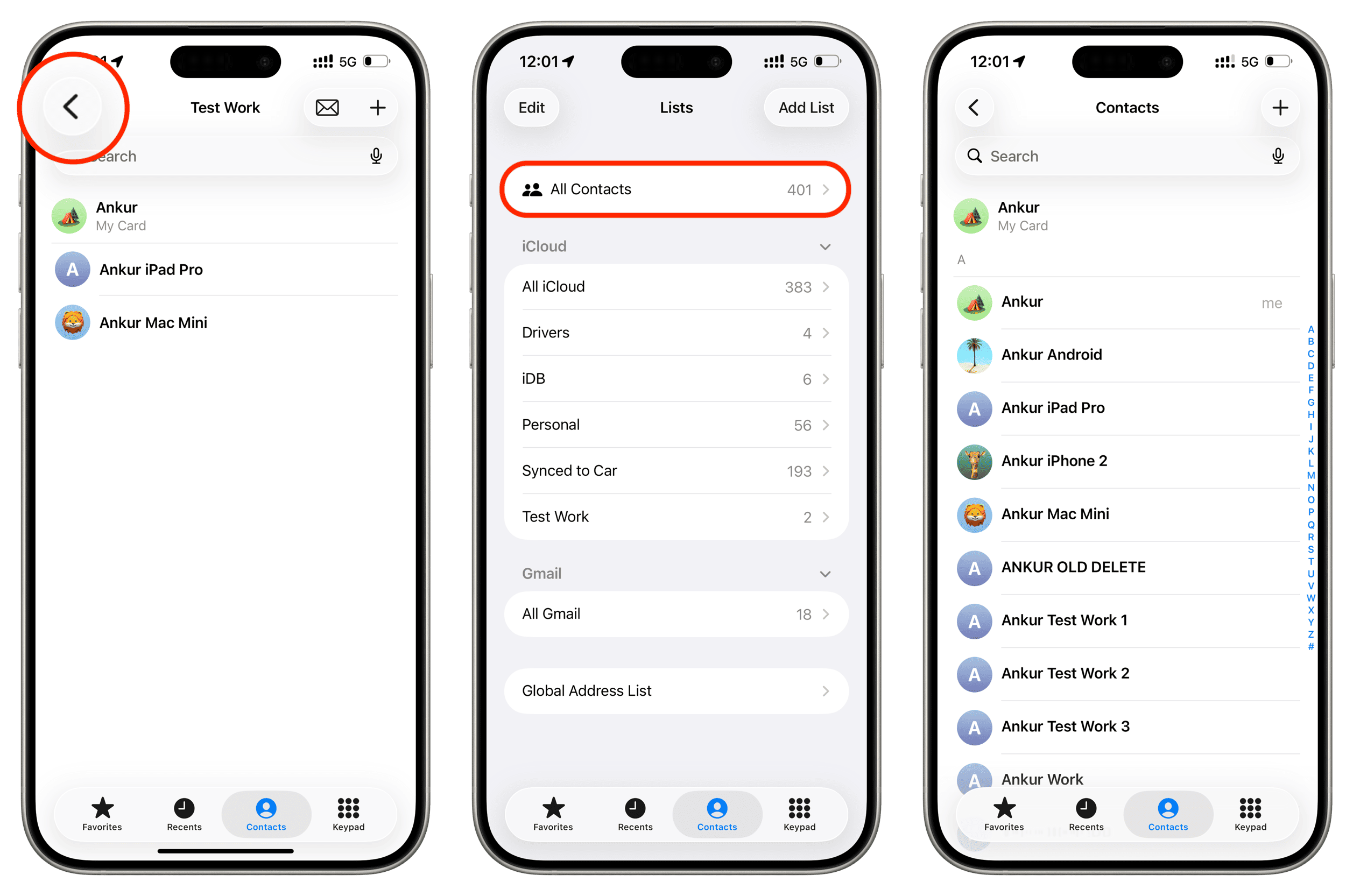
If you or someone with access to your device accidentally selected a list and left it that way, follow these steps to fix it by selecting All Contacts (i.e., all lists).
- Open the Phone or Contacts app and tap the arrow (<) icon in the top left corner of the screen.
- Now, select All Contacts to see all saved entries.
Ensure a Specific App Has Access to Your Contacts
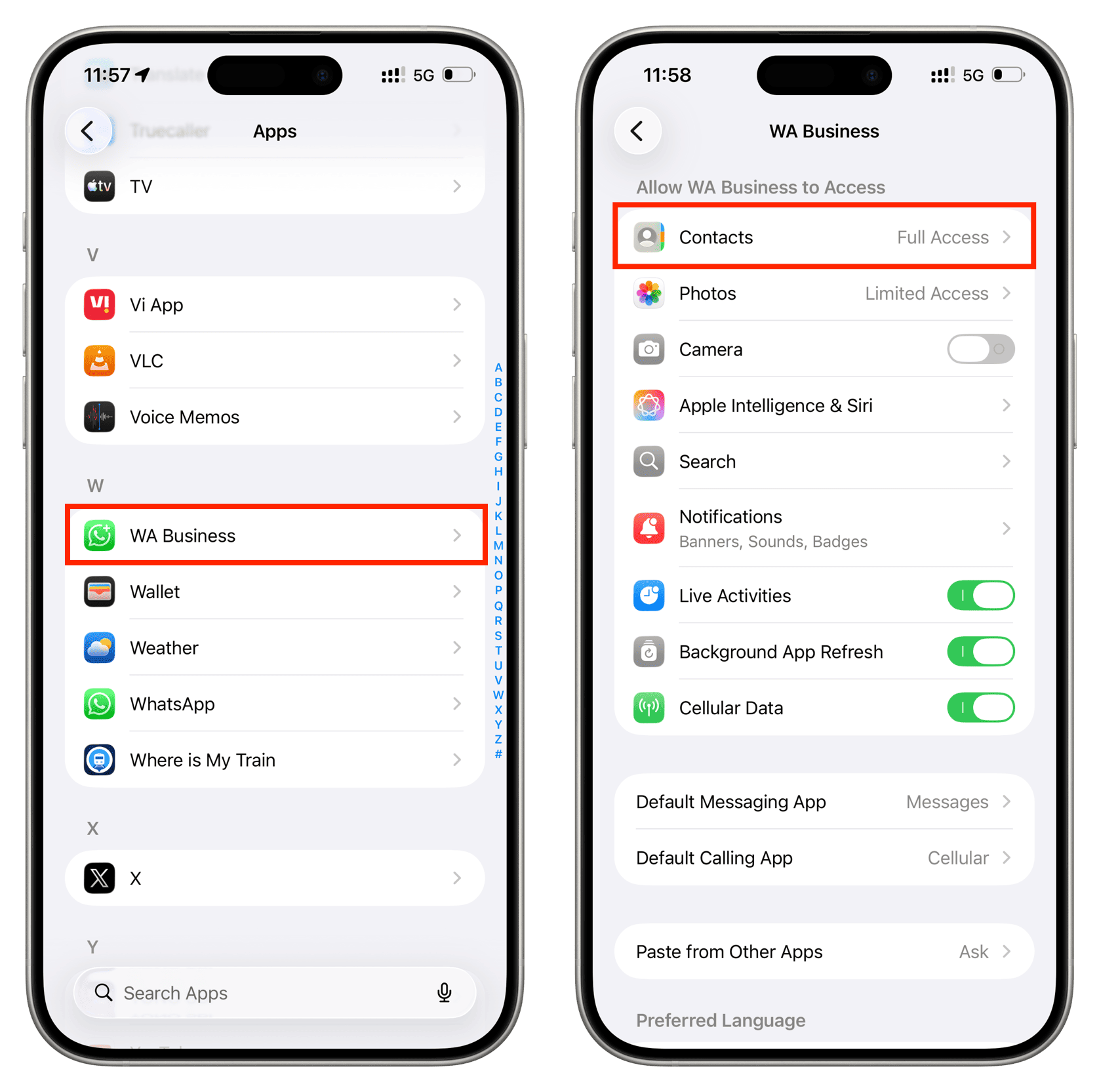
Several apps, such as WhatsApp and Telegram, access your phone book to use those contact names in the chat screen. If you have reset all settings or accidentally revoked the app's access to your phone book, those names may disappear from the chat screen, showing phone numbers instead, which can give the impression that the contact is missing.
Therefore, open the app and if you see a pop-up requesting permission, tap Allow. If you denied it, go to iOS Settings > Privacy and Settings > Contacts > select the app and grant full or limited access permission.
Update to the Latest iOS 26 Version
If your iPhone or iPad is still running the initial version of iOS 26 or iPadOS 26, update to the latest version by going to Settings > General > Software Update.
Ensure All Your Accounts Are Logged In
Besides Apple’s own iCloud, you can store and sync contacts on your iPhone using Google, Outlook, Microsoft Exchange, or other internet accounts.
If you have changed the password for that internet account or it has been a long time since you added it, iOS may ask you to verify again. Usually, when such a need arises, you will see a notification in the Settings app or a pop-up saying “email not verified.”
Secondly, if you are using a work email/internet account and then change jobs, your account access may have been revoked, which can lead to the loss of contacts (and other files) stored there. A user on the Apple Community forum, @Alinsky10, has an account that states:
I am experiencing the same issue. I think my phone saved the contacts to my now-invalid university email address. The university disables email access 30 days after graduation, and that was 11 years ago.
Unfortunately, if you do not have access to that account, you cannot recover your contacts. However, if you still have access but only changed the password or see an error, follow these steps to fix it:
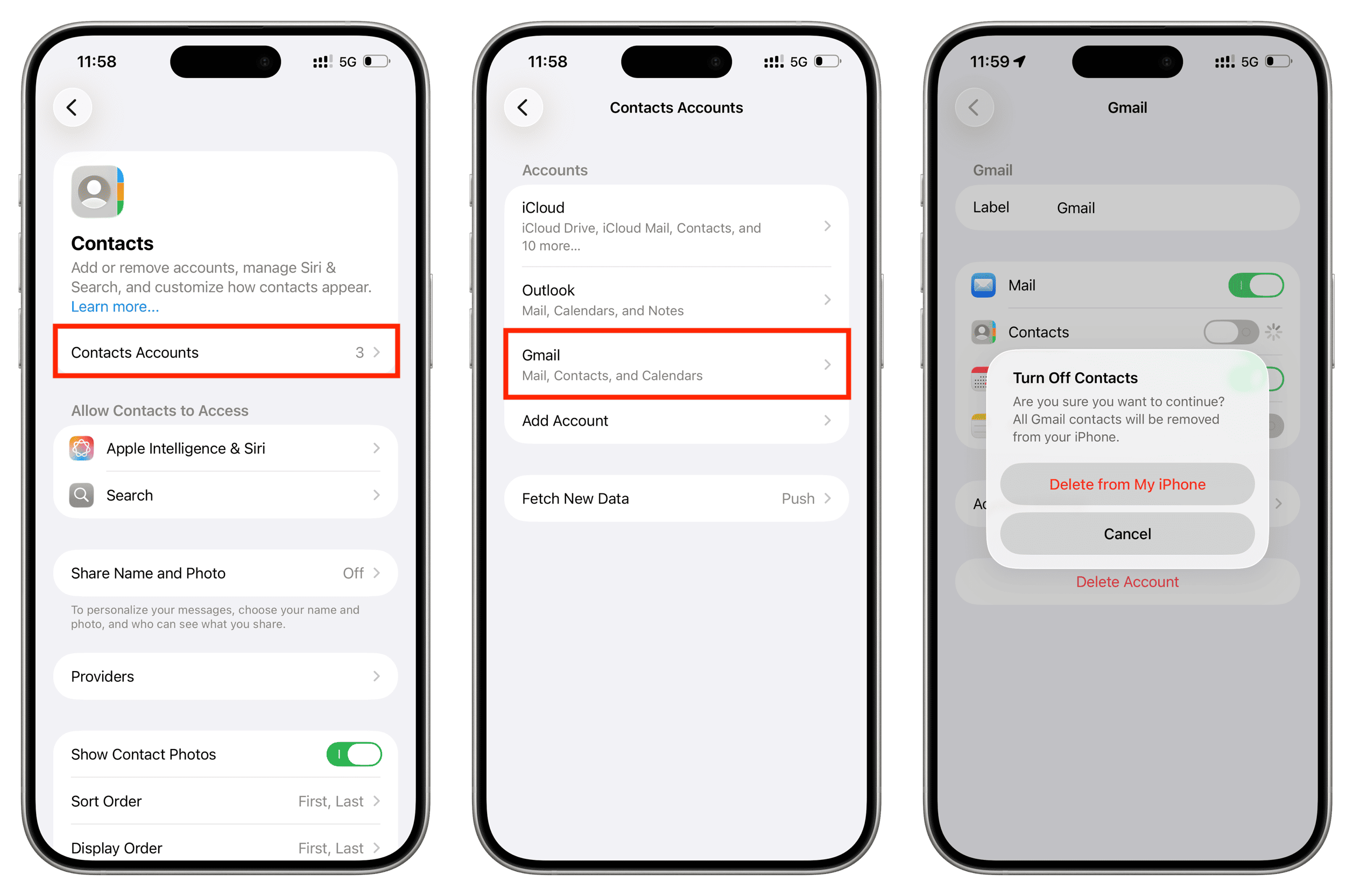
- Open the Settings app on your iPhone or iPad, tap Apps at the bottom, and select Contacts.
- Tap on Contacts Accounts.
- Tap on Gmail, Outlook, Microsoft Exchange, or other accounts you have added and check for any error messages. Even if everything seems fine, toggle the ‘Contacts’ switch off, tap Delete from iPhone (they are still saved in your online account), and restart your iPhone. Then, return to this screen and turn Contacts back on.
Check If Your Contacts Are Visible in a Web Browser
It is also possible that your contacts are securely saved in iCloud, Google, Microsoft, or other accounts but are not syncing or visible on your iPhone due to some issues. Access the contacts section of that service from a browser (using the links below) and check if everything is there. If it is, check the next tip. If it is not, proceed to the next tip.
- icloud.com/contacts
- contacts.google.com
- outlook.live.com/people/0/
Resync All Contacts on Your iPhone
If you have saved your contacts to your Apple, Google, or Microsoft account but they are not visible, return to the Contacts Accounts section in iOS Settings and toggle the Contacts switch off and back on.
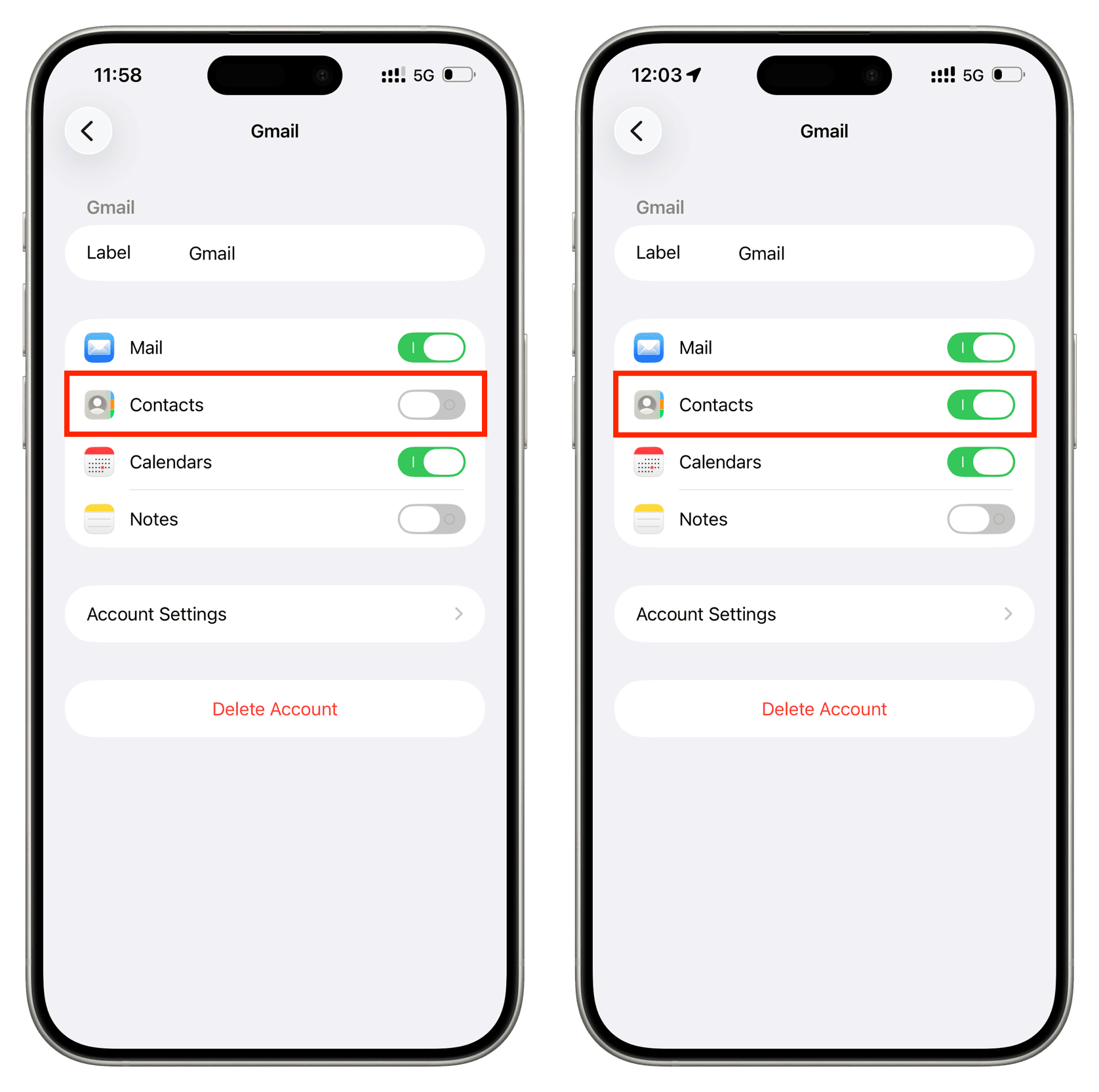
If this does not work, log out of iCloud or delete the third-party account and log back in. This should ensure that all contacts are resynced and visible in the iPhone Phone and Contacts apps.
Restore Lost Contacts
If you have deleted your contacts from a cloud account, you can recover them by accessing the contacts section from a web browser.
- iCloud: Use the special ‘Recover Contacts’ feature.
- Google: Check the ‘Trash’ section of Google Contacts.
- Outlook: Browse the ‘Deleted’ section and restore contacts if they are visible there.
Reset All iPhone Settings and Check If the Issue Is Resolved
If you have tried everything and the issue still persists, you might consider resetting all iPhone settings and then reviewing the tips above again. This will not delete apps, photos, music, or other personal files.
A Tip for the Future: Back Up Your iPhone Contacts
The state of iOS is such that even the most basic features can fail at any time. For example, all the notes I added to My Card on my iPhone (like my lock number) automatically disappeared one day, and I could never recover them.
Similarly, the loss of contacts, AirDrop not working, apps crashing randomly, the camera not taking photos, widgets not updating with new content, and apps not functioning without force closing and reopening are part of using an iPhone. All recent iOS versions feel unpolished and buggy.
Therefore, to save yourself from such situations, I recommend backing up most of your personal data to iCloud, online storage, or a physical SSD as often as possible.
Since we are addressing contacts, I am offering an extremely easy way to back up your address book from your iPhone as a VCF file or Excel sheet. This requires using the Export Contact app, which is available for free on the iOS App Store.
Download Export Contact

























Comments
(3 Comments)