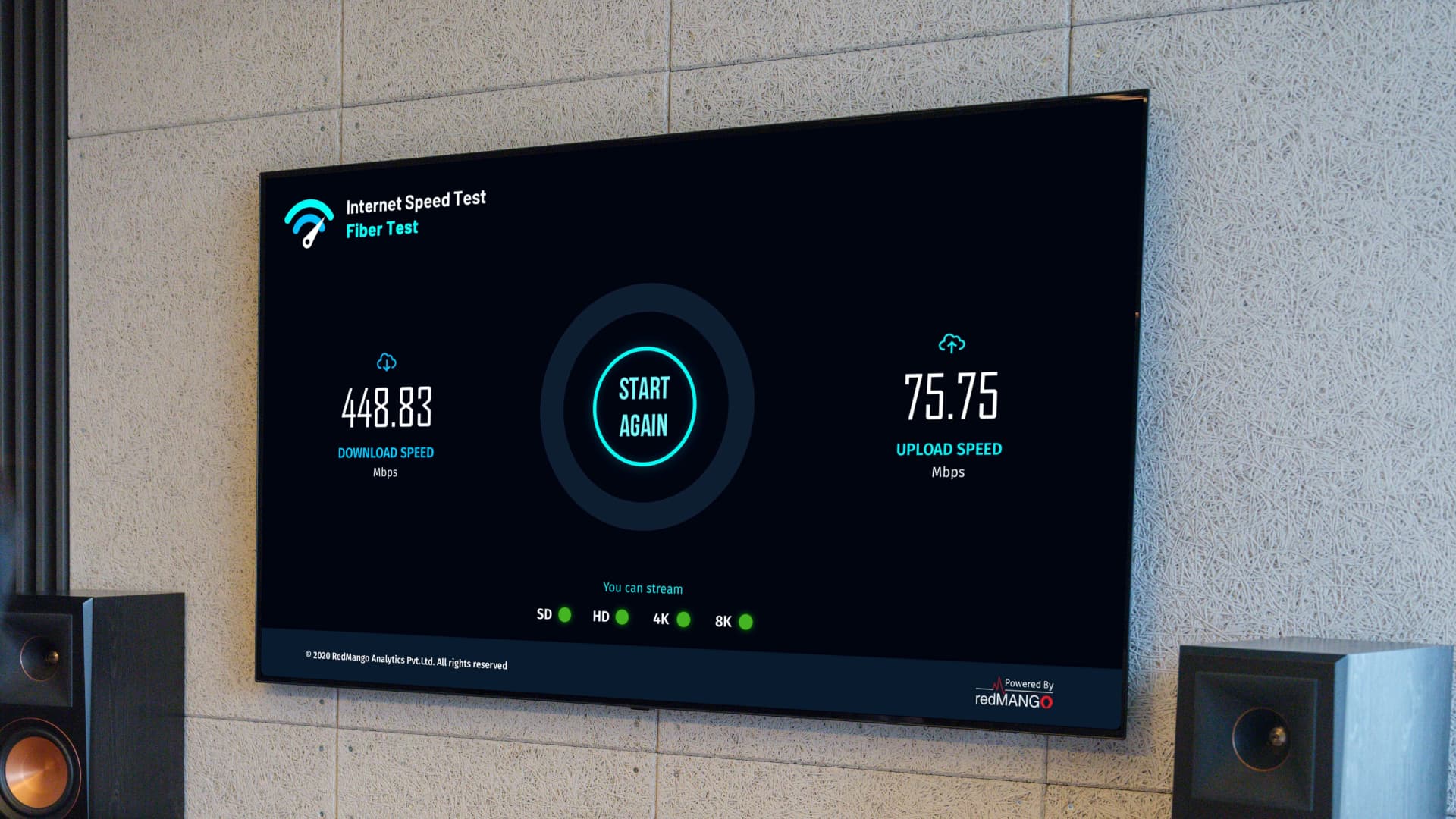
In this short guide, we will share quick steps to check the download and upload speeds of your Apple TV's Wi-Fi or Ethernet connection.
If you are experiencing delays in video, music, or live sports streaming, or if Siri requests, app downloads, or tvOS software updates are taking a long time, you may want to consider performing a network speed test on your Apple TV. In these cases, you can conduct a quick speed test to find out your download or upload speed and then take steps to fix it.
Performing a Wi-Fi or Ethernet Speed Test on Apple TV
1) Open the tvOS App Store, search for speed test, and you will come across several free and paid applications. I recommend these three applications; download any one or all of them:
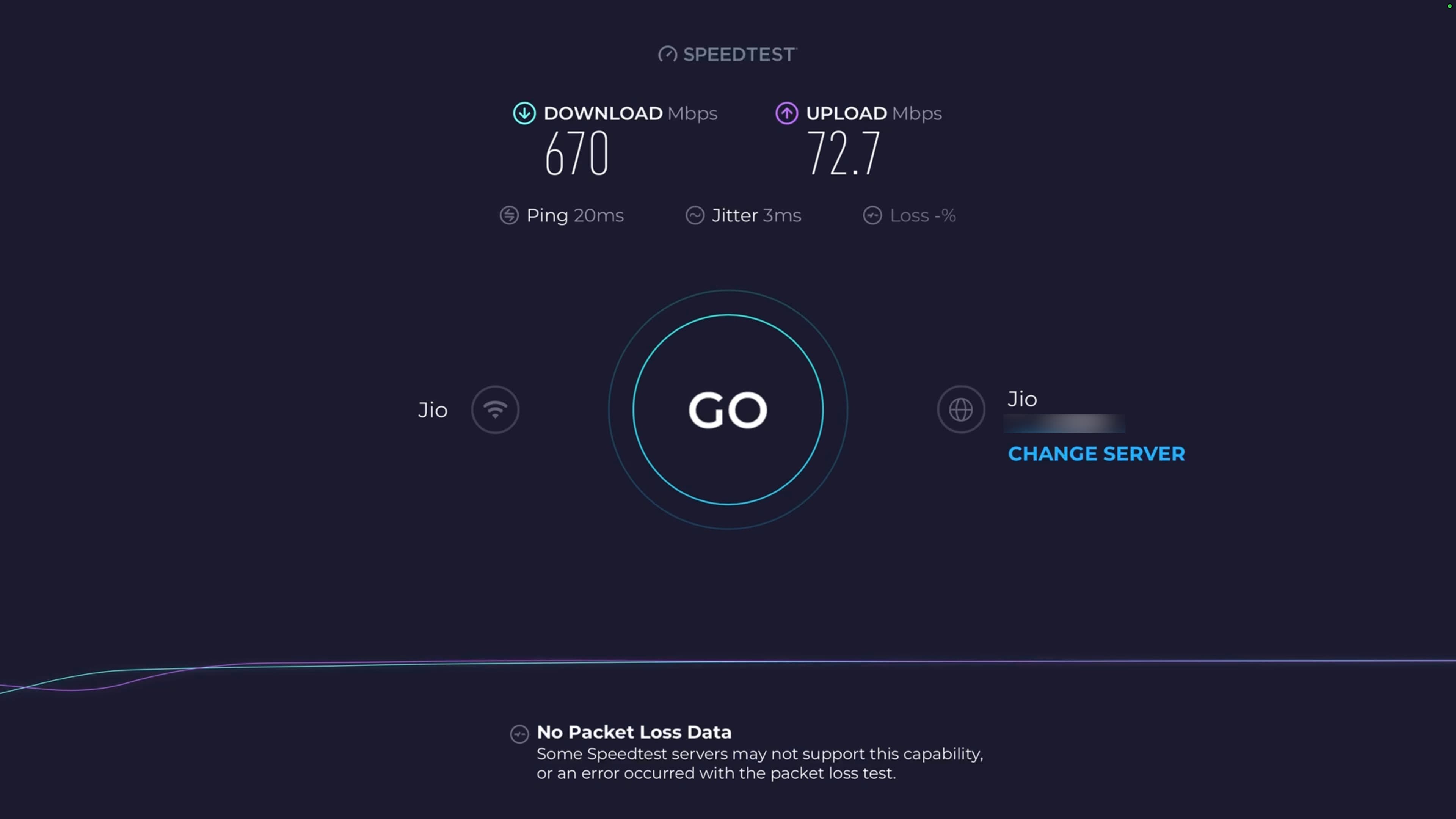
- Speedtest by Ookla: This is one of the most popular speed test applications of all time. You have probably used this on your iPhone, iPad, Mac, Android phone, and other devices.
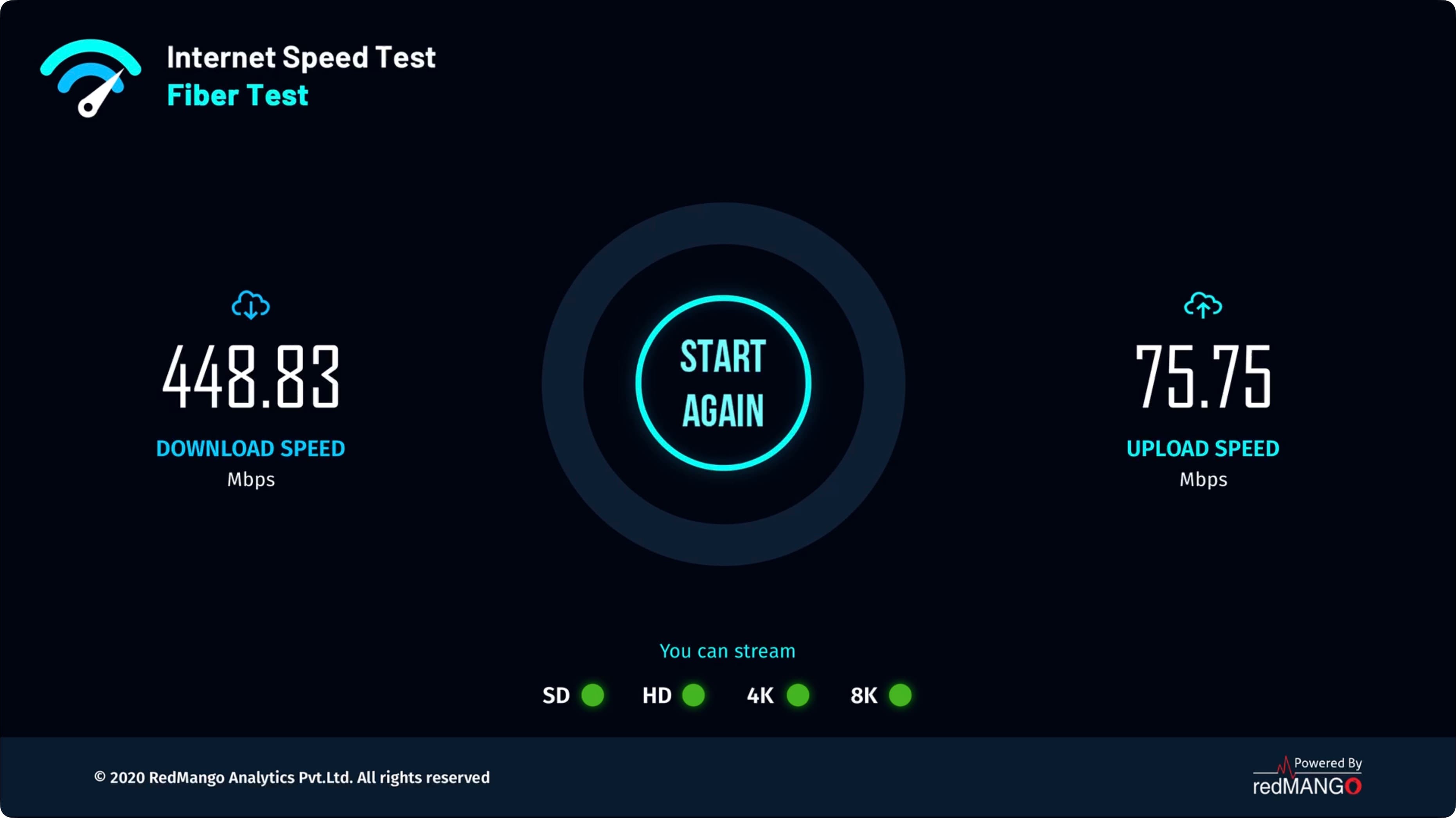
- Internet Speed Test: It provides a useful graph showing whether your internet connection is suitable for SD (standard definition), HD (high definition), 4K, or 8K streaming.
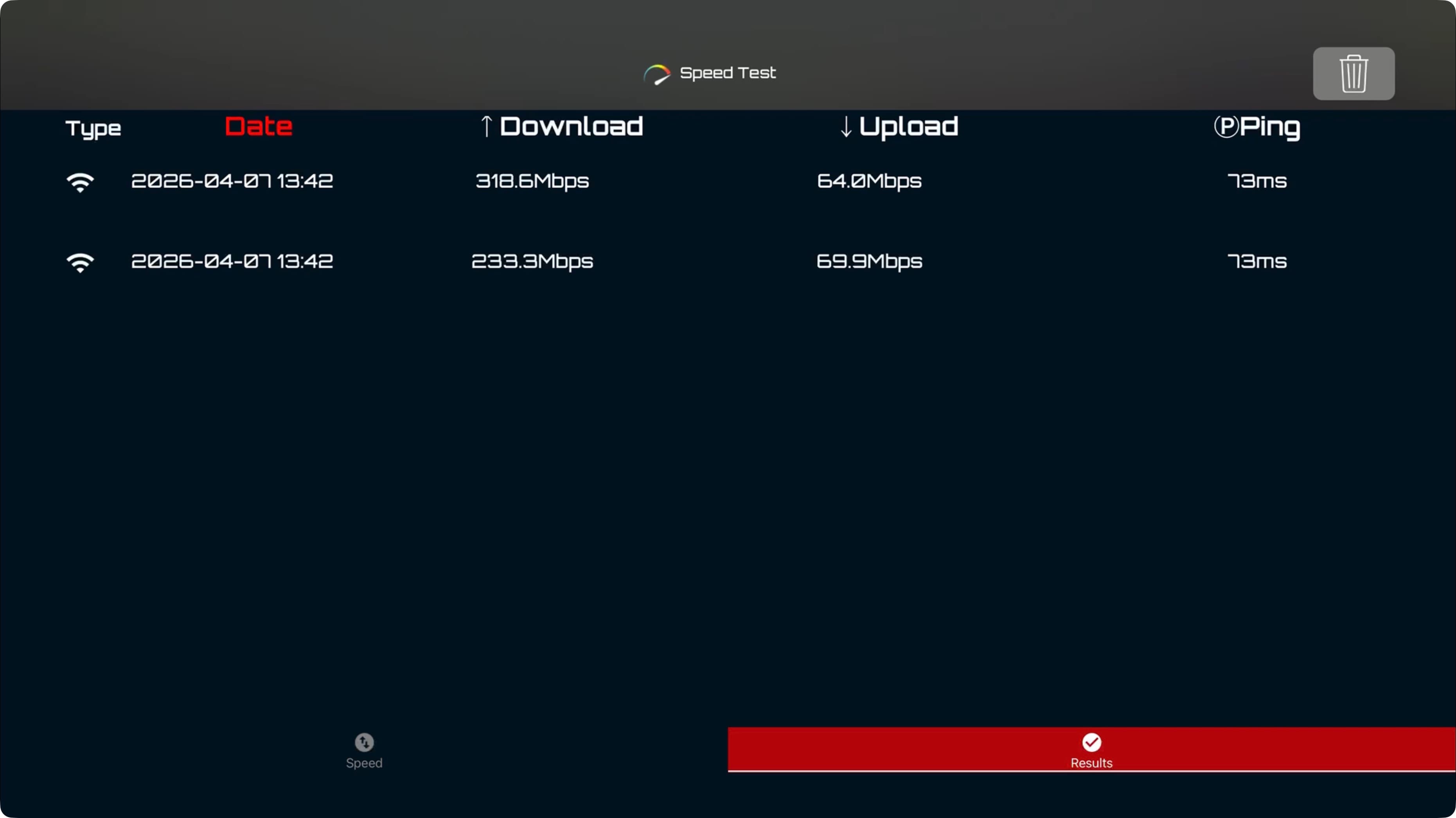
- SpeedTest: It saves your speed test results, so you can have a history.
2) Open and run the speed test application you downloaded. If you are using Speedtest by Ookla, you can change your server location (but keep in mind that the server automatically selected by default is usually the best choice).
3) After about 30 seconds, you should see the download and upload speeds and ping value of your Apple TV's Wi-Fi network or Ethernet connection.
Note that all three applications need to be opened to check the speed. I did not find an application in the tvOS Control Center that shows network speed.



































Comments
(6 Comments)