
In this step-by-step guide, we will show you how to set up automation on your Mac to ensure that a specific application opens automatically when you connect an external SSD, flash drive, hard disk, or SD card.
This is a simple tip that you will especially appreciate if you are editing videos or photos. For example, you can connect an external SSD or a camera SD card to your Mac every day, and then open Final Cut Pro, Pixelmator, or Adobe Photoshop. Automating this application opening process reduces the number of tasks you need to do after connecting the external drive.
Opening a Mac Application When an External Drive is Connected
1) Connect the external SSD, hard disk, flash drive, or SD card to your Mac.
2) Open the Shortcuts app on your Mac running the latest macOS version, and select the Automation option from the left sidebar.
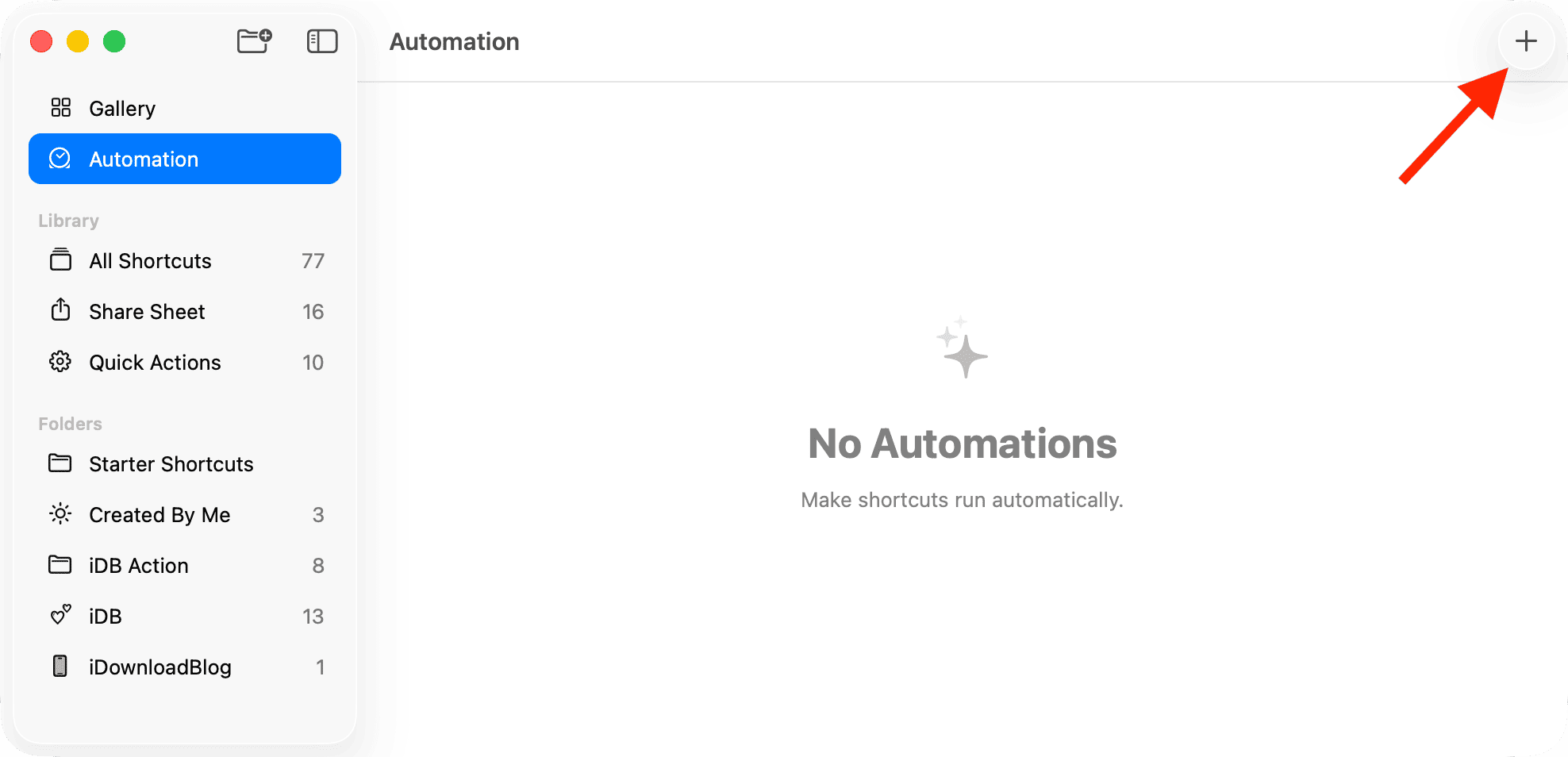
3) Click on the plus icon (+) to create a new automation.
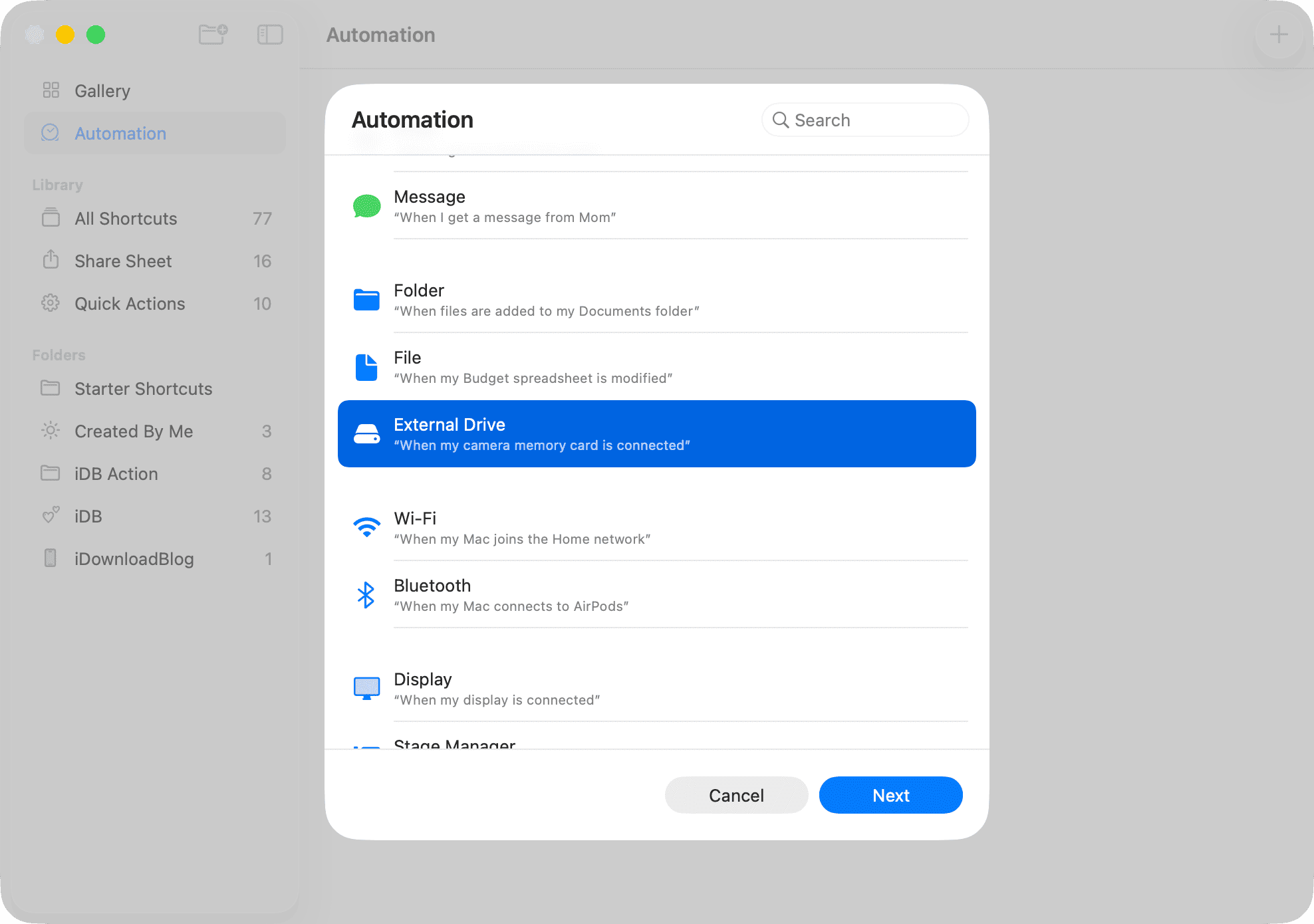
4) Select External Drive as the condition and click the Next button.
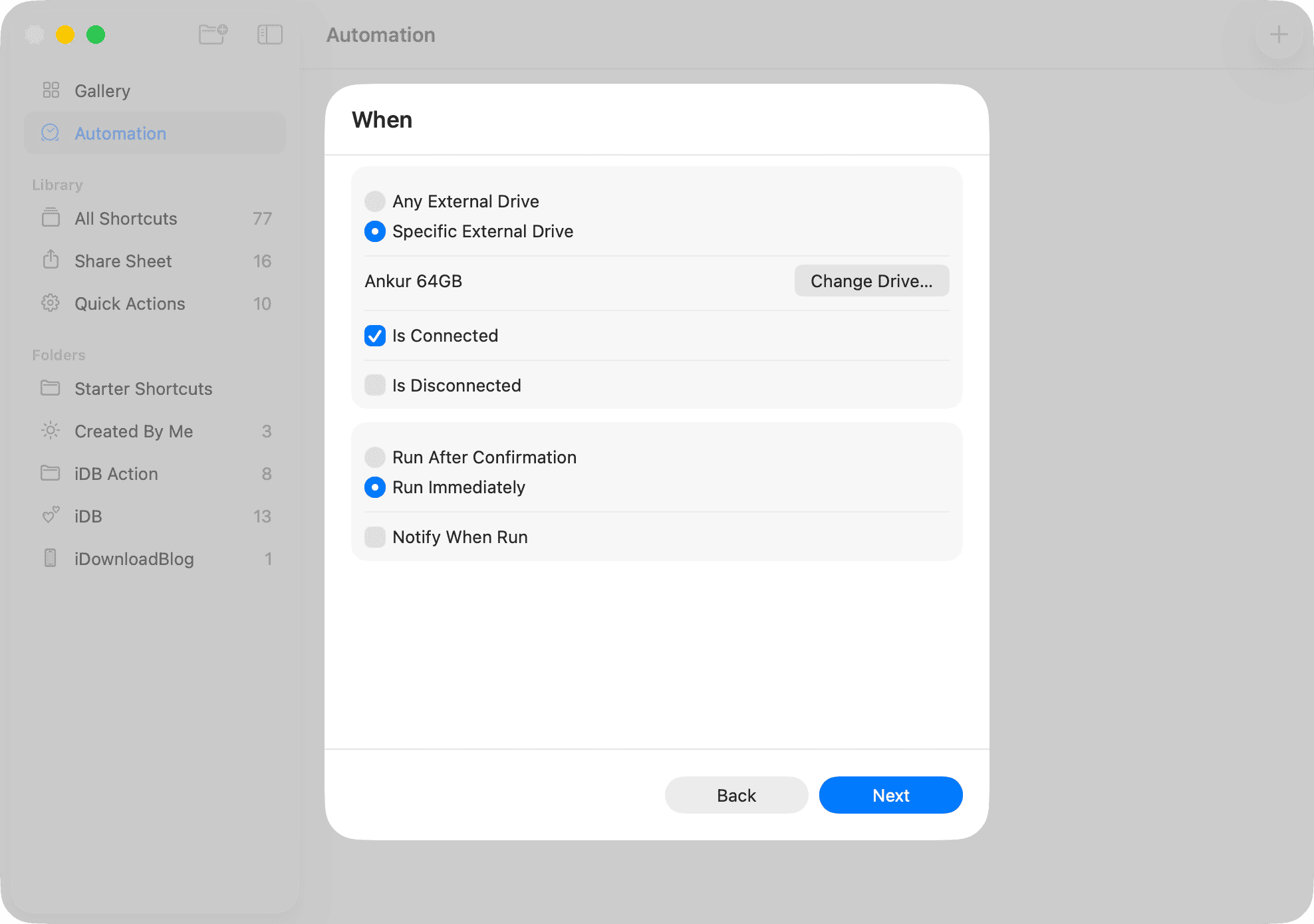
5) Now, check the Specific External Drive box, then click the Select Drive button and choose the external drive you connected in Step 1. Alternatively, you can leave it as Any External Drive if it suits your workflow better.
6) Keep the option Is Connected checked. Then, select Run Immediately so that this automation can run automatically without your approval. If everything looks good here, click the Next button.
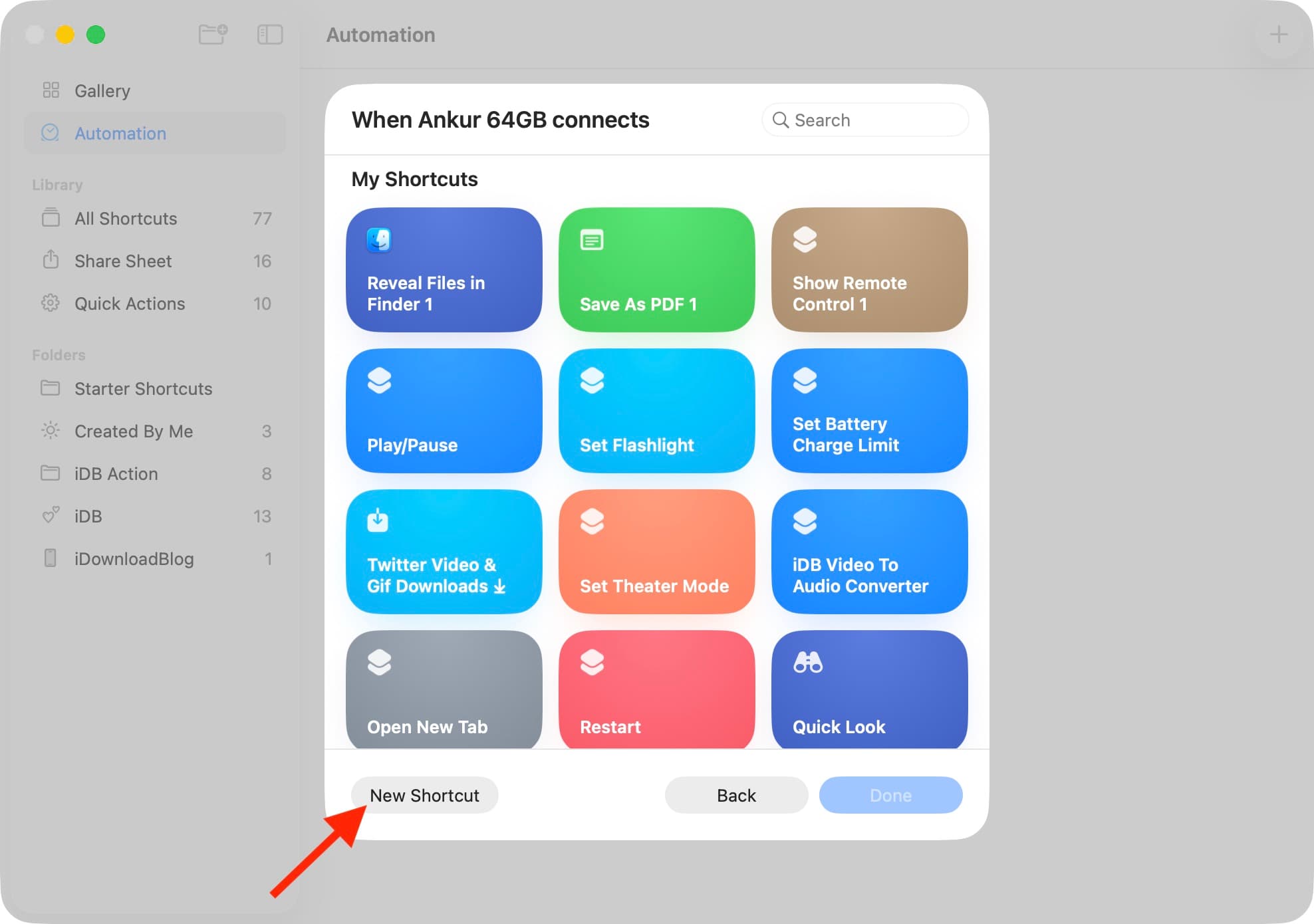
7) Click the New Shortcut button.
8) Add the Open Application action by double-clicking it. Then, click on the ‘Application’ placeholder and choose the Mac application you want to open when this drive is connected. You can now click the red traffic light button to save this automation and close this screen.
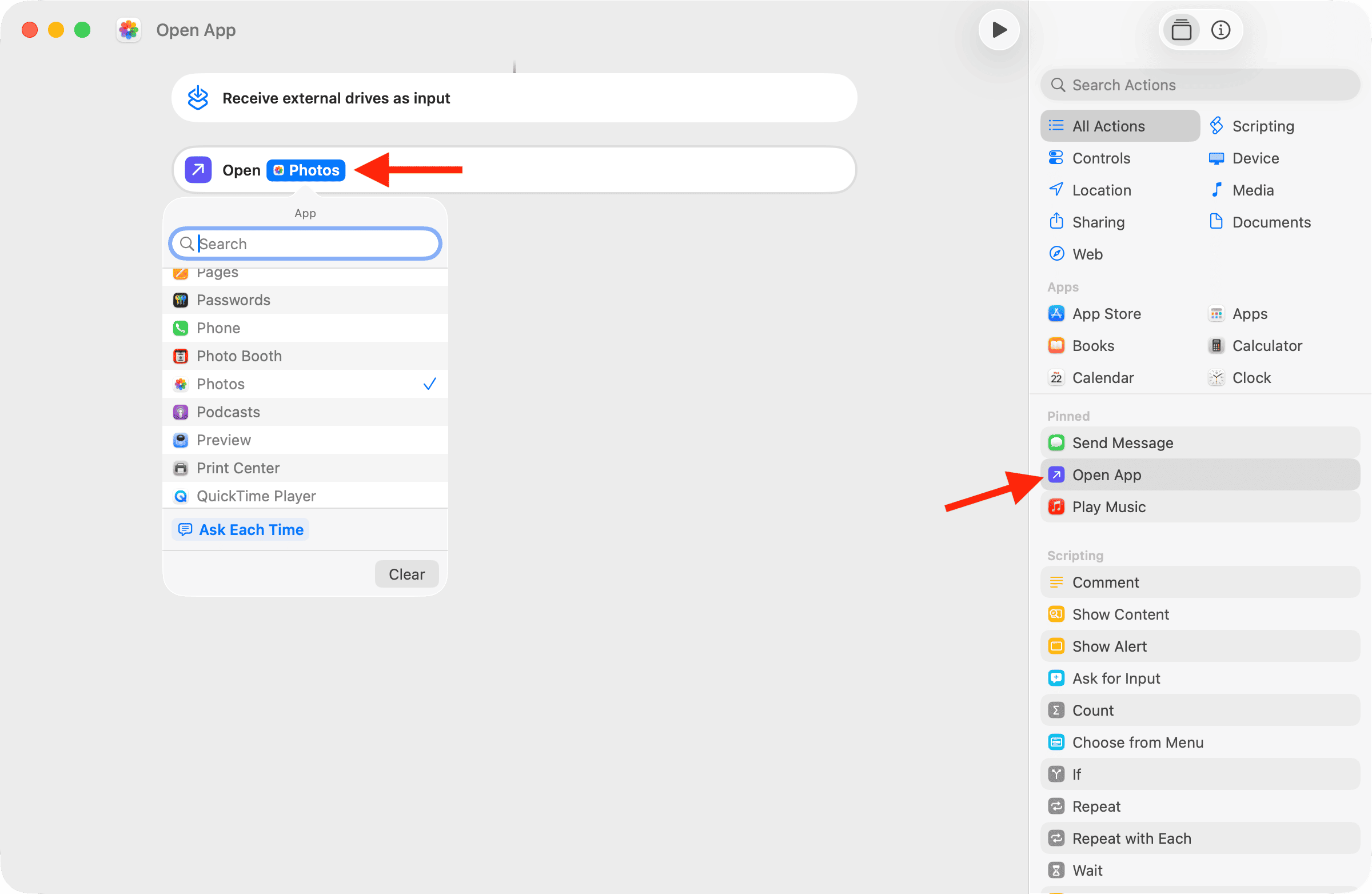
You have successfully set up an automation that opens an application when a specific external drive is connected.
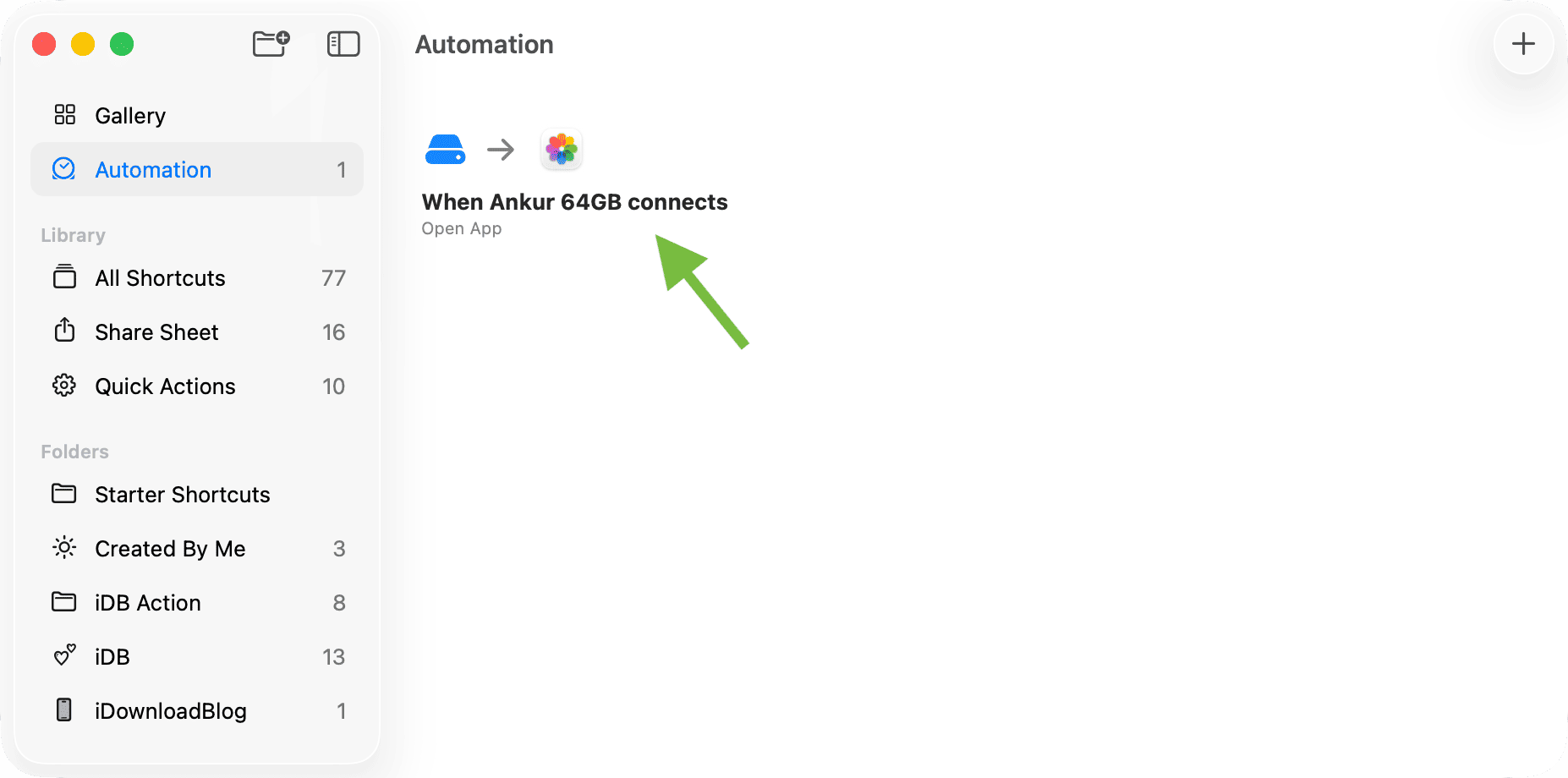
To check, unplug the external drive and reconnect it after a few seconds. You will see the application open automatically, so you can start working right away.
Can You Do This on iPhone or iPad?
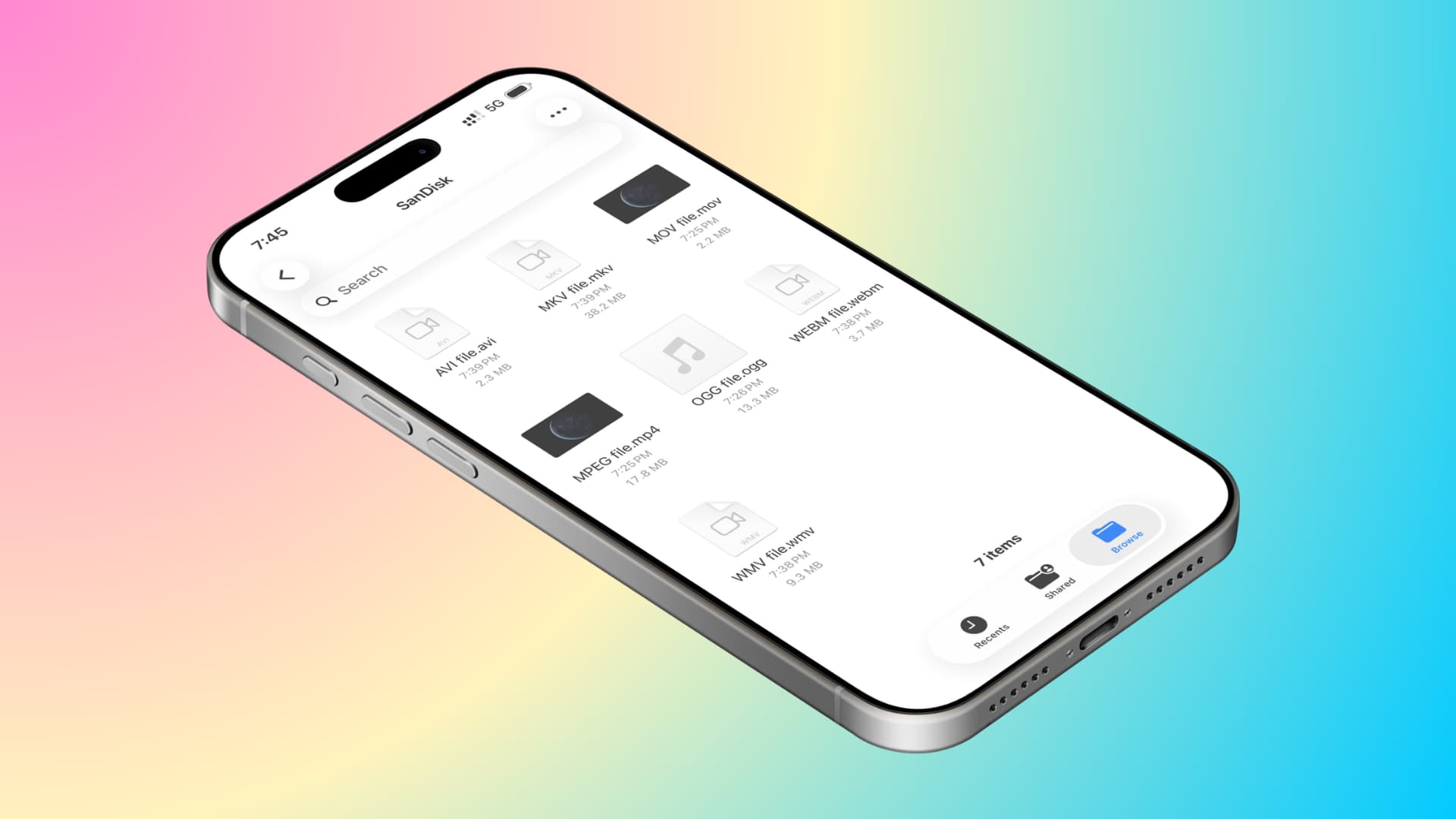
Unfortunately, there is no ‘External Drive’ condition in the automation section of the iOS Shortcuts app. Therefore, there is no simple way to trigger a specific application to open when you connect an external drive to your iPhone or iPad's USB-C or Lightning port.
























Comments
(5 Comments)