
When you see a message in WhatsApp indicating that the app cannot be used because it has not been updated, the most obvious solution is to update the app from the App Store. If you are an iPhone user, we will quickly explain this situation and show you how to resolve the issue.
App developers regularly release updates for various reasons, including ensuring everything works smoothly, adding new features, fixing known security vulnerabilities, and similar reasons.
Therefore, you should try to keep all your apps up to date. Apple goes a step further by enabling automatic app updates by default. However, automatic app updates, just like automatic iOS software updates, can take weeks to occur in the background. As a result, even if an update has been available for a while, you may still be using an old version of the app.
Secondly, you may wonder why some app developers, like WhatsApp, completely prevent you from using an old version of the app and force you to update.
The answer is usually security. Older versions may have serious security vulnerabilities that could put your account at risk. Other important reasons for forcing users to update include server compatibility, maintaining feature consistency, bug fixes, performance stability, and compliance with policies.
If you have not updated WhatsApp (or it has not updated automatically) on your main iPhone or on an iPhone you use rarely for a long time, follow these steps to resolve the issue.
Update WhatsApp from the App Store
Open the old WhatsApp app and if there is a link/button directing you to the App Store, tap it to install the update. If there is only a message window, follow these steps instead.
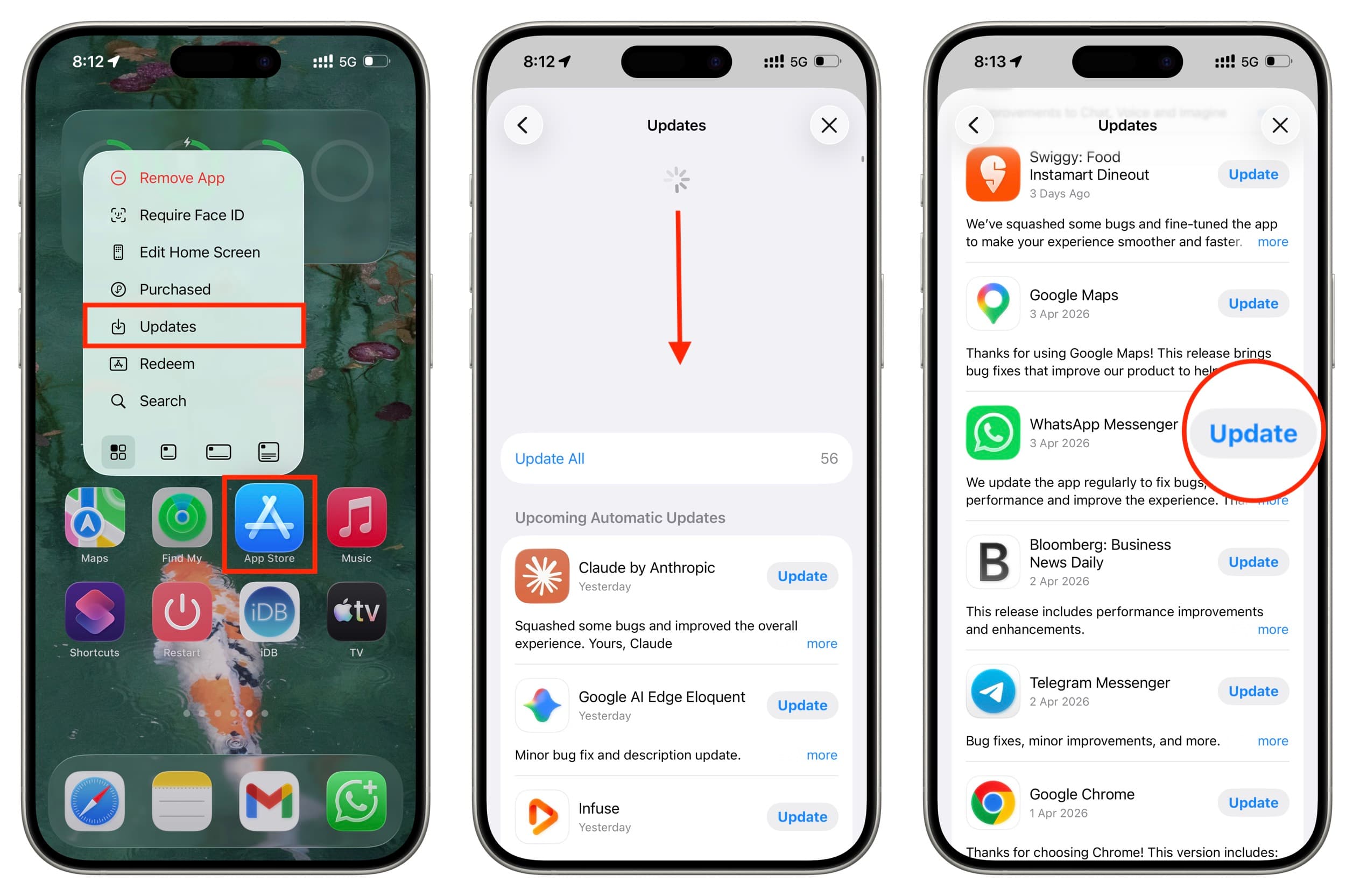
- Tap and hold the App Store icon on your iPhone or iPad and select Updates. You can also go to Updates by opening the App Store and tapping your profile icon.
- Pull down to refresh the Updates screen.
- Review the list of apps with pending updates and tap the Update button next to WhatsApp.
- Finally, open WhatsApp and it should work smoothly.
If WhatsApp Still Does Not Work
If you still see the "update" message when you open WhatsApp on your iPhone or iPad, do the following:
- Return to the App Store Updates screen and pull down the App Store Updates page once more to check if there is another pending update for WhatsApp. If there is, tap Update.
- Force close and reopen WhatsApp a few times.
- Restart your iPhone.
- Review these tips we provided about why WhatsApp might not be working on iPhone.
























Comments
(5 Comments)