
Learn how to use the Voice Control feature in CarPlay with your iPhone running iOS 26. With this feature, you no longer need to touch the screen to navigate apps, return to the Home Screen, or interact with your vehicle's display.
To start, you can already use Siri for tasks like playing music in CarPlay, changing tracks, adjusting the volume, making a call, asking about the weather, or getting directions in Maps.
However, Voice Control can perform some tasks that Siri cannot, such as swiping left or right on CarPlay Home Screen pages and tapping a specific button displayed on the vehicle's screen.
You can enable Voice Control in CarPlay and use it alongside Siri, giving you the best of both worlds. In fact, you should keep Siri active for your own safety because Voice Control only works when you say specific fixed commands (and it can fail with even the slightest change). In contrast, Siri can understand voice commands even when framed differently.
How to Enable Voice Control in CarPlay
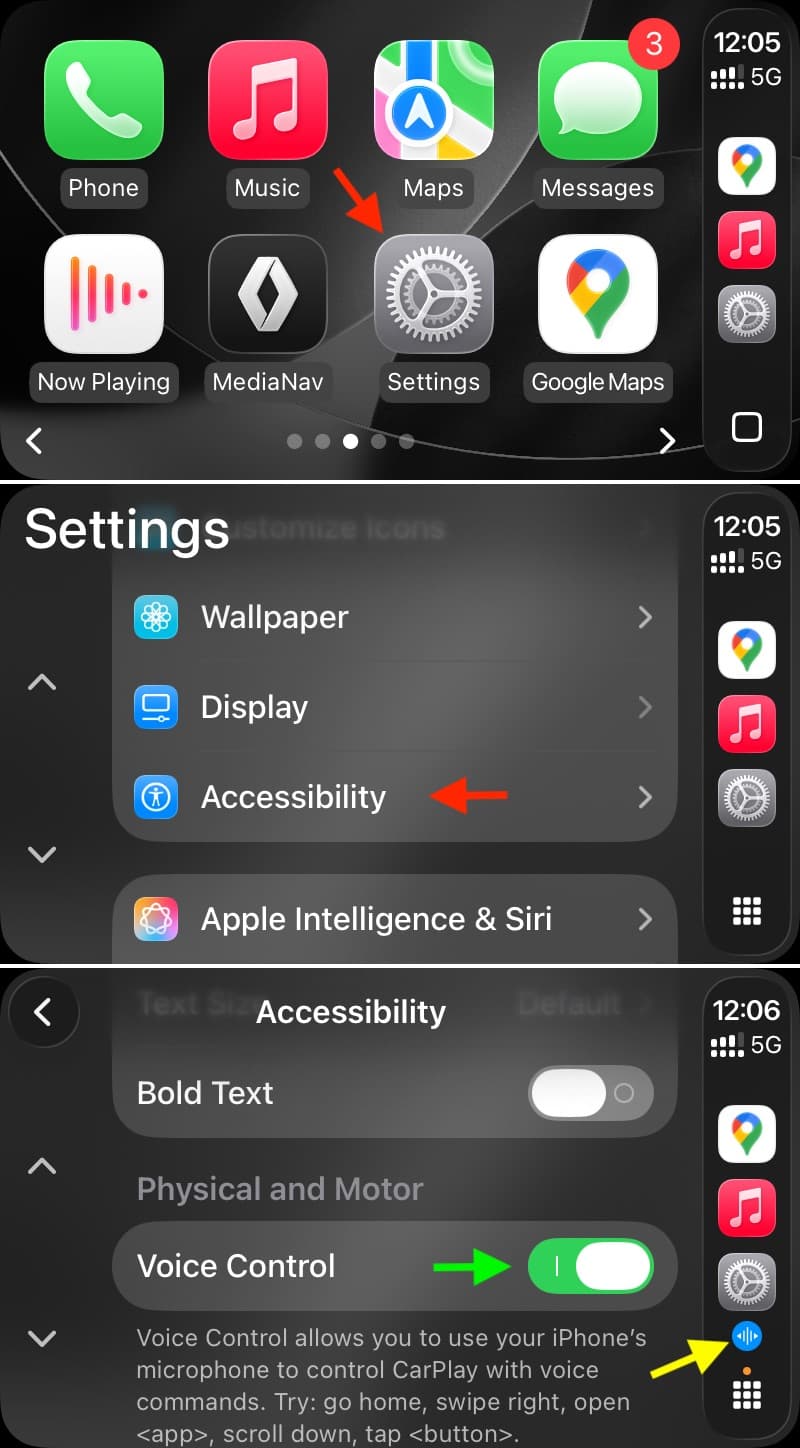
- Get into your car and start wired or wireless CarPlay with your iPhone running iOS 26 or iOS 18.
- Open CarPlay Settings.
- Tap Accessibility.
- Scroll down to the Physical and Motor section and turn on Voice Control. When Voice Control is active and listening for voice commands, you will continuously see its blue icon in the CarPlay Dock/sidebar.
How to Use Voice Control in CarPlay
After activation, you can start by saying “Go to Home” to return to the CarPlay Home Screen.
After this, use these phrases or voice commands to utilize Voice Control in CarPlay. However, do not forget to pause for at least half a second before saying the next command.
Open [app name]: Opens an app.
Go to Home: Returns to the Home Screen.
Go back: Returns to the previous screen (works in apps with a back button).
Touch [item (i.e., button name/label)]: Touches an item on the touchscreen.
This may not always work on cheaper CarPlay screens. Secondly, Apple states that if there is an unlabeled item, you can refer to it based on its position relative to other items. For example, if you see a series of icons without text labels, you can try saying “Touch the first one” or “Touch the second one” to touch the first or second icon, respectively.
Single tap: Taps the touchscreen. This is helpful in apps where certain screen controls automatically hide after a while, like Maps.
Double tap: Double taps the touchscreen. Use it to zoom in on the map.
Double tap [item]: Double taps an item on the touchscreen.
Swipe left or Swipe right: Swipes between pages on the CarPlay Home Screen or CarPlay Dashboard.
Swipe up or Swipe down: Scrolls up or down in a list.
Swipe right, Swipe left, Swipe up, or Swipe down: Use to move around the map or in other supported apps.
Activate Siri: Activates Siri.
Stop listening: Pauses Voice Control, preventing it from interpreting the words it hears as commands.
Start listening: Restarts Voice Control.
Turning Off Voice Control
Saying the ‘Stop listening’ command prevents Voice Control from responding to what it hears. However, it continues to listen, so you can still say the ‘Start listening’ command and continue using it.
If you do not want to use Voice Control at all, go back to CarPlay Settings > Accessibility and turn off Voice Control.
Using Voice Control in Maps and Music Apps
Maps and Music are the two most used Apple apps in CarPlay, and the reasons for this are quite clear.
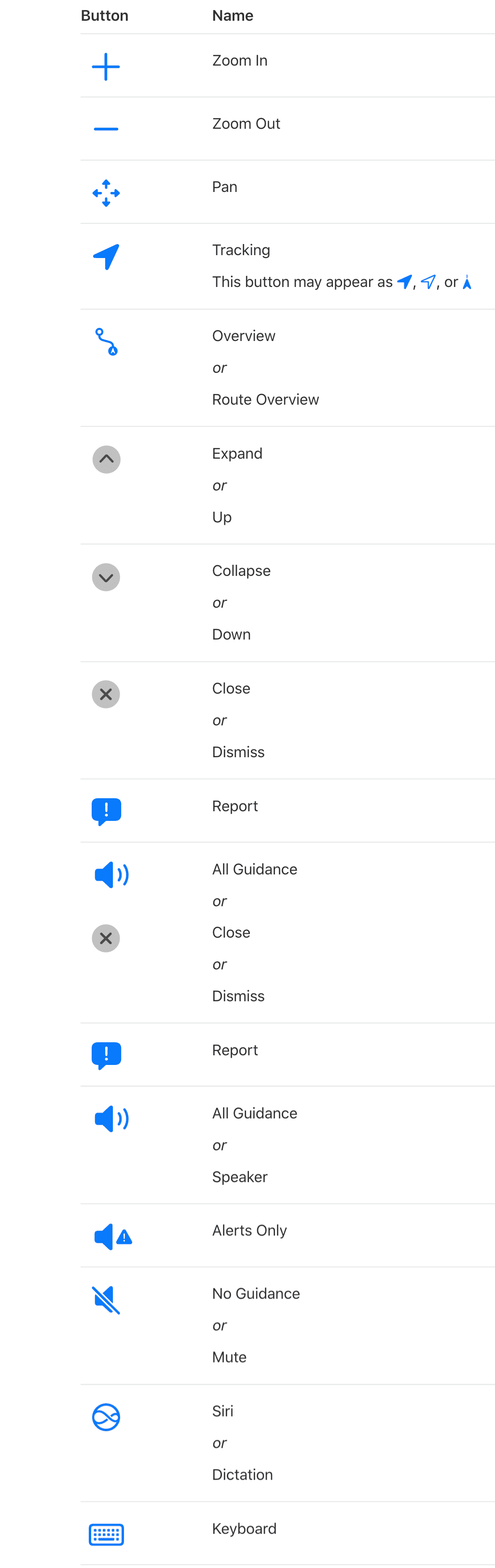
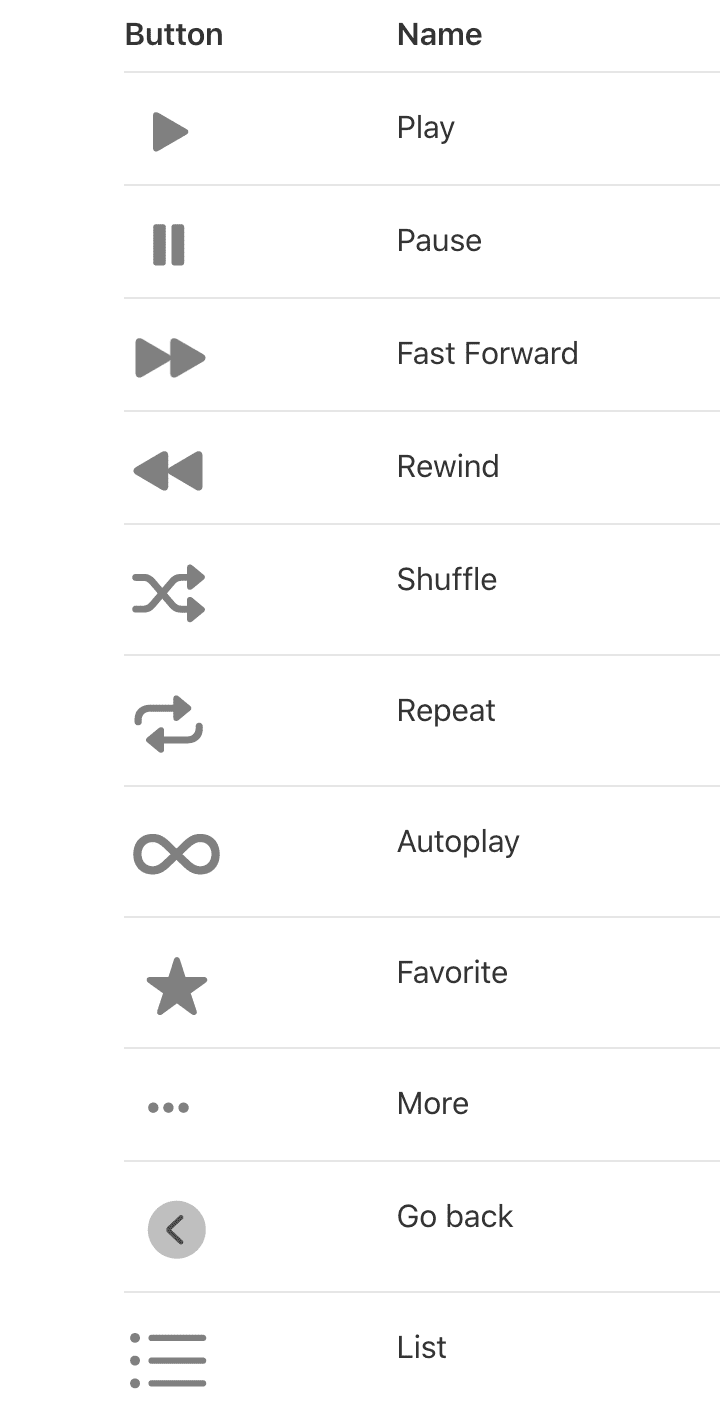
When you want to touch something with a name or label using Voice Control, you can simply say “Touch [button name/label]”.
If a button has no name or you do not know what to call it, use the button names in the images below. These visuals are screenshots taken from Apple.
- Maps:
- Music:
Supported Voice Control Languages
Voice Control is available in the following languages. We only listed English voice commands above. To learn the full commands in other supported languages, visit Apple's support page on this topic, click on your country name, and select your country.

- Arabic (Saudi Arabia)
- Cantonese (China mainland)
- Cantonese (Hong Kong)
- English (Australia, Canada, India, United Kingdom, United States)
- French (France)
- German (Germany)
- Italian
- Japanese
- Korean
- Mandarin Chinese (China mainland and Taiwan)
- Russian
- Spanish (Mexico, Spain, and United States)
- Turkish



























Comments
(3 Comments)