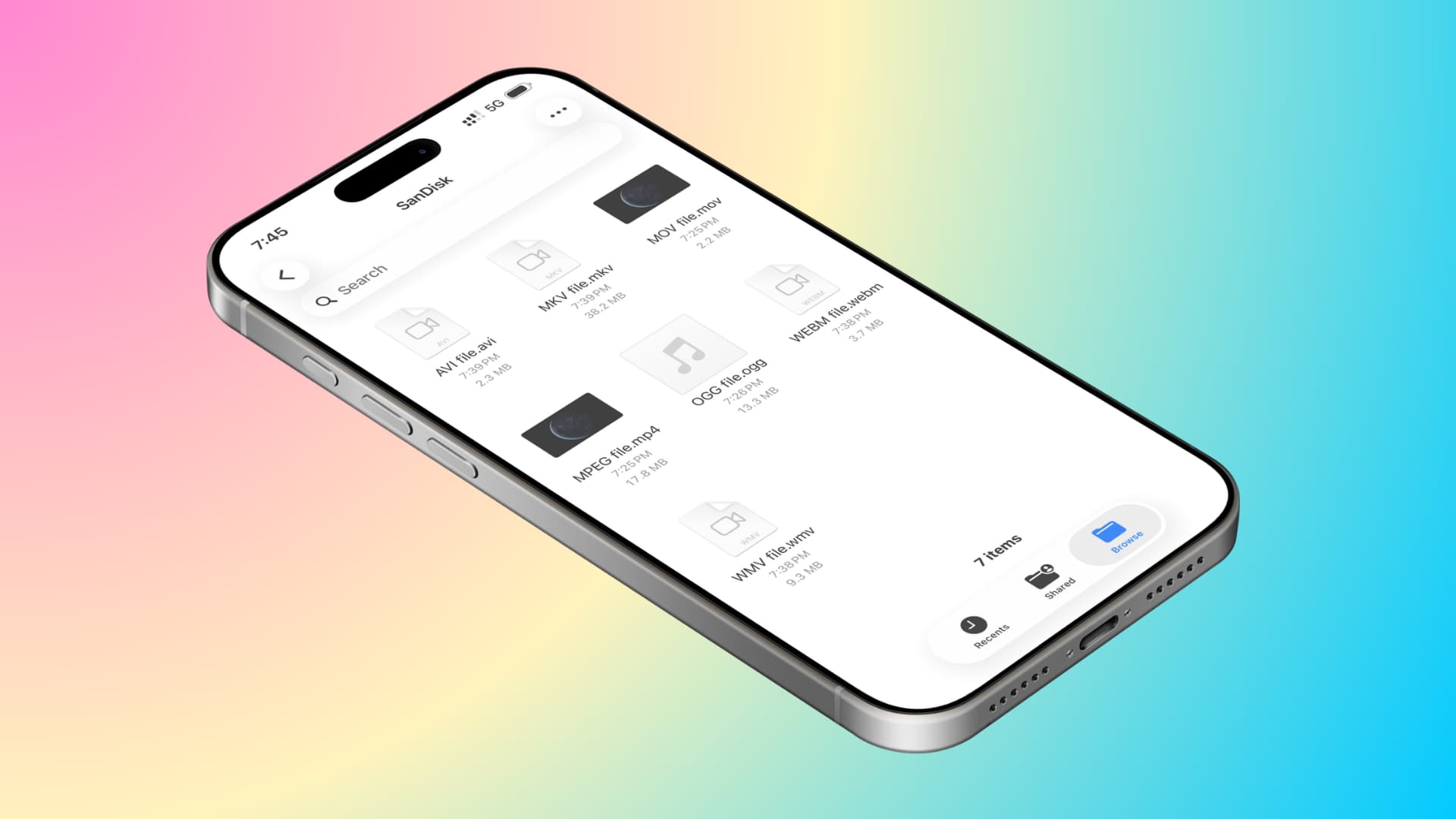
Learn what to do if you have saved some video files to an external memory or SSD and they are not playing on your iPhone or iPad.
You can connect a thumb drive or SSD (drawing less than 4.5 watts) directly to the USB-C or Lightning port of your iPhone or iPad, and then access video files in the Apple Files app or an app like VLC. This process usually goes smoothly, but if the videos are not playing, here are some quick tips to fix it.
If the external drive is not visible on your iPhone or iPad, first check our other tutorial.
Get the right app
iOS can play MP4, MOV, and a few other formats. However, if the movie file is in MKV, AVI, DAT, or another format, you will need a versatile media app like VLC or Infuse.
After installing one of these apps:
- Tap the file, it can be opened directly in VLC or Infuse.
- Tap or press and hold the unplayable file and select Quick Look. Then, click on the app name VLC or Infuse as shown in the screenshot below.
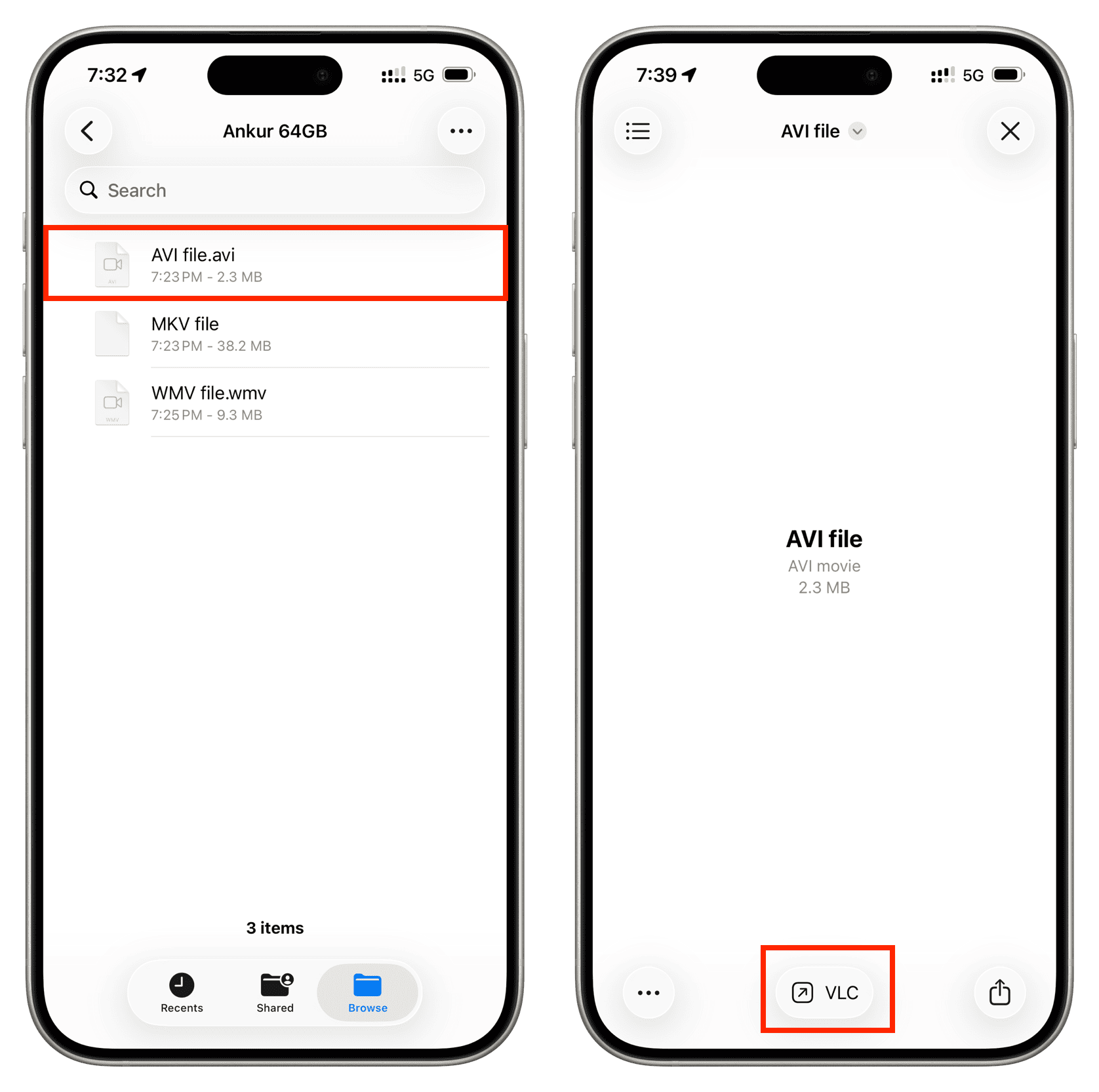
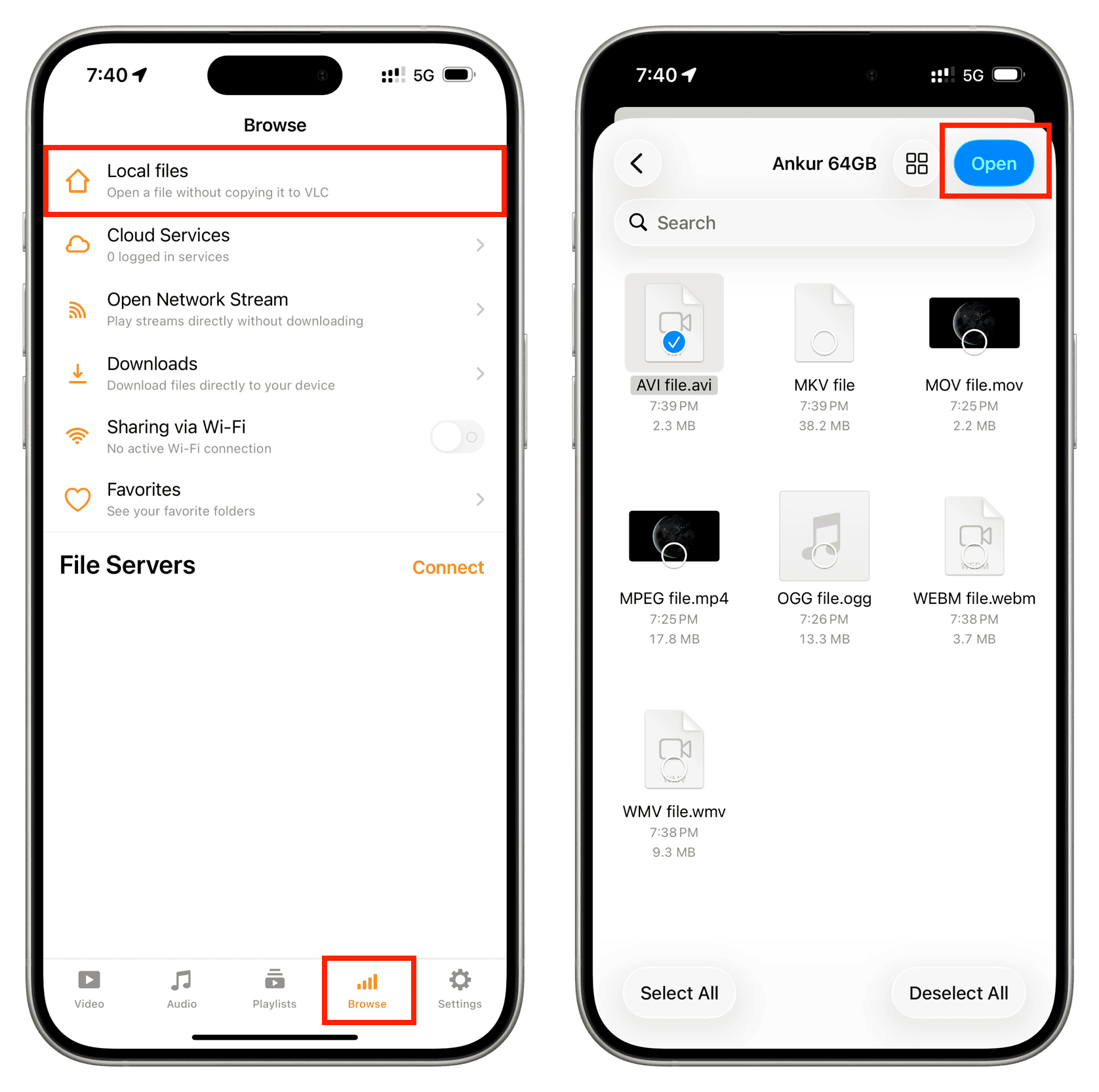
- In the Apple Files app, tap and hold the video file, click on Open (if visible), and select the app.
- Open a video app like VLC, click Browse > Local files, and select the video to play.
- Move the video to the app folder in the iPhone/iPad section and then click to play (this is the last tip of this article).
If these apps are already on your iPhone, update them from the App Store and try again.
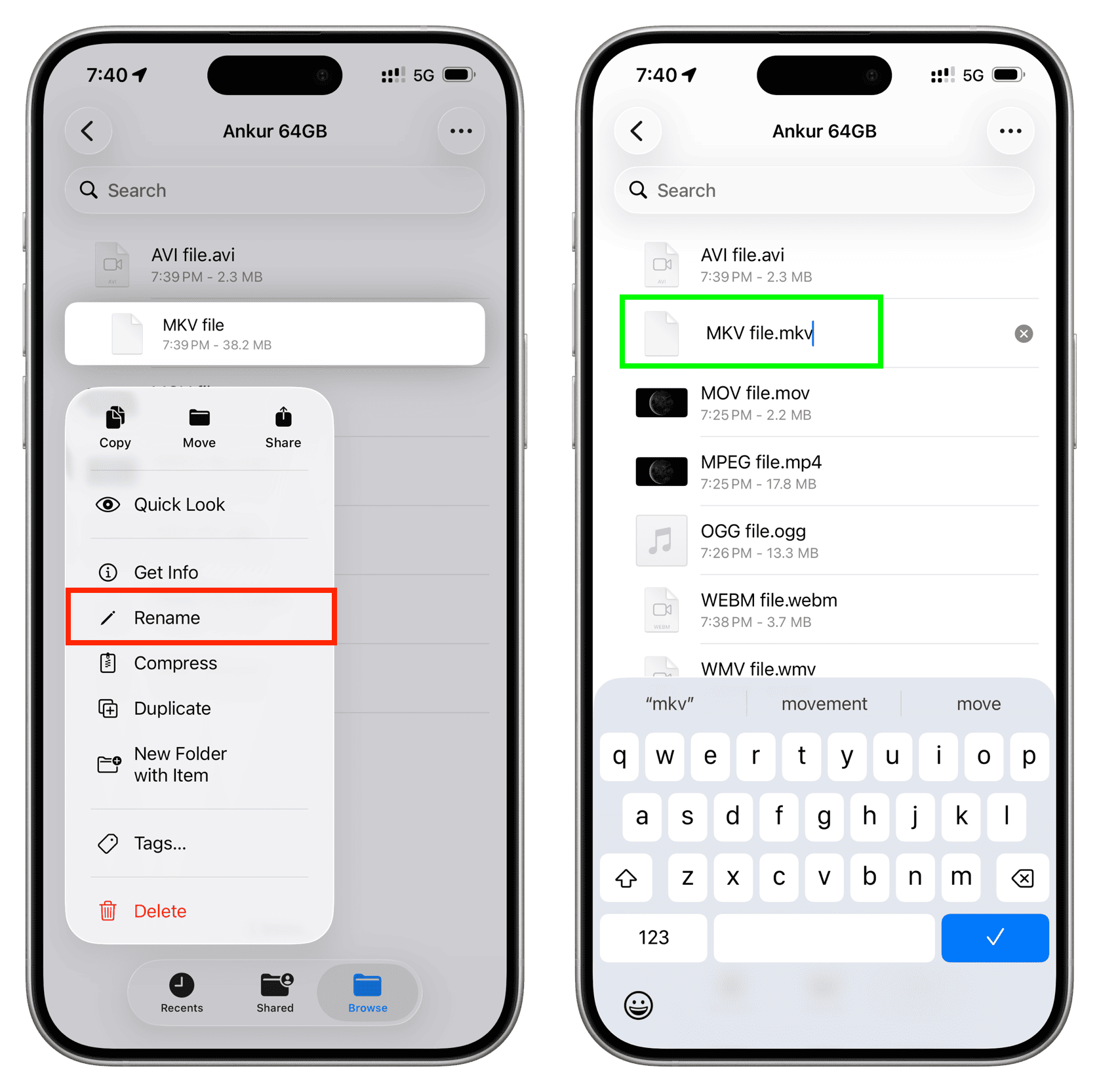
Try adding the correct extension
Tap and hold the unplayable file, select Rename, and add the correct extension (for example, .mkv or .avi). If you are not sure which extension to add, try .mp4 and see if it works.
Close the app and restart your iPhone
Remove the SSD or thumb drive, then close and reopen the Files app or video app. If home movie playback still fails, restart your iPhone or iPad and try again.
Check if the video plays on another device
If all videos except one from the external drive are not playing on your iPhone or iPad, the issue is likely with that video file. It may be a corrupted file or a codec issue. Try playing the same video on a Mac, PC, or Android phone.
If the video does not play on other devices either:
- Delete it from the external drive and copy it again
- Redownload the video from the original source
- Convert it to another format or resolution
Move the file to local storage
If the video still does not play, consider moving it from the external drive to your iPhone or iPad's local storage, then try playing it again.
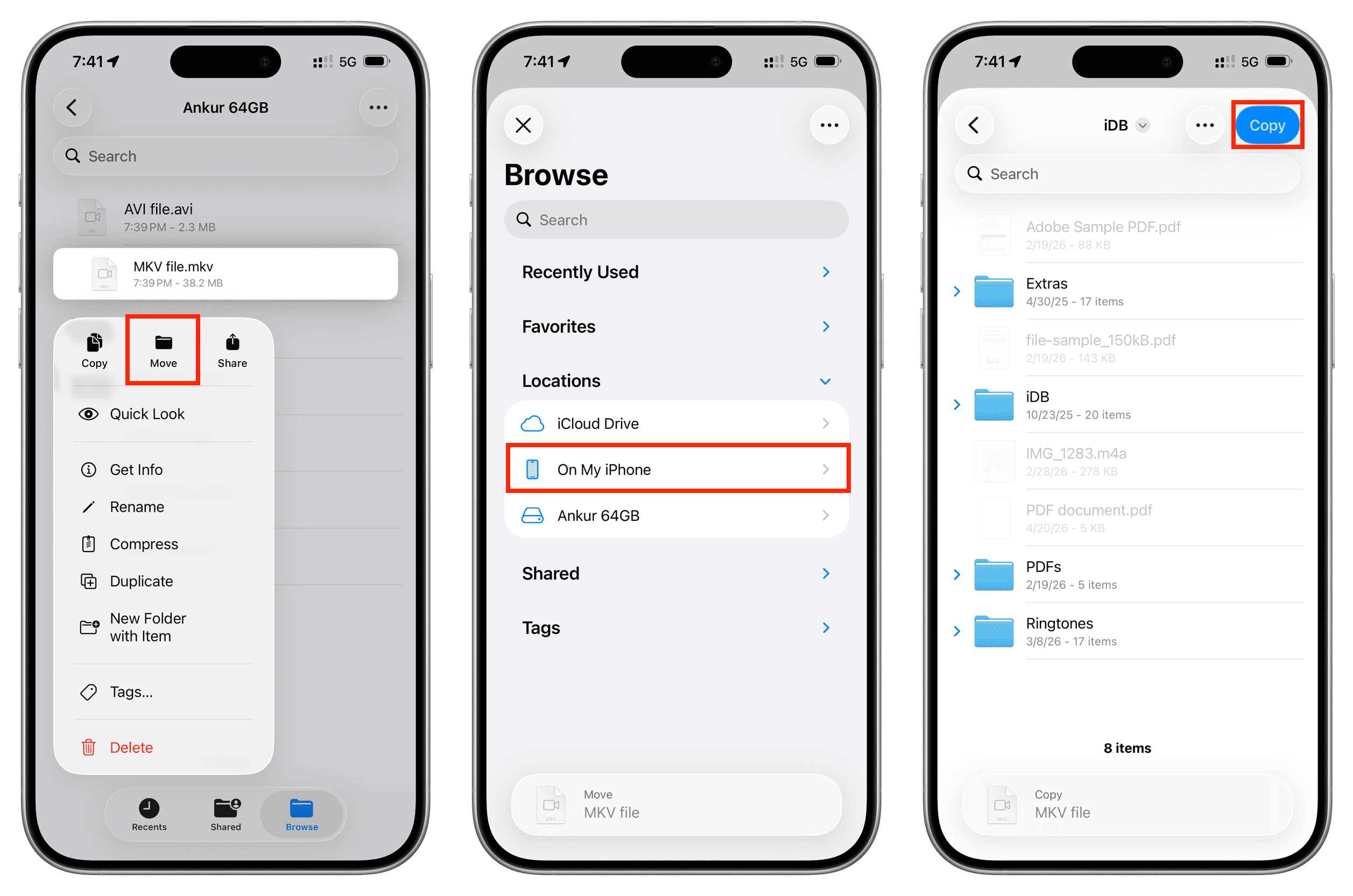
- Open the Files app and navigate to the external drive folder.
- Tap and hold the video file, select Move.
- Click on the back arrow button and continue until you reach the ‘Browse’ screen, then click on On My iPhone/iPad.
- Navigate to the desired folder and click on Copy.
- After the video file is copied, remove the external drive and play the video you moved to local storage.
























Comments
(9 Comments)