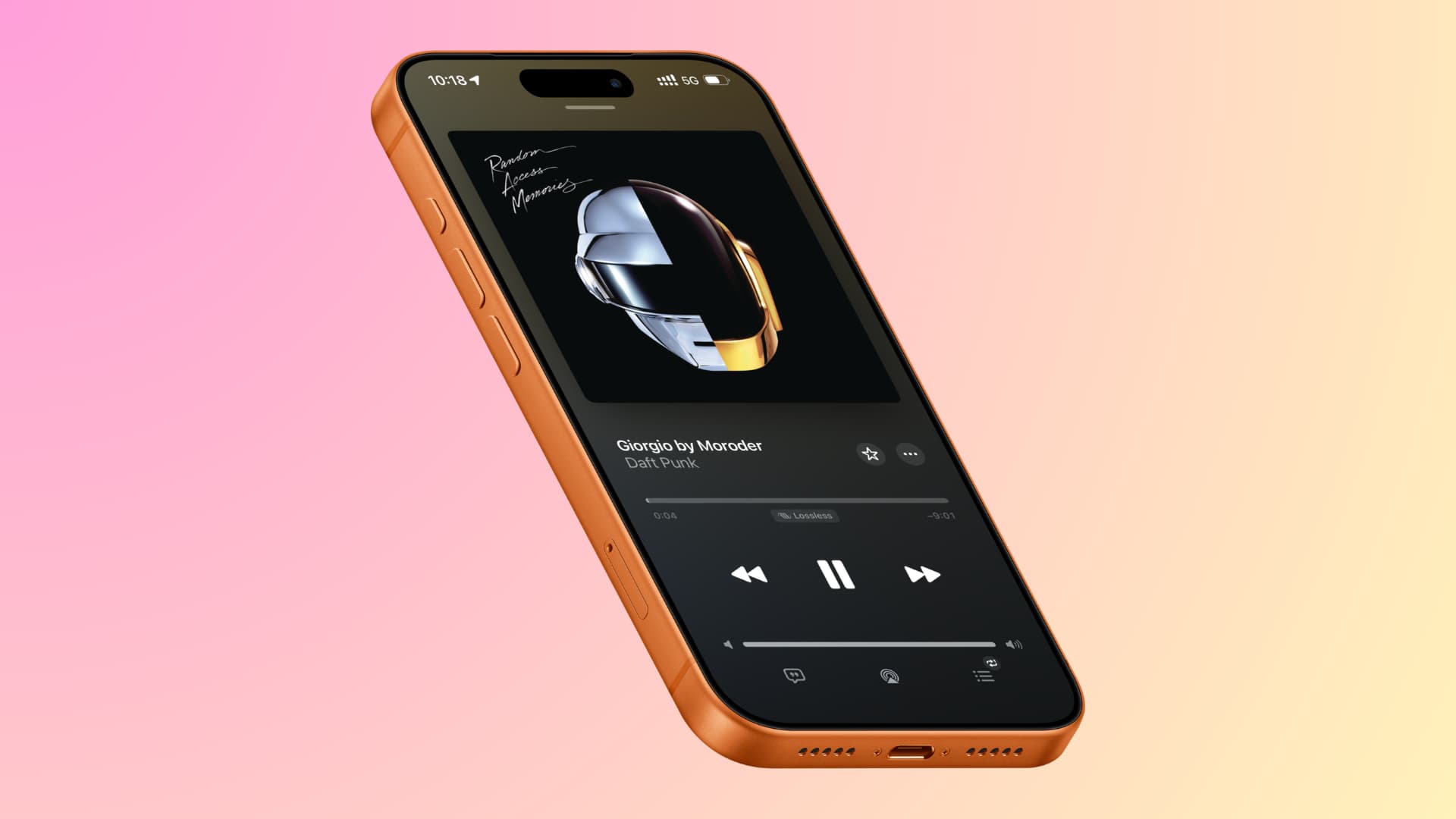
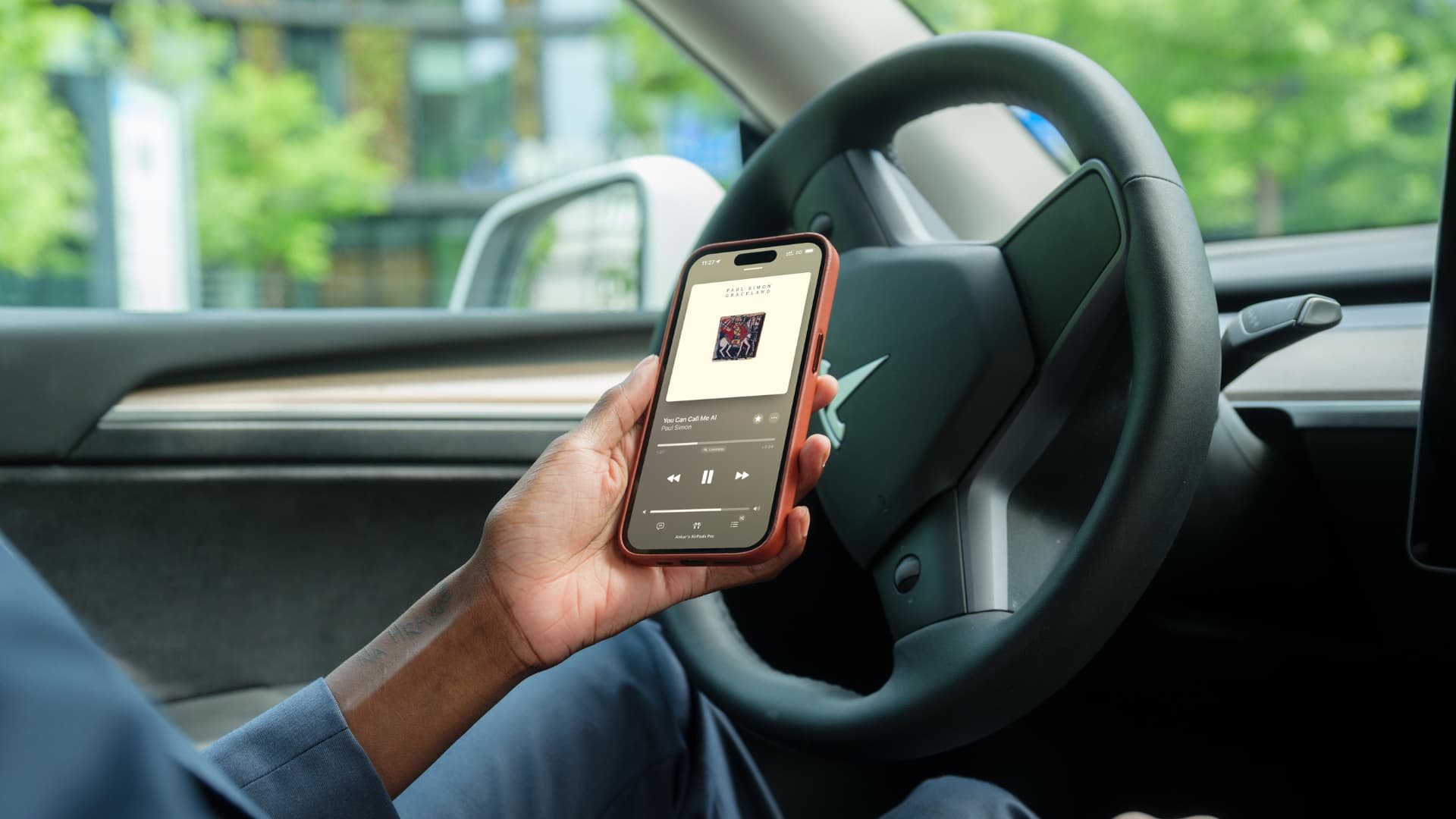
If some songs or albums in the Music app running on iOS 26 on your iPhone or iPad have missing or incorrect album artwork (also referred to as cover art), review these quick tips.
However, before proceeding, keep in mind that the same song may be available multiple times in Apple Music or your local computer library with different cover art. Additionally, music publishers can change the cover art as they wish, and these changes are sent to your device automatically.
However, if the album artwork is missing or completely different and irrelevant, the following steps will help you resolve the issue and restore the original cover art.
Connect to the Internet
If the album artwork for a song in Apple Music is incorrect, connect your iPhone or iPad to Wi-Fi, and it should be corrected automatically. In the meantime, try closing and reopening the Music app a few times.
Restart Your iPhone or iPad
Temporary software glitches may cause missing or incorrect cover art for some or all songs in the iOS Music app. A simple restart or a force restart should help.
Remove the Song from the Library and Redownload It
If the album artwork is missing for just one or a few tracks, this is one of the most effective solutions.
- Open the iOS Music app and locate the track with the incorrect album artwork.
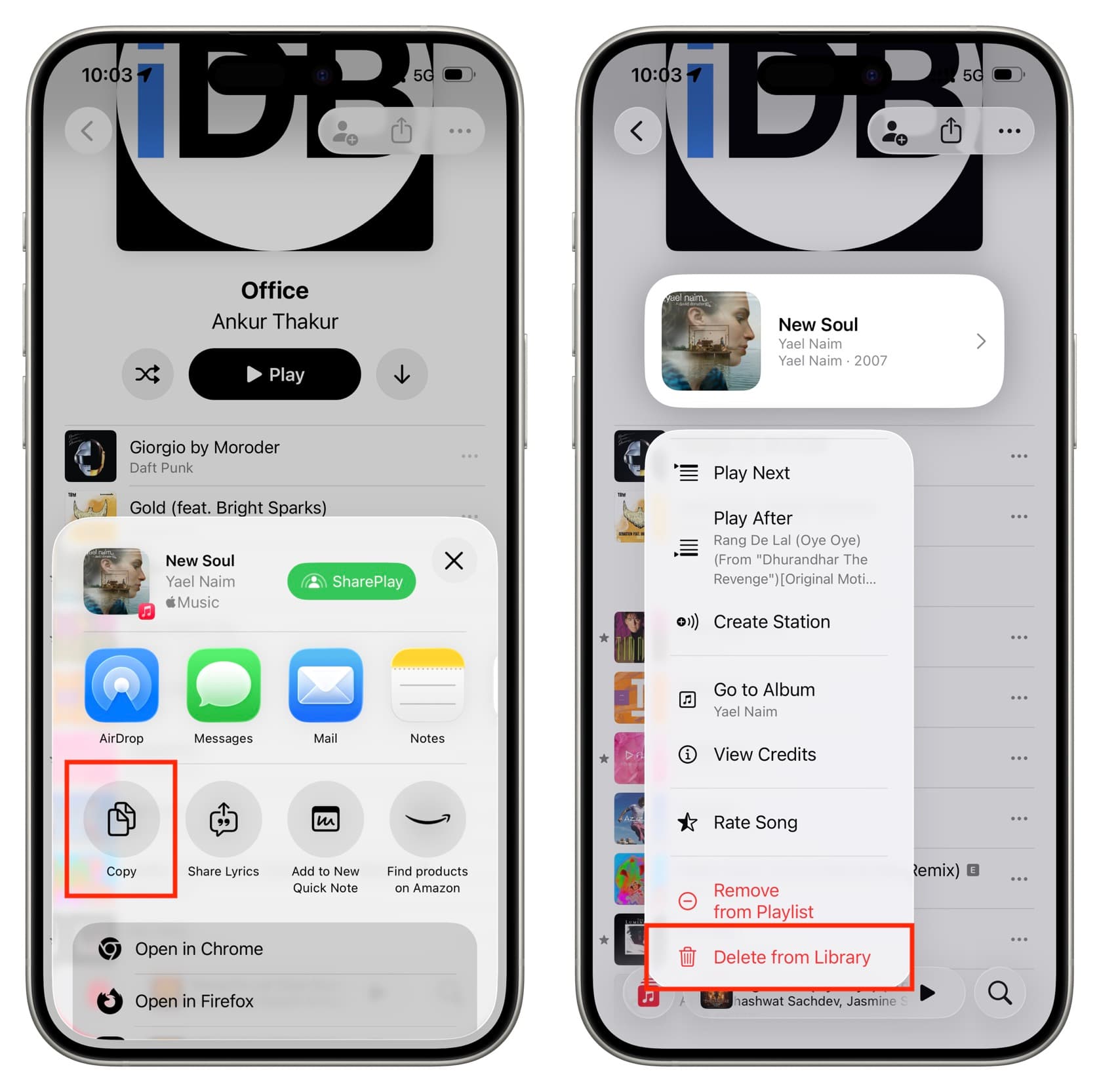
- Tap and hold the track, then tap Share > Copy to copy the link to the clipboard. Then, paste it into the Notes app (this will help you redownload the full song in step 5).
- Tap the same track again and delete it from the library.
- Repeat the above steps for other songs with incorrect album artwork. Then, restart your iPhone.
- Open the Notes app and tap the saved link to open the song page in the Music app and redownload it. This time, it should have the correct album artwork.
Update to the Latest Version of iOS
If your device is running an older version of the operating system, go to Settings > General > Software Update and install the latest version available for your iPhone or iPad.
Turn Sync Library Off and On
Sync Library (formerly known as iCloud Music Library) allows you to save, download, and create a uniform library of Apple Music tracks across all your devices.
To resynchronize all your files with the correct cover art, follow these steps to turn it off and on. However, note that this will remove all your offline songs, and you will need to redownload them.
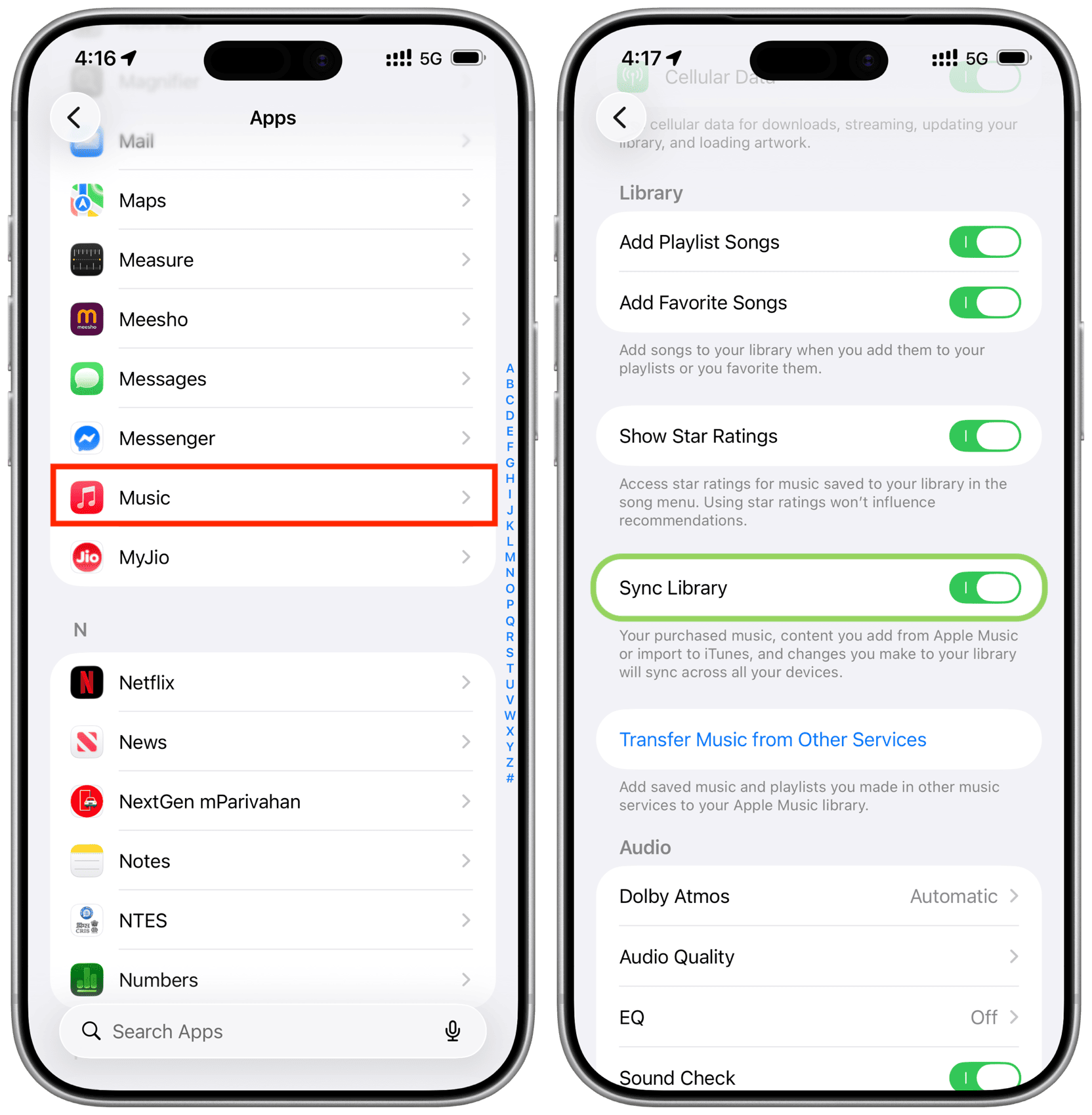
- Open the Settings app, tap Apps at the bottom, and select Music from the list of apps.
- Turn off Sync Library.
- Restart your iPhone.
- Return to the Music app settings and turn Sync Library back on.
- Open the Music app and wait for all songs to synchronize. The tracks should no longer have incorrect album artwork.
Delete and Re-add the Music App
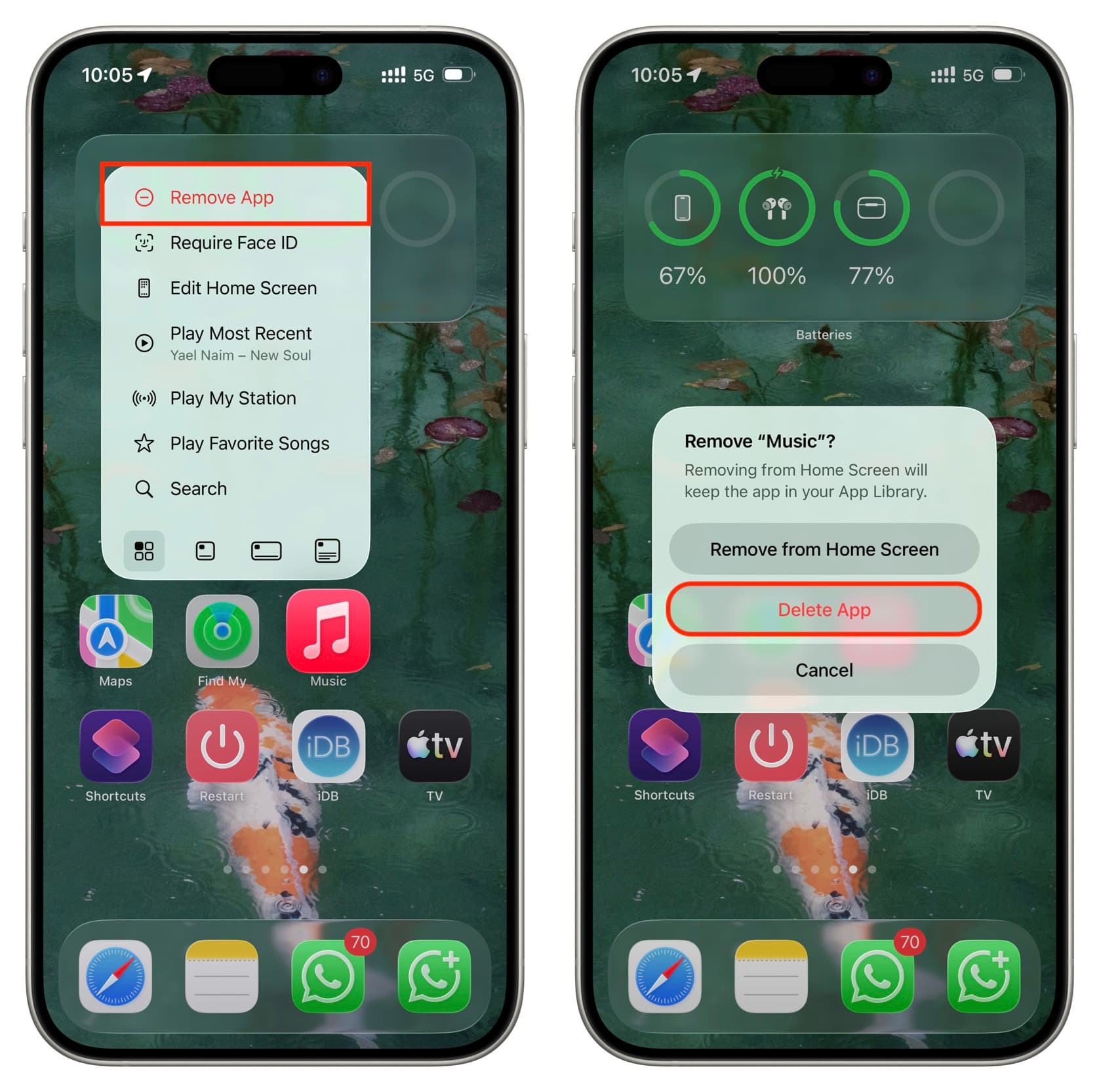
Although the Music app is pre-installed on all iPhones and iPads, you can delete it like any other app to resolve issues. However, note that this will also remove all downloaded songs, and you will need to redownload them.
- Tap and hold the Music app icon on the Home Screen, then delete it.
- Restart your iPhone.
- Redownload the Music app from the App Store.
Resynchronize Music from the Computer
If the album artwork for songs synchronized from your Mac or Windows PC is incorrect, resynchronizing should help.
- Connect your iPhone or iPad to the same Mac or PC where you synchronized the songs.
- Open Finder on Mac or Apple Devices on Windows PC and select your iOS device.
- Go to the Music tab, uncheck the box for Sync music to iPhone, and click Apply.
- Disconnect and restart your iPhone.
- Reconnect the phone to the same computer, return to the Music tab, check the box for Sync music to iPhone, and click Apply.

























Comments
(7 Comments)