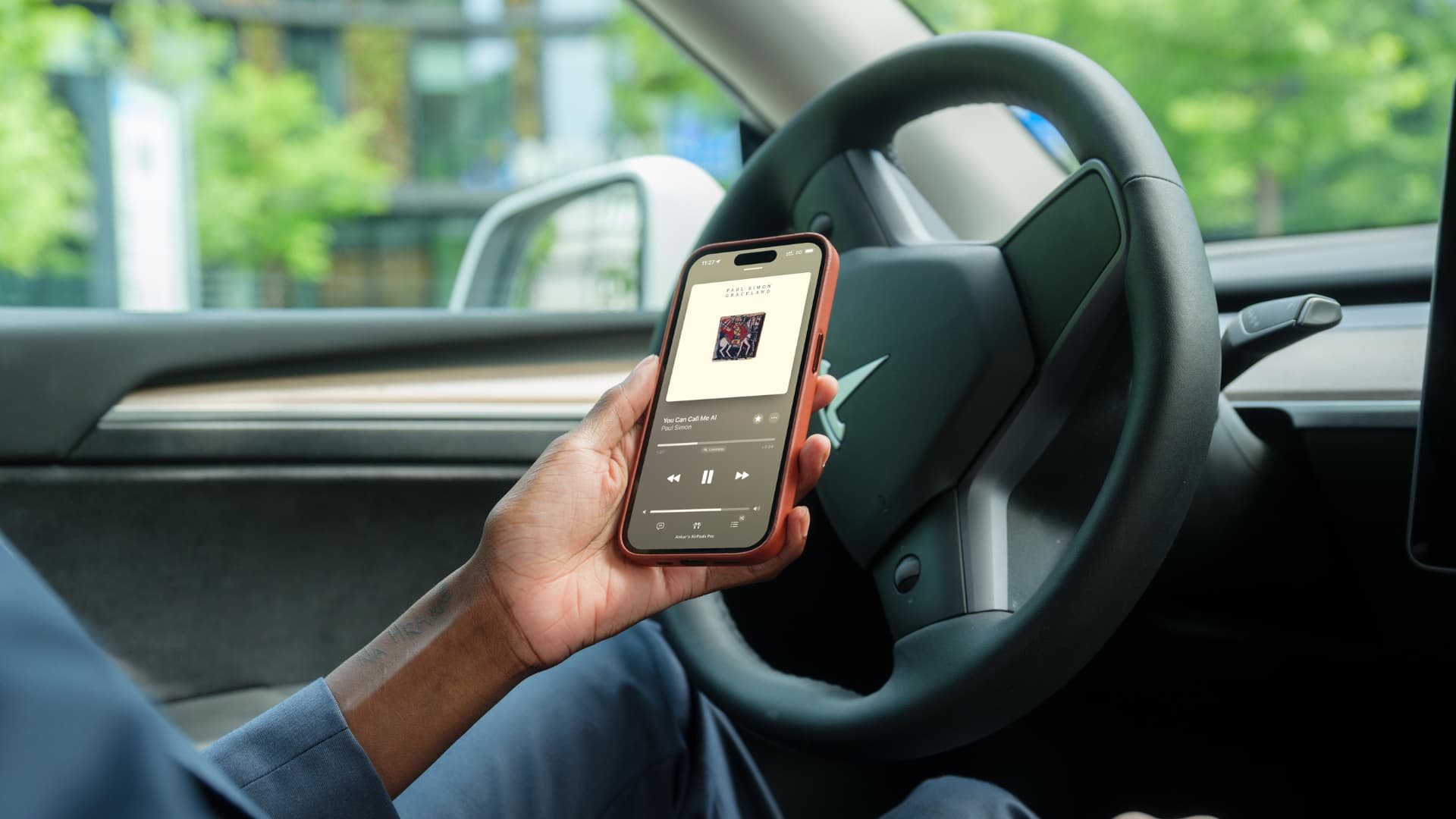
Learn how to ensure that your iPhone continues to play audio through your connected AirPods or wireless headphones when you start your car and your iPhone automatically connects to your car's Bluetooth or CarPlay.
When you start your car, your iPhone with Bluetooth enabled will automatically connect to the entertainment system's Bluetooth or wireless CarPlay.
This setting is suitable for most users, but if you are already using your AirPods or other Bluetooth headphones, audio playback will switch to your car's speakers, which can be disruptive for some users.
iOS 26 addresses this issue by adding a new “Hold Audio with Headphones” option that allows the song, podcast, or other media content playing on your current Bluetooth headphones to continue without being redirected to your car's speakers.
Warning: Using headphones while driving is not safe for you and others on the road. Additionally, this may be punishable in some areas.
Also, note that this feature is not exclusive to cars. When you enable the “Hold Audio with Headphones” option, it will also prevent the iPhone audio from switching to other wireless speakers at home.
And if you want the audio to play through your car or other speakers, you can use the AirPlay icon on your iPhone's Lock Screen, in the Control Center, or in the media app.
Stop Your iPhone from Switching Audio to Another Speaker While Using AirPods
- Open the Settings app on your iPhone running the latest iOS 26 version.
- Tap on General.
- Select AirPlay and Continuity.
- Turn on the Hold Audio with Headphones option.
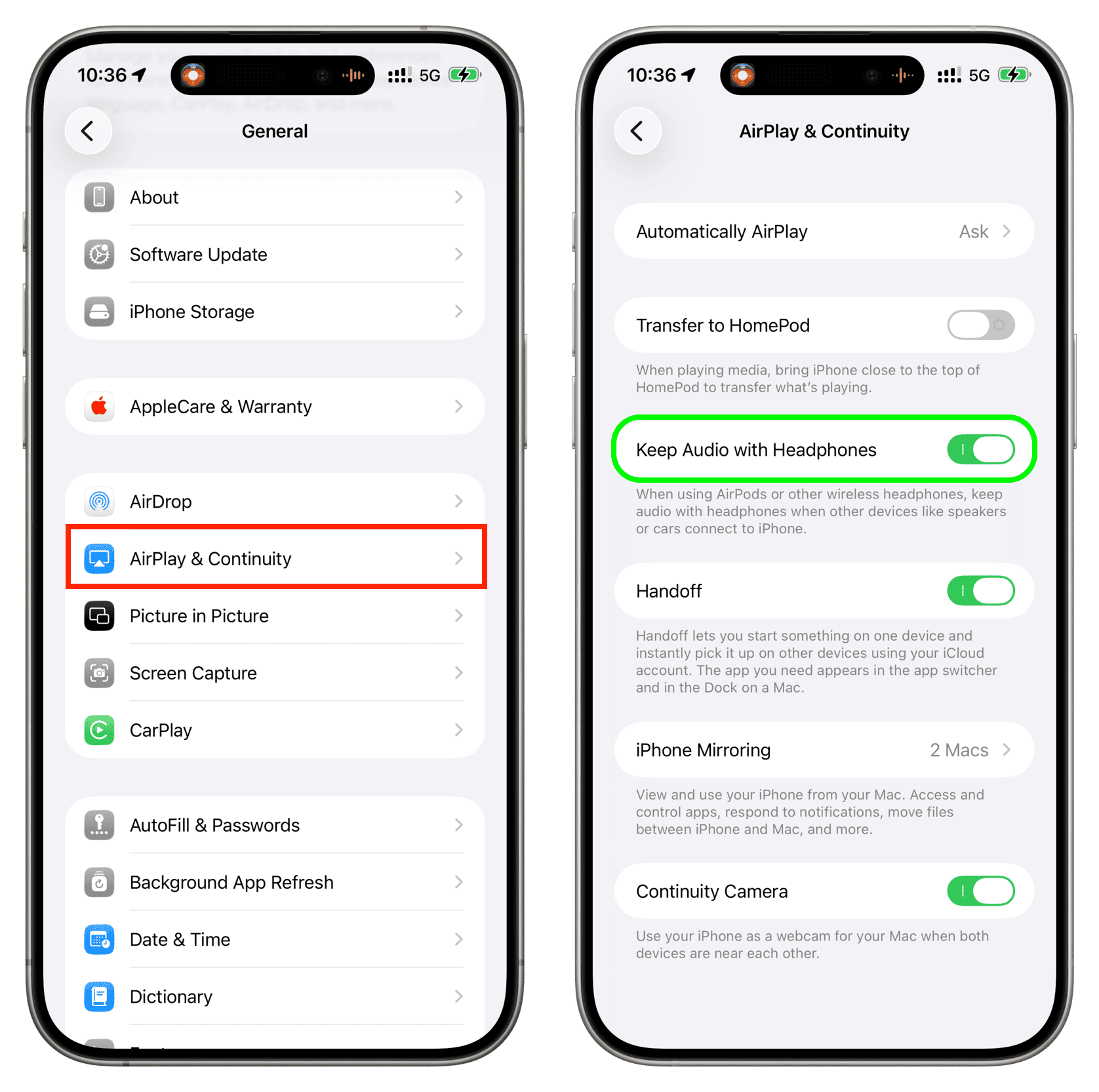
Now, when you start your car while listening to music on your AirPods or approach your home wireless speakers, the audio will continue to play in your ears, even if your iPhone automatically connects to your car's/home's Bluetooth.



























Comments
(3 Comments)