
Learn how to use the new Magnifier application in macOS Tahoe to zoom in on small text in objects, things around you, or your face while applying makeup, plucking eyebrows, or putting in contact lenses.
The iPhone and iPad have had a Magnifier application for half a decade. macOS Tahoe 26 adds the same application to Mac desktops and MacBooks with the same application icon.
Essentially, the Magnifier application on both iOS and macOS serves as a digital magnifying glass, but the application on Pro iPhone and iPad models can use the Lidar sensor to detect people and doors.
What can the new Magnifier application on Mac do?
You can:
- View and zoom in on live camera feed.
- Take a photo and zoom in on it.
- Use themes, filters, and other practical tools to see the live camera feed or photo better.
- Listen to text after taking a photo or simply by pointing the camera at the object.
Using the Magnifier on Mac
1) Open the Magnifier application on your Mac running the latest macOS Tahoe 26 version.
2) Click on Camera in the top menu bar and select an available webcam, such as your MacBook's built-in camera. You can also use your iPhone as a webcam.
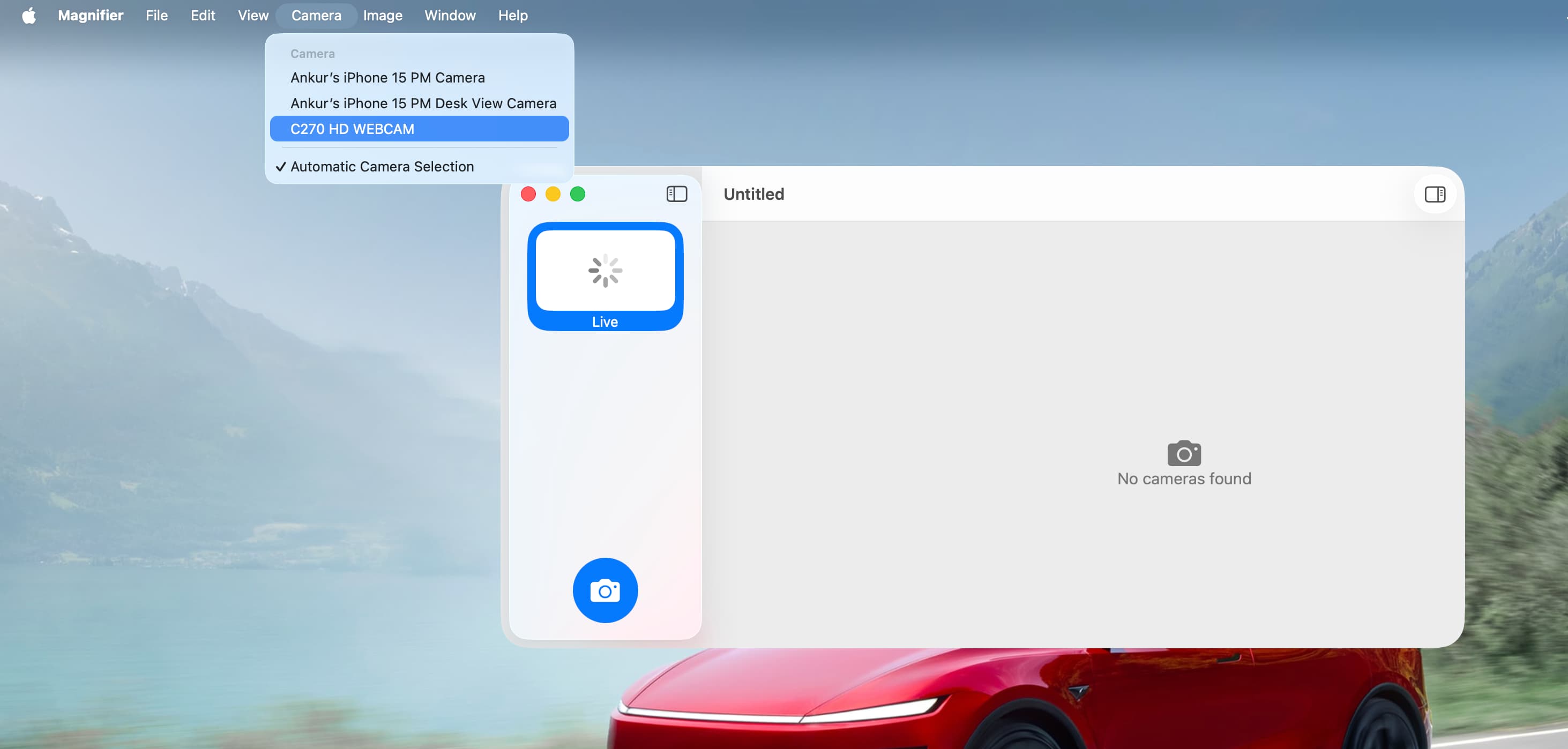
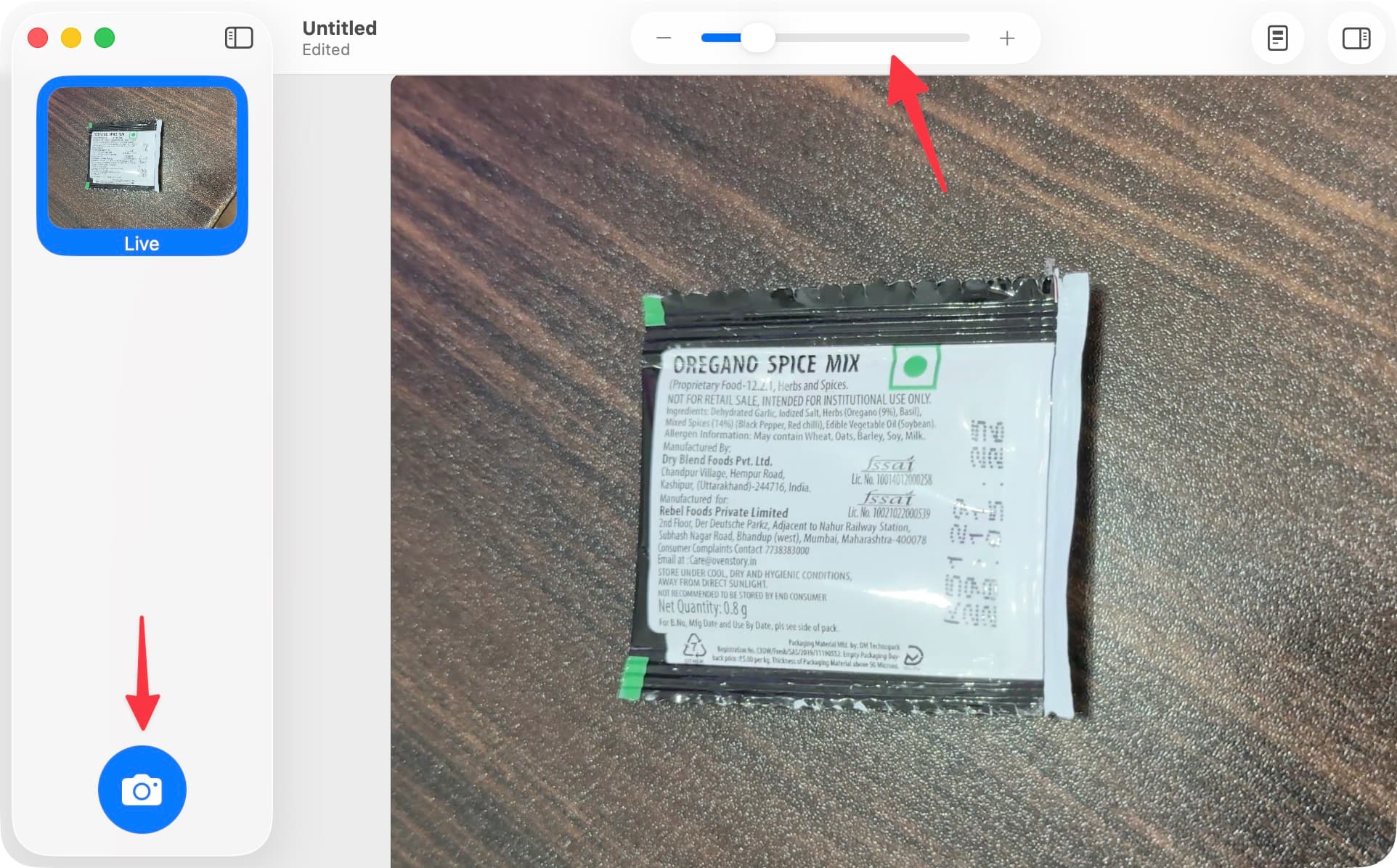
3) You will now see a live camera feed. If you are not using it for makeup or to see a stationary object like a whiteboard, the live camera feed can be quite shaky. In this case, it would make more sense to take a photo using the shutter button and read the content.
4) Use the minus-plus slider at the top to zoom in on the live camera feed or the photo you took. After zooming in on your live camera feed or photo, you can swipe with three fingers to focus on a specific section you want.
Other things you can do
Here are some quick tips you should know before trying the Magnifier application:
- Use the show detected text icon to see text in the live camera feed or a photo.
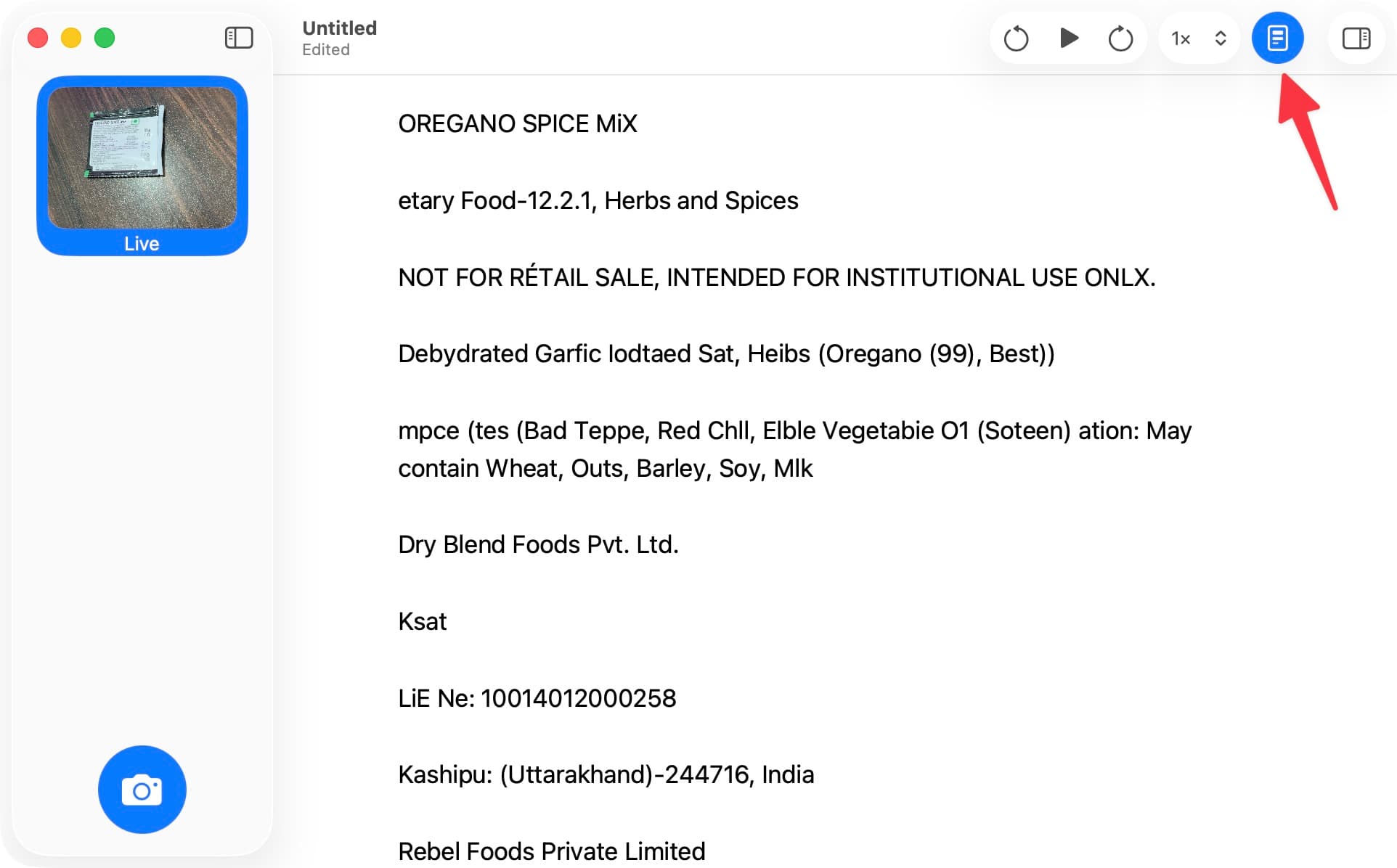
- You can also listen to the text, adjust the playback speed, and click on the sidebar icon to change the theme, color, font, spacing, and more in reader mode.
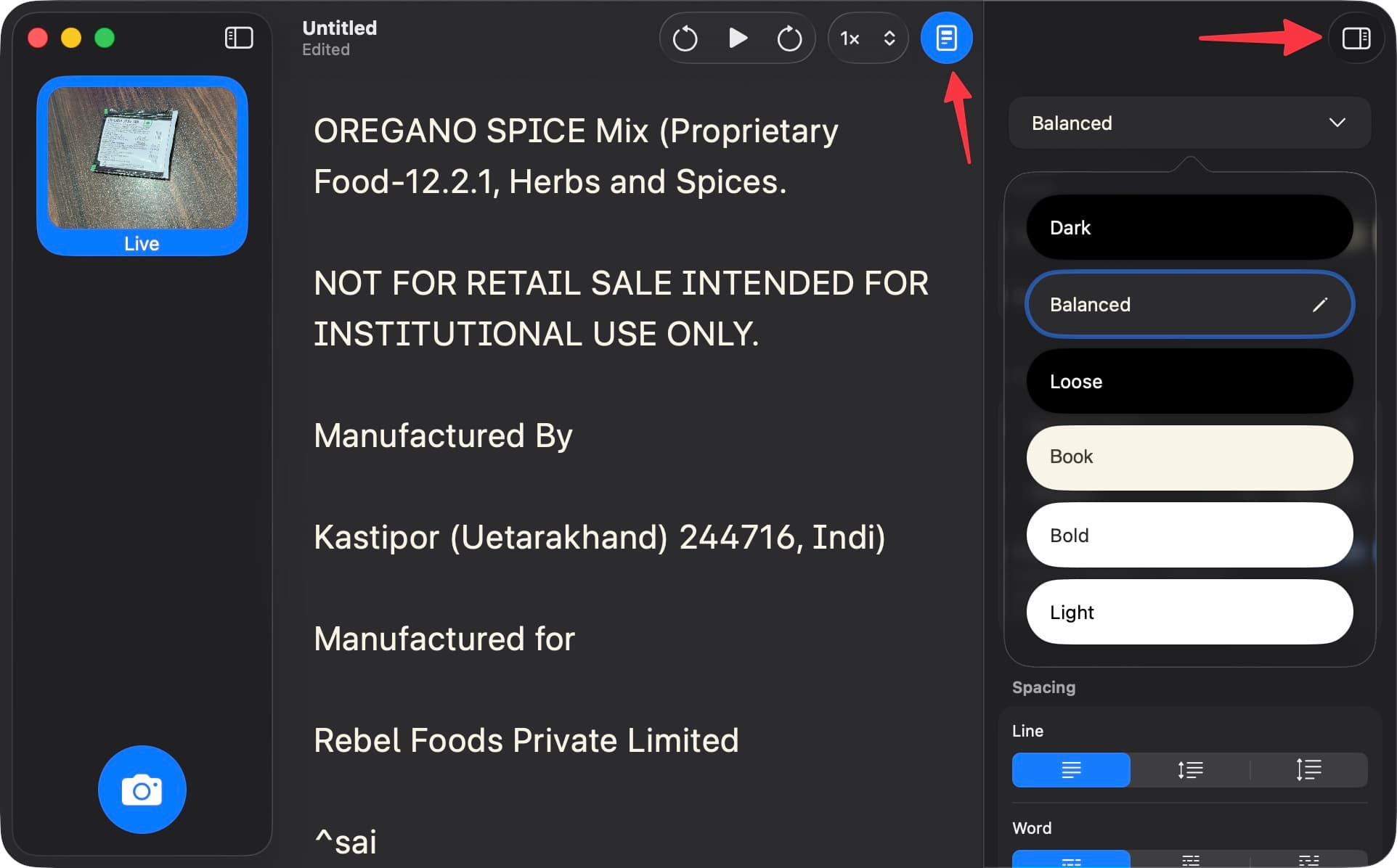
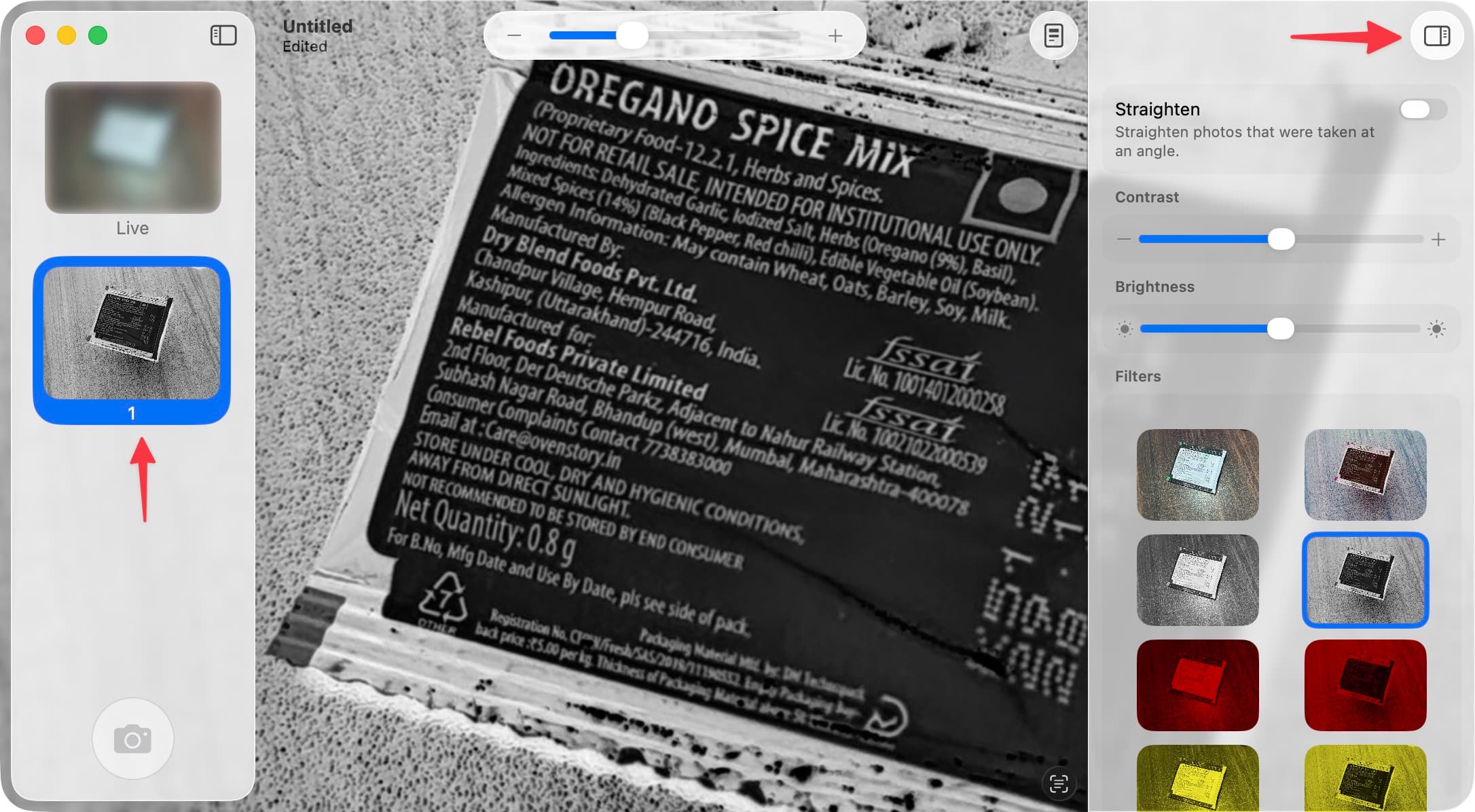
- Use the sidebar icon to adjust the view, change contrast and brightness, or apply filters. This can help you see the text and other things more clearly. You can save these preferences as your default settings so you don't have to adjust them every time.
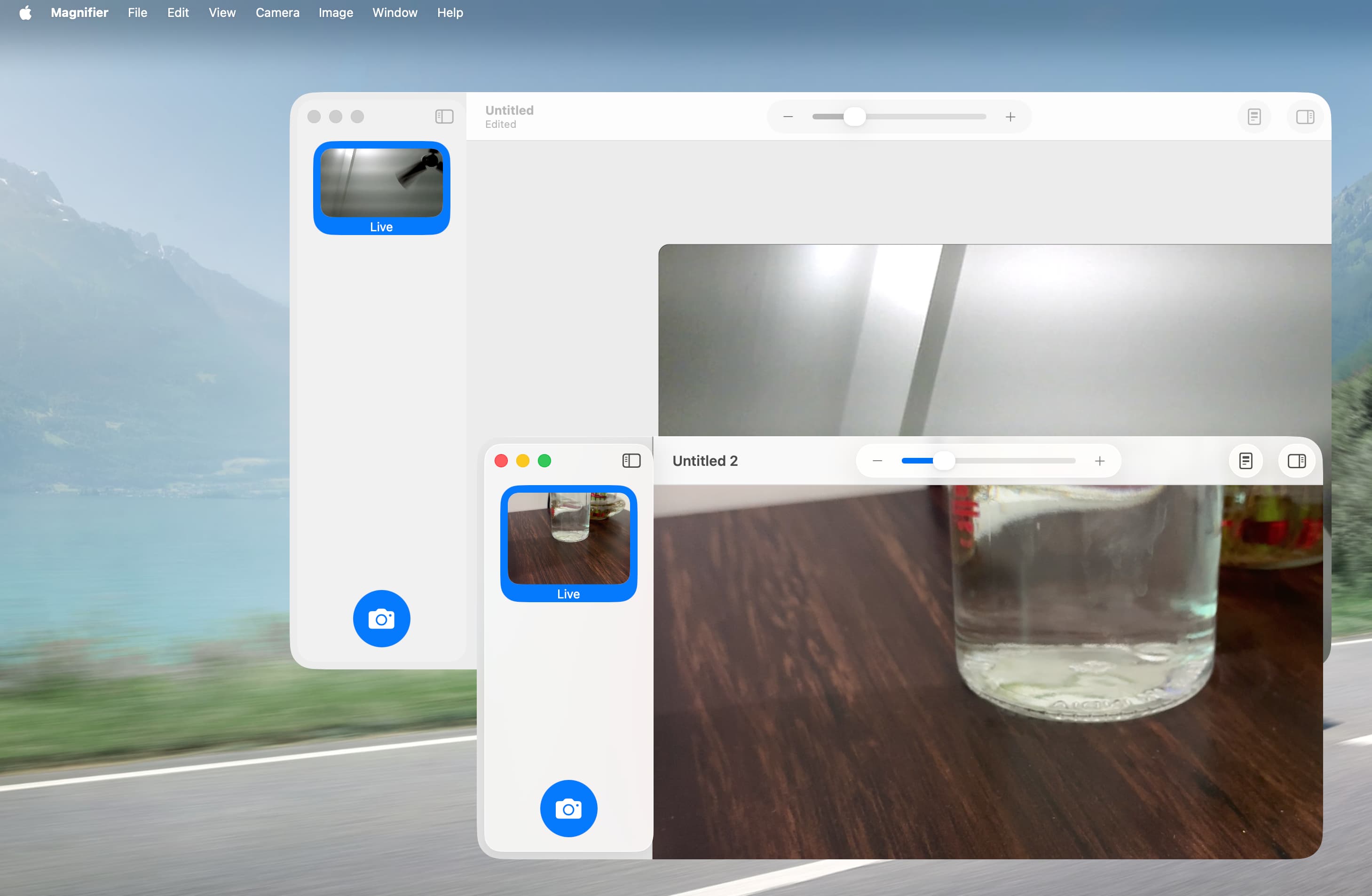
- Open a new window by clicking File > New in the top menu bar. I even managed to have the connected webcam in one window and my iPhone camera in another window (see the screenshot below). The File menu also allows you to save images, open existing ones, and more.
What do you think about this new application? Will you use it?
























Comments
(9 Comments)