
Learn how to upload the songs you've collected over the years to Apple's servers and how to stream these songs on all your devices that use Apple Music.
When you subscribe to Apple Music for a monthly fee of $10.99 or $16.99 for a family plan, you gain access to over 100 million songs for ad-free listening both online and offline.
Additionally, an Apple Music subscription includes an older and lesser-known matching and uploading feature (iTunes Match) that allows you to upload your own songs and stream them online.
Therefore, if you are downloading songs from the internet, copying CDs, or purchasing from elsewhere, subscribing to Apple Music allows you to take these songs with you. You won't have to switch apps to listen to them.
How It Works
This is a simple process that involves using a Mac or Windows PC to add your song files to the Apple Music app; here, the files are automatically matched and uploaded to the cloud.
Matching: If a song in your personal collection is already available in Apple Music’s catalog of over 100 million songs, that song file will not be uploaded from your computer to Apple’s servers. Instead, it is simply matched, and the catalog version of Apple Music is added to your music library.
Uploading: If a song in your personal collection is not available on Apple Music, the file will be uploaded to Apple’s servers and made available in your Apple Music library, so you can stream and download it on all your devices.
Situations Where Songs Will Not Match or Upload
The following songs in your personal collection will not match or upload to Apple Music:
- If the song's bit rate is less than 96 kbps
- If the individual song file size is greater than 200 MB
- If a song's duration is longer than two hours
- If the file is a music video (MP4 or other video formats)
If some of your local files meet the above conditions, they will not be eligible for upload to Apple Music. As a result, they will only be available within the Music app on the Mac or PC where you imported them.
Adding Personal Songs to Apple Music
1) Open the Music app on your Mac or Apple Music on your Windows PC. Make sure you have an Apple Music subscription and check that it is working in the Music app.
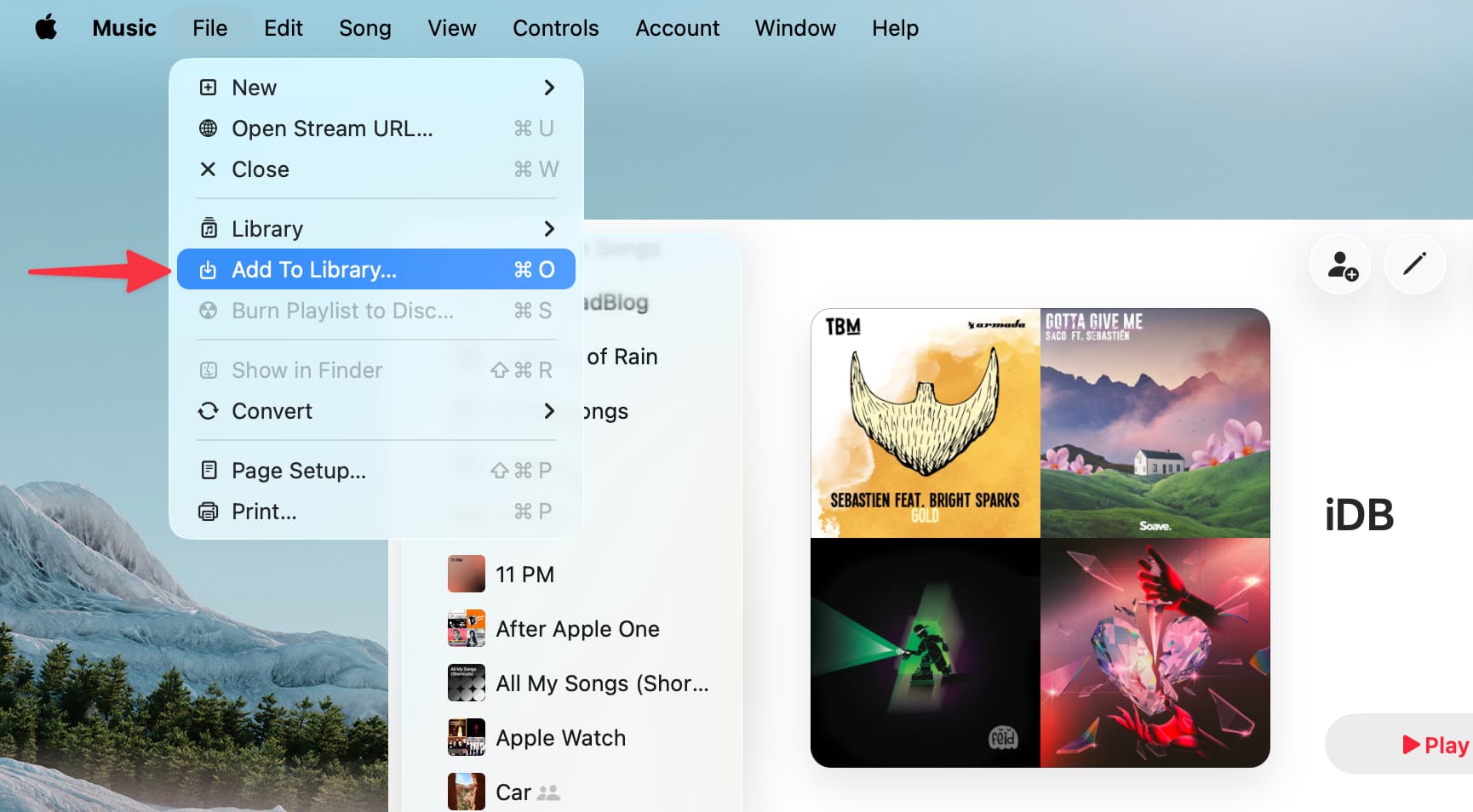
2) Click on File > Add to Library from the top menu bar.
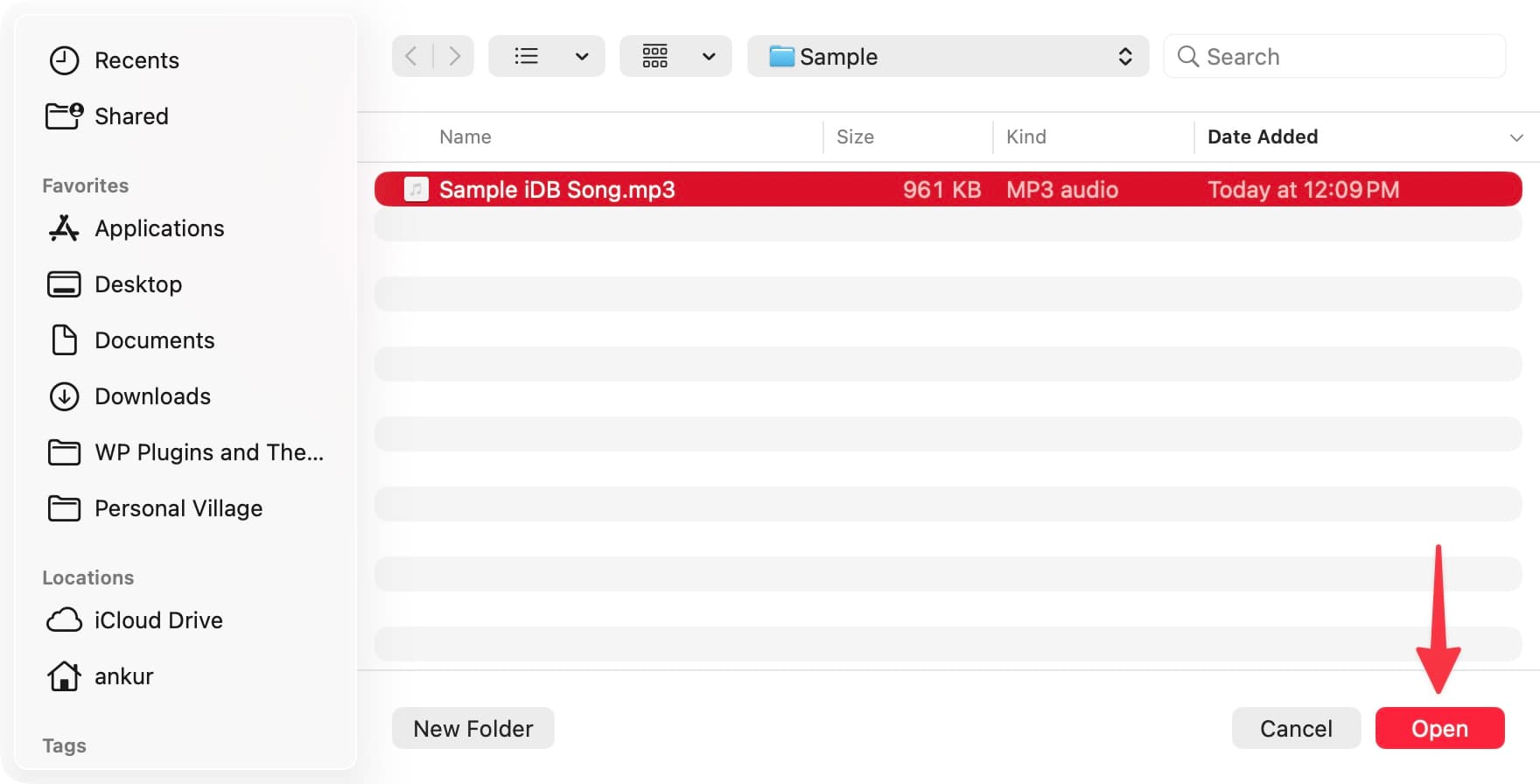
3) In the Finder interface, select individual songs or a song folder and click the Open button to add them to the Music app.
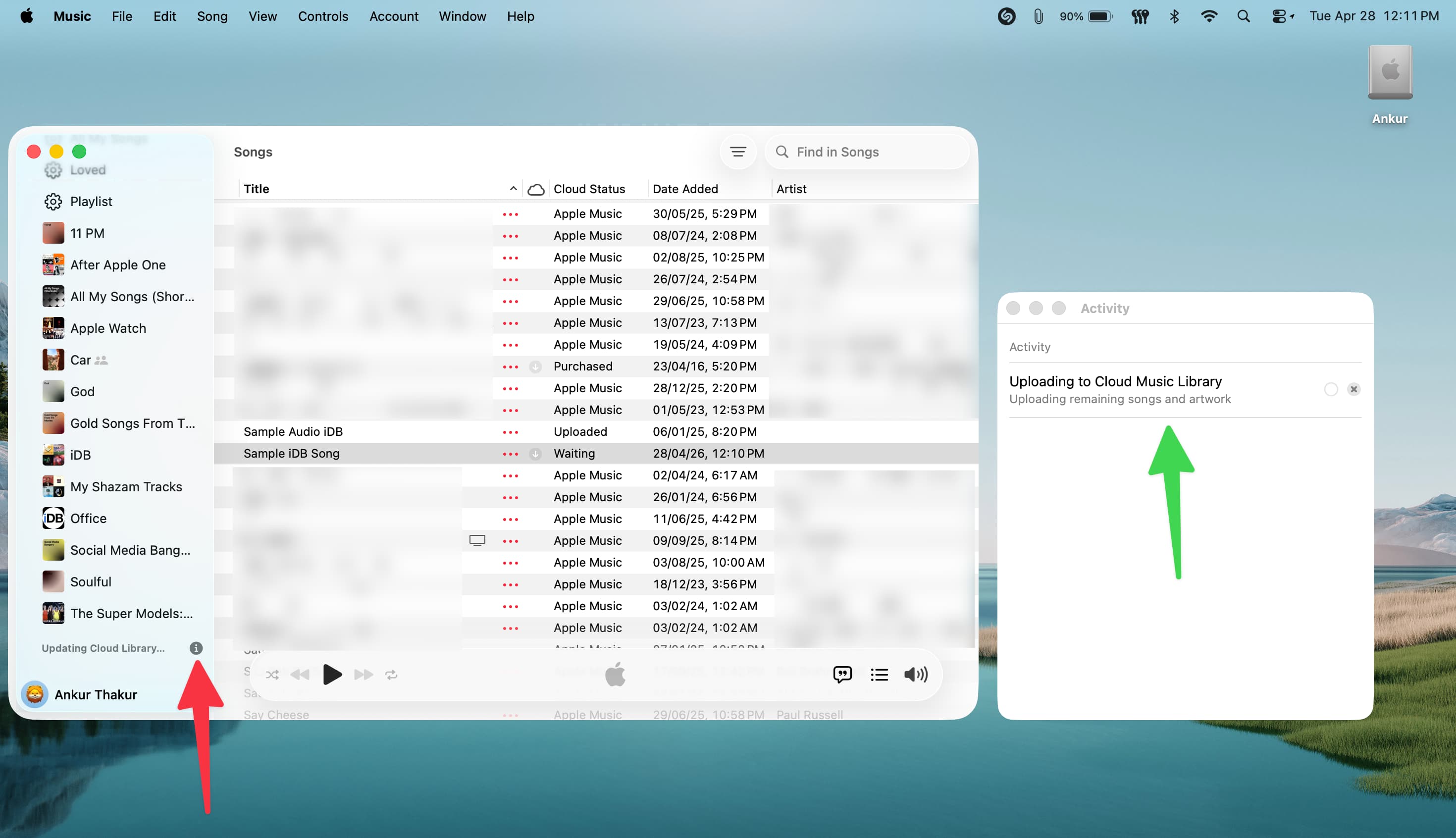
4) The Music app will now automatically match or upload the song to your library. You can check the status by clicking the small info icon ⓘ next to the “Updating Cloud Library…” message in the lower left corner.
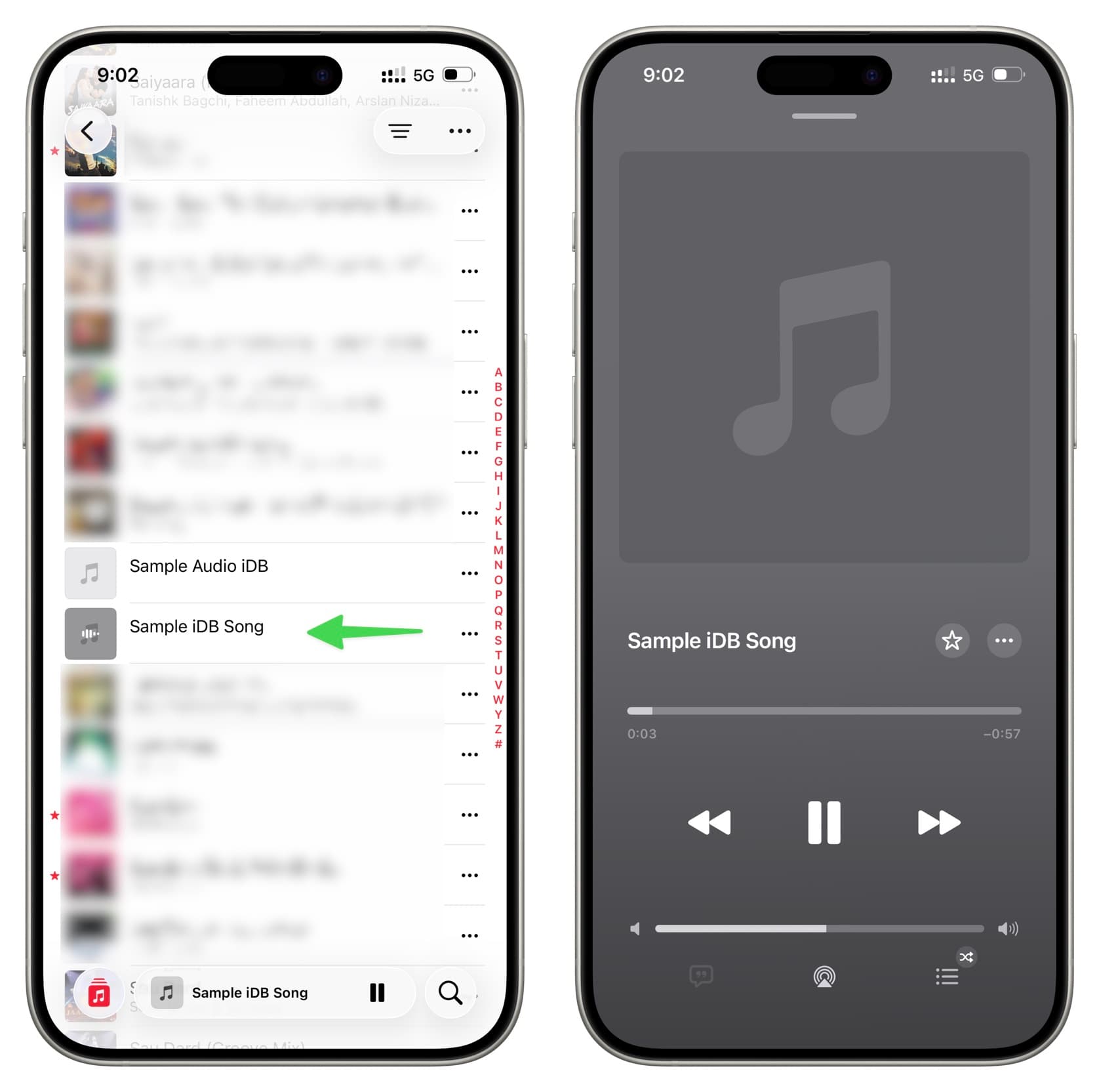
5) When the song is uploaded, open the Music app on your iPhone, iPad, another Mac or PC, Apple TV, Android phone, Tesla vehicle, or any smart TV where you use Apple Music, and you will find the uploaded song there, ready to listen to or download.
If you delete the song from the Music app on any of your devices, that song will be removed from everywhere (except for the original macOS Finder or Windows File Explorer folder/storage disk).



























Comments
(4 Comments)