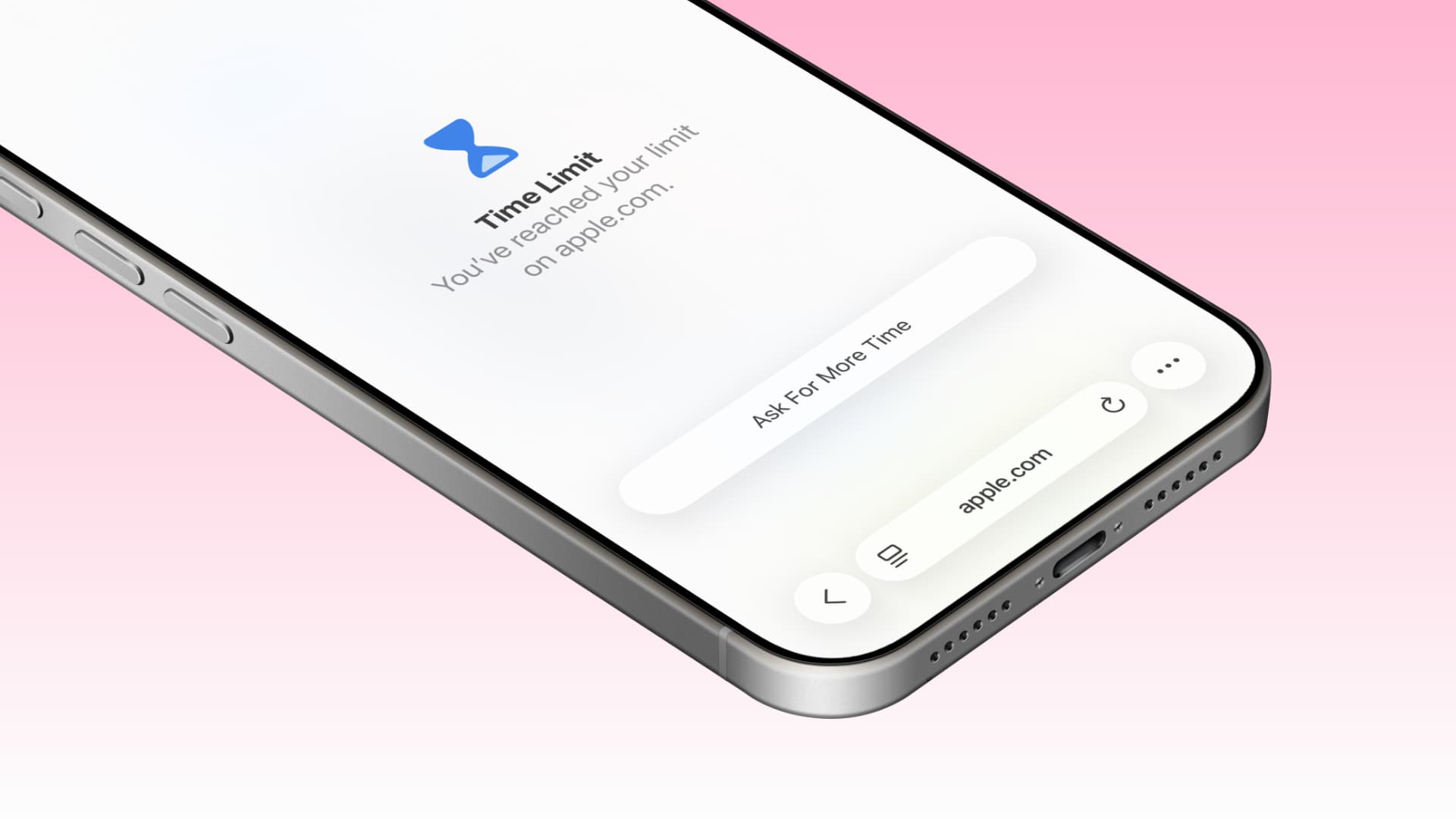
In this quick step-by-step guide, we show you how to set daily time limits for frequently visited unproductive websites on your iPhone, iPad, or Mac.
If your child is spending too much time playing mobile games, browsing Instagram, or watching Netflix, you can set daily time limits for these applications.
If your child is doing the same with certain websites like social media, you can also lock those sites behind a daily time limit. Once the set time expires, that website will become inaccessible until midnight (the limit resets).
Setting time limits for websites makes sense when you don't want to completely block them (like adult sites on your child's device) but instead want to encourage balanced daily usage.
Setting Daily Time Limits for Unproductive Websites on iPhone, iPad, or Mac
1) Open the Settings app on your child's iPhone or iPad, or System Preferences on their Mac, and then select Screen Time. We are demonstrating this with an iPhone.
If your child is added to your Apple Family, you can follow these steps on your own device and then select your child's name in the Family section.
2) Make sure the Screen Time passcode is set. When it is set, you will see “Lock Screen Time Settings” instead of “Change Screen Time Passcode.”
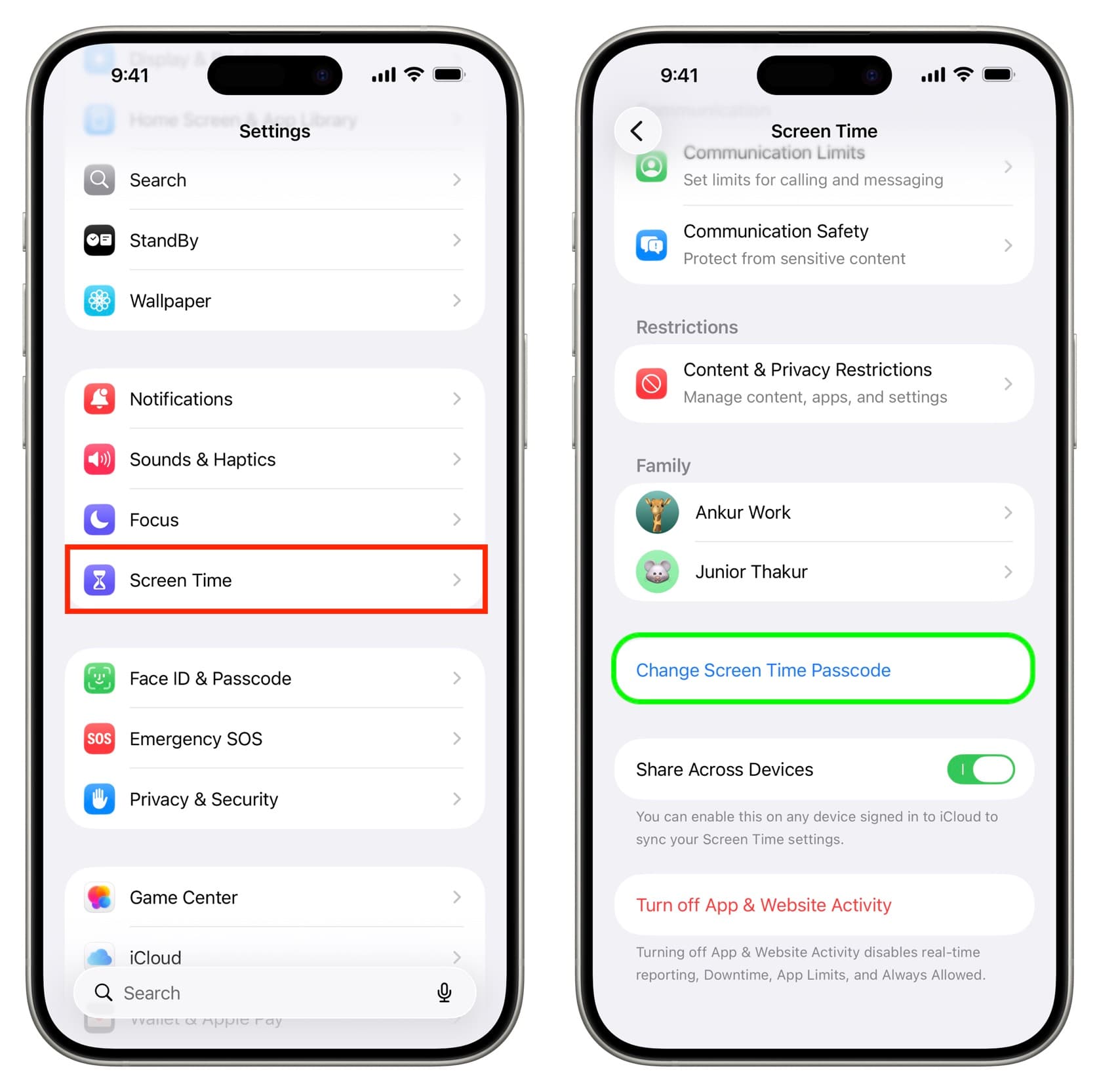
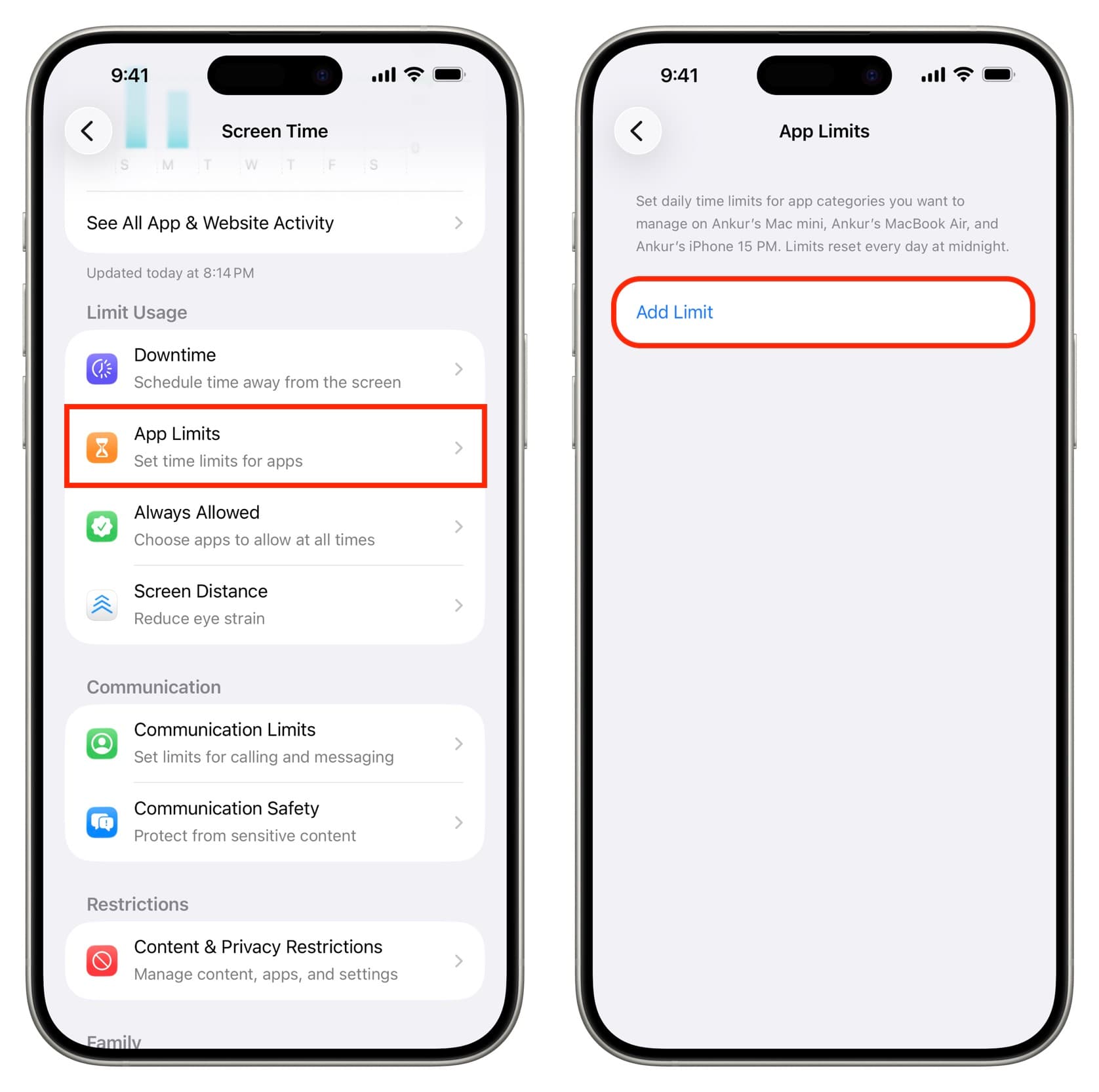
3) Tap on App Limits, then select Add Limit. If prompted, enter the Screen Time passcode.
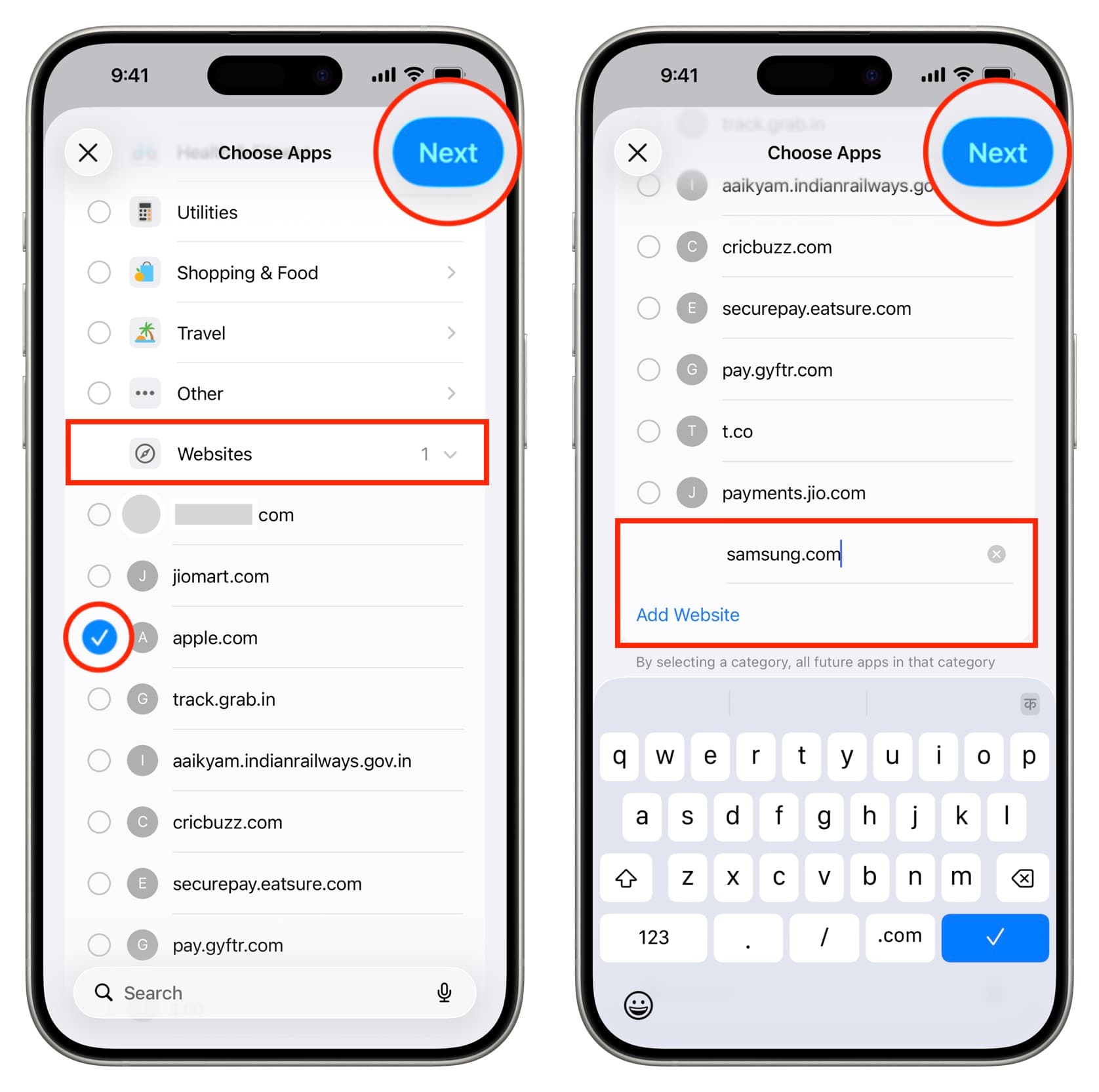
4) Skip the app categories and tap on Websites at the bottom. Here you can see some recently visited websites. If these are the sites you want to limit, select one or more and tap Next. If the site is not in the list, tap Add Website, enter the website URL (such as samsung.com), and then tap Next.
5) Use the hour and minute sliders to set the time limit. You can also tap Customize Days to set a specific daily limit for certain days. Then, make sure the Block at End of Limit option is enabled and tap the checkmark icon.
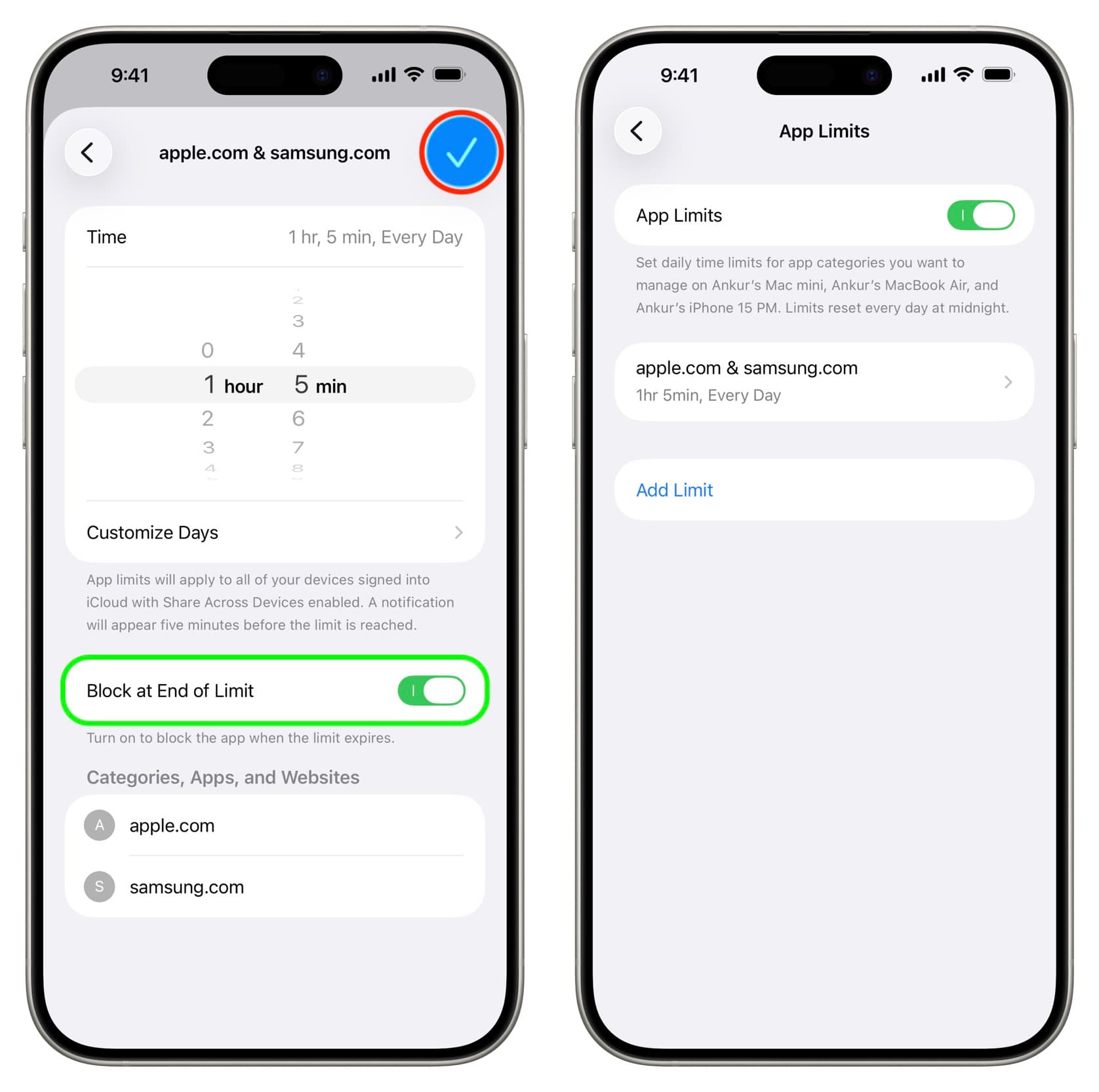
6) Finally, I recommend closing all open apps (Settings, Safari, Chrome, etc.) or restarting the device. New limits may not take effect immediately without closing and restarting.
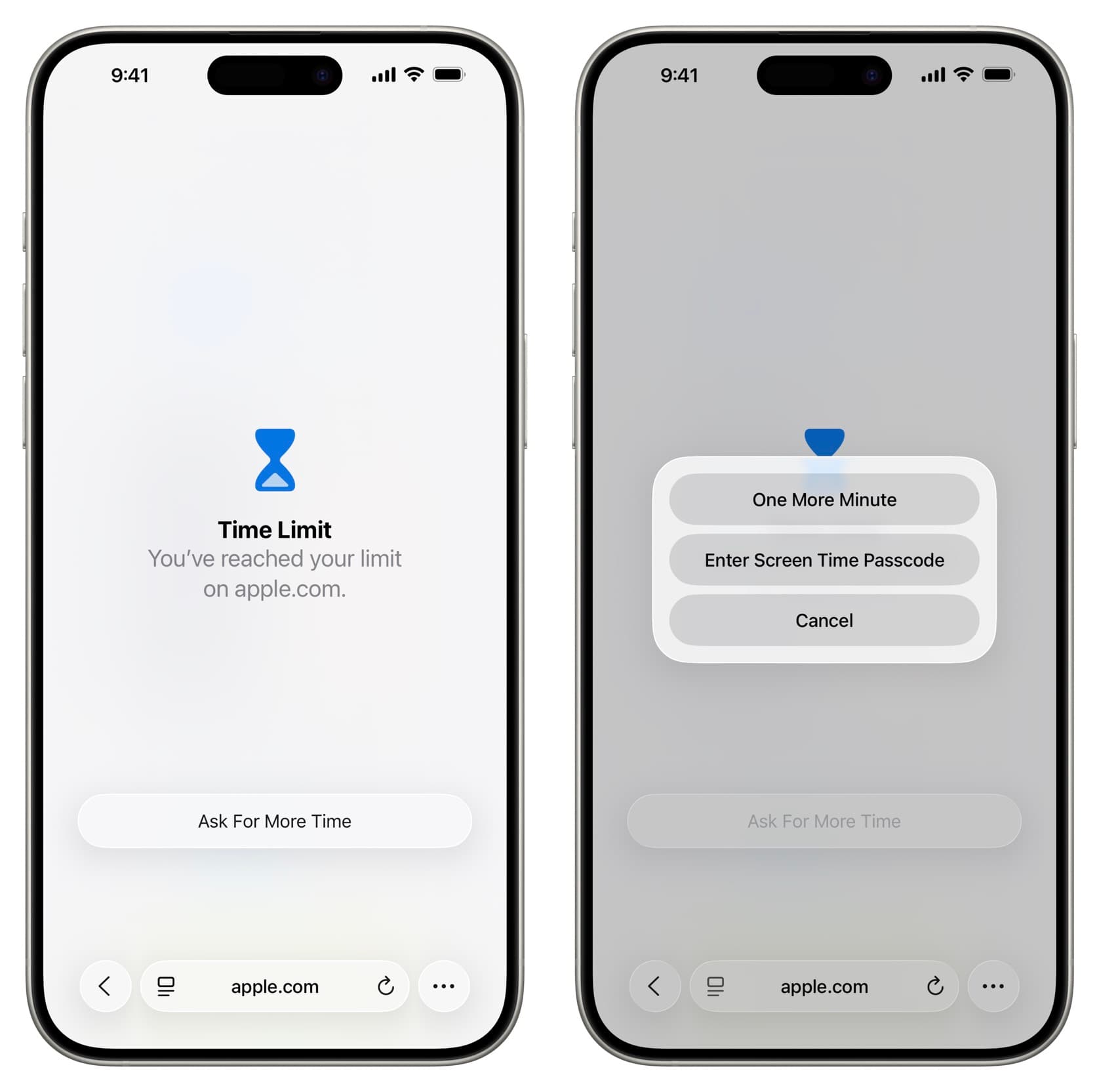
The website is now time restricted. After your child spends a certain number of hours or minutes on that website, access will be blocked for the rest of the day. The child can tap Request More Time to use the website for one more minute. However, if they want to exceed that time, they will need your approval (which you can grant or deny) or to enter the Screen Time passcode; I hope you haven't shared that with them.
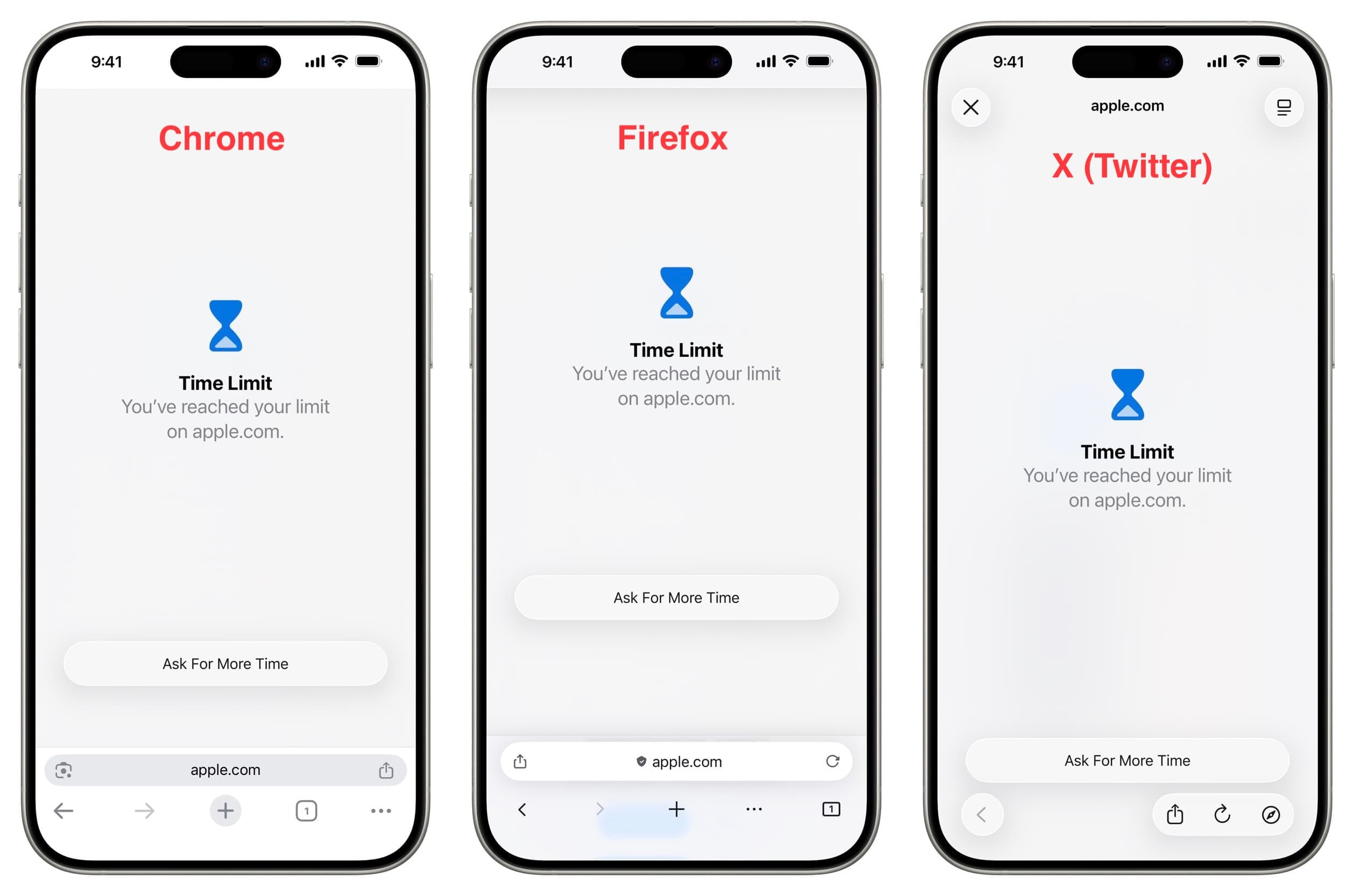
If you set the limit on your child's iPhone or iPad, that website will be blocked not only in Apple’s Safari browser but also in Google Chrome, Firefox, and other browsers, including in-app browsers (like in app X).
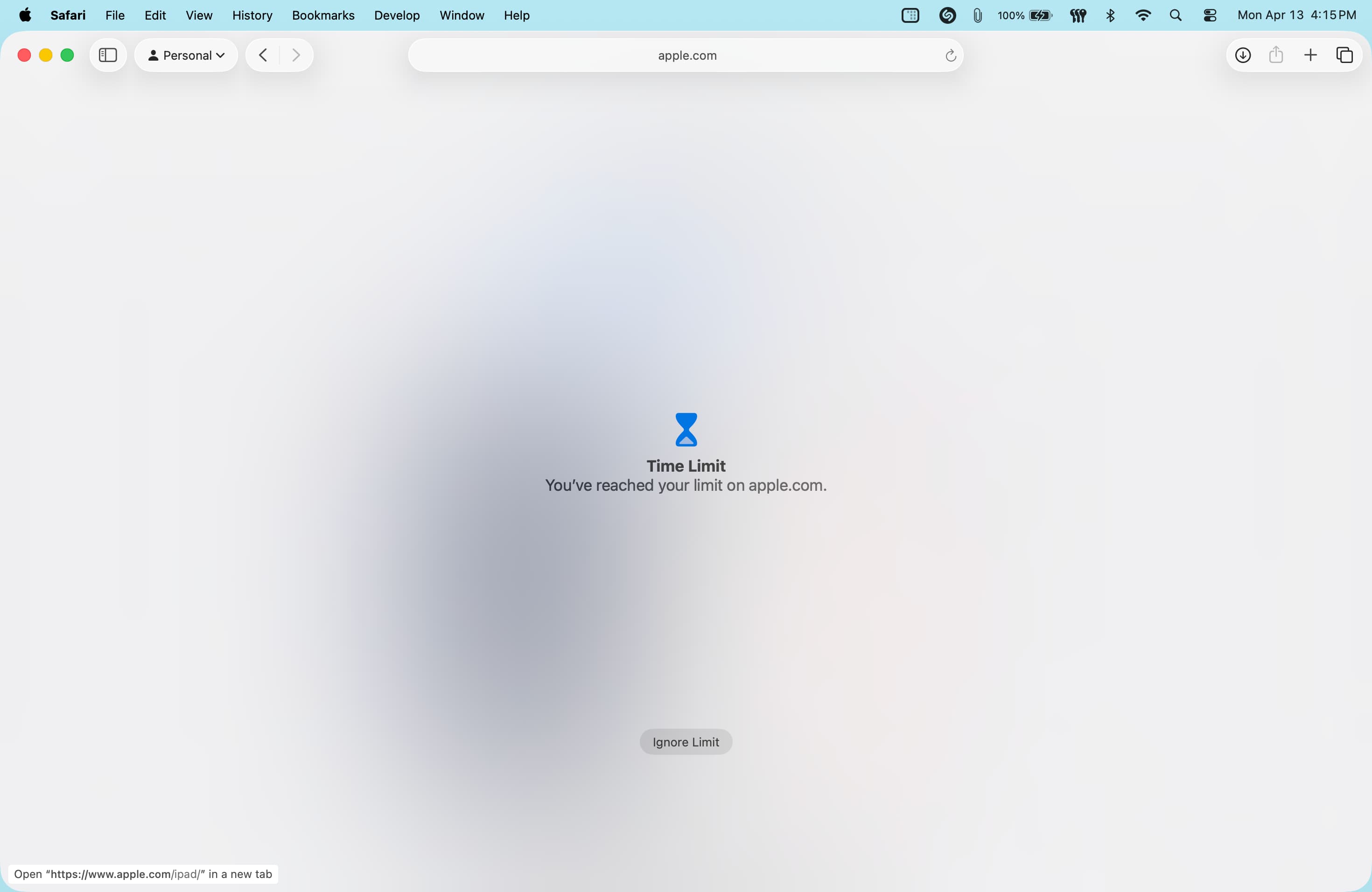
However, on Mac, the website is only blocked in Safari. The same time-restricted website is accessible in Chrome, Firefox, etc.
Changing or Removing Website Time Limits
You can increase, decrease, or completely remove the daily time limit for the website.
- Go back to Screen Time settings and tap on App Limits.
- Tap on the added website limit and enter the Screen Time passcode.
- Make changes using the time field. To maintain the daily limit without restricting access when the limit expires, turn off the Block at End of Limit option. Or, completely remove it by tapping Delete Limit.







































Comments
(4 Comments)