
If daily app limits are not effective and app usage is not blocked after the set time, use these tips.
Set a Screen Time Passcode
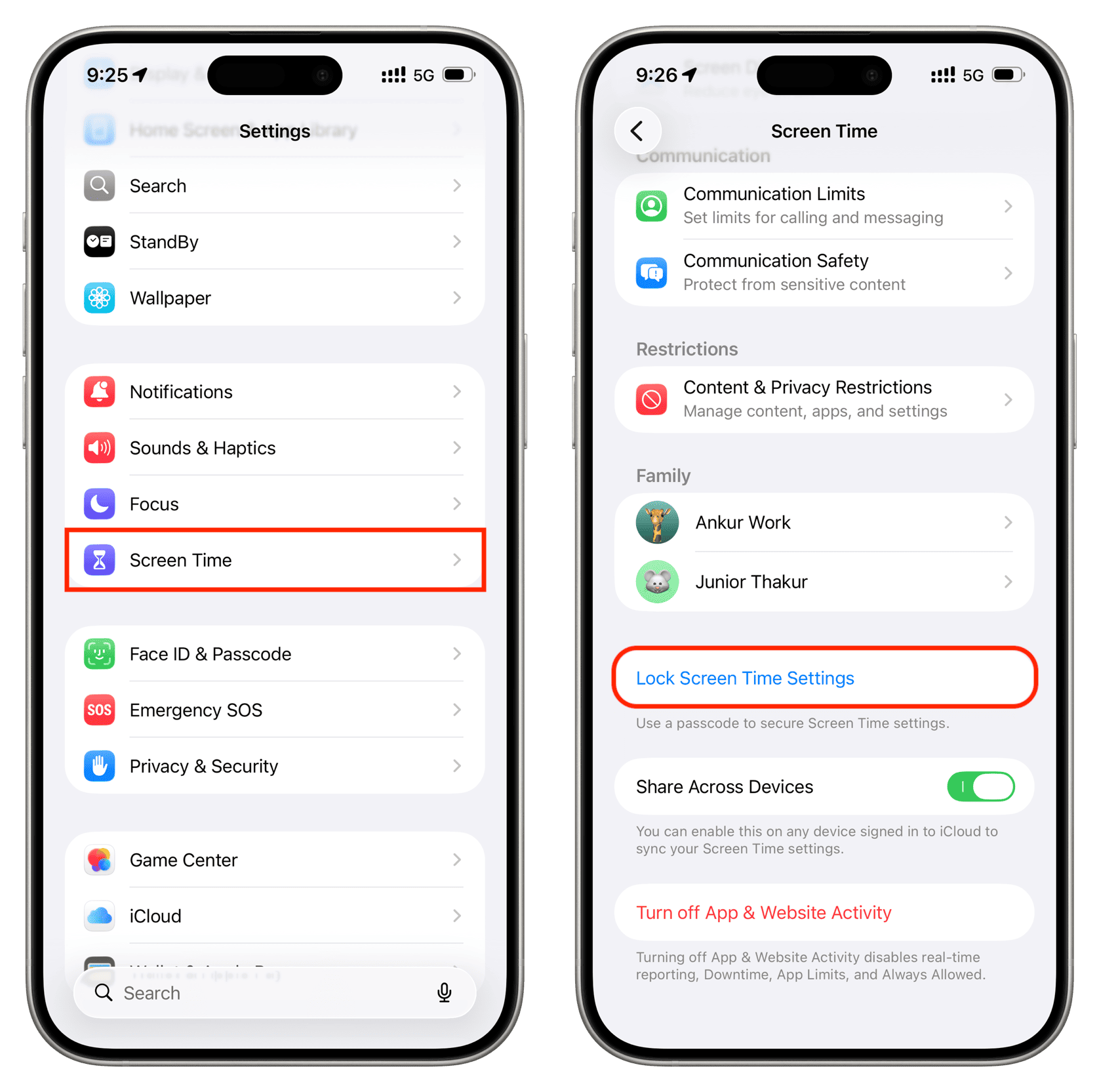
The main purpose of the App Limits feature is to block app usage after a certain time has expired, and there is a "Block at End of Limit" switch to do this. However, this option only appears when you have set a Screen Time passcode.
Therefore, go to Settings > Screen Time and tap on Use Screen Time Passcode to add a passcode. If you are setting this passcode for your child, make sure to review these tips first: How to Properly Set a Screen Time Passcode for Your Child
Turn on the "Block at End of Limit" Option
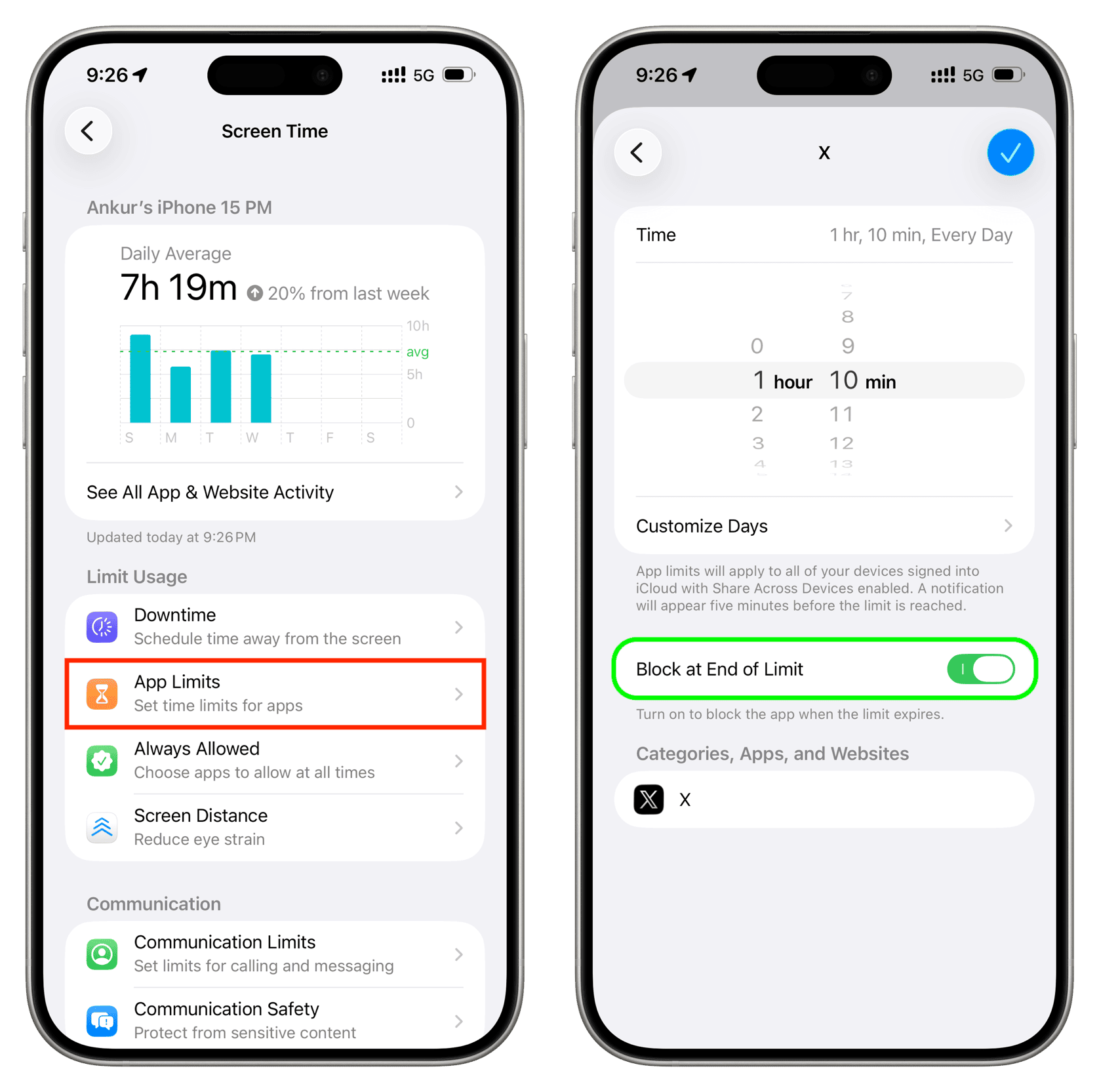
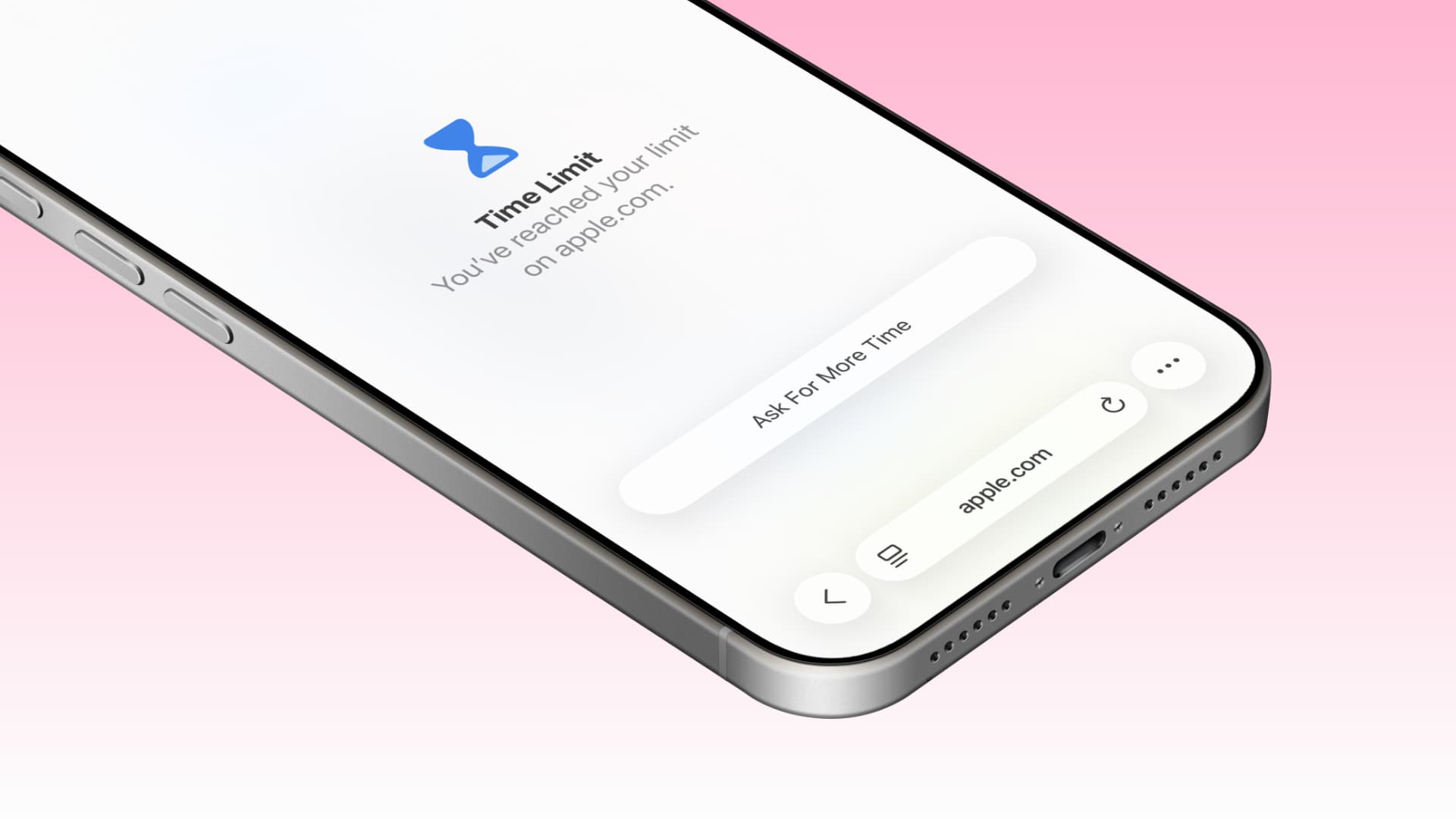
After setting the Screen Time passcode, tap on an existing limit or create a new one and ensure that the Block at End of Limit option is turned on. If it is off, app limits will not effectively block app usage; your child can bypass the restrictions by tapping the Ignore Limit option.
Make Sure You Selected the Right Apps
When setting the app limit, ensure you select all categories or the correct app. Similarly, if you are adding a limit to a website, make sure you entered the correct site URL.
Know That Limits Reset at Midnight
All app limits you set automatically reset at midnight. There is no option to change this or to set app limits weekly or monthly. Therefore, if your child is using a restricted app at midnight, be aware that the limit has reset. To prevent app usage during these hours, use the Downtime feature instead.
Restart Your iPhone After Setting the Limit
Screen Time features may not be effective due to temporary glitches. Restart your iPhone or iPad, and the app limit issue should be resolved.
Update to the Latest iOS Version
If your iPhone or iPad is not running the latest iOS 26 or iPadOS 26 version, download the latest version from Settings > General > Software Update.
Delete and Re-add Limits
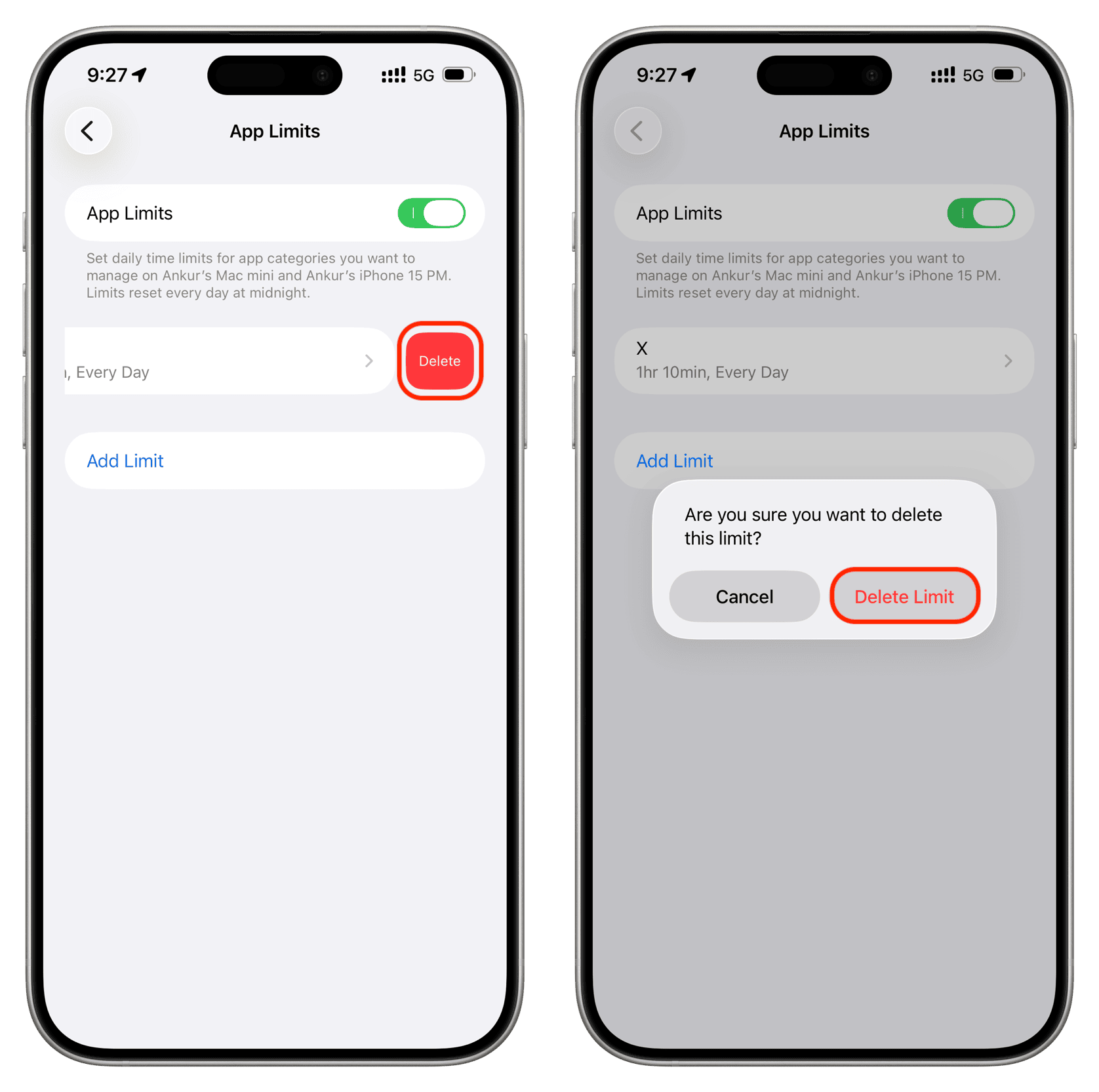
If your apps are still not being locked behind daily time limits, return to Settings > Screen Time > App Limits and swipe left on an added limit to delete it. Then restart your iPhone or iPad and re-add the limit.
Turn Off and Re-add Screen Time Passcode
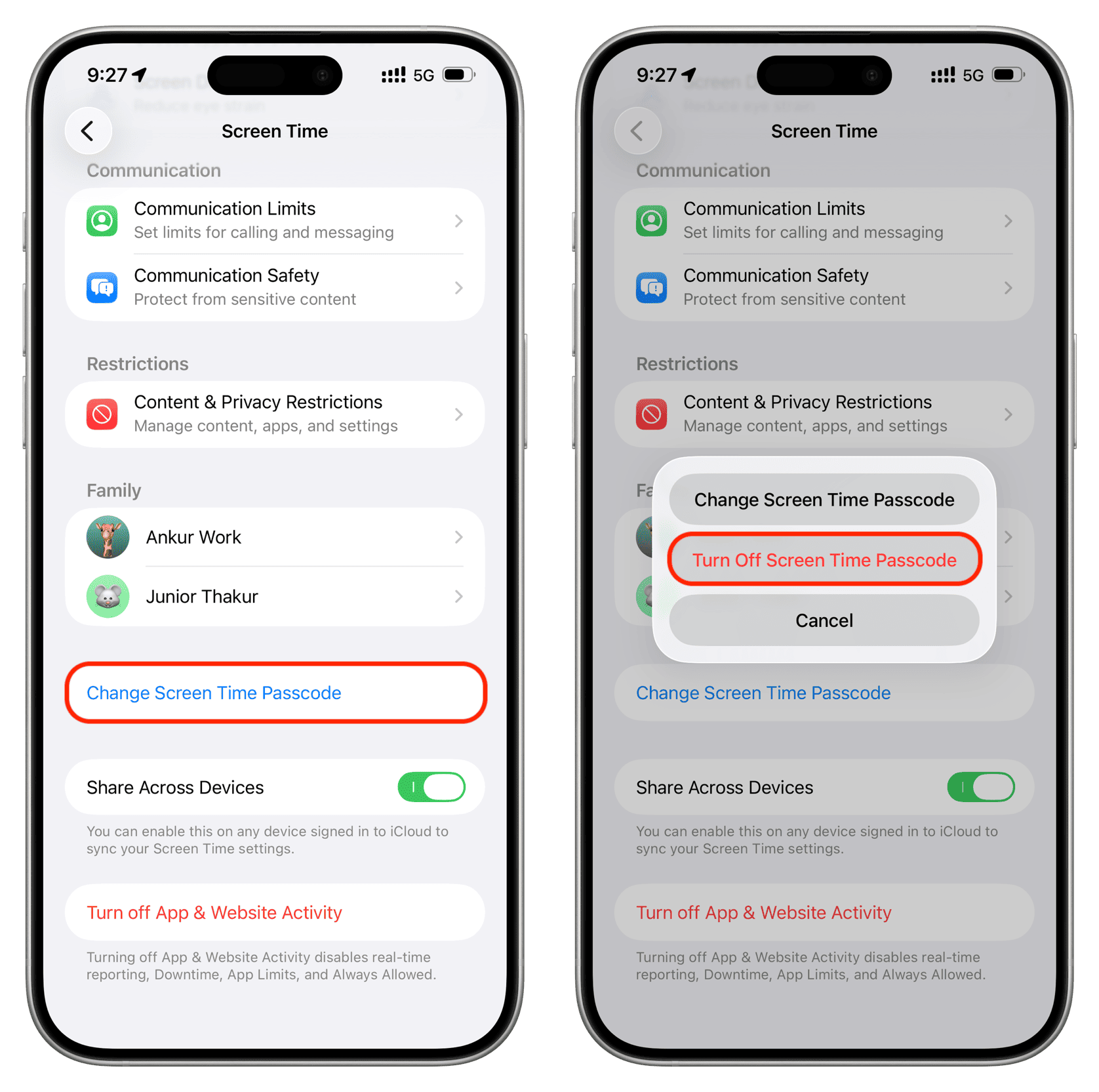
Sometimes, refreshing or changing the Screen Time passcode can help resolve related issues. Go to Settings > Screen Time > Change Screen Time Passcode and select Turn Off Screen Time Passcode. Then restart your iPhone and set the same four-digit code or a different code.
Refresh Screen Time
You might consider turning off and on the App Limits to resolve the issue. Go to Settings > Screen Time and tap Turn Off App and Website Activity at the bottom. After restarting your iPhone or iPad, tap App and Website Activity > Turn On App and Website Activity to reactivate it.


























Comments
(1 Comment)