
In this short guide, we will show you how to stop iPhone app notifications from appearing on your Mac.
If you are running macOS Sequoia or macOS Tahoe on your Mac, after setting up iPhone Mirroring, you will notice that iPhone app notifications are showing up on your computer. This is true even if iPhone Mirroring is off and your iPhone is locked.
While this can help you check iPhone alerts without waking them up, a constant stream of iOS app notifications can be distracting. This can become annoying, especially when you are focused on something important, watching a full-screen movie, recording your computer screen, or quickly taking multiple screenshots.
To solve this, here’s how to stop all or selected iOS app notifications from appearing on your Mac.
Stop Mirroring Notifications from Selected iPhone Apps on Mac
- Open System Settings on your Mac.
- Click on Notifications.
- Click on the option ‘Allow notifications from iPhone’.
- Review the list of iOS apps in the ‘Mirror iPhone Notifications’ section and turn off the toggle for the apps you don’t want to see on your Mac.
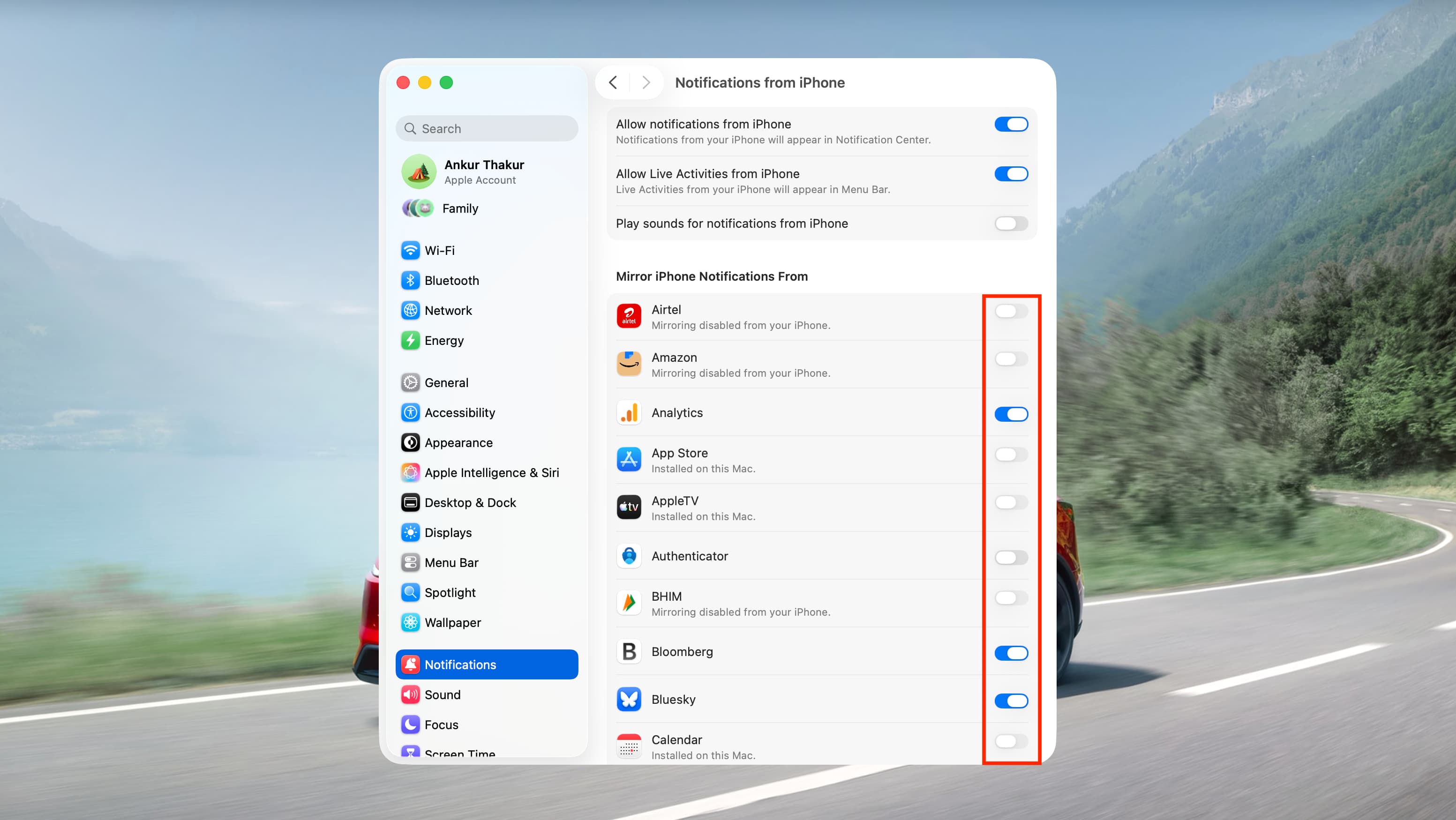
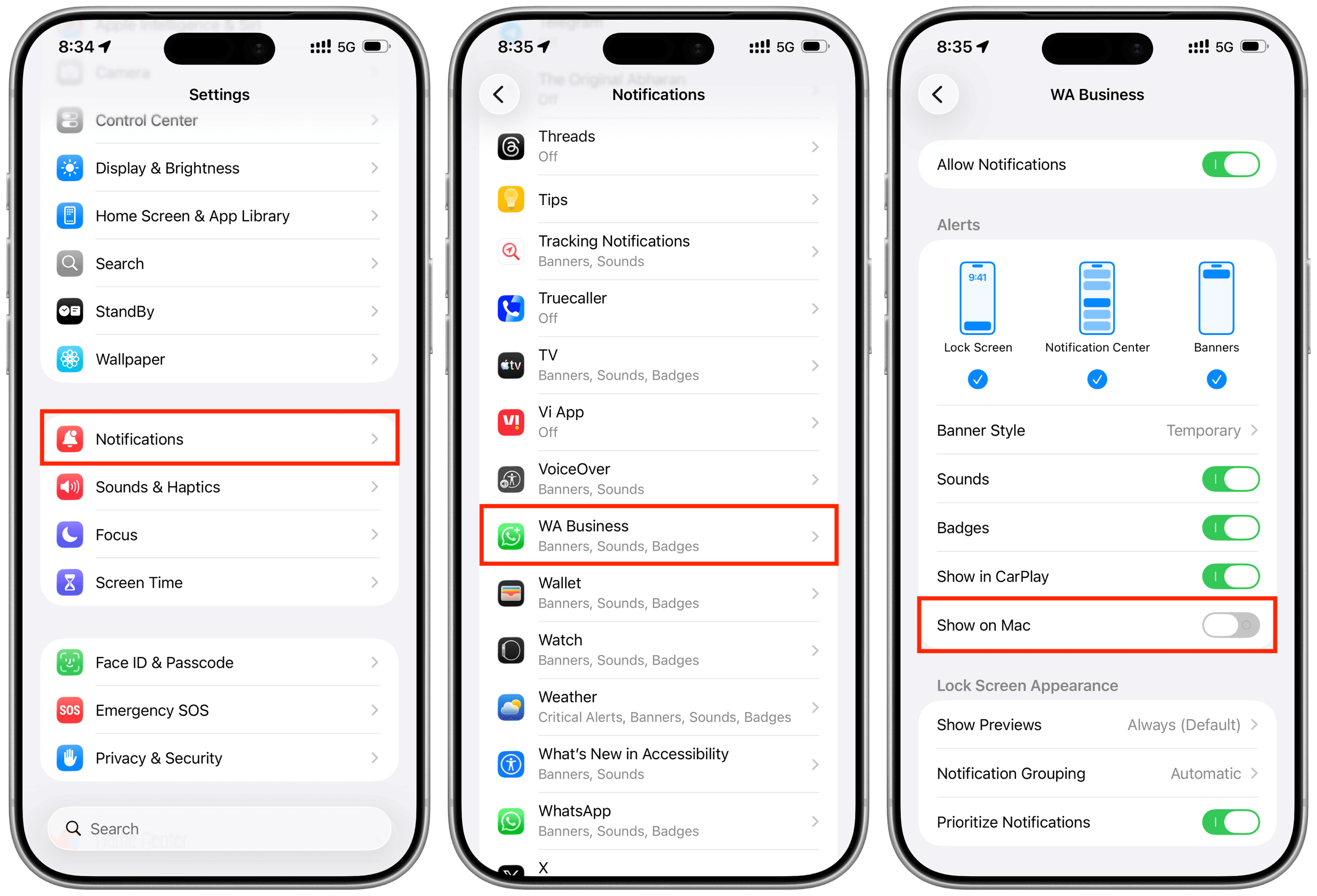
The method above is useful as it allows you to review the entire app list and toggle them on and off. Additionally, you can go to Settings on your iPhone, tap on Notifications, select an app, and turn off the “Show on Mac” option to prevent its alerts from appearing on your Apple computer.
Block All iPhone App Notifications on Mac
To prevent all app notifications from your iPhone from appearing on your Mac, follow these steps.
- Launch System Settings on macOS and click on Notifications.
- Click on the option “Allow notifications from iPhone”.
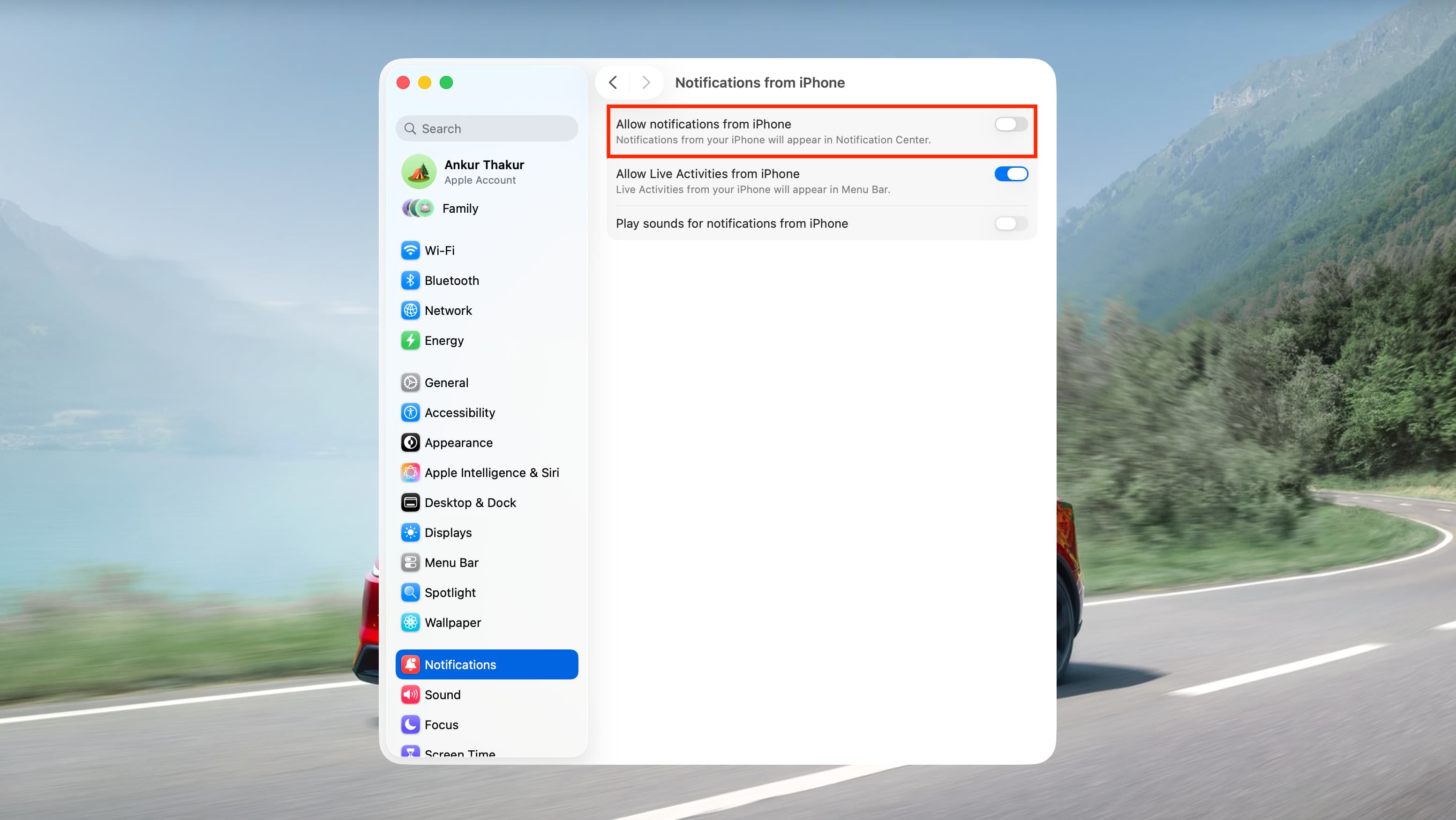
- Turn off the “Allow notifications from iPhone” option. You can also choose to prevent iPhone Live Activities from appearing in your Mac's top menu bar.
If you are not using the iPhone Mirroring feature at all, go to the iPhone Mirroring app settings and revoke access for your iPhone. This will also prevent all iOS app alerts from appearing on your Mac’s screen.




































Comments
(7 Comments)