
You cannot completely stop your iPhone or iPad from functioning as an Apple TV remote. However, you can take some steps.
First of all, every Apple TV comes with a physical Siri Remote. Additionally, you can use your iPhone or iPad, or a device of someone added to your Apple TV, as a remote control; this allows you to do everything that the physical Apple TV remote can do.
If you do not want to use your iPhone or iPad as a remote control, you can forget its registration from the Apple TV remote settings and then forget to use the Remote in the iOS Control Center.
Forget Your iPhone or iPad as an Apple TV Remote
- Open the Settings app on your Apple TV.
- Go to Remotes and Devices.
- Select Remote App and Devices.
- Select the iPhone or iPad that belongs to you or a family member.
- Click on the Forget This Device option, then click on Remove.
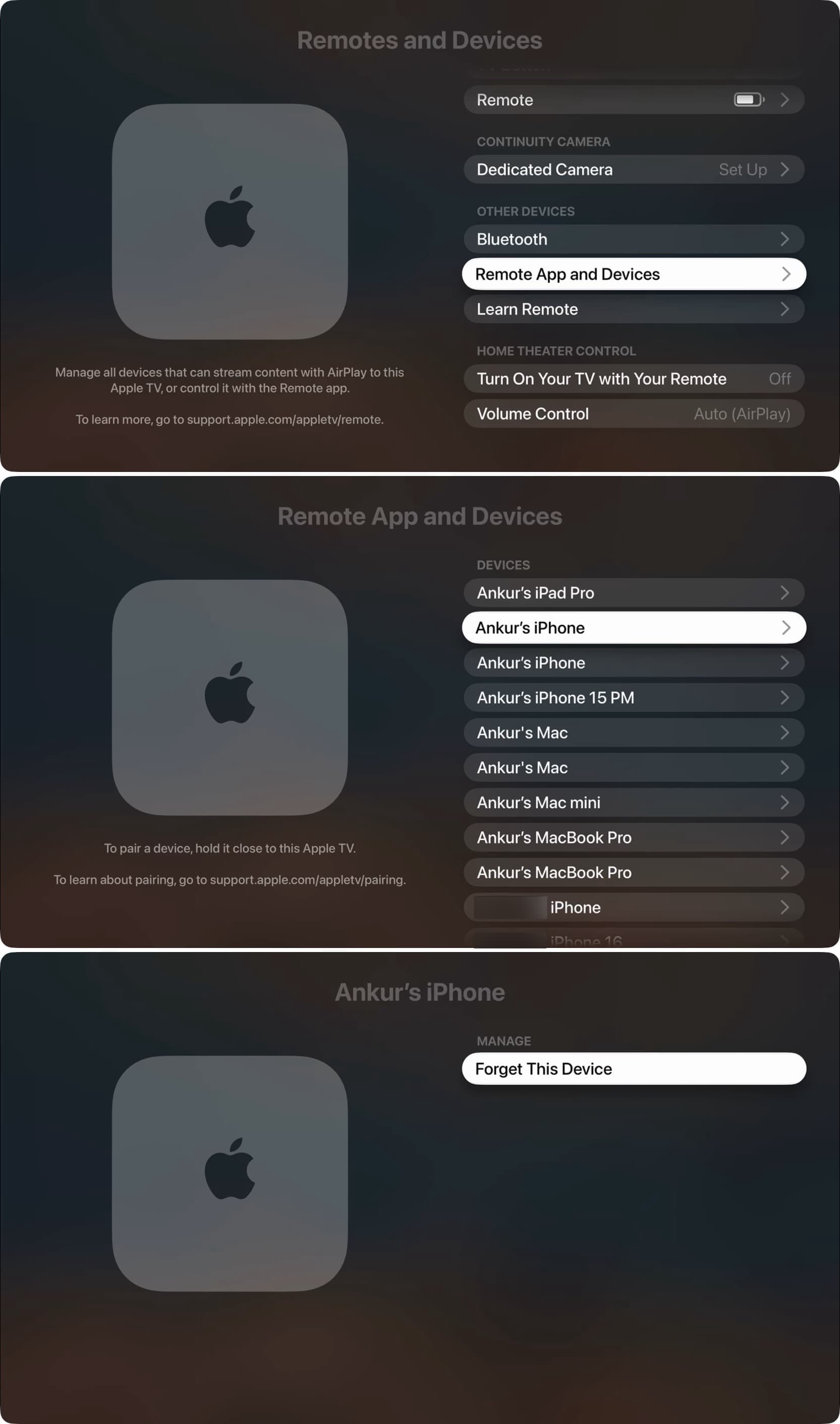
Ideally, your iPhone or iPad should no longer work as a remote control for this Apple TV. However, in my tests, even after following the steps above and removing my iPhone and iPad, I was still able to open the Remote app from the iOS Control Center and it was functioning as a remote by connecting to my Apple TV. The best option to stop this situation is to remove the Remote app icon.
Removing the Apple TV Remote from iOS Control Center
The Apple TV Remote app is not available as a traditional app on your iPhone or iPad. Therefore, you cannot find it on the Home Screen, in the App Library, in iPhone Storage settings, or in other places where you can remove it.
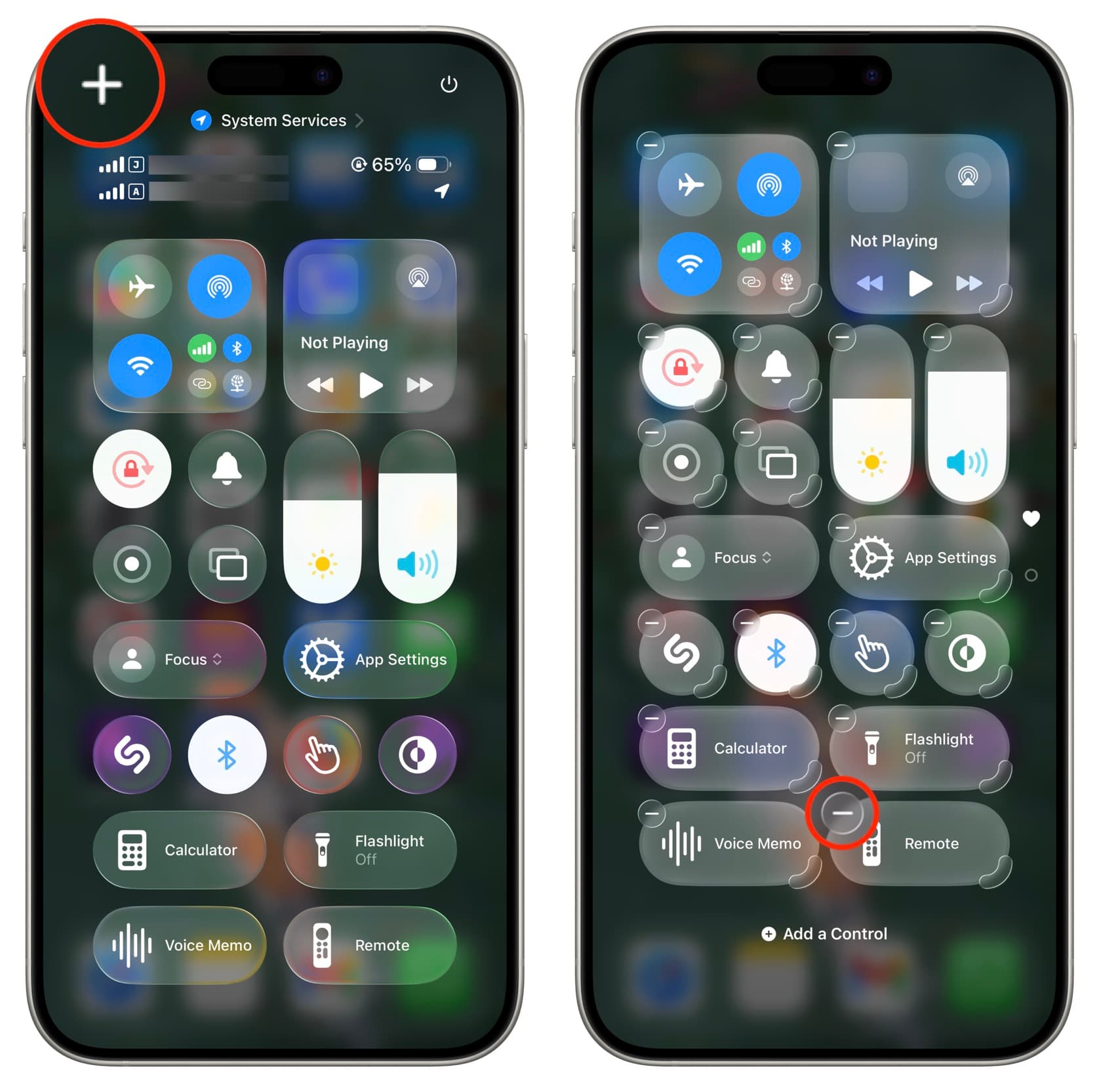
The Remote app is only available as a button in the iOS Control Center, Lock Screen button, and as a shortcut app action. Therefore, if you have added these, remove them from those places. Here are the steps for Control Center:
- Open Control Center on your iPhone or iPad and tap the plus button (+) at the top to enter edit mode.
- Tap the minus button for Remote to remove it.
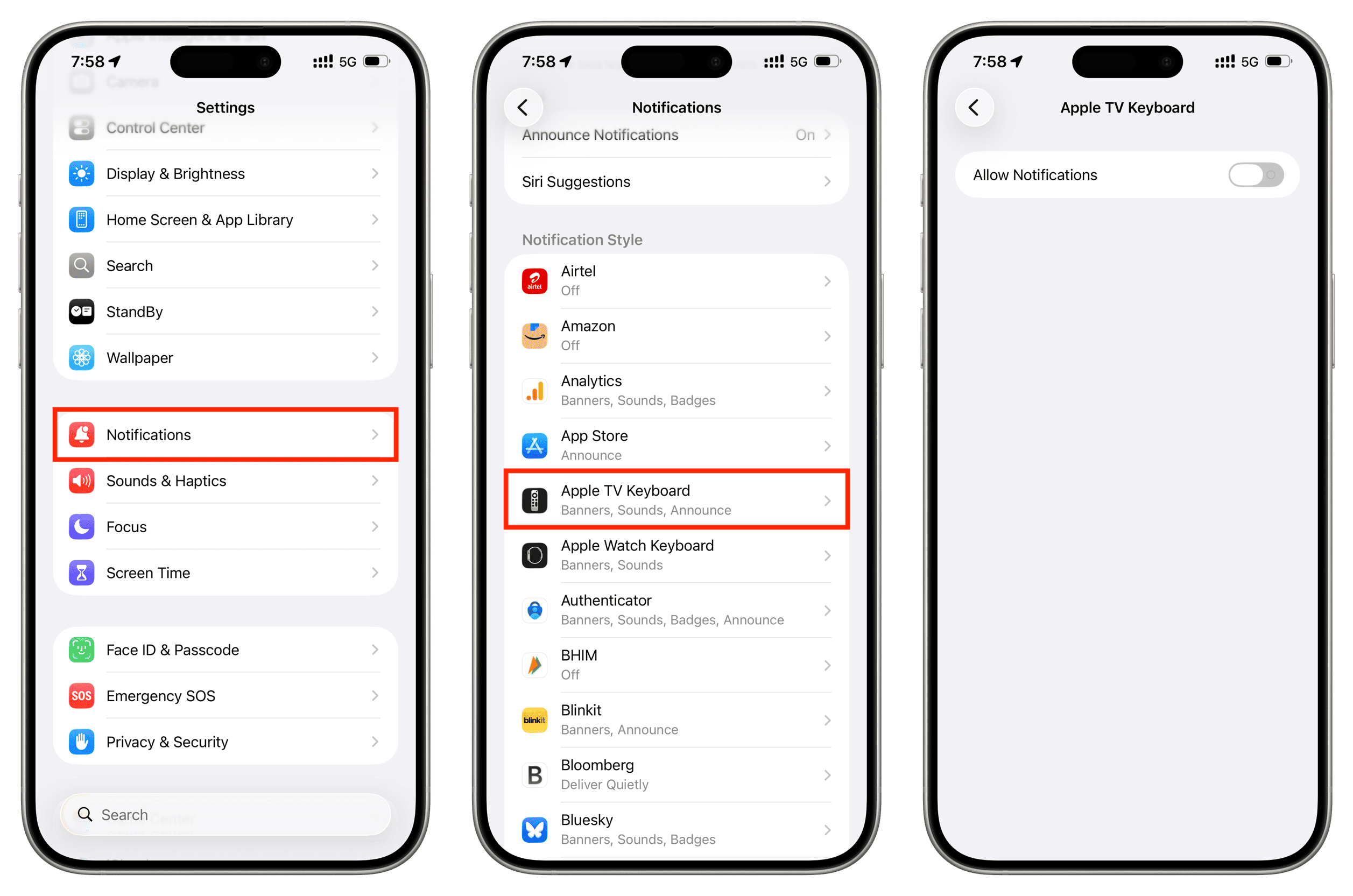
Stopping Apple TV Keyboard Notifications on iPhone
If you do not want to receive Apple TV Keyboard Input notifications on your iPhone or iPad when you start typing something on your Apple TV, go to iOS Settings > Notifications > Apple TV Keyboard and turn off Allow Notifications.
Stopping Apple TV Playback Controls from Appearing on iPhone or iPad Lock Screen
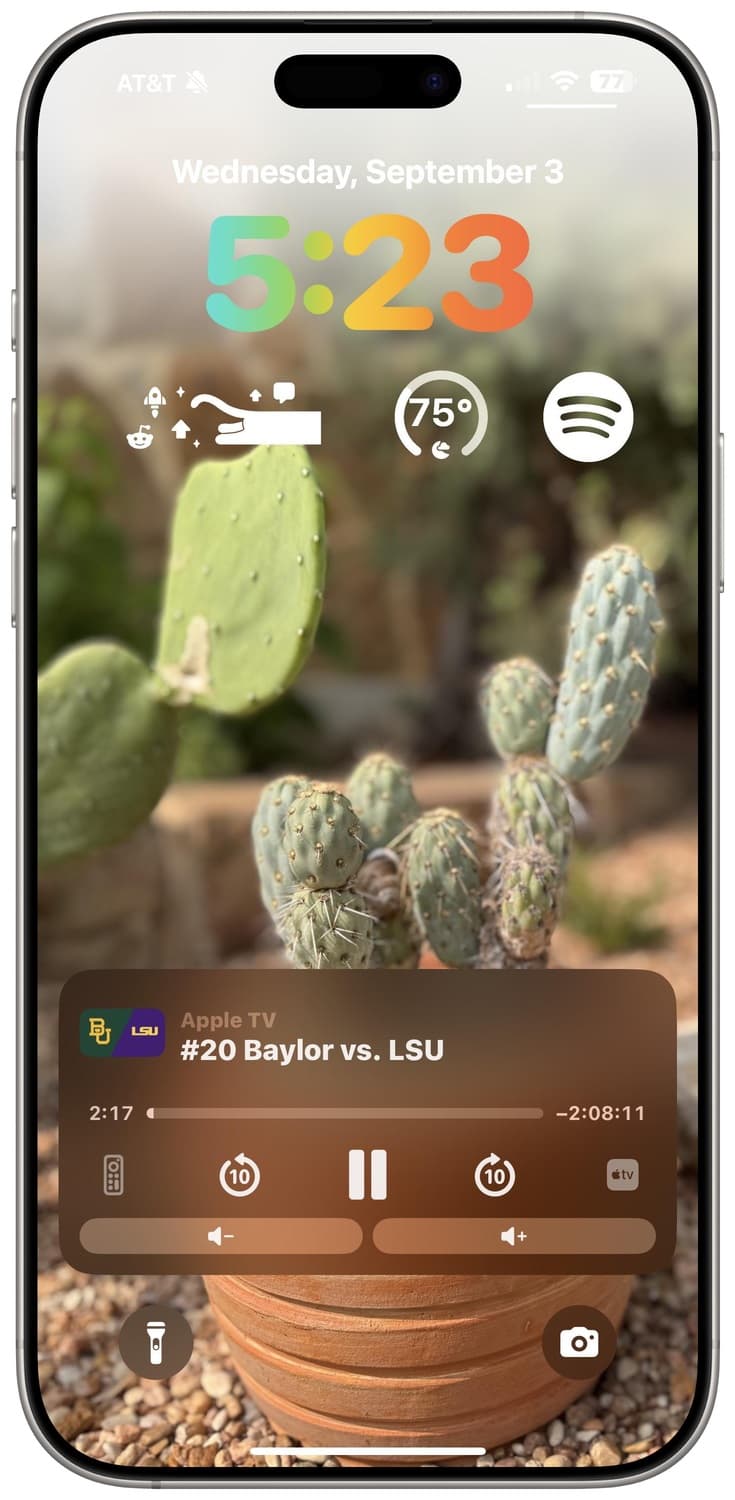
There is no definitive way to stop seeing what is playing on Apple TV on your iPhone or iPad Lock Screen, but:
- If something else is playing on your iPhone or iPad.
- If Wi-Fi and Bluetooth are turned off from iOS Settings (not just from Control Center).
- If your iPhone or iPad is not near your Apple TV.
- Or, if you have removed the Apple TV from the Apple Home app.
As you can see, there is no clear option to completely stop using your iPhone as an Apple TV remote or to stop media controls from showing on the iOS Lock Screen. While we all appreciate how well Apple devices work, the lack of an option to disable certain ecosystem features can be frustrating.


























Comments
(6 Comments)