Learn how to delete the Facebook app cache on your iPhone or iPad. This process can resolve various issues and help you free up local space.
The Facebook app itself is about 400 MB in size, but the size of documents and data can increase exponentially (you can see this in your iPhone settings; check the steps below). This happens due to cached files and other locally stored data on your device. These files improve loading speed and overall performance. However, since these are temporary files, you can safely clear them to free up space on your iPhone.
Secondly, clearing the Facebook app cache can help in situations where all content is not loading quickly, the app freezes while scrolling, some content, such as photos, is not loading, or video playback is slow.
Now, while almost every app on Android offers an option to clear cache in storage settings, there is no such system-wide option in iOS.
Therefore, some app developers like Slack and Spotify have added a dedicated cache clearing option. However, Facebook has not done this yet. Thus, you will need to perform a fresh installation to clear the app cache. Let me share all the steps with you.
Clearing Facebook App Cache on iPhone or iPad
1) Open the Settings app on iOS and tap on General.
2) Tap on iPhone or iPad Storage and wait for it to load.
3) Select Facebook from the list of apps.
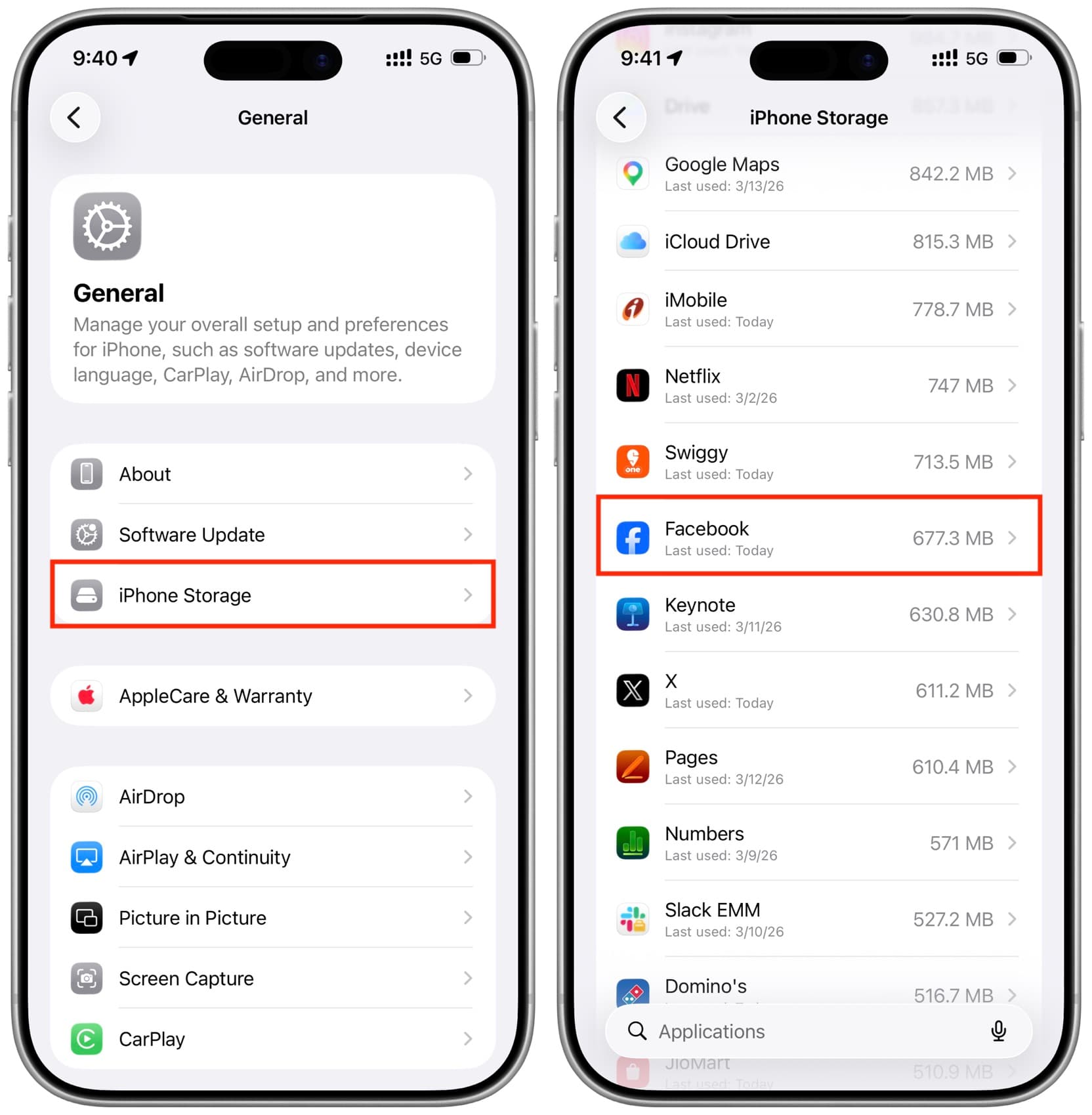
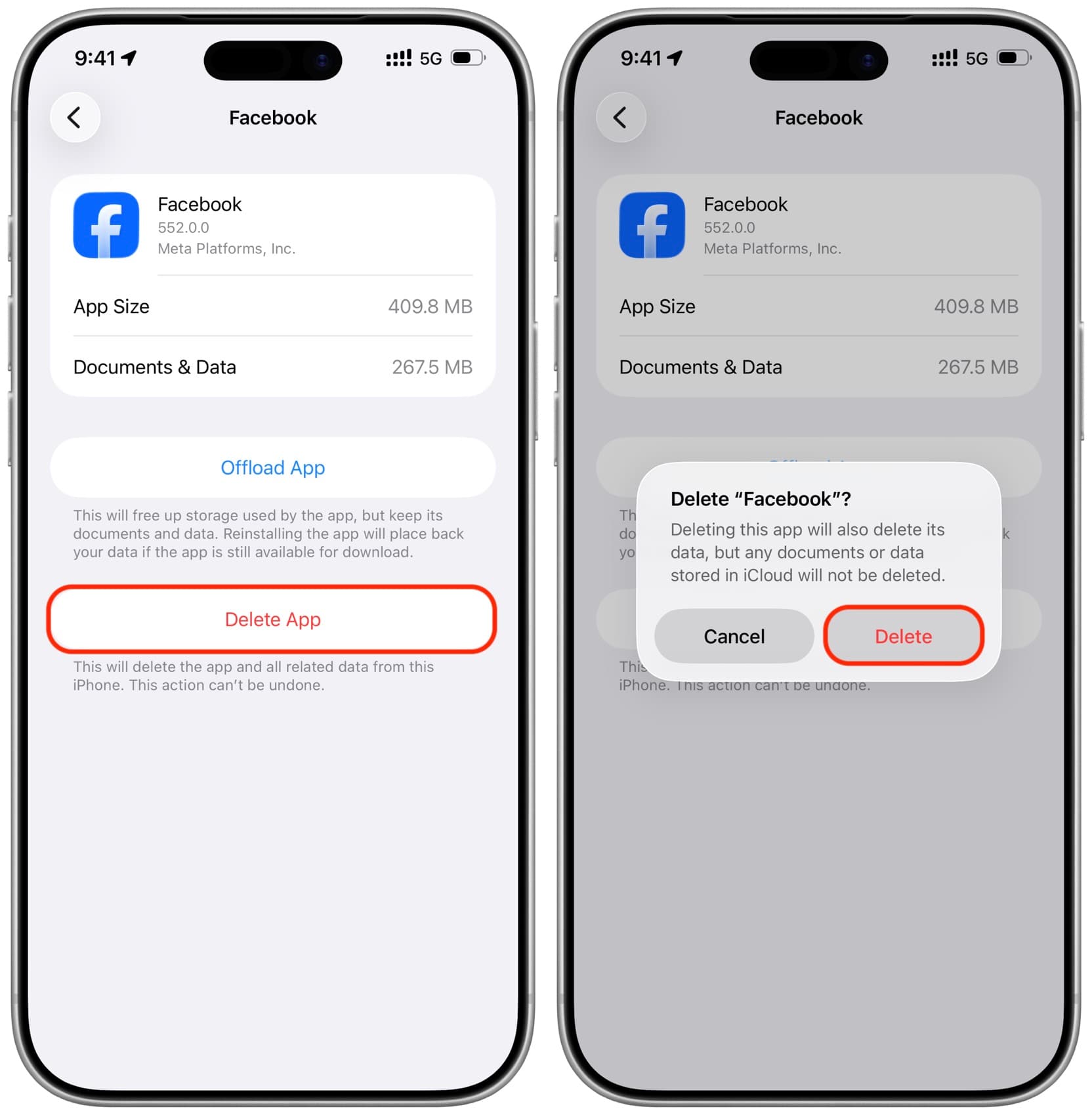
4) Now you can see the app size and documents and data size for this app. To remove everything, tap on Delete App (do not use the Empty App option, as this only deletes the app, not the local data). Your Facebook profile, photos, videos, posts, likes, and everything else will remain as they are, because these are stored on Facebook's servers, not on your phone.
5) Now, restart your iPhone or iPad.
6) Reinstall the Facebook app from the App Store.
7) Log in to the app (if prompted) and you will find your profile as before. However, now you should have gained a significant amount of free space on your iPhone and resolved any app issues as well. Remember that the app cache will be recreated while using Facebook on your iPhone. You may need to repeat this process a few weeks later or when the app is not functioning properly.
Clearing Cache of the Facebook Browser App
When you tap on a website link on Facebook, that link opens in the in-app browser (it does not automatically open Safari or your default browser). This behavior is consistent with other social media sites like X, which have their own built-in browsers.
If you want to clear the cache of Facebook's in-app browser, you can find out how to do it below:
1) Open the updated Facebook app on your iPhone, tap on the hamburger icon in the upper right corner, then tap on Settings & Privacy > Settings.
2) Under the Preferences heading, tap on Browser.
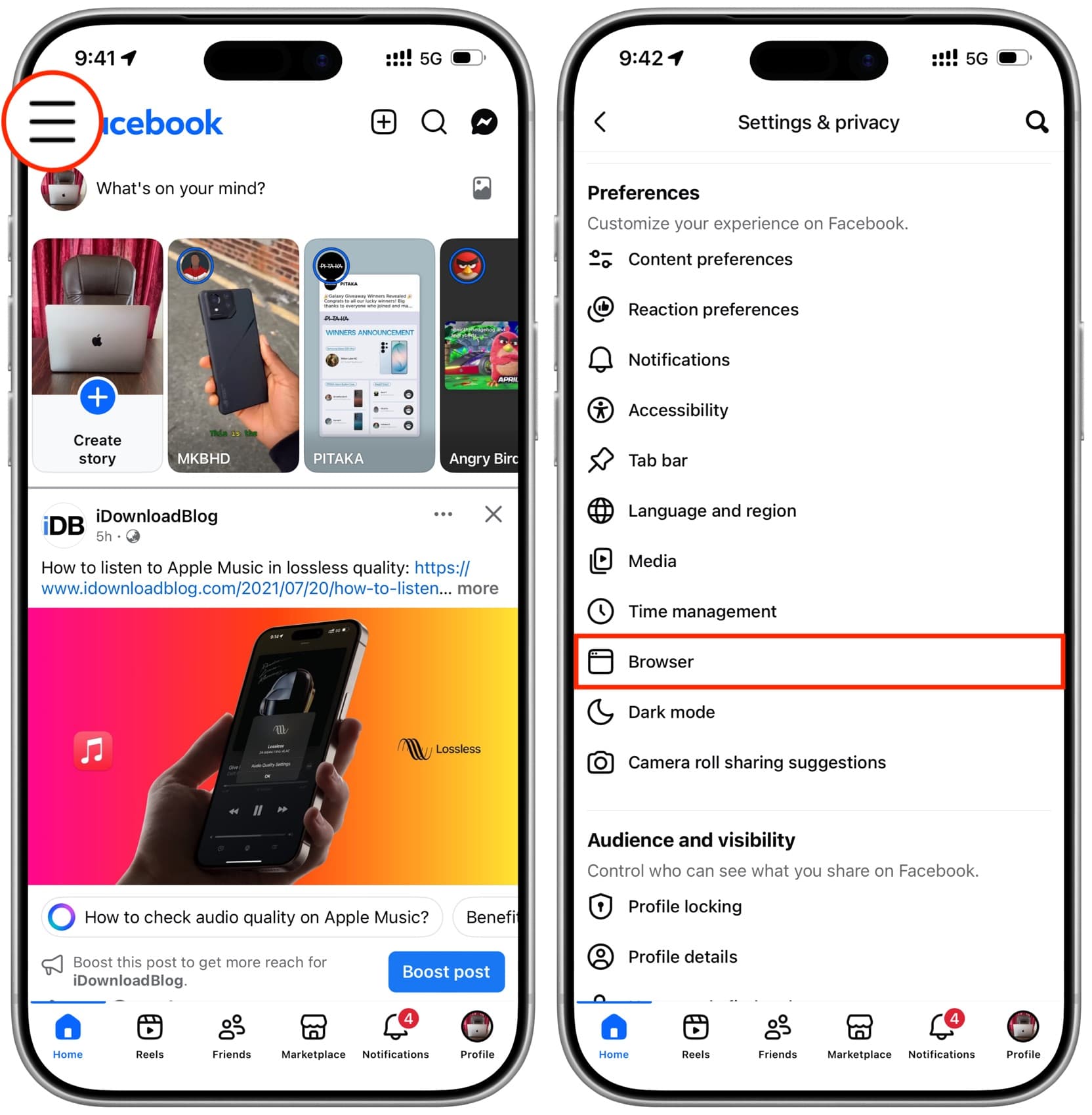
3) Tap the Clear button next to Cookies and Cache and confirm.






























Comments
(4 Comments)