
This short guide shows you two easy ways to move files from iCloud Drive to other Mac folders without a confirmation pop-up.
When you try to drag a file from the iCloud Drive folder to another Finder folder, you will see a dialog box that says, "Are you sure you want to remove "file" from iCloud Drive? This item will be moved to this Mac and will no longer be available in iCloud Drive on your other devices."
iCloud Drive files are stored online on Apple's servers and are synchronized with all your iPhone, iPad, Mac, Apple Vision Pro, web, and Windows PC. This confirmation pop-up adds a bit of friction to ensure you know what you are doing and prevents you from worrying when you can't find the same file on your other devices.
However, this second confirmation entry can slow things down when you know what you are doing. This is especially true for Mac users who prefer to keep their documents and desktop folders in iCloud Drive. Moving files from these popular folders requires dealing with a pop-up.
Fortunately, macOS offers an easy way to change this behavior.
Moving iCloud Drive Files on Mac Without Confirmation
- Open Finder and go to iCloud Drive.
- Open a second local Finder folder, such as Downloads.
- Select a file in the iCloud Drive window, try to drag it from there, and drop it into the local folder.
- You will see a confirmation pop-up. Check the "Don't ask again" option and click Move. After this, you can drag files from iCloud Drive in one motion.
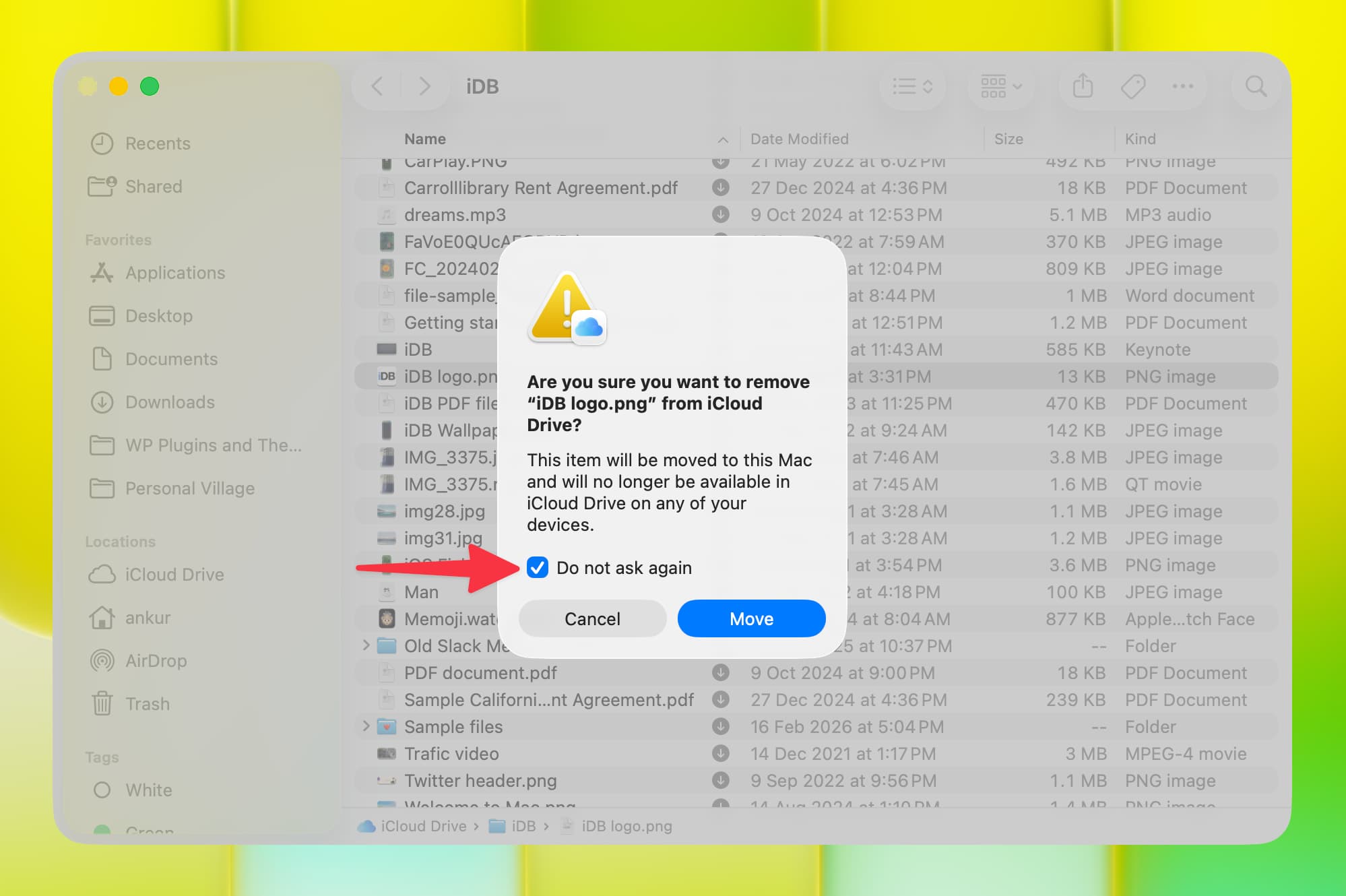
If your Mac is not running the latest macOS Tahoe version or if you do not see the "Don't ask again" option, here’s what you need to do:
- Open Finder and click on Finder > Preferences from the top menu bar.
- Go to the Advanced tab.
- Uncheck the option "Show warning before removing from iCloud Drive" and close this settings window.
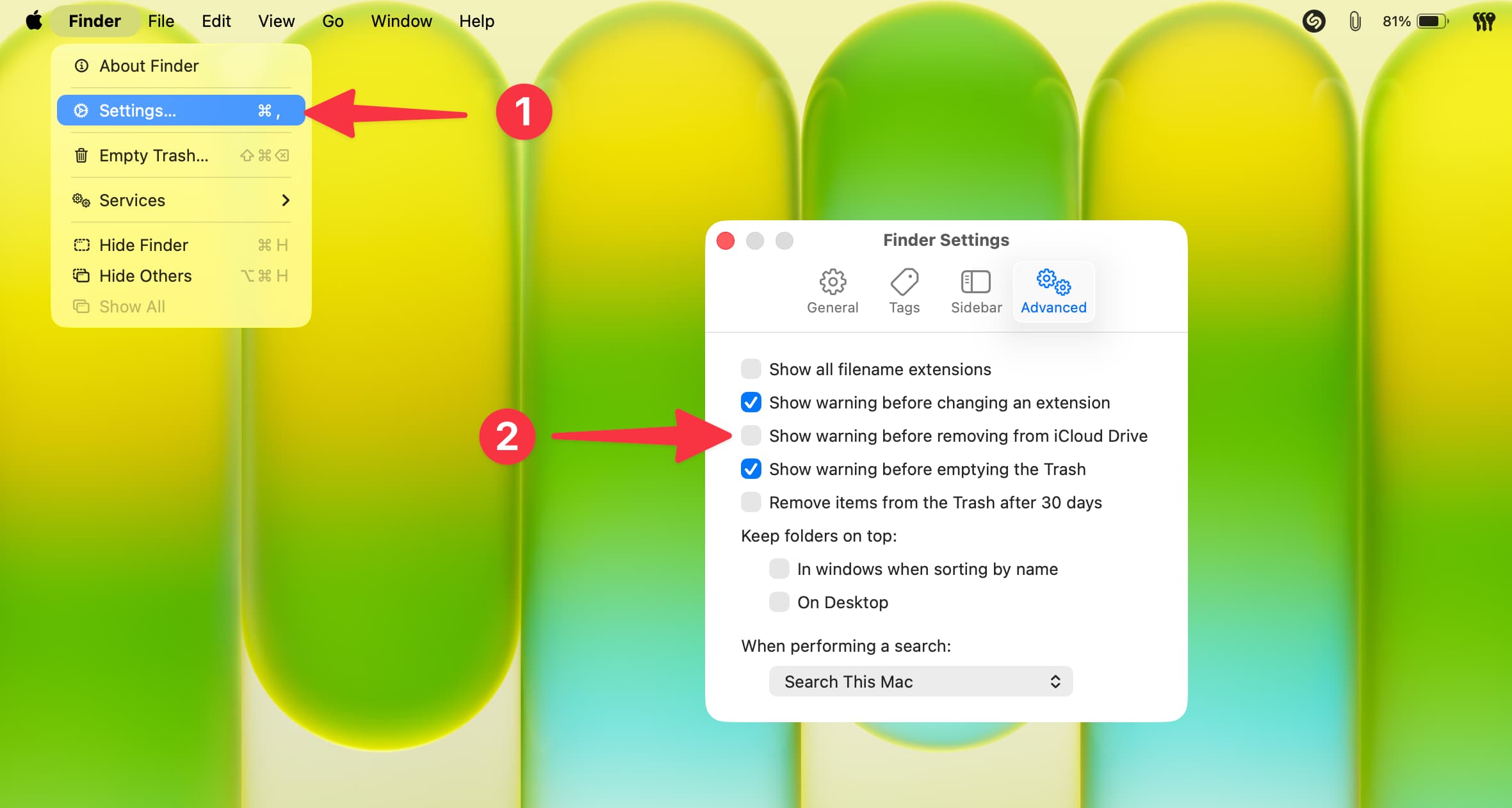
Now you will not see the iCloud Drive confirmation window. However, if you still see it in rare cases, restart Finder or restart your Mac to refresh it.
Tip: While dragging and dropping a file from iCloud Drive (or another Mac folder), you can hold down the Option key to copy the file instead of moving it. And since you are not moving the file, you will not see any warning pop-up.






































Comments
(7 Comments)